[ENG] Metapixels Tutorial for Duck Game
Template
First of all, you need to download any version (latest recommended) of PaintDotNET
Here's the link: https://www.getpaint.net/
Once you have done that, you need to download the Hat template I made for this guide.
https://drive.google.com/drive/folders/1zjbOtOUljX9NsThcQwhfNQM2WziKBick
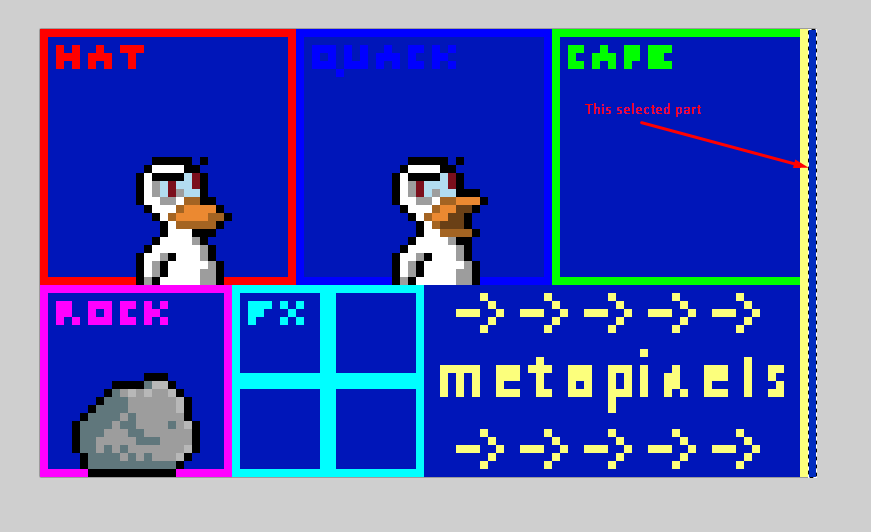
In this template, you can see 6 sections - the hat, the quacking hat, the cape, the custom rock (The rock you throw in the intermission) Particles (or FX) and METAPIXELS.
Now, the actual metapixels!
How metapixels work
To start understanding metapixels, you need to open Paint.NET, open the color wheel, and then click "More".
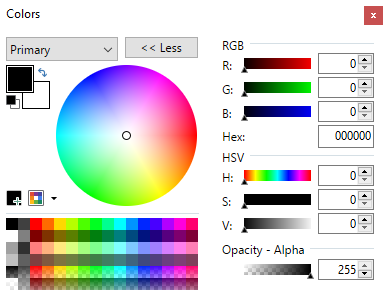 It will show you some more options. The one we need is the "RGB" Section. (Red, Green, and Blue)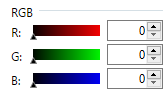
Now, how do metapixels work?
The R value = The ID of the metapixel. What kind of metapixel it is.
The G and B = The parameters for the metapixel. The values you're giving it.
So when you're making your first metapixel, you need to set R to number (ID) of the metapixel, and G and B to the parameters.
Metapixels and their functions
There are a total of 34 metapixels you can add to your hat, so I will summarize of all of them.
REMEMBER!
If it's not specified which parameter does which action, the first one will be G, and the second one (obviously) will be B. This also applies when there is only 1 parameter, it will be G. If the parameter modifies the X and Y coordinate of something, G will be X and B will be Y.
Also when you're adding metapixels/drawing or making your hat, make sure to add a new layer so you don't mess up the template.
If a metapixel is wrong, there will be an error related to that in the devconsole, you can activate the devconsole by pressing "`" ingame (Ñ in spanish keyboards).
[Metapixels related to hat/duck]
Description: Hat offset position in pixels.
I can give you a help with this one, the center of the hat is 128 and 128, so if you want to go 1 pixel left, you will put 127 in G, and if you want to go 1 pixel up, you will put 129 in B
Example:
So I said I want to add a hat offset, the value of that metapixel is 1, so that means I will set R to 1, and I said I want to go 1 pixel left and 1 pixel up, then I will set G to 127, and B to 129.
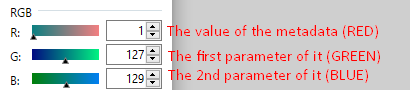
Once you have done with that, you will add that color (Basically the metapixel with his metadata and their parameters) to THE RIGHT, as I said in the second section.
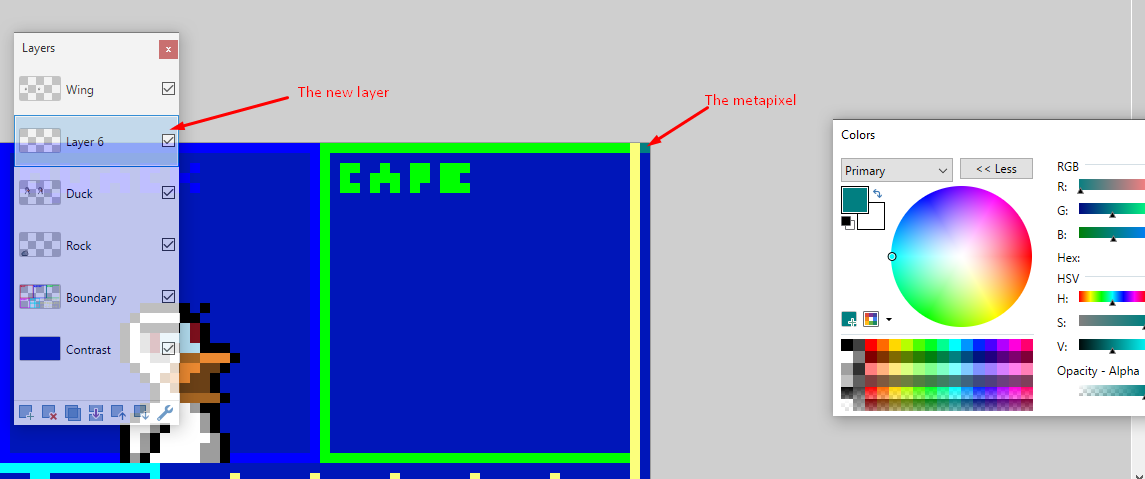
You will do this process for every metapixel you want to add (Just saying so I don't need to do the same explanation with every metapixel)
Description: If this metapixel exists, White (255, 255, 255) and Grey(157, 157, 157) will be recolored to duck colors.
[Metapixels related to capes]
Description: Cape offset position in pixels. Basically the same thing as metapixel 1.
Description: If this metapixel exists, the cape will be drawn over the duck.
Does not support parameters.
Description: It affects the length of the cape and the swing from left to right.
G determines the cape's rotation, clockwise or counterclockwise. To not rotate it at all, pick 128, the middle value. A maxxed rotation in either direction leaves an otherwise downward-pointing cape pointing up and diagonally to the side.
B determines the cape's weight. 0 will have it flying straight upward. 255 will have it fall to the floor like lead. This is applied before the rotation from G.
Description: Affects how much the cape wiggles in the wind.
Description: Affects how narrow the cape/trail is at the top/beginning.
Description: Affects how narrow the cape/trail is at the bottom/ending.
Description: Affects how transparent the cape/trail is at the top/beginning.
Description: Affects how transparent the cape/trail is at the bottom/ending.
Description: If this metapixel exists, the cape will be a trail instead of a cape (Like the rainbow trail left by the TV).
Does not support parameters.
[Metapixels related to particles]
Description: The offset in pixels from the center of the hat (REMEMBER, G = X Coordinate (Horizontal) = 128, B = Y Coordinate (Vertical) = 128 is the center of the hat (128 and 128)) where particles will be emitted.
Description: G defines a particle behavior from a list of presets:
- 0 = No Behavior
- 1 = Spit
- 2 = Burst
- 3 = Halo
- 4 = Exclamation
Description:
G values (How the particles are emitted):
- 0 = Point
- 1 = Circle
- 2 = Box
- 0 = Emit Around Shape Border Randomly
- 1 = Fill Shape Randomly
- 2 = Emit Around Shape Border Uniformly
Description: X and Y size of the particle emitter (in pixels).
Description: The number of particles to emit.
Description: Duration time of the particles, in seconds.
Description: Initial velocity of the particle.
Description: Gravity applied to the particle.
Description: Friction applied to the particle (The value it's velocity is multiplied by every frame).
Description: G = Start alpha, B = End alpha.
Description: G = Start scale, B = End scale.
Description: G = Start rotation, B = End rotation.
Description: Additional X Y offset of particle.
Description: If this metapixel exists, particles will be rendered behind the duck.
Does not support parameters.
Description: If this metapixel exists, particles will stay anchored around the hat position when it's moving. This means the particles will stay in the same X coordinate to the hat.
Description: If this metapixel exists, particles will animate through their frames. Otherwise, a frame will be picked randomly.
Does not support parameters.
Description: If this metapixel exists, the particle animation will loop.
Does not support parameters.
Description: If this metapixel exists, the particle animation will start on a random frame.
Does not support parameters.
Description: How quickly the particle animates.
[Metapixels related to sounds]
Description: Modifies the quack sound to sound like "wet lips".
Does not support parameters.
Description: Modifies the quack to sound like "mechanical lips".
Does not support parameters.
[Metapixels related to random parameters]
If any of these metapixels are present, the previously defined metapixel value will have a random number between G and B applied to its X value each time it's used. This will generally only work with particles.
Does not support parameters.
Additional Information:
All Randomizer metapixels apply a random value to the X and Y (or G and B) values of the closest
non-randomizer metapixel above them in the hat. The G and B values of the randomizer pixel let you define
the minimum and maximum value for the randomizer to use.
(Example - placing a Randomize Parameters metapixel with G = 1 and B = 10 below a Particle Velocity
metapixel would set both the Particle Velocity X and Y to the same random value between 1 and 10.
Alternatively, placing both a Randomize Parameter X and a Randomize Parameter Y metapixel underneath would
allow you to randomize the X and Y of the particle velocity separately, or just one of them would let
only randomize X or Y and not both.)
Save your hat
(If you don't know where is your DG folder, open steam, right click in Duck Game, properties, local files, and click browse local files).
Additional section
Landon's metapixels page[wonthelp.info].
- Weapons : What are they, and how do they work?★ 5 (308)16k views309 ♥26 minUpdated 29 Aug, 2022
- Obscure Tricks★ 5 (222)11k views398 ♥6 minUpdated 24 Jan, 2017
- Medal Requirements★ 5 (379)10k views596 ♥2 minUpdated 1 Sep, 2017
- Platinum Challenge Guide★ 5 (246)9.5k views353 ♥1 minUpdated 20 Jun, 2015
- Duck Game Official Modding Guide★ 5 (185)8.6k views333 ♥10 minUpdated 13 Apr, 2022
- Como Ser Un Pato sexy★ 5 (274)6.2k views104 ♥1 minSpanishUpdated 23 Jul, 2020


- Upgrading to PremiumTeam Fortress 2★ 5 (20k)1441k views11k ♥6 minUpdated May 11, 2022
- No More Room in Hell Official ManualNo More Room in Hell★ 5 (2.8k)569k views2.1k ♥29 minUpdated Apr 22, 2019
- NMRiH Community Hosting GuidesNo More Room in Hell★ 5 (526)351k views653 ♥1 minUpdated Aug 10, 2022
- ULTIMATE GUIDE FOR GAME DEV TYCOONGame Dev Tycoon★ 5 (5.8k)326k views10k ♥4 minUpdated 23 Jan, 2014
- How to 'Git Gud' Soon™MORDHAU★ 5 (2k)318k views3k ♥68 minUpdated Nov 16, 2024
- Лучшие кооперативные игры SteamPAYDAY 2★ 5 (1.5k)315k views2.1k ♥56 minRussianUpdated Apr 27, 2025






This guide was created by its original author on the Steam Community. Are you the author and want it removed? Request removal.