Fluffy Manager 5000
Description
Fluffy Manager 5000 is a mod manager and save manager combined in one! It might look a little bit rough around the edges, but it should work just fine and it's updated whenever I find the time.
Feature list:
Feature list:
- Mod managing! Automatically takes file backups and automatically restores them when a mod is uninstalled.
- Save managing! Be able to juggle multiple playthroughs or keep savegames from key moments.
- Supports a bunch of other Capcom games! Like RE HD, RE4, RE5, RE6, RE: Revelations, and Devil May Cry 4: Special Edition.
- Made with the magical power of handpuppets.
Mod Manager
Fluffy Manager 5000 includes mod managing which automatically handles file copying and backups. You can find mod releases for the game via these links:
Some things to keep in mind:
- http://www.nexusmods.com/dragonsdogma/mods/categories/
- http://residentevilmodding.boards.net/board/130/dragons-dogma-dark-arisen
Some things to keep in mind:
- Not all released mods are directly compatible with the mod manager. If they're not, you need to go to the "Games\DD\Mods" directory where you installed Fluffy Manager, create a new directory, and place mod files there. The directory structure within that needs to reflect that of the game. That means within that directory there should always be a nativePC directory as that is what the game expects. There's one sample pre-packaged with Fluffy Manager for RE6 which gives an example how a mod should look.
- If Dragon's Dogma ever gets patched, you should make sure you have no mods installed at the time. Either uninstall all mods via mod manager before game is patched, or if you didn't do it in time, delete the "installed.ini" file in "Games\DD" or uninstall the mods in the mod manager and then verify file integrity for the game on steam.
Save manager
With the save manager you can freely take backups of the Dragon's Dogma savegame stored in Steam, and restore any backup at any time. Before you can utilize it, you have to enter options in Fluffy Manager and enter your numerical steam user id:
Basic usage: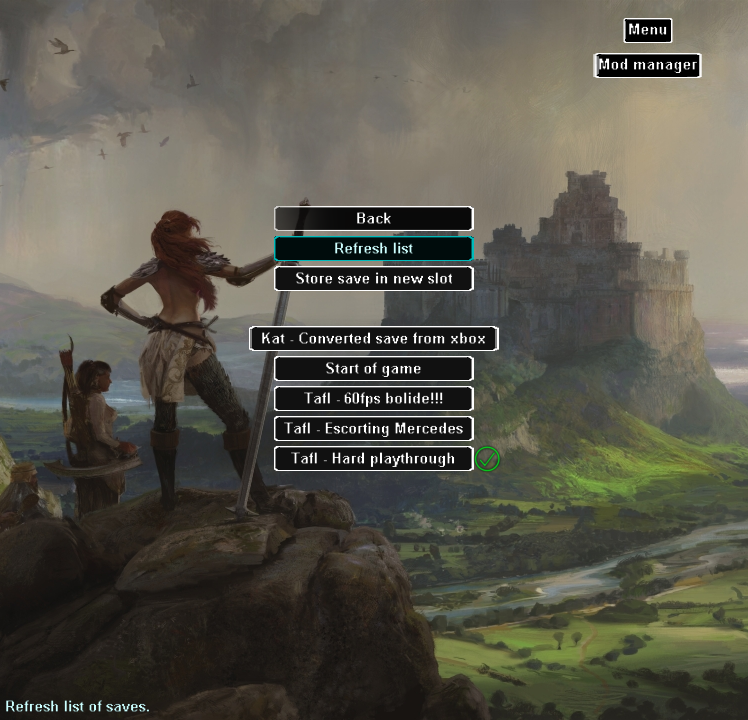
The game was designed to only ever use one savegame, so there's a couple of side effects to be aware of:
- You can find this by going to where steam is installed, going to the userdata directory and checking the directories there. You'll see a list of directory names which are just numbers, and the one with the most recent activity is your steam user id.
- An easier alternative is using this site: https://steamid.io/ - Input your Steam username. The Steam ID you want to use is the last part of the steamID3 number.
Basic usage:
- Click on "Store save in new slot" to create a backup slot.
- There should now be a slot with a checkmark next to it. The checkmark indicates that this backup slot contains a savegame which is identical to the one loaded in Steam right now.
- At any point you can create new backup slots, and store your current savegame in any slot. Whenever you load from a slot and none of the slots have a checkmark, you should make sure to store your current savegame before loading from save manager, in order to not lose any progress.
The game was designed to only ever use one savegame, so there's a couple of side effects to be aware of:
- Whenever you rest in an inn with a different savegame, your main pawn stored on online servers will be replaced by the one in your savegame you just loaded.
- Gifts and rift crystals sent to you by other players after they hired your pawn from a different savegame most likely won't be redeemable.
Download
You can download the latest version of Fluffy Manager 5000 here: https://www.fluffyquack.com/tools/modmanager.rar
Unpack it to anywhere on your harddrive, and run modmanager.exe to start it.
Unpack it to anywhere on your harddrive, and run modmanager.exe to start it.
More Dragon's Dogma: Dark Arisen guides
- Hero Achievement and Missable Quests Guide★ 5 (3.5k)58k views7.1k ♥30 minUpdated Aug 2, 2016
- Dragon's Dogma: Dark Arisen. Getting started 101 and "did you know's?"★ 5 (918)53k views1.1k ♥17 minUpdated Jan 20, 2016
- The Arisen's Handbook: A Guide to Adventuring in Gransys★ 5 (1.7k)42k views3.4k ♥91 minUpdated Oct 8, 2023
- The Guide to Vocations and Skills★ 5 (806)42k views1.9k ♥86 minUpdated Jan 1, 2020
- Chronological Quest Guide for dd:da★ 5 (779)33k views2k ♥54 minUpdated Jul 5, 2023
- Vocations, Strengths and Weaknesses, all Part of a Whole - Writings of an Aged Arisen★ 5 (575)32k views873 ♥33 minUpdated Jan 3, 2021



🔥 Popular guides
- Upgrading to PremiumTeam Fortress 2★ 5 (20k)1441k views11k ♥6 minUpdated May 11, 2022
- No More Room in Hell Official ManualNo More Room in Hell★ 5 (2.8k)569k views2.1k ♥29 minUpdated Apr 22, 2019
- NMRiH Community Hosting GuidesNo More Room in Hell★ 5 (526)351k views653 ♥1 minUpdated Aug 10, 2022
- ULTIMATE GUIDE FOR GAME DEV TYCOONGame Dev Tycoon★ 5 (5.8k)326k views10k ♥4 minUpdated 23 Jan, 2014
- How to 'Git Gud' Soon™MORDHAU★ 5 (2k)318k views3k ♥68 minUpdated Nov 16, 2024
- Лучшие кооперативные игры SteamPAYDAY 2★ 5 (1.5k)315k views2.1k ♥56 minRussianUpdated Apr 27, 2025






This guide was created by its original author on the Steam Community. Are you the author and want it removed? Request removal.