FPS improvement (AASystemSettings.ini tweaking)
Presentation and guide objective
This guide was originally written by me, in spanish; I will try to translate it to english. Excuse the grammar mistakes.
Our goal will be to set up the game at the very minimum to get as much FPS as we can. Of course you can tweak the settings yourself later to adapt it to your taste.
Why should I want to have more FPS (Frames Per Second)?
Having more FPS will give us a smoother gameplay; but if we have low FPS we will feel "heavy", "slow", and our reaction time will be affected.
In my personal opinion, in this game, a good number is 60 FPS (or more).
IMPORTANT: If you are already playing this game at maximum settings and over 60 FPS all the time, don't use this guide, you don't need it.
Know your FPS
- Open any map (offline, recommended), and press "escape" to show the menu.
- Go to Settings
- Video
- "Display Framerate" change to "ON"
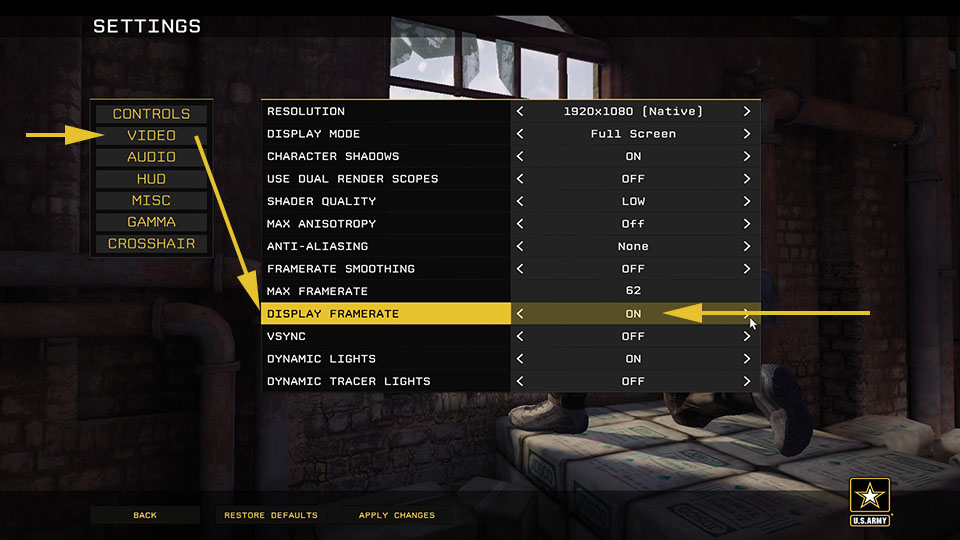
At the center/right part of the screen you will see two numbers:
The FPS on the top line; and the delay between frames below.
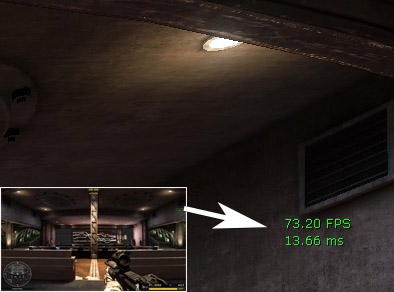
TIP: In the image you can see:
73,20 FPS = 13,66ms
It means 1000ms (1 second), divided by 73,20 Frames per Second, equals a frame each 13,66 miliseconds.
ALTERNATIVES: You can use an external software to see your FPS too; Fraps and Overwolf works well with America's Army Proving Grounds.
TIP: To compare the performance boost I recommend to open an offline map. For example, I can open "Three King" and write in a paper "standing on the backyard, looking at the clock tower I have 55 FPS". After tweaking the game, check how many FPS you have now in the same place.
How to tweak AASystemSettings.ini
AAEngine.ini is the file which stores all the graphical settings.
- Go to: "C:\Users\YOUR USER\Documents\My Games\America's Army Proving Grounds\AAGame\Config"
- Open "AASystemSettings.ini" (you can use Notepad, Notepad++ is recommended).
- Scroll down, to the very bottom, and paste the next text, exactly as you see it:
Now, SAVE the file, and set it as "Read-Only"
- Right-click the file, and then click Properties.
- Click the General tab, tick the Read-only check box, and then click OK.
- Edit and save your file as needed.
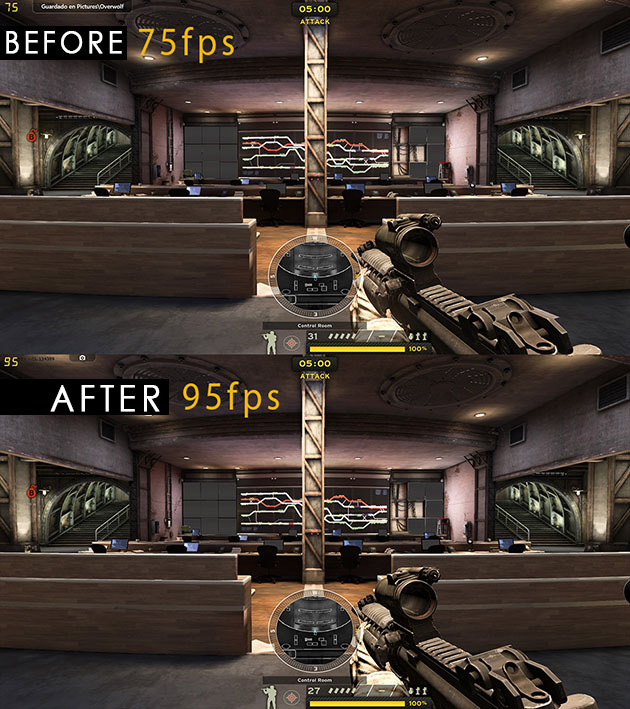
This is a comparison between the lowest game setting, and the lower tweaked game: OLD PICTURE, WILL BE UPDATED
Problems? "IN-GAME" Options
Problems? "Hidden" options
To this:
Recovering a AASystemSettings.ini
Fiuu!!
Final words
All tweaks were tested.
Even when none of them can give you any visual advantage (you can't disable fog or trees), there is a chance that a server kicks you using Punkbuster CVAR checks. Never happened to me, anyway.
If you find a mistake in this guide (other than grammar :/ ) let me know. Feel free to add me on Steam.
If you want to donate, I do not accept money, but I accept CS:GO and Dota items if you send me a trade offer: https://steamcommunity.com/tradeoffer/new/?partner=138021105&token=aeE-8-Oc
In-game name: -=ME=-Xylber.Arg
Have fun!
- America's Army: Proving Grounds Quick Start Guide★ 5 (203)11k views121 ♥14 minUpdated Jul 2, 2014
- Official Weapon Challenge Guide★ 5 (215)9k views250 ♥13 minUpdated Mar 4, 2016
- The Art of Takedown★ 4 (91)7.4k views59 ♥11 minUpdated Dec 30, 2023
- Using the nVidia Override for Anti-Aliasing★ 3 (33)5.7k views22 ♥4 minUpdated Jul 2, 2014
- Official XP and Leveling Guide★ 4 (80)3.8k views94 ♥2 minUpdated Dec 9, 2015
- AA:PG - Binds★ 3 (26)2.9k views22 ♥1 minUpdated Jun 30, 2015






- Upgrading to PremiumTeam Fortress 2★ 5 (20k)1441k views11k ♥6 minUpdated May 11, 2022
- No More Room in Hell Official ManualNo More Room in Hell★ 5 (2.8k)569k views2.1k ♥29 minUpdated Apr 22, 2019
- NMRiH Community Hosting GuidesNo More Room in Hell★ 5 (526)351k views653 ♥1 minUpdated Aug 10, 2022
- ULTIMATE GUIDE FOR GAME DEV TYCOONGame Dev Tycoon★ 5 (5.8k)326k views10k ♥4 minUpdated 23 Jan, 2014
- How to 'Git Gud' Soon™MORDHAU★ 5 (2k)318k views3k ♥68 minUpdated Nov 16, 2024
- Лучшие кооперативные игры SteamPAYDAY 2★ 5 (1.5k)315k views2.1k ♥56 minRussianUpdated Apr 27, 2025






This guide was created by its original author on the Steam Community. Are you the author and want it removed? Request removal.