How to create animated hats with Hats++ mod [EN]
Introduction
Hats++ is a client-side mod which greatly expands hats mechanic. It lets you create more complex animated hats and other cosmetics, while also being completely vanilla supportive. So other players don't need to have this mod installed and enabled to see the hats.
- *(Update: now hats do work in offline)
- You can reload hats without restarting the game. Press F6 (by default) to reload current hat. To reconfigure this keybind use "srkb" console command (E.g: "srkb F")
Creating a hat (part 1)
Here are all the elements: (we will talk about them in detail later):
- ExtraHat
- Hat
- Wings
- FlyingPet
- WalkingPet
- Preview
To add an element put its .png inside your folder and name it according to this template:
{element_name}_{Width}_{Heght}.png.
Width and height are required if you are using custom metapixels. It points out a part of your .png that contains the hat (sprite or sprite sheet) itself. Anything beyond that size will be considered as metapixels.
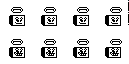 This is Hat element. There's 2 animations defined. The size of a region containing all frames is 128x64 pixels. So, the name of this element would be:
 Metapixels
So, Hats++ has its own metapixels system, allowing to manipulate animations and other related stuff. Here's all of them:
Keep in mind that if a metapixel is appliable only to some hat element, it will work only if placed inside corresponding element.
Creating a hat (part 2)
- Animation Type (3)
- Delay (4)
- Loop / not loop (5)
- Frames (6/7)
- Change animation on level change (20) (optional)
Let's go through each of them. Animation type determines when an animation will be played. Some of them will only work with certain hat types.
All of them are listed here:
Delay determines the amount of in-game frames between an animation frame changes. So delay n means that the animation frame will change every n in-game frames.
Loop value determines if an animation will be restarted and played again after it is finished.
Frames are defined using their indexes, so the first frame hat index 0. To define frames you can use either frame metapixel (6), or frame period metapixel (7). However, you can't use both of them in one animation (mb I'll add this feature later).
Frame metapixel just defines 1 frame. You can put any amount of them. Frame period metapixel defines, well, a period of frames. It can be used only 1 time. (For example, if this metapixel if equal to (7,0,5), the following frames will be added to an animation: 0,1,2,3,4,5. It's also possible to start with the index with greater value (e.g: (7,5,0): 5,4,3,2,1,0).
Examples & further explanations
Example:

Example:

There are two animations defined in this hat, and it's also strapped on.
Example:

In this pet OnRssurect and OnDuckDeath animations are defined. OnRessurect animation is also set as OnSpawn animation. Animations, that can be linked: {on press quack, on release quack}, {on static, on approach}.
Example:

Frames must be locaed vertically, from top to bottom. The first frame represents closed state of the wings, the last one - opened.
To make auto generated auto changing animations, put metapixel 20 and set it's G channel to how many different textures you have.
Example:

In this element auto animations are generated 3 times. The color of wings changes every match.
Example:

Example:

Creating a hat pack
- Prepare a client mod template
- Create a folder in the content folder of your mod and put all the hats here
- Open your mod's code in any code editor (I assume you are familiar with coding)
- Add a reference to the Hats++ mod (the .dll is located in the folder of the mod in steamapps\workshop\content\312530 folder)
- Override OnPreInitialize method and add a path to your hats folder using AddHatPath method
- Weapons : What are they, and how do they work?★ 5 (308)16k views309 ♥26 minUpdated 29 Aug, 2022
- Obscure Tricks★ 5 (222)11k views398 ♥6 minUpdated 24 Jan, 2017
- Medal Requirements★ 5 (379)10k views596 ♥2 minUpdated 1 Sep, 2017
- Platinum Challenge Guide★ 5 (246)9.5k views353 ♥1 minUpdated 20 Jun, 2015
- Duck Game Official Modding Guide★ 5 (185)8.6k views333 ♥10 minUpdated 13 Apr, 2022
- Como Ser Un Pato sexy★ 5 (274)6.2k views104 ♥1 minSpanishUpdated 23 Jul, 2020


- Upgrading to PremiumTeam Fortress 2★ 5 (20k)1441k views11k ♥6 minUpdated May 11, 2022
- No More Room in Hell Official ManualNo More Room in Hell★ 5 (2.8k)569k views2.1k ♥29 minUpdated Apr 22, 2019
- NMRiH Community Hosting GuidesNo More Room in Hell★ 5 (526)351k views653 ♥1 minUpdated Aug 10, 2022
- ULTIMATE GUIDE FOR GAME DEV TYCOONGame Dev Tycoon★ 5 (5.8k)326k views10k ♥4 minUpdated 23 Jan, 2014
- How to 'Git Gud' Soon™MORDHAU★ 5 (2k)318k views3k ♥68 minUpdated Nov 16, 2024
- Лучшие кооперативные игры SteamPAYDAY 2★ 5 (1.5k)315k views2.1k ♥56 minRussianUpdated Apr 27, 2025






This guide was created by its original author on the Steam Community. Are you the author and want it removed? Request removal.