How to remove stutter and lag from the game + Fix for the Vsync bug
Introduction
https://store.steampowered.com/app/242050/Assassins_Creed_IV_Black_Flag
How to fix the annoying stutter
Assassin's Creed® IV: Black Flag is a beautiful game, developed by Ubisoft. Although it was launched back in 2013, the game still lags (most of the time), even on modern hardware if a few fixes aren't applied to it.
The mainly reason why this fine game has been reported to have stutter by others, as well as me, is the simply fact that the in-game Vsync option is bugged!
This is caused by the lack of triple buffering in the game!
You can fix this "limitation" quite easily. Here's how:
- First of all, you should take into consideration, that the game's real system requirements are much higher than what Ubisoft recommends in the bottom of the the game's store page from Steam.
I'll leave you my PC specs in the second last section of this guide, so that you can have a comparison to your own gaming system.
- The game's engine is locked to 63 FPS, thus Frame rate is capped at 63 FPS in Assassin's Creed® IV: Black Flag.
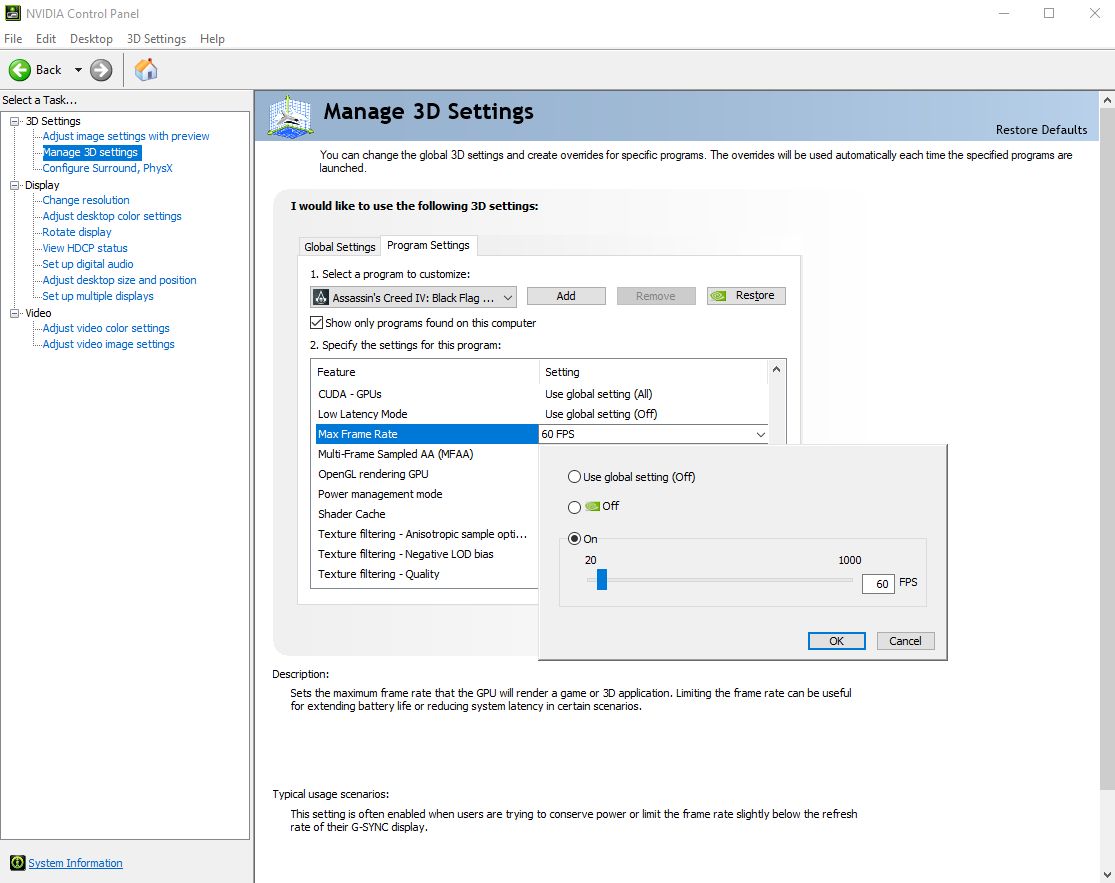
Because of the way Vsync is implemented in this game, firstly, we need to lock the game's MAX FPS 1 frame below the maximum FPS that the game's engine can output, thus 62 FPS; but, personally, to have even more stability and to have a fixed and rounded FPS, I've chosen to go with the classic 60 FPS value :)
It's okay, as well, if you use either 62 or 61 values, as for the limit for your in-game FPS!
An easy fix for this, luckily, is right at your fingertips, by using NVIDIA Control Panel. Here's how:
ARight click on your Desktop and go to NVIDIA Control Panel.
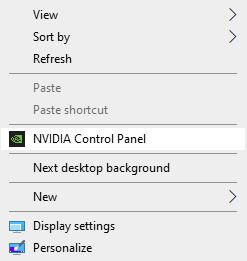
b. Go to Manage 3D Settings, then go to Program Settings, afterwards, choose Select a program to customize -> ac4bfsp.exe.
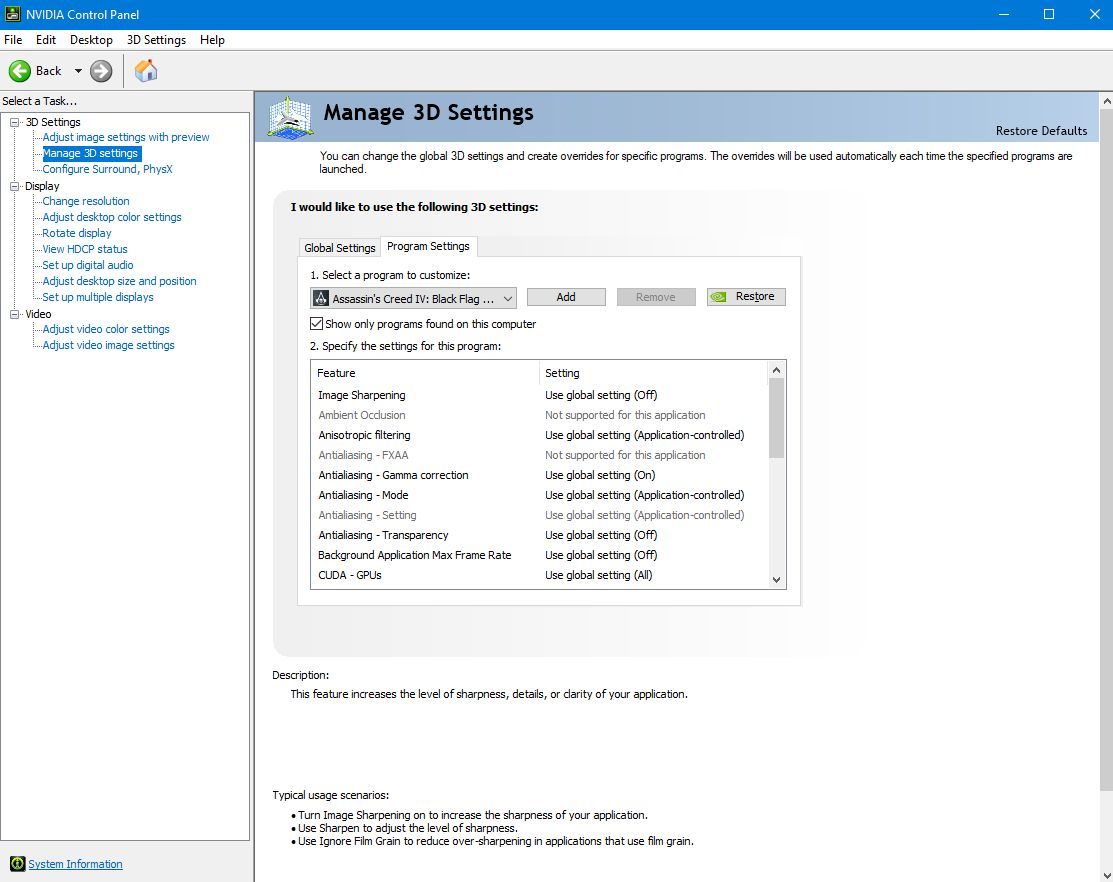
Note that you need to launch the game before at least once, so that it'll appear in the above mentioned list!
c. Look for Max frame rate, set it to ON, enter the value of 60, then hit OK.
Tips for the Graphics settings
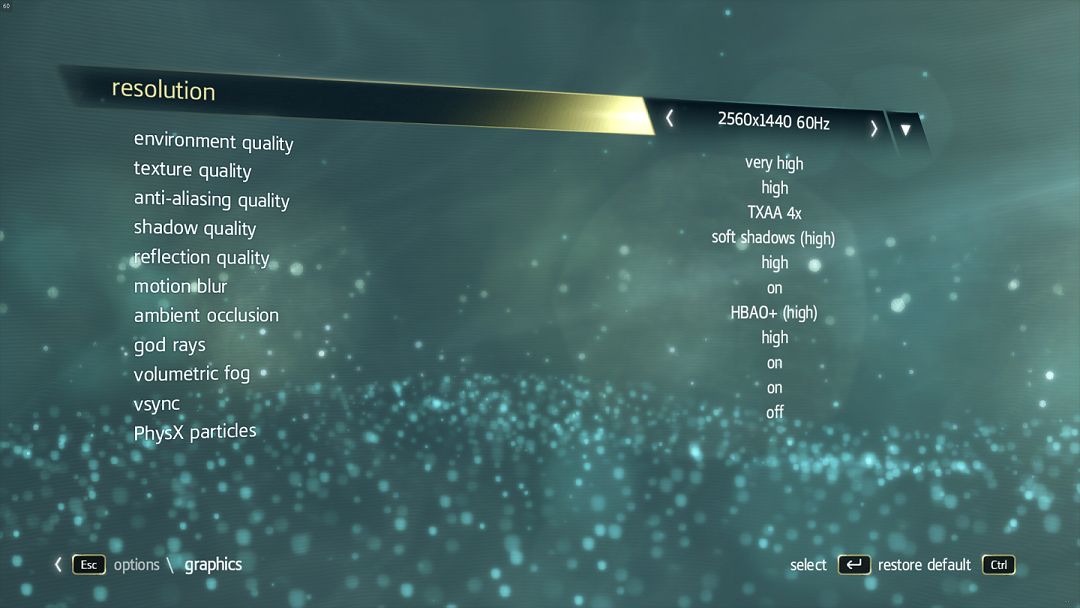
Below, I will share with you the graphics settings that I'm currently using in Assassin's Creed® IV: Black Flag:
AResolution
Since a couple of years, I only play games upscaled from my monitor's native resolution (1080p) to 2K (1440p) or even 4K (2160p). For this particular and highly demanding game, I've chosen to go with a 2560 x 1440 resolution.
Considering my numerous tests and the conclusions that I came to, to be able to fully run this game in 4K, and to have a stable framerate of 60 FPS, you need at least a 2080Ti or even a more powerful graphics card!
b. PhysX particles
Assassin's Creed® IV: Black Flag uses an old NVIDIA PhysX driver, that isn't fully compatible with newer GPU's anymore and causes massive FPS drops! Completely disable PhysX particles, do not set them to low, just off!
c. Other notable mentions
I. Anti-aliasing quality:
It can be set up to TXAA 4x, but do note that, for that, you need at least a 1080Ti, that's if you also crank up the resolution up to 2K!
I've noticed massive tearing when using any other form of anti-aliasing other than TXAA 4x.
Considering this game is open world and has so much vegetation and foliage to render, I strongly advise you to set it as aforementioned, that's if you want the best quality and gaming experience overall :)
II. Shadow quality
The best option for you to select is by far, the soft shadows (high) one. Then again, it is also, the most demanding one! It looks astonishing though, so, I have to repeat myself, if you have at least a 1080Ti, do choose it!
Its full name is NVIDIA Percentage Closer Soft Shadows (PCSS) and, these shadows are an effective solution for developers wanting to add contact-hardening, realistic soft shadows to their games.
III. Motion blur
In some games, I get motion sickness or my eyes hurt to say at least, if I play with motion blur set to on.
I personally don't really feel annoyed, at all, when leaving the motion blur setting to on in Assassin's Creed® IV: Black Flag, but I leave this at your own choice. I also couldn't notice any FPS drops by leaving it on :)
How to further stabilize the FPS and fix the Vsync bug
I've found out that using the Ctrl+Alt+Del workaround further fixes the Vsync bug that the game has, as well as it forces triple buffering.
Here's how you can easily use this fix:
- Once in-game (don't press ESC button from your keyboard, just be in-game!), Press Ctrl+Alt+Del.
- Then, Click the cancel button to return to your desktop.
- Finally, Go back to the game by clicking its icon on the taskbar.
Note A: This fix has to be used every time you enter the game!
Note B: Using Alt+Tab does NOT work! You have to use the aforementioned fix!
The Result
*FPS drops may be more noticeable on lower-end computers!
Credits
BONUS
https://steamcommunity.com/sharedfiles/filedetails/?id=2368381719
https://steamcommunity.com/sharedfiles/filedetails/?id=2368381769
https://steamcommunity.com/sharedfiles/filedetails/?id=2368381796
The YouTube video from down below is intended to be watched in 1440p60!
PC Specs
CPU: Intel Core i9 10900K
GPU: MSI GeForce GTX 1080 Ti GAMING X
RAM: G.Skill Trident Z Neo 32GB DDR4 3600MHz
Storage: Seagate FireCuda 520 2TB M.2 SSD PCIe Gen4 X4 NVMe
OS: Edition: Windows 10 Pro (Version: 20H2)
Endnote
- Kenway's Fleet Basics★ 5 (272)36k views352 ♥19 minUpdated Jul 10
- Legendary Ships★ 5 (300)36k views319 ♥3 minUpdated Nov 21, 2013
- Особые чертежи★ 5 (598)28k views915 ♥1 minRussian
- Руководство для получения Брони Тамплиера★ 5 (251)23k views334 ♥4 minRussianUpdated Sep 2, 2017
- Assassins Creed 4 Black Flag все карты сокровищ★ 5 (416)22k views508 ♥6 minRussian
- The Kenways fleet fix (+activation Freedom Cry)★ 5 (377)22k views559 ♥1 minUpdated Feb 13, 2025





- Upgrading to PremiumTeam Fortress 2★ 5 (20k)1441k views11k ♥6 minUpdated May 11, 2022
- No More Room in Hell Official ManualNo More Room in Hell★ 5 (2.8k)569k views2.1k ♥29 minUpdated Apr 22, 2019
- NMRiH Community Hosting GuidesNo More Room in Hell★ 5 (526)351k views653 ♥1 minUpdated Aug 10, 2022
- ULTIMATE GUIDE FOR GAME DEV TYCOONGame Dev Tycoon★ 5 (5.8k)326k views10k ♥4 minUpdated 23 Jan, 2014
- How to 'Git Gud' Soon™MORDHAU★ 5 (2k)318k views3k ♥68 minUpdated Nov 16, 2024
- Лучшие кооперативные игры SteamPAYDAY 2★ 5 (1.5k)315k views2.1k ♥56 minRussianUpdated Apr 27, 2025






This guide was created by its original author on the Steam Community. Are you the author and want it removed? Request removal.