Oblivion For Modern PCs in 2026 [UPDATED]
Introduction
Oblivion came out in 2006 and has become quite dated technically. Naturally, you might want to improve it with graphical mods like Oblivion Upscaled Textures[www.nexusmods.com] (if you're interested, I recommend the BSA version from here[www.nexusmods.com]). However, once you start modding Oblivion, you quickly encounter its biggest issue – the outdated 32-bit game engine. No matter how powerful your system is, you'll run into the engine's limitations, which can't handle the number of mods needed to update the game for 2026. You'll experience constant crashes and stuttering, especially if you want to play in 4K with high FPS. It might seem almost hopeless, and you might be tempted to give up, but that's not our way! Follow this guide to make Oblivion smoother and more stable than ever before.
About Mod Management
I recommend using Mod Organizer 2[www.nexusmods.com] to manage your mods and make any changes to the original game files. It helps keep your game installation folder clean and make it easy to install, configure, and reinstall mods while experimenting with your mod list.
I also suggest installing the Root Builder plugin[kezyma.github.io] for Mod Organizer 2. Root Builder lets you manage not just files in the Data folder (like MO2 normally does), but also files in the root game directory- right next to the game’s .exe. This is especially useful for handling DLL libraries and other files we’ll use in this guide.
But if you prefer, you can still install everything directly into the game folder. It’s entirely up to you.
Installing Oblivion Script Extender (OBSE)
You can download it here[www.nexusmods.com]. Installation process is quite straitforward.
- Manual installation:
- Copy obse_1_2_416.dll, obse_editor_1_2.dll, obse_steam_loader.dll and the Data folder to your Oblivion directory.⠀
- MO2 w/ Root Builder:
- Download and install the mod through MO2.
- Ensure the folder structure matches the image below:
- Download and install the mod through MO2.
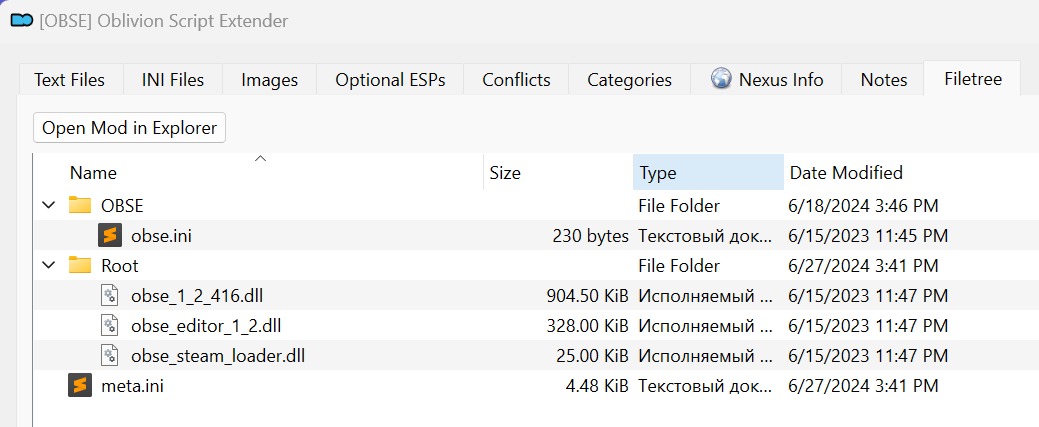
- Global setting: Go to Steam → Settings → In-Game, and check "Enable the Steam Overlay while in-game."
- Oblivion-specific setting: Right-click Oblivion in your Steam Library → select Properties → under the General tab, check "Enable the Steam Overlay while in-game."
Tips for Mod Organizer 2
- Using Steam overlay
Normally, the Steam Overlay won’t function when you launch Oblivion through Mod Organizer 2. This short guide shows you how to enable it.
https://steamcommunity.com/sharedfiles/filedetails/?id=2582968060 - Launching the game through Steam library
Normally, to enable mods managed by Mod Organizer 2 (MO2), you need to launch your game directly through MO2. However, you can also configure Steam to launch your game with mods automatically enabled, directly from your Steam library.
Follow these simple steps:- In MO2, find the game executable in the dropdown next to the "Run" button.
- Click on the "Shortcut" button below the "Run" button and choose "Desktop". A new shortcut will appear on your desktop.
- Locate the newly created desktop shortcut, right-click it, and select "Properties".
- Copy the entire content of the "Target" field.
- Open your Steam library, right-click your game, and select "Properties".
- In the "General" tab, paste the copied target line into the "Launch Options" box, then add "%command%" at the end (without quotation marks).
Example of a completed Launch Option:"D:\Modding\MO2\ModOrganizer.exe" "moshortcut://Oblivion:Oblivion" %command% - That's it! Now when you press "Play" in Steam, your game will automatically launch with mods enabled through MO2.
- In MO2, find the game executable in the dropdown next to the "Run" button.
Installing OBSE plugins
Here are the plugins you need right now. You can install them manually or through MO2. In the next step, we’ll configure each one. The most important plugin is Oblivion Reloaded Combined (ORC), and this guide is based on ORC version 2.1.6. Using a different version hasn’t been tested, and may lead to different problems.
- EngineBugFixes[www.nexusmods.com]
Fixes numerous Oblivion engine bugs, crashes, and memory leaks; features can be individually toggled. - Oblivion Reloaded Combined[www.nexusmods.com]
Overhauls the game’s rendering pipeline, adds advanced features and shaders, and improves performance - effectively upgrading Oblivion into a more modern version with extensive customization options and bug fixes. - SkyBSA[www.nexusmods.com]
Updates Oblivion’s file handling to match Skyrim’s, simplifying mod file overrides. - OBL Mod Limit Fix[www.nexusmods.com]
Raises Oblivion’s file handle limit from 512 to 2048, allowing more mods to be active simultaneously. - Blue's Engine Fixes[www.nexusmods.com]
Resolves memory corruption and crashes caused by Oblivion’s 4GB/LAA patch; recommended alongside EngineBugFixes. - AveSithis Engine Fixes[www.nexusmods.com]
Fixes engine issues like XML crashes, bow equip crashes, water rendering problems, and improves MSAA compatibility; includes optional faster loading via zlib update. - Two-handed weapon swing fix (Tick Fix)[www.nexusmods.com]
Prevents first-person camera glitches when attacking with two-handed weapons.
Other recommended OBSE plugins:
- No Inventory On Alt-Tab[www.nexusmods.com]
Prevents inventory from opening if Tab is pressed while holding Alt. - List Missing Mods On Load[www.nexusmods.com]
Lists missing mods when loading a save, useful for debugging. - Crash Logger Improved[www.nexusmods.com]
Generates detailed crash logs including game objects, classes, and forms active during crashes. - MessageLogger[www.nexusmods.com]
Logs game engine errors and warnings to a text file. - Quick Item Transfer[www.nexusmods.com]
Allows skipping the quantity prompt: shift-click for full stack, ctrl-click for single item. Not needed when using Extended UI[www.nexusmods.com]. - Map Menu Doesn't Click While Dragging[www.nexusmods.com]
Prevents accidental clicks on map markers when dragging the mouse. - Instant Continue Button[www.nexusmods.com]
Removes the confirmation prompt when clicking "Continue Game" at the main menu. - Diverse Effect Icons OBSE[www.nexusmods.com]
Introduces unique icons for most of the magic effects which doesn't already have a unique icon. Requires the textures folder from the original mod[www.nexusmods.com] (non-OBSE). - Faster Sleep Wait[www.nexusmods.com]
Reduces delay between hours in the sleep/wait menu (configurable, default 100ms). - Mark Or Unmark As Quest Item[www.nexusmods.com]
Allows marking/unmarking items as quest items directly from inventory. - Better Autowalk[www.nexusmods.com]
Enables diagonal strafing while auto-walking without interrupting movement. - Scrolling Doesn't Switch POV[www.nexusmods.com]
Stops automatic switching between first- and third-person views when scrolling. - ConScribe[www.nexusmods.com]
Automatically logs console output and provides advanced logging tools for modders. - Console Ignores Player[www.nexusmods.com]
Prevents selecting the player character in console clicks. - Console Paste Support[www.nexusmods.com]
Adds clipboard pasting and advanced cursor controls to the console. - Jump While Blocking[www.nexusmods.com]
Allows jumping while blocking.
Configuring EngineBugFixes
Configuring AveSithis Engine Fixes
Configuring SkyBSA
Configuring Oblivion Reloaded Combined
These are the main configuration settings. You can also enable or disable various shaders and effects here, but some of them have a noticeable impact on visuals and performance. It’s best to test these in-game by pressing F10 to open the ORC settings menu. Use your arrow keys to navigate to the Effects and Shaders sections, then toggle different effects with the [ and ] keys and see how it affects your game. To save the settings, use the left Alt key.
Below are a few of my preferred tweaks:
That's it; the rest of the OBSE plugins don't require any additional configuration.
Installing DXVK
DXVK allows to translate DirectX 9 API calls used by older games like Oblivion into modern Vulkan API calls, optimizing performance by leveraging multi-core CPUs for better GPU utilization. This can lead to significant performance boosts in old games.
You can download DXVK from here[www.nexusmods.com]. After downloading, simply place the d3d9.dll and dxvk.conf files in your game’s folder (the same folder as the game’s .exe).
Alternatively, you can install files through MO2 the same way as before (through the 'Root' subfolder).
Applying LAA Patch
By default, Oblivion is limited to about 1.8GB of RAM address space, and once it reaches that limit, you can expect a crash to desktop (CTD). However, there's now a way to increase this limit to 3.5GB using the LAA Patch, also known as the 4GB Patch (LAA stands for Large Address Aware).
Download it here[ntcore.com].
After downloading, extract the archive and run the included executable. Select the game's executable path and click "Open". A prompt confirming successful patching will appear; click "OK". The patch automatically creates a backup of the patched Oblivion.exe inside the game folder. If you're using MO2 with the Root Builder plugin, this backup may cause issues. Move it to another location or add an exclusion rule "*.Backup" in the Root Builder settings.
Adding Controller Support (Optional)
If you only want controller support and prefer the original UI, download "NorthernUIAway (Vanilla Style)" from the Files section, then install it with Mod Organizer 2 or copy the files directly into your Oblivion folder. Then open OBSE\Plugins\NorthernUI.ini and further adjust the settings - such as disabling any features you don’t need.
Adding 3D Positional Audio Support (Optional)
Using ENBSeries (Optional)
By default, ENBSeries and DXVK conflict since both rely on d3d9.dll. However, there’s a simple workaround:
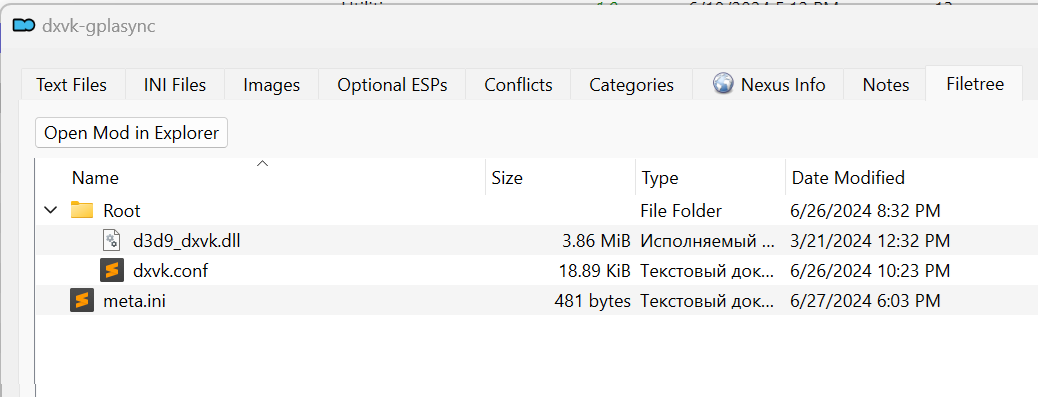
- Rename the d3d9.dll file from DXVK (from the previous step) to d3d9_dxvk.dll.
If you're using MO2 with Root Builder, the folder structure for DXVK will look like this: - Next, download ENBSeries for Oblivion[enbdev.com]. Extract it and copy all files from the WrapperVersion subfolder into your game’s root folder.
Alternatively, you can install it in MO2 the same way as before, using the Root subfolder. - Then open enbseries.ini and edit the following section:[PROXY] EnableProxyLibrary=true ProxyLibrary=d3d9_dxvk.dll
That’s it! Just keep in mind that ENBSeries effects may conflict with Oblivion Reloaded’s shaders. Since I don’t personally use ENB, I can't offer specific advice - feel free to experiment and see what works for you.
Using DXWrapper (Optional)
DxWrapper is a .dll file designed to wrap DirectX files and resolve compatibility issues in older games. We'll use it to enable improved error handling, similar to how NVAC - New Vegas Anti-Crash[www.nexusmods.com] works for Fallout: New Vegas. If you experiencing frequent crashes, it might help with some of them. If you don't, I'd recommend you to skip this section, as some believe it may corrupt your saves.
Download the latest version of DXWrapper[github.com] (dxwrapper.zip). Unpack the archive and copy the winmm.dll from the 'Stub' subfolder, as well as dxwrapper.dll and dxwrapper.ini, to your game folder (next to the game exe file).
If you're using MO2 with Root Builder, you can alternatively install it there instead of copying directly to the game folder. This is done by creating an empty mod (right-click in the mod list -> All mods -> Create empty mod above -> Name it -> A new mod will appear in the list; right-click on it and select 'Ignore missing data,' then right-click again and choose 'Open in Explorer'). Copy the mentioned DXWrapper files into the 'Root' subfolder of this mod like this: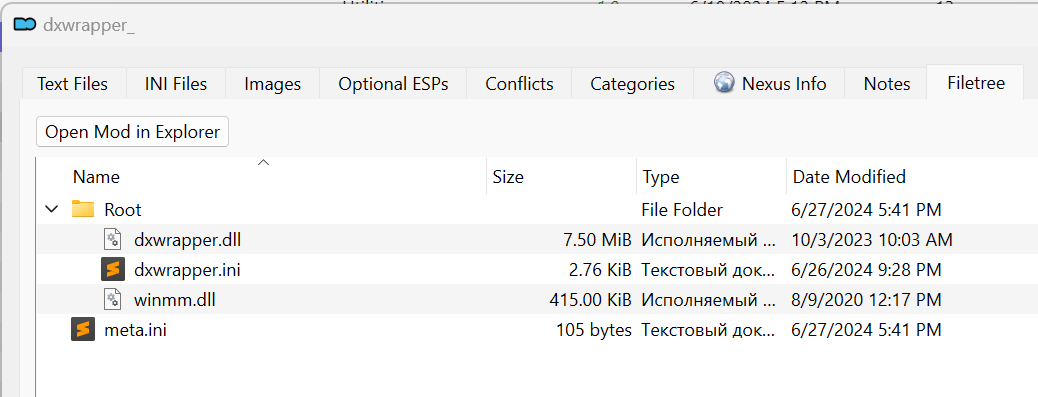 Open dxwrapper.ini with a text editor and set the following values:
BSA Decompressing (Optional)
Download Oblivion BSA Decompressor[www.nexusmods.com].
From the description: "BSA files are archives used to store game assets, they can be both compressed and uncompressed. Back when Oblivion was released in 2006 for old generation consoles the overall size occupied by the game mattered so vanilla BSA archives use zlib compression to reduce overall assets size on the disk. However, assets need to be decompressed by the game on the go which takes extra time leading to longer loading times and additional stutter when moving in exterior worldspaces while cells being loaded in background.
BSA Decompressor recreates BSA archives without zlib compression, so the game is limited only by your hardware disk system performance. All vanilla assets remain in uncompressed BSA archives."
Run the decompressor and point it to the Oblivion installation folder.
Plugin Decompressing (Optional)
Tweaking Oblivion.ini (Optional)
Oblivion.ini is the main configuration file for Oblivion, controlling graphics, audio, and gameplay settings including those you can change in-game - such as draw distance, shadow quality, and memory usage - so you can fine-tune how the game runs behind the hood.
If you’re using Mod Organizer 2 (MO2), your Oblivion.ini is stored in the game instance folder (not in Documents) and can be accessed here: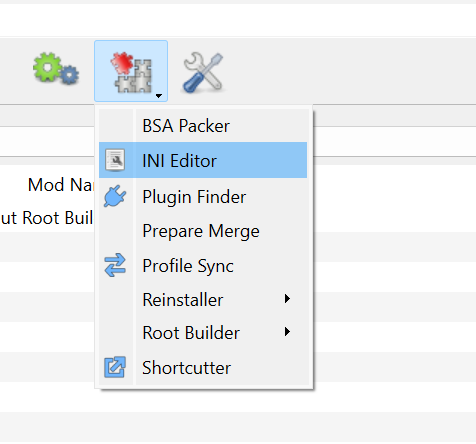
Many values in this file are undocumented or non-functional, but you can find details on some of them here[en.uesp.net].
Check BethINI[www.nexusmods.com].
Feel free to experiment, and I may add more recommended settings later.
Mods You DON'T Need When Using This Guide
- Oblivion Display Tweaks[www.nexusmods.com]
Fixes stuttering, high-FPS issues, FOV, and alt-tab crashes. Redundant with Oblivion Reloaded Combined. - Menu Alt-Tab Crash Fix[www.nexusmods.com]
Prevents crashes when alt-tabbing from menus. Redundant with Oblivion Reloaded Combined. - Oblivion Stutter Remover[www.nexusmods.com]
Reduces stuttering and stabilizes performance. Redundant with Oblivion Reloaded Combined. - Oblivion Stutter Remover Optimized[www.nexusmods.com]
Updated stutter remover optimized for modern multi-core PCs. Redundant with Oblivion Reloaded Combined. - MoreHeap[www.nexusmods.com]
Increases Oblivion's memory allocation to improve stability. Redundant with Oblivion Reloaded Combined. - Oblivion - Enhanced Camera[www.nexusmods.com]
Shows player’s body in first-person; prevents forced third-person views. Redundant with Oblivion Reloaded Combined. - Custom Enhanced Camera[www.nexusmods.com]
Same as above. - WalkBlessed OBSE Plugin (diagonal move)[www.nexusmods.com]
Enables diagonal movement, introduces a Skyrim-style vanity camera, improves bow aiming animations, and lets you customize camera positioning. It’s mostly redundant with Oblivion Reloaded Combined (ORC), which offers similar features - except for the improved aiming animation and free camera rotation outside of combat. If you choose to use this mod instead of ORC’s built-in patch, remember to set DiagonalMovement=0 in the ORC2_1.ini file. However, doing so will prevent you from seeing your character’s body in first-person view when you enable EnhancedCamera in ORC (ExtCamera=1). - Fast Exit[www.nexusmods.com]
Ensures quick, crash-free game exits. Redundant with Oblivion Reloaded Combined. - OneTweak[www.nexusmods.com]
Adds borderless window mode, fixes cursor issues, manages process priority. Mostly redundant with Oblivion Reloaded Combined; for priority management use CPU Affinity[www.nexusmods.com]. - Disappearing Grass Fix for Oblivion and Nehrim[www.nexusmods.com]
Fixes grass disappearance issues. Redundant with Oblivion Reloaded Combined. - FOV Modifier[www.nexusmods.com]
Adjusts Field of View permanently. Redundant with Oblivion Reloaded Combined.
Afterword
- Unofficial Oblivion Patch - UOP[www.nexusmods.com]
- Unofficial Shivering Isles Patch - USIP[www.nexusmods.com]
- Unofficial Oblivion DLC Patches - UODP[www.nexusmods.com]
After that you can proceed to installing mods that add new content and improve visual aspects if you want. I won't delve into this topic here as it is quite subjective. There are many good guides available for this, for example:
- Oblivion Comprehensive Modding Guide by Dispensation (OCMG)[www.nexusmods.com] (my favorite one)
- Through the Valleys - PushTheWinButton's Vanilla Plus Modding Guide[www.nexusmods.com]
- Bevilex' modlist for Oblivion - Graphics[www.nexusmods.com]
- MOFAM - An Advanced Guide and Modlist for Oblivion[www.nexusmods.com]
That's it. If you found this guide helpful, I'd really appreciate it if you rate it or leave some feedback in the comments section.
P.S. Sorry for possible mistakes. English is not my native language.
- Essential Mods List★ 5 (1.1k)90k views3k ♥6 minUpdated Jun 7, 2022
- Almost Essential Mods★ 5 (1.2k)84k views2.5k ♥1 minUpdated Jan 16
- 1,200 Hours Played; What you NEED to know in Oblivion.★ 5 (1.2k)65k views2.3k ♥7 minUpdated Apr 25, 2025
- Русификация Oblivion + все DLC★ 5 (1.6k)65k views2.6k ♥1 minRussianUpdated Feb 23, 2025
- Oblivion 2024 Essential Modding Guide★ 5 (457)48k views1.5k ♥42 minUpdated Apr 25, 2025
- Quest Orders★ 5 (664)40k views1.3k ♥1 minUpdated May 26, 2020



- Upgrading to PremiumTeam Fortress 2★ 5 (20k)1441k views11k ♥6 minUpdated May 11, 2022
- No More Room in Hell Official ManualNo More Room in Hell★ 5 (2.8k)569k views2.1k ♥29 minUpdated Apr 22, 2019
- NMRiH Community Hosting GuidesNo More Room in Hell★ 5 (526)351k views653 ♥1 minUpdated Aug 10, 2022
- ULTIMATE GUIDE FOR GAME DEV TYCOONGame Dev Tycoon★ 5 (5.8k)326k views10k ♥4 minUpdated 23 Jan, 2014
- How to 'Git Gud' Soon™MORDHAU★ 5 (2k)318k views3k ♥68 minUpdated Nov 16, 2024
- Лучшие кооперативные игры SteamPAYDAY 2★ 5 (1.5k)315k views2.1k ♥56 minRussianUpdated Apr 27, 2025






This guide was created by its original author on the Steam Community. Are you the author and want it removed? Request removal.