Play Crysis on Steam as it was meant to be played [launch & crash fixes, texture & quality of life upgrades]
Introduction
The original version of Crysis on Steam seems to be forgotten by EA, especially after the release of the “remastered” version (which bases on the Xbox 360 version of Crysis and has a ton of gameplay bugs compared to the original).
If you have just installed and tried to launch Crysis on Steam, you have probably seen this screen: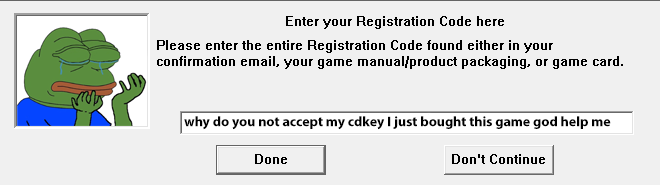
and then decided to go into the Discussion/Guides section to find a solution. And even if you got through it, what might be your next surprise is a black screen.
Fear not – this guide has all the information needed to get you up and running.
Key disclaimer: I have tested all of the following on Windows 10 64-bit. You might have to personally adjust the following tips to your own OS (i.e. running Crysis under Wine on Linux) in case of any problems, though I believe everything should run smoothly anyway.
Fixing the executable and running Crysis in 64-bit
- Follow this link: https://github.com/ccomrade/c1-launcher/releases
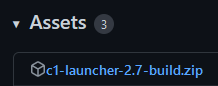
- Download the latest build of the c1-launcher, so at the time of writing it is this one:
- After downloading, extract the package.
- Copy both the Bin32 and Bin64 folders.
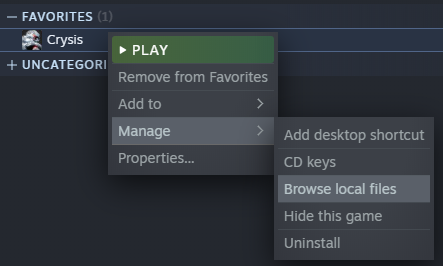
- Go into your Crysis local files directory:
- Paste the folders your main Crysis installation directory, overwriting all of the files.
Run Crysis from Steam (fix Steam overlay)
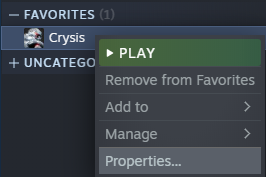
- Go into Crysis properties on Steam:
- Go to Launch options:
- Put this line there:
"C:\SteamLibrary\steamapps\common\Crysis\Bin64\Crysis.exe" %command%
Change the path accordingly to where your Crysis installation is located. Most likely you will have to only change the drive letter at the beginning. - Close the window and you should be good to go.
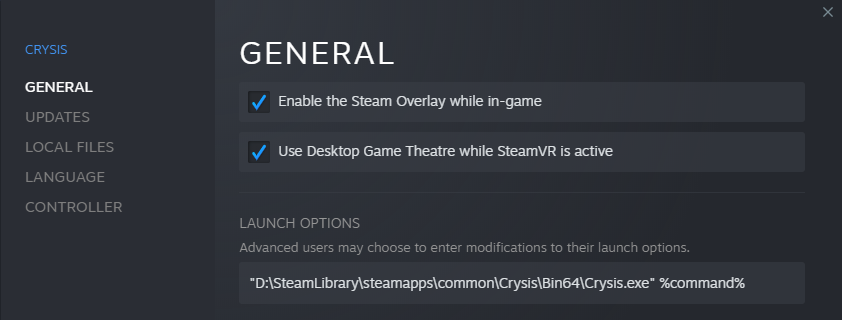
I advise to simply ALT+TAB to reach your browser or your messages on Steam, but if you must have the overlay fully working in-game, then put -dx9 after %command%, like this:
"C:\SteamLibrary\steamapps\common\Crysis\Bin64\Crysis.exe" %command% -dx9
Crysis will run with DirectX 9 when using the -dx9 command line parameter. This will mean that Crysis will not use DirectX 10 features, however the visual difference is small. If you wish, check this video for framerate and visual comparison:
Missing text in main menu & subtitles
Using the c1-launcher usually fixes this. However, if the issue still appears, do the following:
- Go into your Crysis local files directory:
- Go to Game\Localized\ directory.
- Rename your used game language file, for example English.lng, to Default.lng.
Game locked at 24/50/60 Hz refresh rate
The only fix I know that has always worked for me personally is the following:
- Launch Crysis and go into Options -> System settings -> Graphics.
- Make sure that “Fullscreen” is checked off (Click Apply if you had to change it).
- Exit Crysis and launch it again.
- The game should start in a window.
- Press ALT+Enter to make the game fullscreen.
Graphical improvements
- If you have not launched Crysis yet, then launch it.
- Set everything to Very High.
- Set the motion blur slider to what you prefer – personally, I have it in the middle.
- Now go into your My Games directory. In my case, the path would be:
C:\Users\Vanmer(your user name)\Documents\My Games If you have OneDrive, it will be most likely located instead here:
C:\Users\Vanmer(your user name)\OneDrive\Documents\My Games - Go to the Crysis\Shaders directory and delete the Cache folder. This is so that the shader cache will rebuild itself on the next launch to use the mod’s features.
- Download the mod from here: https://www.moddb.com/mods/crysis-maximum-immersion-mod/downloads/crysis-maximum-immersion-mod
- After downloading, extract the package.
- Go into the Crysis directory inside (i.e. Crysis_Maximum_Immersion_Mod\Crysis).
- Copy everything and paste into your main Crysis installation directory, overwriting all of the files.
- Q – Armor mode
- E – Cloak mode
- Go into the extracted mod directory.
- Go into the Documents\My Games\Crysis\Profiles\default directory (i.e. Crysis_Maximum_Immersion_Mod\Documents\My Games\Crysis\Profiles\default).
- Copy the actionmaps.xml file.
- Now go into your own Documents\My Games\Crysis\Profiles directory. In my case, it would be:
C:\Users\Vanmer(your user name)\Documents\My Games\Crysis\Profiles If you have OneDrive, it will be most likely located instead here:
C:\Users\Vanmer(your user name)\OneDrive\Documents\My Games\Crysis\Profiles - Go into the \default\ directory, unless you have a different directory with your unique username – then go there instead.
- Paste the actionmaps.xml file there and overwrite.
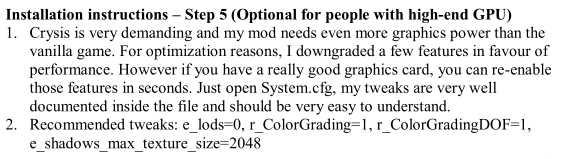
I personally use only r_ColorGrading=1, r_ColorGradingDOF=1 and e_shadows_max_texture_size=2048, since using e_lods=0 will make everything use the highest texture available at any distance – which will make your VRAM suffer. But experiment as you wish 😀
- Aggressive post-processing out-of-the-box (ReShade)
- No shotgun recoil
- Gun magazine capacities have been increased for most of the weapons
Run Crysis above native resolution
If your Crysis installation is running well enough on any of the mods above, you can set Crysis to run at a higher resolution and then scale it down to your native resolution, resulting in an even “crispier” display.
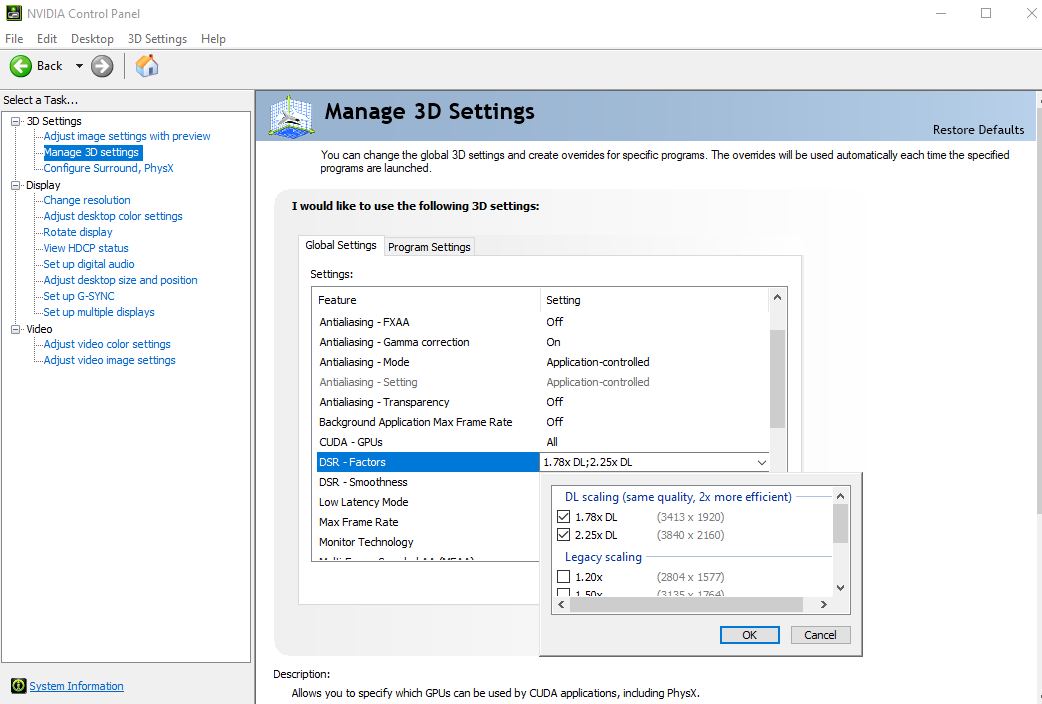
- Right click on your desktop display and go into the NVIDIA control panel.
- Turn on (DL)DSR resolutions here:
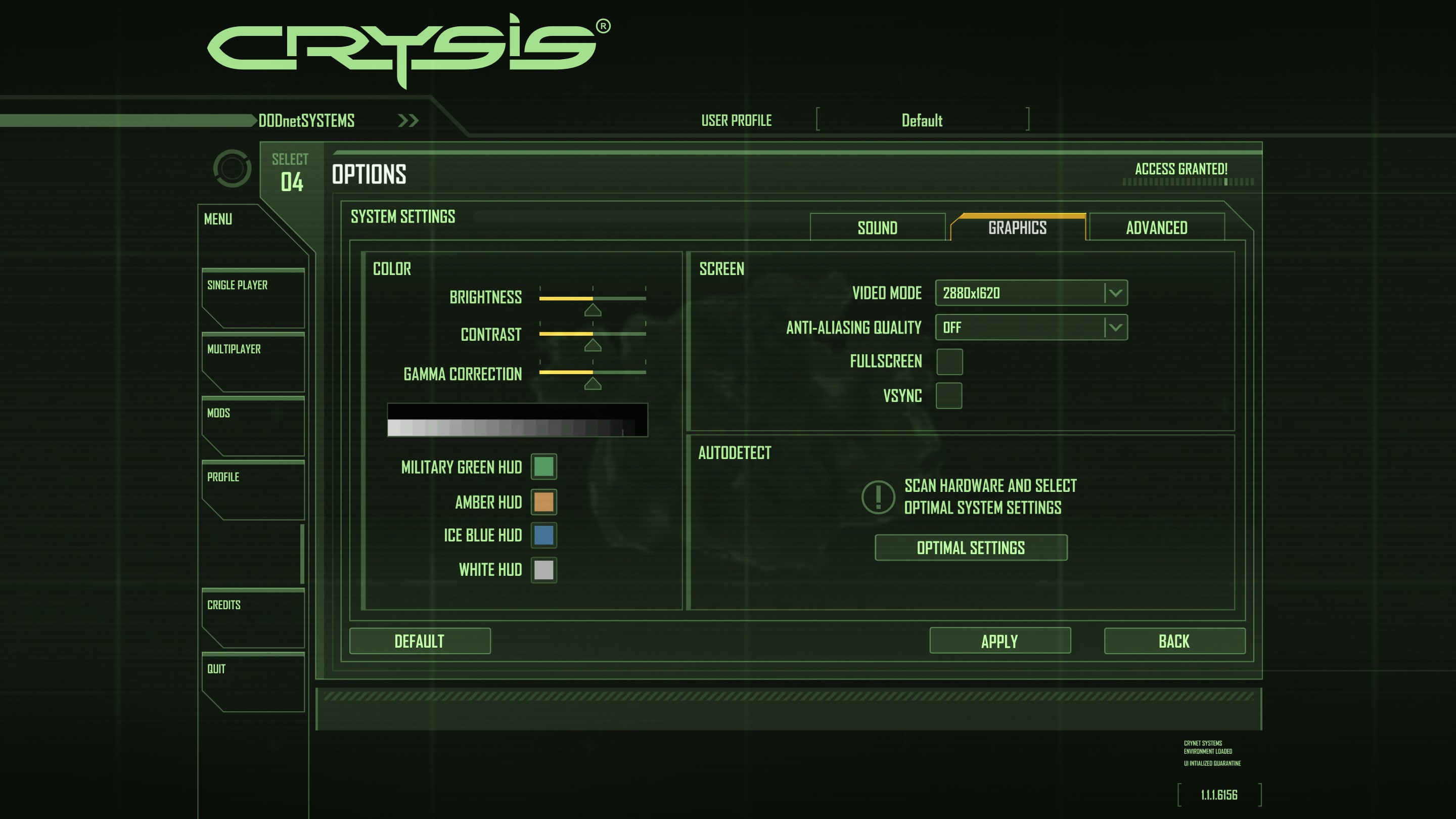
- Launch Crysis and select your desired resolution, like here:
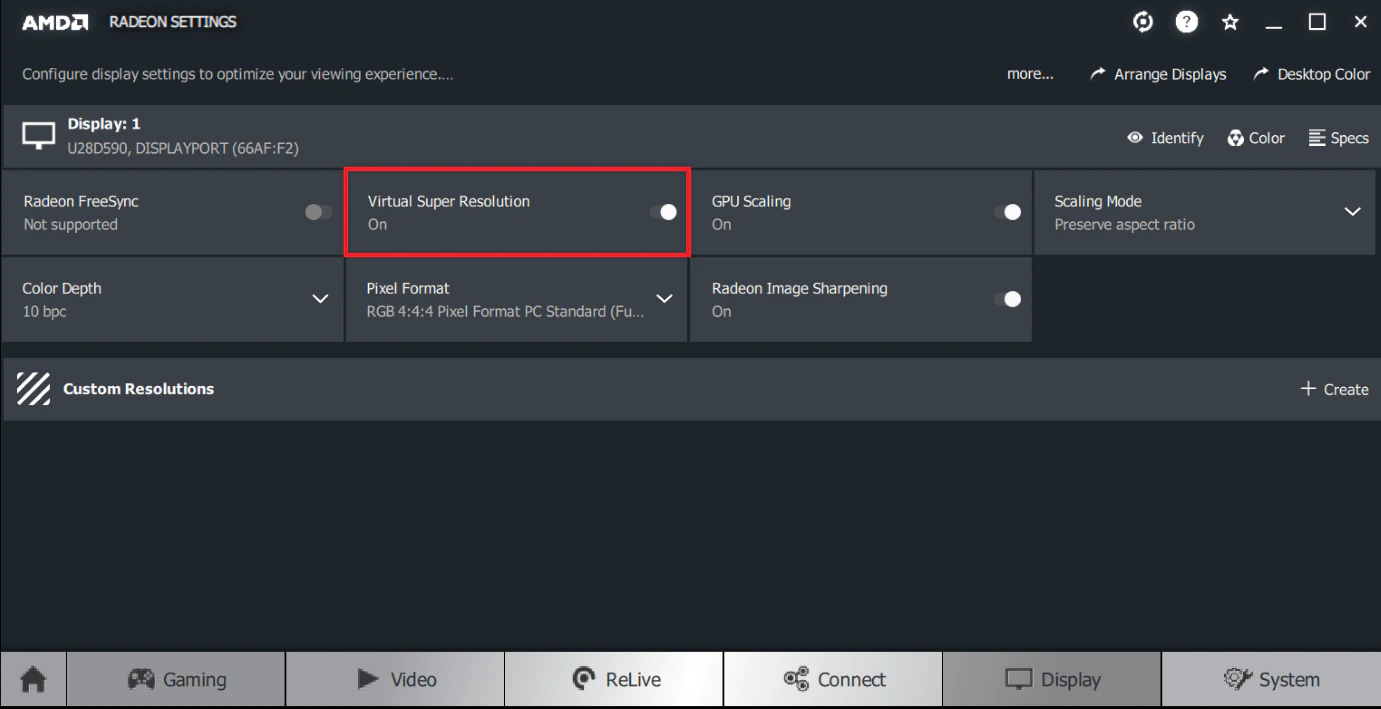
- Right click on your desktop display and go into the AMD Radeon Settings.
- Go into Display and turn on Virtual Super Resolution:
- Now you can launch Crysis and select your desired resolution.
To improve your FPS performance when upscaling, turn off antialiasing in Crysis and instead turn on FXAA in your GPU's control panel. It will still look crisp, while saving precious frames per second.
Remove bloatware
Also uninstall PunkBuster if you do not have any other (older) game using it.
Gameplay tips
- Speed: Reload and switch weapons in fractions of seconds
- Strength: Control recoil of your weapons
Cloak also works in vehicles, although enemies will still shoot you when you come close enough.
Silencers turn damage heavily down. Always have a second “loud” weapon prepared just in case, or be always ready to take off the silencer.
Credits
This guide would not exist if not for the work of others.
Huge thanks go to:- OLP Team/Kanyhalos for the Maximum Immersion Mod: https://www.moddb.com/mods/crysis-maximum-immersion-mod
- ccomrade (Daniel Hryzbil) for the c1-launcher: https://github.com/ccomrade/c1-launcher
- RStudio for the Crysis Enhanced Edition mod: https://www.moddb.com/mods/crysis-enhanced-edition
- Every helpful soul that pointed in the “Discussions” to the c1-launcher
It is due to the hard work of people like you that we can still cherish the classic games of the past - thank you.
And of course, thank you for reading this guide! Hope it helped you.
- Fix for launching Crysis on Windows 7/8/10 (64-bit) [English guide/Русское руководство]★ 5 (756)35k views692 ♥5 minUpdated Feb 12, 2023
- Crysis Console Commands★ 5 (412)24k views691 ♥2 minUpdated Feb 6, 2013
- Не запускается Crysis, небольшой фикс и запуск на 64-битной системах...★ 5 (517)22k views476 ♥2 minRussianUpdated Dec 4, 2023
- Windows 10 64Bit - How to make this game work★ 5 (313)20k views424 ♥3 minUpdated Feb 12, 2023
- Crysis HUD off | Free Camera | HD Textures | Tiledshot★ 5 (523)13k views336 ♥3 minBulgarianUpdated Apr 29, 2016
- Чит консольные команды Crysis на Русском★ 5 (203)12k views267 ♥1 minUpdated Mar 3, 2013



- Upgrading to PremiumTeam Fortress 2★ 5 (20k)1441k views11k ♥6 minUpdated May 11, 2022
- No More Room in Hell Official ManualNo More Room in Hell★ 5 (2.8k)569k views2.1k ♥29 minUpdated Apr 22, 2019
- NMRiH Community Hosting GuidesNo More Room in Hell★ 5 (526)351k views653 ♥1 minUpdated Aug 10, 2022
- ULTIMATE GUIDE FOR GAME DEV TYCOONGame Dev Tycoon★ 5 (5.8k)326k views10k ♥4 minUpdated 23 Jan, 2014
- How to 'Git Gud' Soon™MORDHAU★ 5 (2k)318k views3k ♥68 minUpdated Nov 16, 2024
- Лучшие кооперативные игры SteamPAYDAY 2★ 5 (1.5k)315k views2.1k ♥56 minRussianUpdated Apr 27, 2025






This guide was created by its original author on the Steam Community. Are you the author and want it removed? Request removal.