PVP SETTINGS / BOOST FPS [2026]
Support me & the guide!

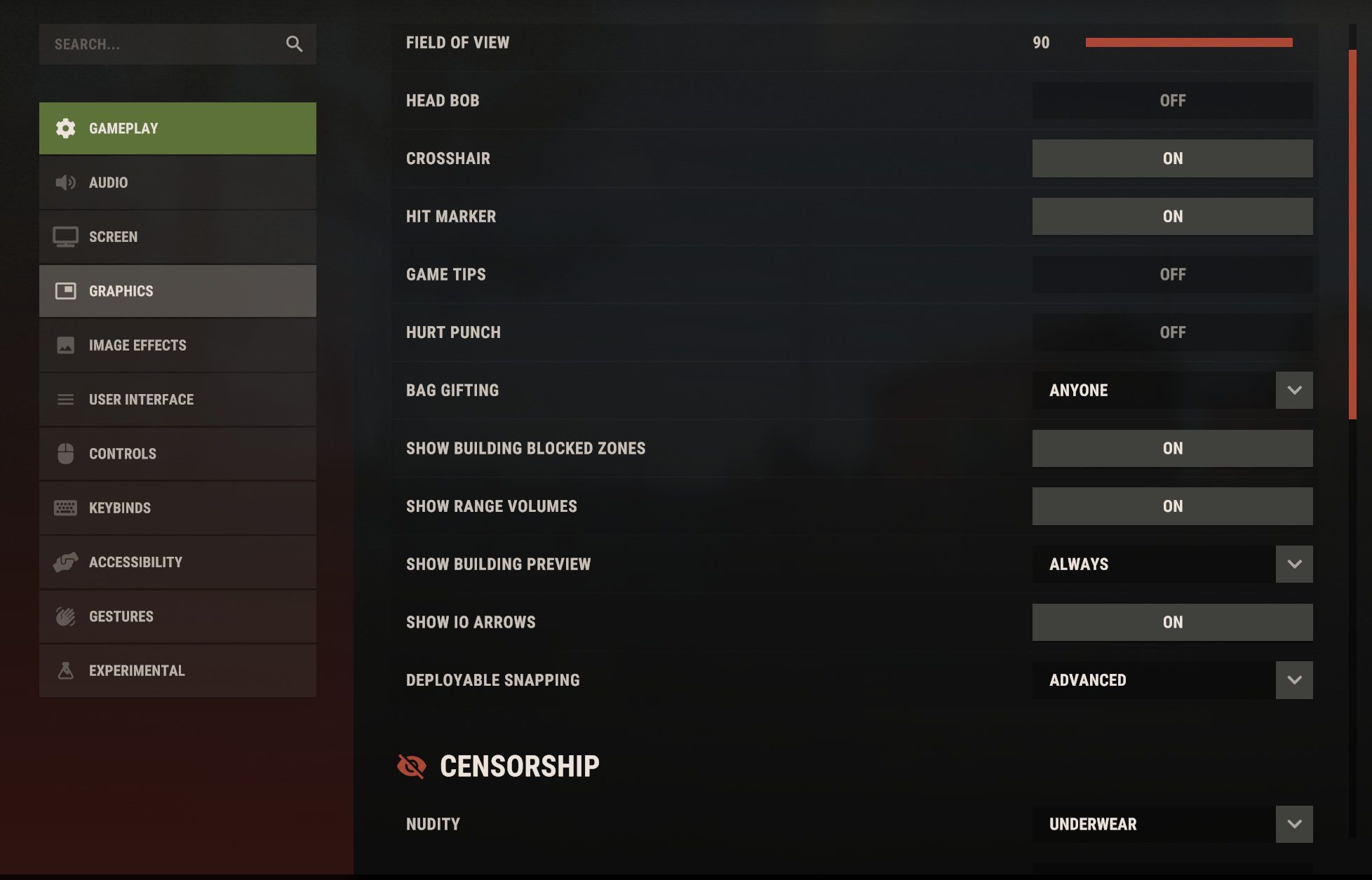
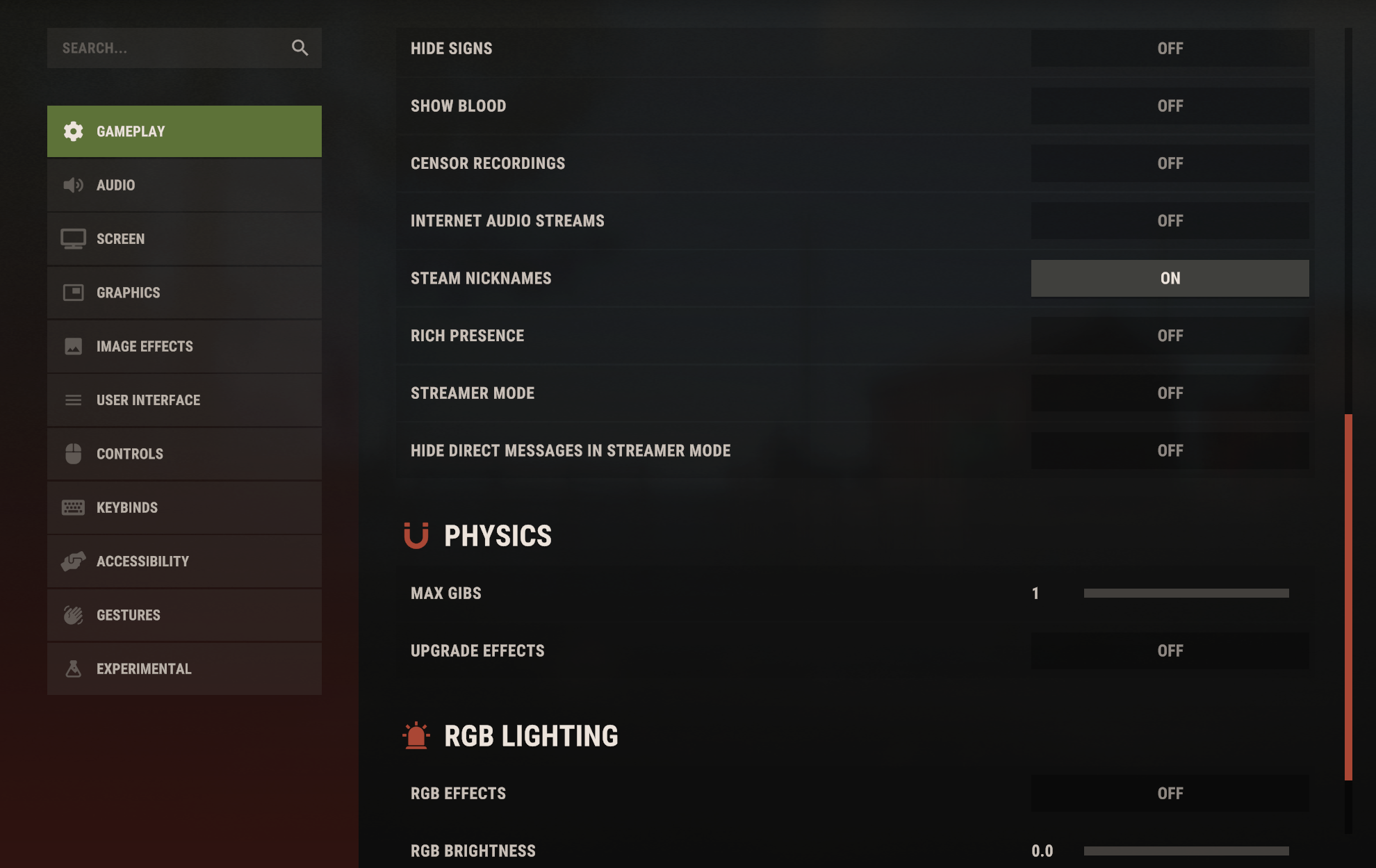
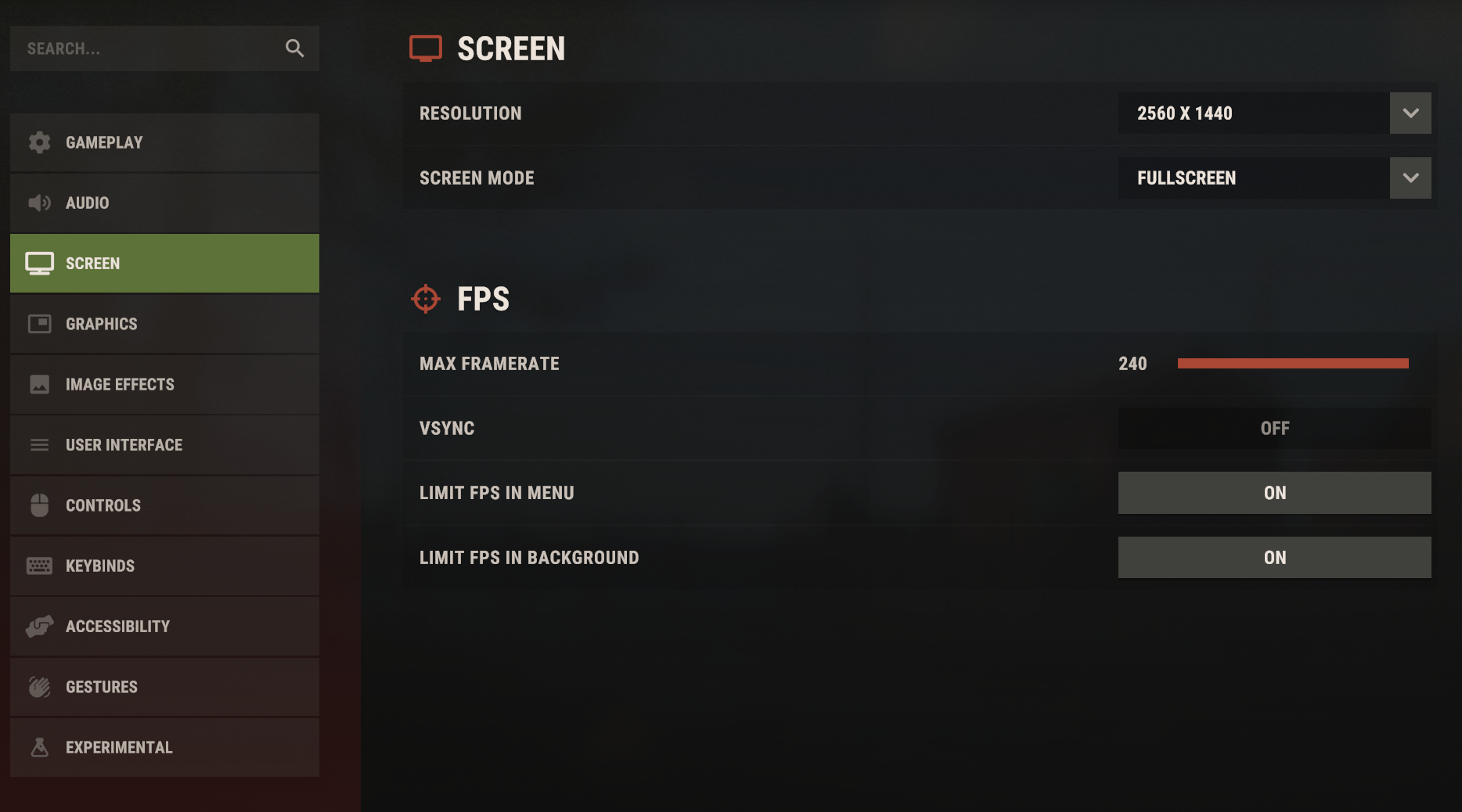
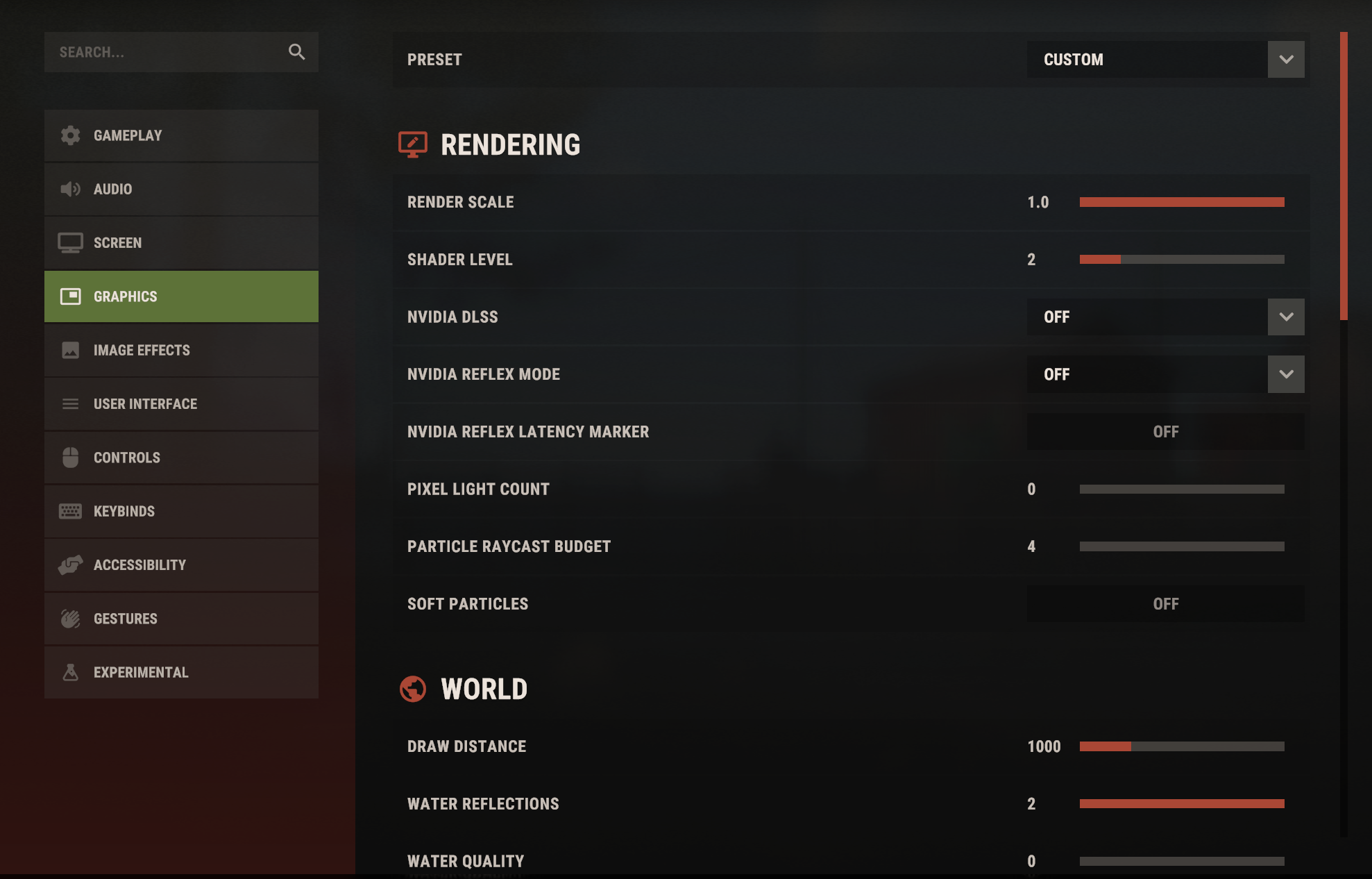
Graphics Settings
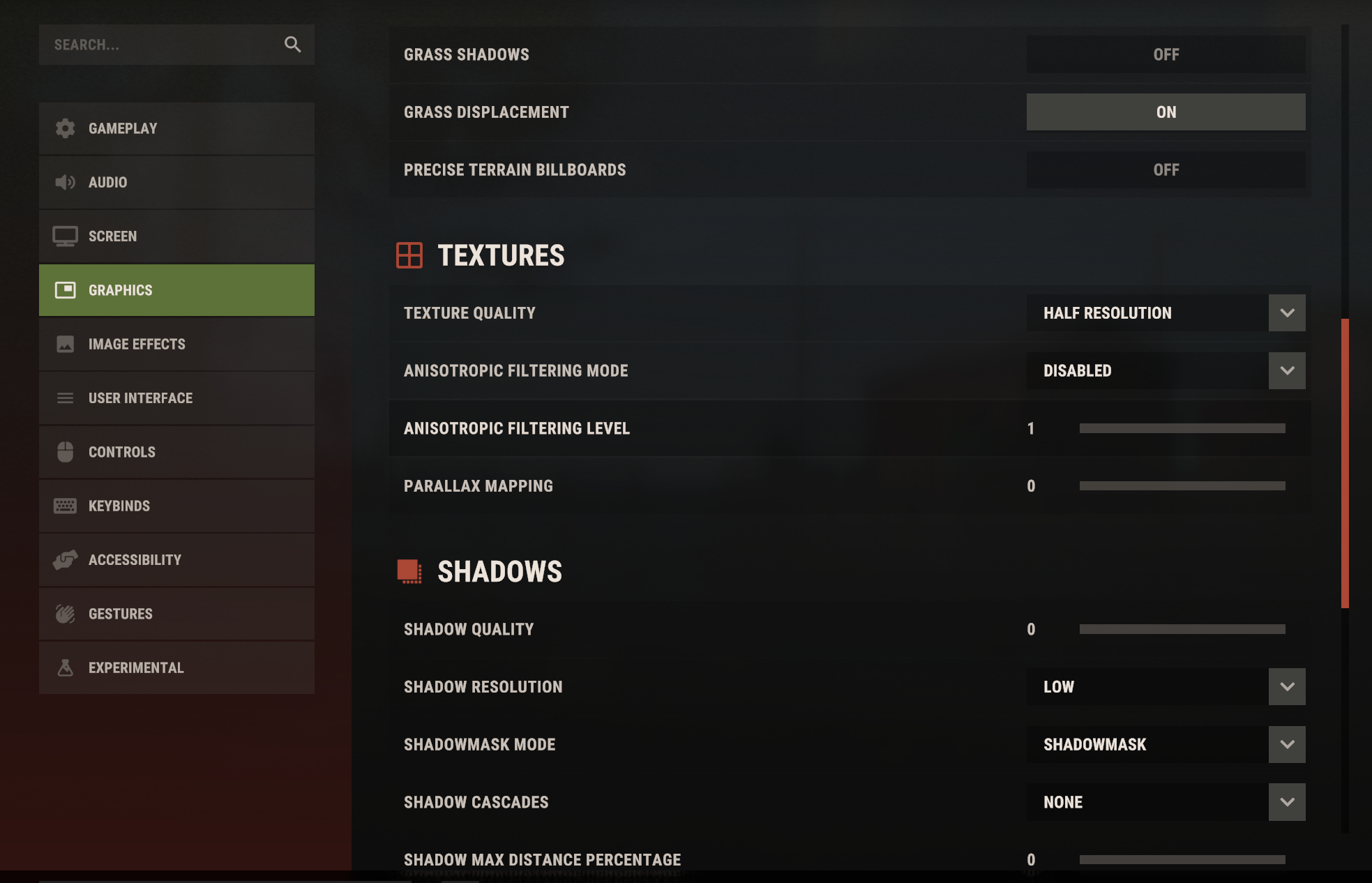
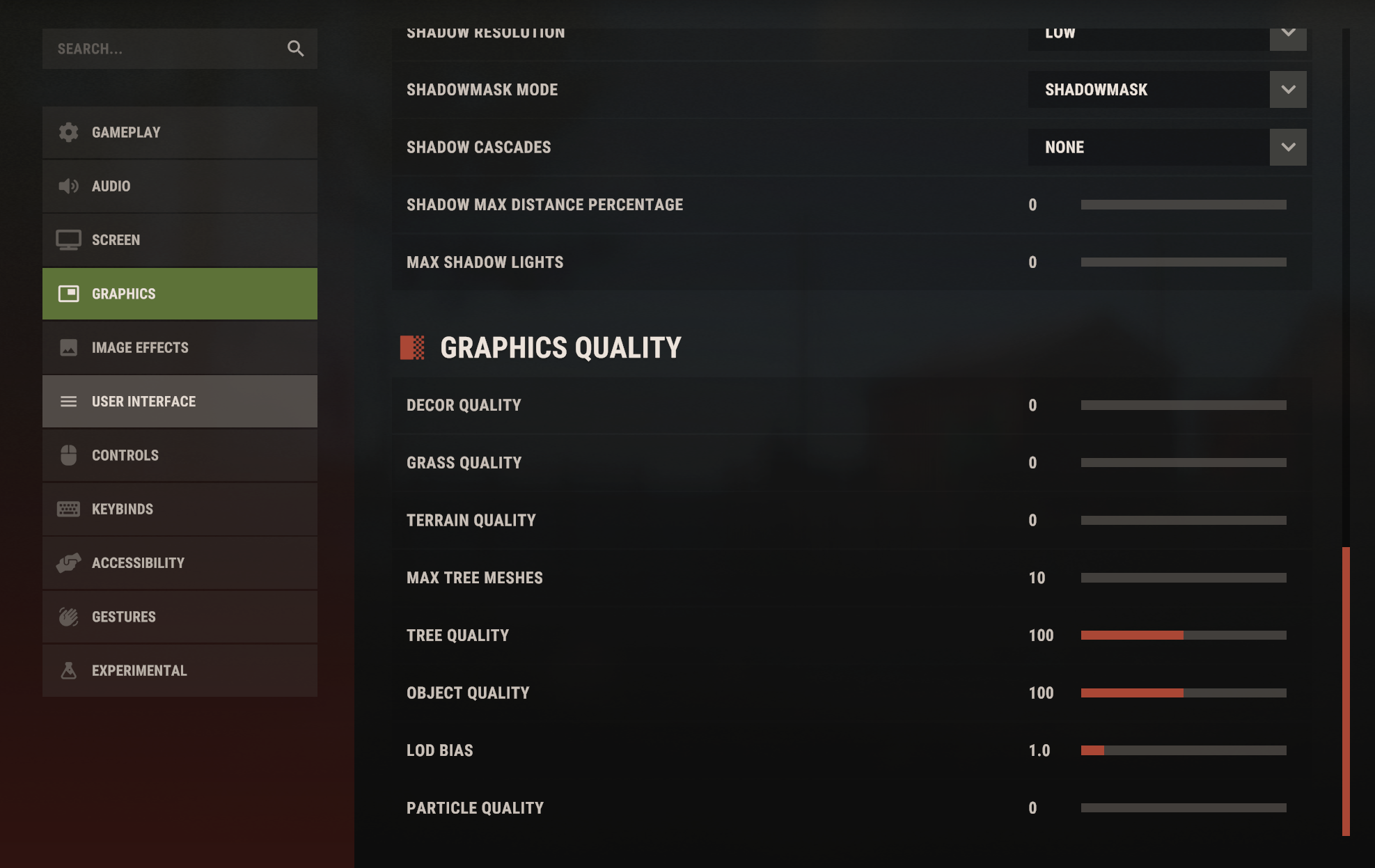
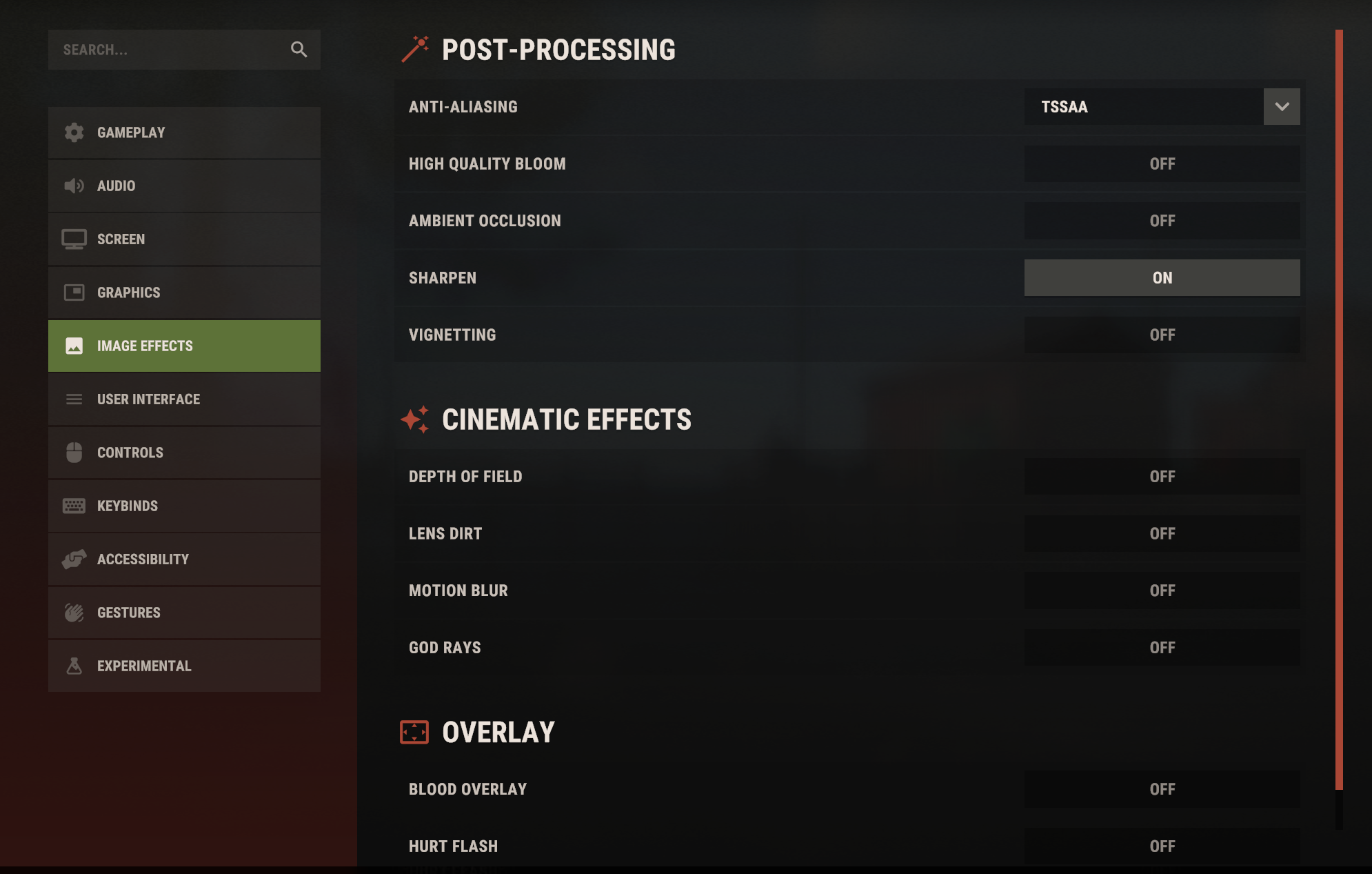
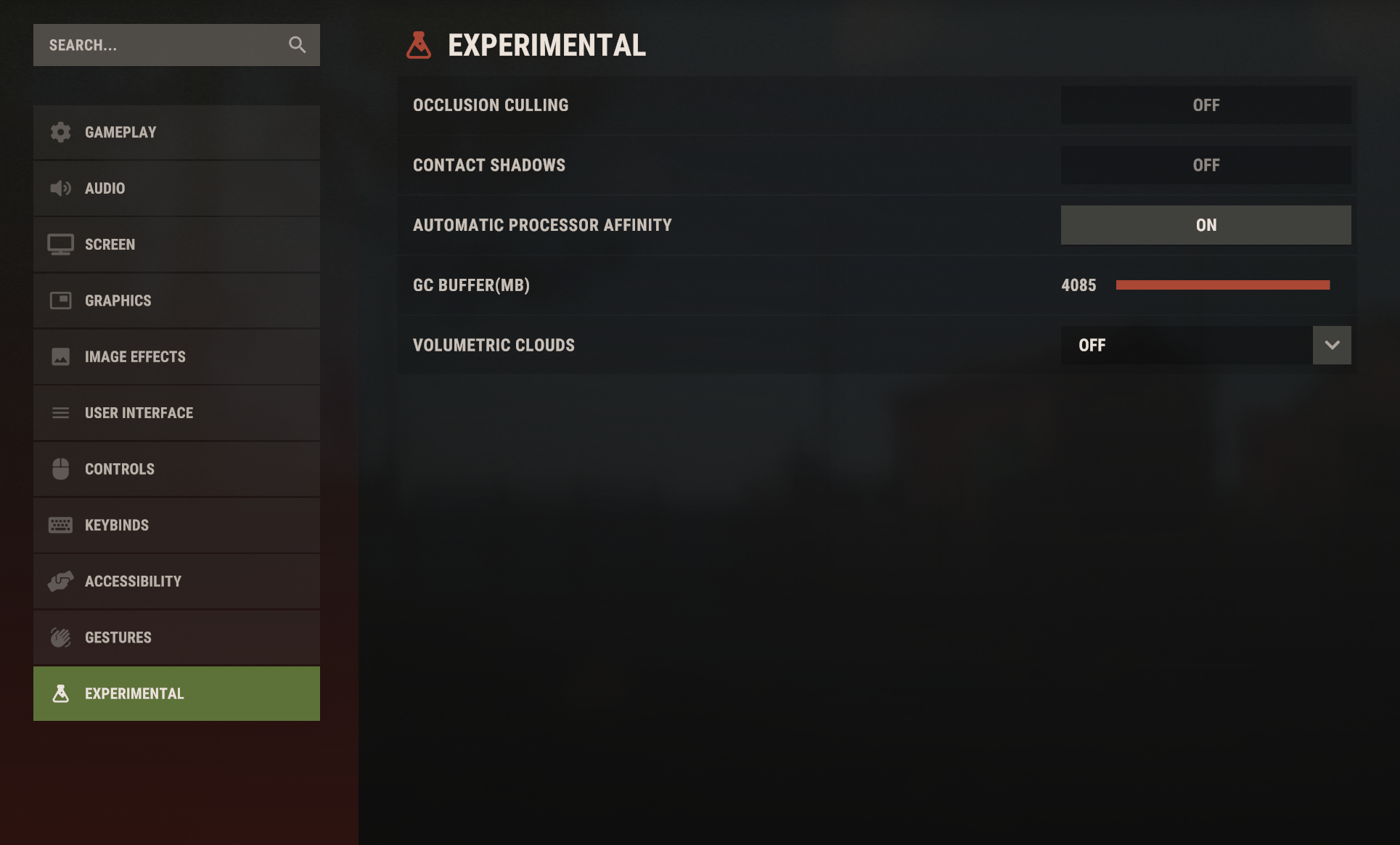
These are my graphics settings on an high end PC - 5800x3D; 9070 xt; 32gb Ram
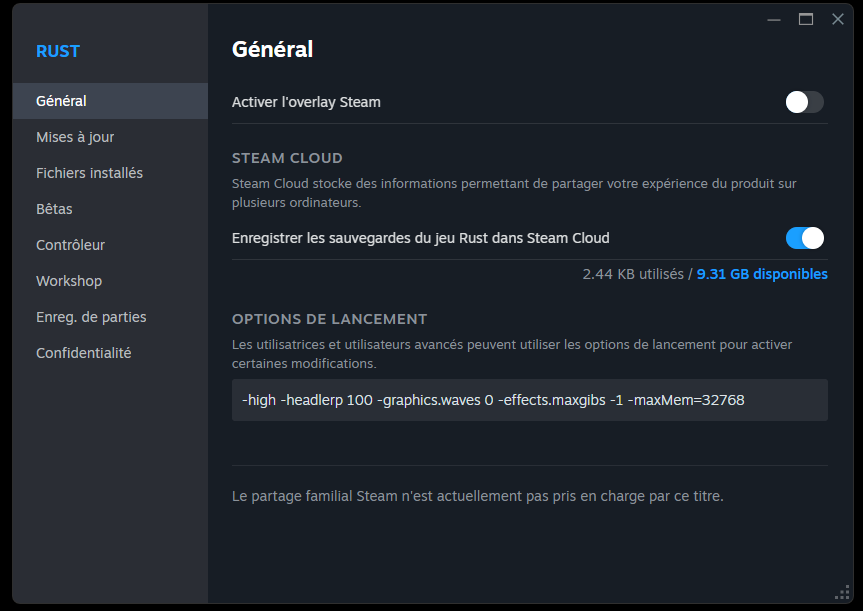
Launch Options
Launch Options:
When you add -maxMem, make sure you enter the correct value for your RAM size. Rounded values (such as 32000 or 16000) will not work. Here are the correct correspondences to use:
- 4 GB : 4096
- 6 GB: 6144
- 8 GB : 8192
- 12 GB : 12288
- 16 GB : 16384
- 24 GB : 24576
- 32 GB : 32768 (optional)
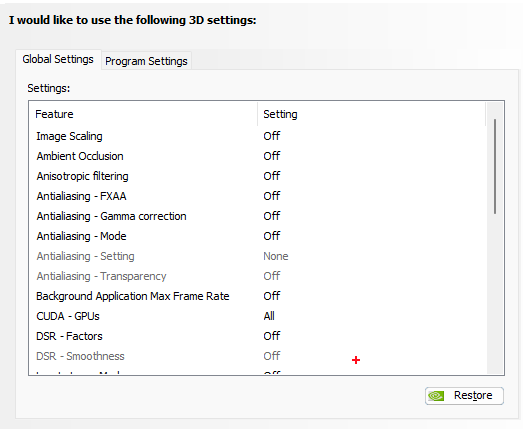
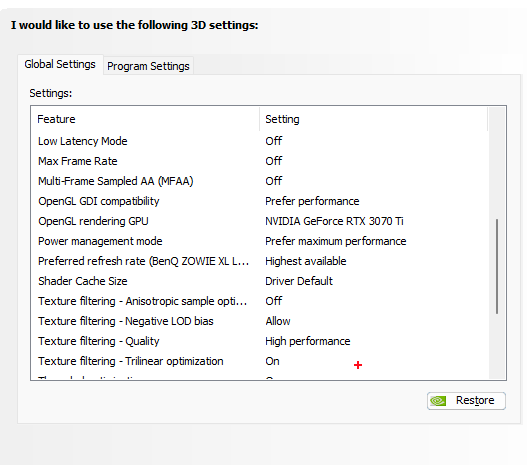
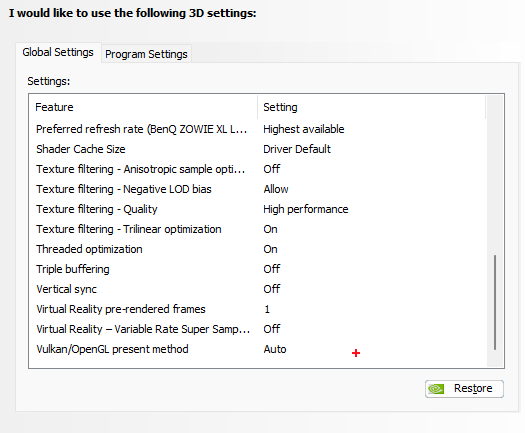
NVIDIA control panel
In this section you'll be able to see all the settings in the NVIDIA control panel. This can help you gain a few fps, but above all make your game smoother.
On amd graphics card, you can put the Quality mode when you launch the game in the adrenalin software.
- Threaded optimization on AUTO.
Custom Resolution
If you play other competitive games with a custom resolution, you might consider doing the same in Rust to maximise FPS.
You can change your resolution when you start Rust, but if you want to remove the black bars, proceed as follows.
NVIDIA- Right click on your desktop background.
- Click "NVIDIA Control Panel"
- Click "Change Resolution"
- On the bottom left click "Customize"
- Adjust it to what you want, however it must be the same as when you start rust
(1080x1080 ; 1280x1080 (my res) ; 1440x1080)
- Right click on your desktop background.
- Click "AMD Catalyst Control Center"
- Click "My Digital Flat-Panels"
- Click "Custom Resolutions (Digital Flat-Panel)"
- Adjust it to what you want, however it must be the same as when you start rust
(1080x1080 ; 1280x1080 (my res) ; 1440x1080)
Windows Settings
- Press Windows + S to open Search.
- Type "cmd" (without quotes) in the search bar.
- Right-click on "Command Prompt" and select "Run as Administrator".
- In the Command Prompt window, type or paste the following command:
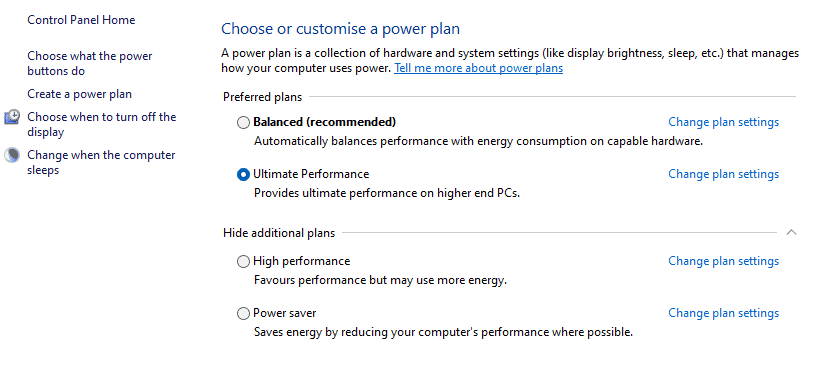
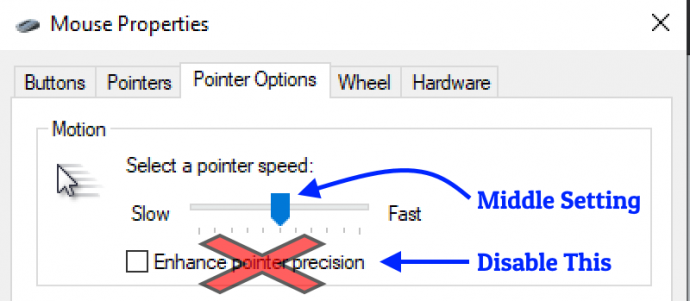
To remove or disable mouse acceleration in Windows, follow these steps:
- Press Windows + I to open Settings.
- In the Settings window, select Mouse.
- Scroll down and click on Additional mouse options.
- In the Mouse Properties window, go to the Pointer Options tab.
- Uncheck the box labeled "Enhance pointer precision".
- Click Apply then OK to save your changes.
In-Game Shortcuts
Simply press F1 to access the console, then copy and paste the commands.
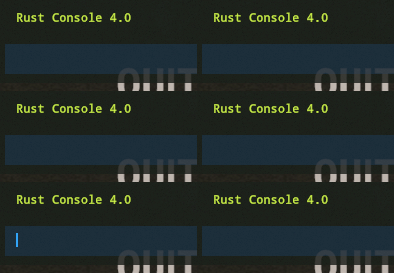
Here are some in-game shortcuts to further enhance your gaming experience:
- 1. Zoom Effect
This allows you to navigate between the fov of 90 and 70, thus creating a zoom effect.
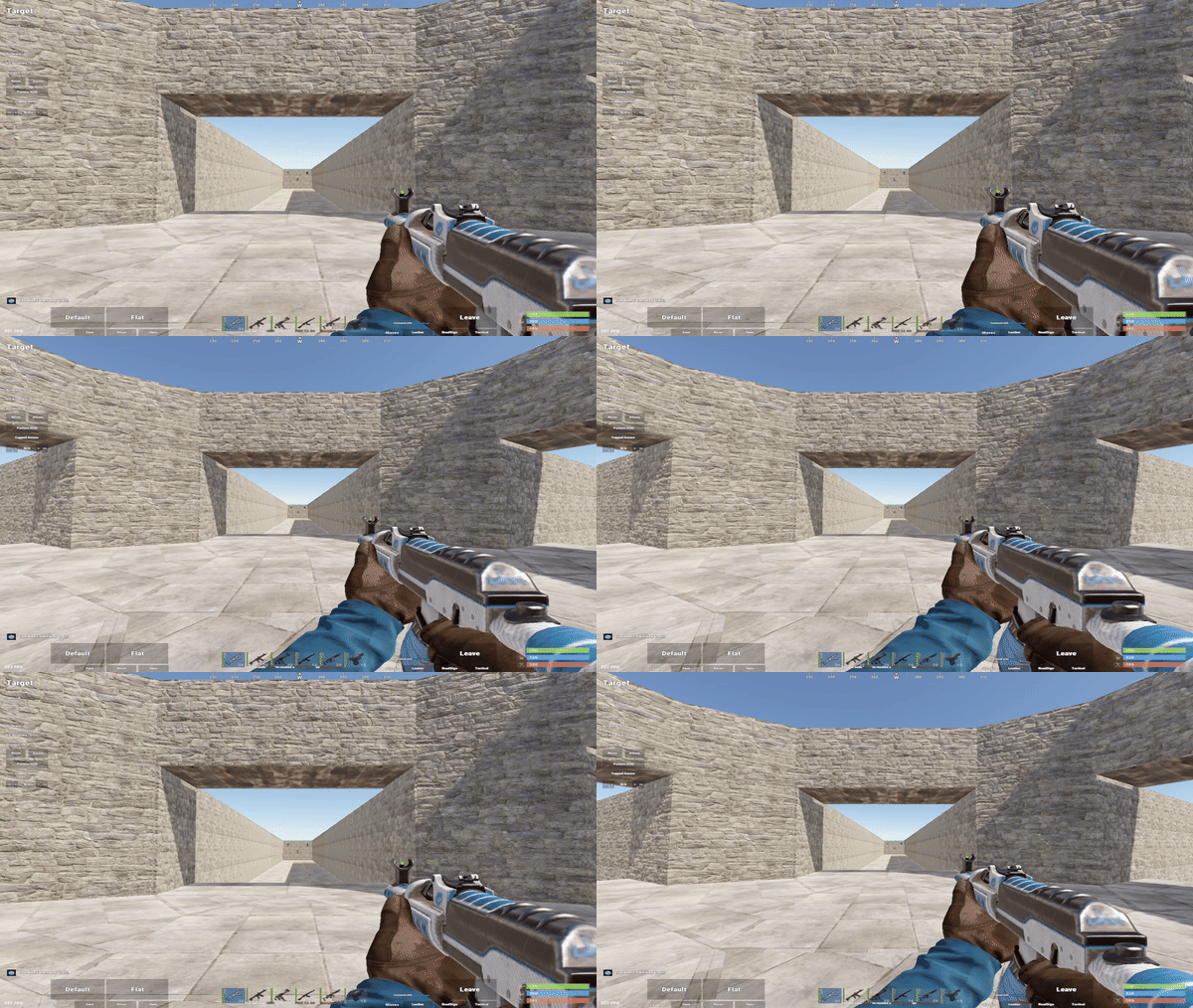
- 2. Small Gun
This makes the visual of your weapon smaller.
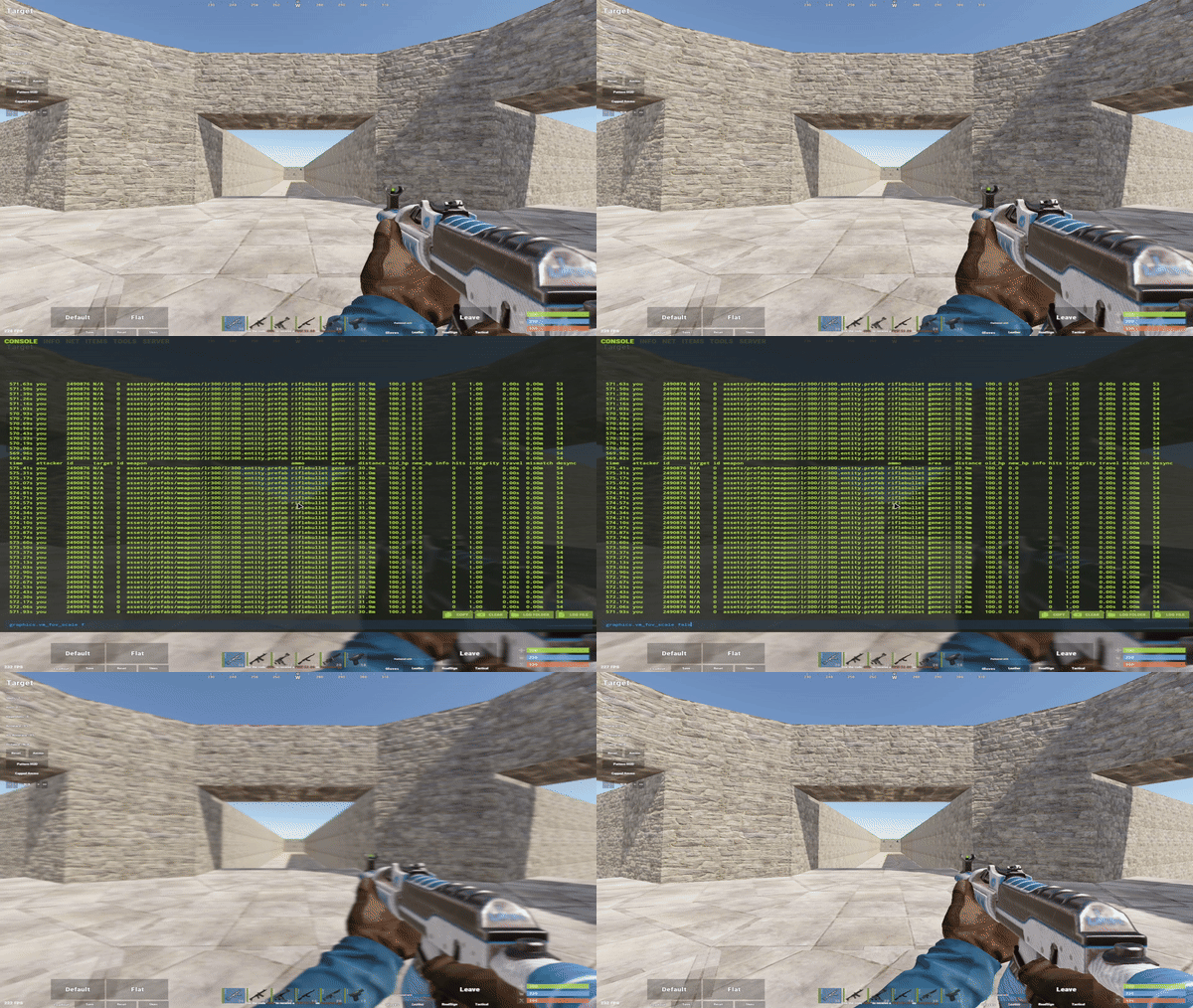
- 3. Change weapon side
To have your gun on the left instead of the right.
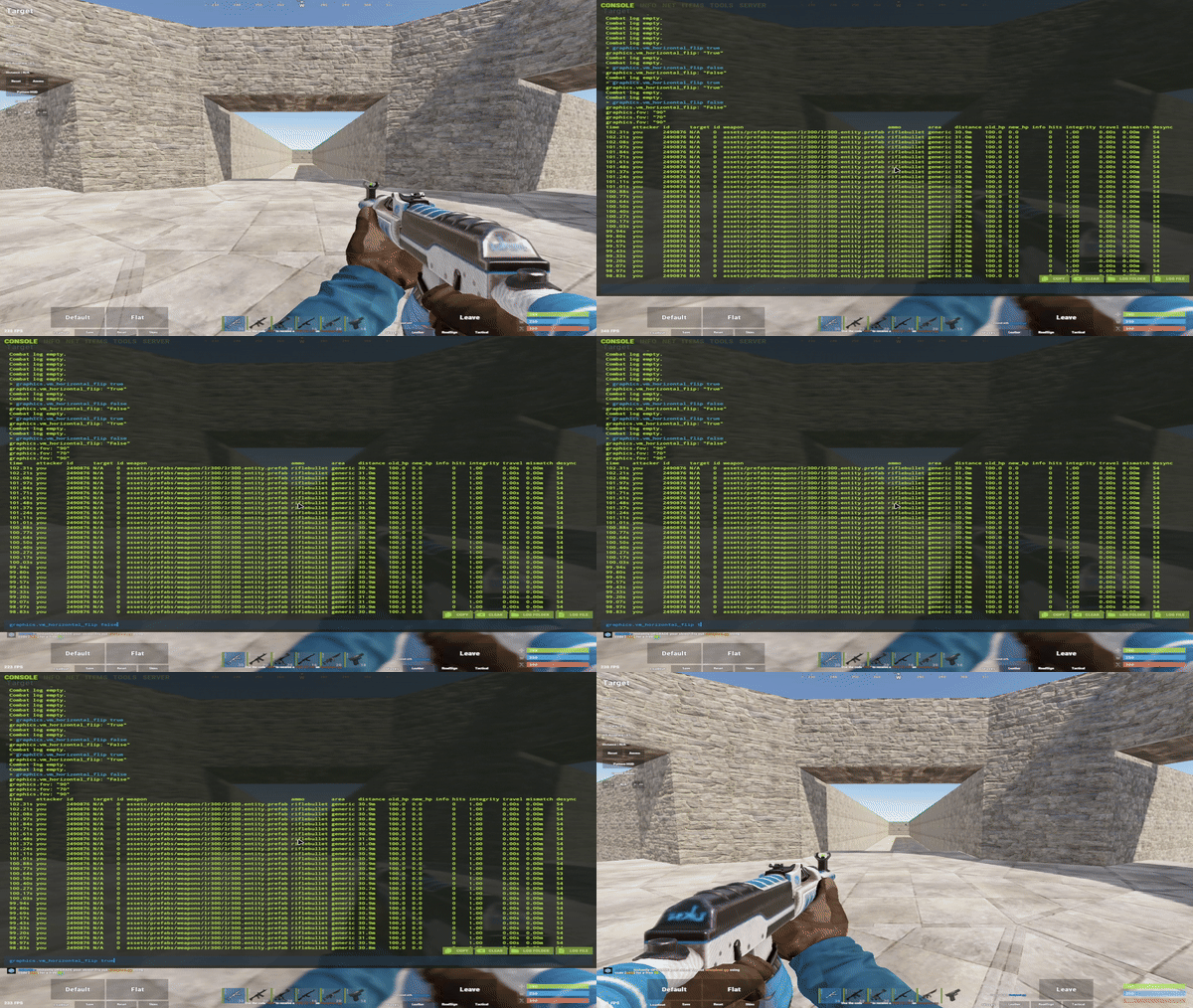
- 4. Combat log and ping
This means that when you click on F1, it automatically launches the combatlog and the ping.
- 5. Look radius
The radius determines the area in which the player can interact with objects or entities by looking at them. This allows you to upgrade complicated walls or access distant chests.
- 6. Less screen shake
Removes a lot of screen shake when an explosion are on your base.
- 7. no Fake notification while hitingt
Get real hit notification from the server side while hiting an enemie.
- 8. No legs
Remove your own legs to improve visibility.
- 9. Highlight dropped items
Highlight outlining of dropped items.
- 10. auto-run
Allows you to run continuously.
Fixing Long Load Times
- Rust is Not Installed on Your SSD
Rust should be installed on an SSD for faster loading times. SSDs are much quicker than traditional hard drives. - Your SSD is Fault
If Rust is on your SSD but still loads slowly, the SSD might be faulty or underperforming.
Fix FPS Drops
If you experience sudden drops in fps when you play. There are various reasons for this.
Overheated components
It seems that your CPU or GPU is overheating, leading to voltage drops and a sudden drop in the number of frames per second (fps) when you play. To monitor the temperature of all your components, you can use an application called Hwinfo [www.hwinfo.com].
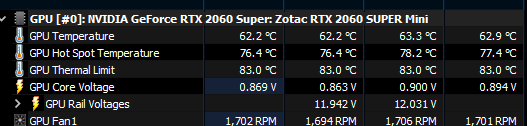
If you find that temperatures exceed 75-80 degrees, you may need to check that your cooling system is working properly (fans, thermal paste, aio, etc.) or consider improvements to better manage the heat dissipated by your components.
Hardware
Rust is a CPU-intensive game, meaning the processor is more important than the graphics card for good performance. Unlike GPU-heavy games like Cyberpunk 2077 or Red Dead Redemption 2, Rust relies on CPU power for physics, AI, and open-world loading.
Best CPUs for Rust:- AMD Ryzen 7 9800X3D - Top performance with 3D V-Cache technology.
- Intel Core i5-13600KF - Excellent frequency and many cores for smooth gameplay.
- AMD Ryzen 5 7600x - Great price/performance ratio with 3D V-Cache.
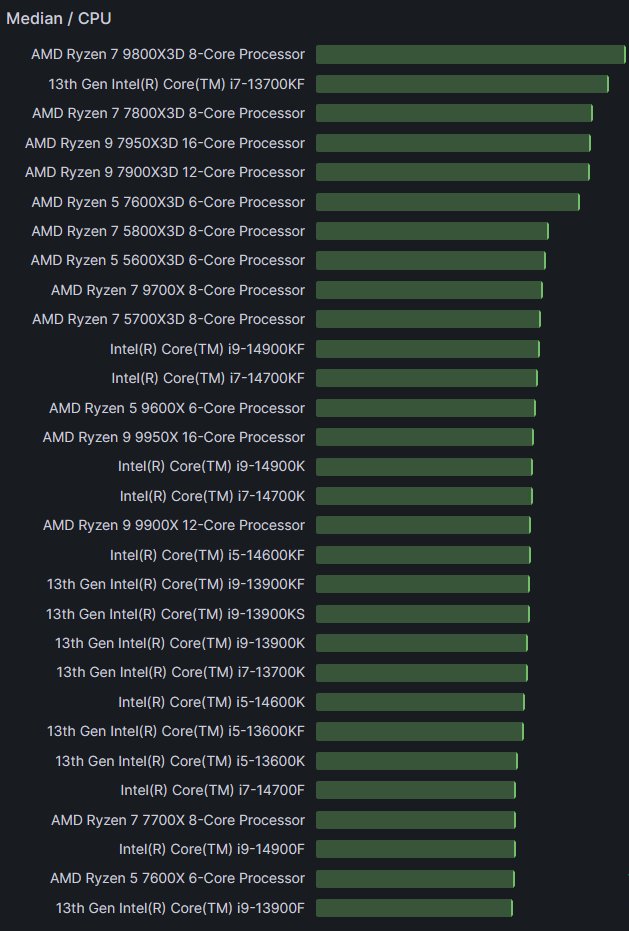 Best GPUs for Rust:
- AMD Radeon RX 7900 XTX
- NVIDIA GeForce RTX 4070
- AMD Radeon RX 7700 xt
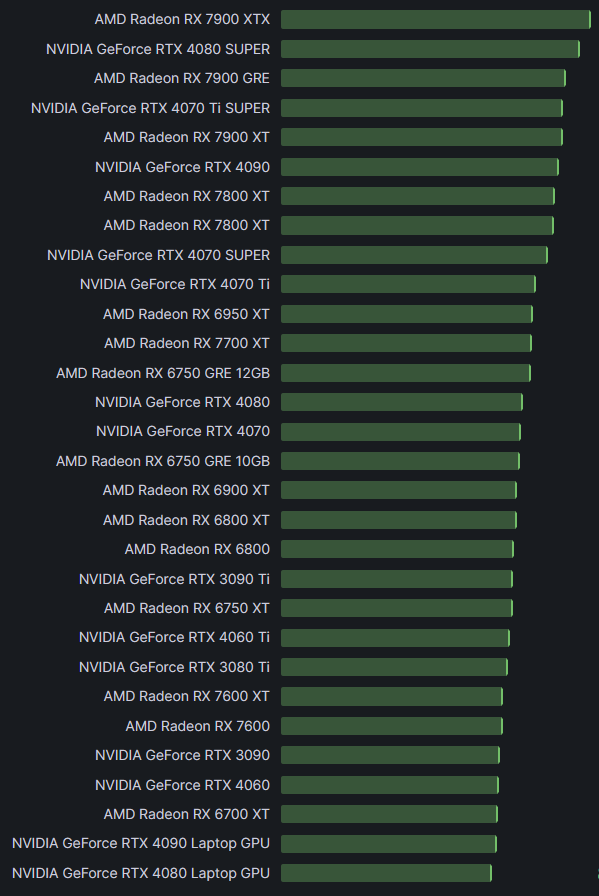
Source: Link [x.com]
Support me & the guide!
![.gif]](https://images.steamusercontent.com/ugc/2477626982771046030/B38E3C7378BC98B0C716BE37AD45EB3BB9ED2A9B/)
![.gif]](https://images.steamusercontent.com/ugc/2477626982771045792/601A3958A585AE109D4A65AEFAC031244720FD37/)
- Таблица для рейда раст 2026 рейд калькулятор★ 5 (863)250k views1.9k ♥9 minRussianUpdated Mar 9
- Рейды | RUST★ 5 (2.9k)149k views4.7k ♥2 minRussianUpdated Jan 26, 2025
- Пароли от всех камер в Rust - RU★ 5 (758)126k views1.5k ♥1 minRussianUpdated Jun 4, 2021
- MIDI for instruments / MIDI для инструментов★ 5 (2k)116k views4k ♥12 minBulgarianUpdated Oct 28, 2025
- ✅Команды для админа и не только [2025] [RU/EN]★ 5 (453)92k views792 ♥12 minRussianUpdated Oct 3, 2025
- Гайд по фермерству, чаю и баффам★ 5 (302)80k views714 ♥8 minRussianUpdated Apr 8, 2025




- Upgrading to PremiumTeam Fortress 2★ 5 (20k)1441k views11k ♥6 minUpdated May 11, 2022
- No More Room in Hell Official ManualNo More Room in Hell★ 5 (2.8k)569k views2.1k ♥29 minUpdated Apr 22, 2019
- NMRiH Community Hosting GuidesNo More Room in Hell★ 5 (526)351k views653 ♥1 minUpdated Aug 10, 2022
- ULTIMATE GUIDE FOR GAME DEV TYCOONGame Dev Tycoon★ 5 (5.8k)326k views10k ♥4 minUpdated 23 Jan, 2014
- How to 'Git Gud' Soon™MORDHAU★ 5 (2k)318k views3k ♥68 minUpdated Nov 16, 2024
- Лучшие кооперативные игры SteamPAYDAY 2★ 5 (1.5k)315k views2.1k ♥56 minRussianUpdated Apr 27, 2025






This guide was created by its original author on the Steam Community. Are you the author and want it removed? Request removal.