Quick guide to graphics and performance tweaking
Time to backup!
It's default location is My Documents\My Games\The last remnant\RushGame\Config.
Now, let's tweak it a bit ;)
Texture pop-in fix
Now open the file RushEngine.ini with notepad. Using the combination of Ctrl+F keys find this line [TextureStreaming]
then change all the lines in it like this:
PoolSize=158HysteresisLimit=20
DropMipLevelsLimit=16
StopIncreasingLimit=12
StopStreamingLimit=7
MinFudgeFactor=0.5
FudgeFactorIncreaseRateOfChange=0.5
FudgeFactorDecreaseRateOfChange=-0.4
MinRequestedMipsToConsider=11
MinTimeToGuaranteeMinMipCount=0
MaxTimeToGuaranteeMinMipCount=0
UseTextureFileCache=FALSE
MaxTextureMipCount=11
MinTextureResidentMipCount=7
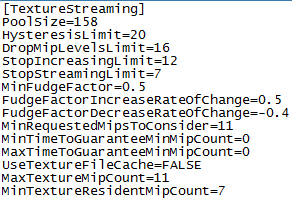 These are default settings for UT3, that work better than default settings used in the game. It won't fix texture pop-in altogether (due to the engine used in the game) but will cut down on the loading time. Don't forget to save changes. Now it's time for some more tricks.
Forcing V-sync
Than look for the next line under [WinDrv.WindowsClient] and change it for TRUE
It should force the game engine to use V-sync but I preffer to use a simple application called D3DOverrider to force V-Sync and Triple Buffering in all games that I want. So I highly recommend you to download and use it.
Trilinear and anisotropic filtering and some other tweaks
Next we will turn on trilinear (instead of default bilinear) and anisotropic filtering.
Look for Trilinear=FALSE and change it for TRUE
Next look for MaxAnisotropy= and change it for MaxAnisotropy=16
Few more tweaks:
Change bEnableHighPolyChars=FALSE to bEnableHighPolyChars=TRUE
If set to False, this option will reduce the polygon complexity of characters, which can improve performance.
Change ParticleLODBias=0 to ParticleLODBias=-1
LOD Bias affects the clarity of textures, by determining how Mipmapped textures appear. Higher positive values make things blurrier but can improve performance, while lower values, including negative values, make things clearer at the cost of performance, and can also introduce further aliasing (jaggedness and shimmering) to the scene.
The End
Cheers ;)
- Things I Wish I Had Known....★ 5 (928)44k views852 ♥15 minUpdated Dec 9, 2016
- The Last Remnant Starter FAQ★ 5 (329)19k views343 ♥18 minUpdated May 7, 2020
- TLR Normal Mode Walkthrough and Guide: Maximal Results with Minimal Effort★ 5 (404)15k views910 ♥96 minUpdated Jun 30
- Advanced Strategy Guide★ 5 (193)13k views150 ♥11 minUpdated Dec 22, 2012
- The DLC★ 4 (87)12k views108 ♥12 minUpdated Jan 11, 2015
- Good to know about Battle Rank, Grinding and Farming★ 4 (43)7.2k views55 ♥10 minUpdated May 14, 2015


- Upgrading to PremiumTeam Fortress 2★ 5 (20k)1441k views11k ♥6 minUpdated May 11, 2022
- No More Room in Hell Official ManualNo More Room in Hell★ 5 (2.8k)569k views2.1k ♥29 minUpdated Apr 22, 2019
- NMRiH Community Hosting GuidesNo More Room in Hell★ 5 (526)351k views653 ♥1 minUpdated Aug 10, 2022
- ULTIMATE GUIDE FOR GAME DEV TYCOONGame Dev Tycoon★ 5 (5.8k)326k views10k ♥4 minUpdated 23 Jan, 2014
- How to 'Git Gud' Soon™MORDHAU★ 5 (2k)318k views3k ♥68 minUpdated Nov 16, 2024
- Лучшие кооперативные игры SteamPAYDAY 2★ 5 (1.5k)315k views2.1k ♥56 minRussianUpdated Apr 27, 2025






This guide was created by its original author on the Steam Community. Are you the author and want it removed? Request removal.