SEGA Classics F.A.Q. & game list
I - Frequently Asked Questions
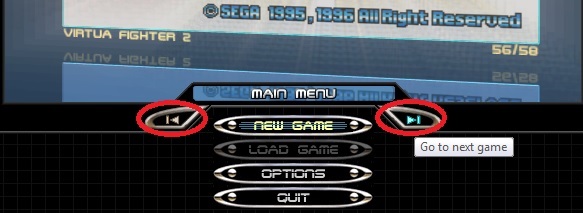
There is no Steam store page for "Downloadable Content for SEGA Mega Drive & Genesis Classics", that will list all available games/DLC for the emulator, because the Steam store treats each MD/GEN game as if it was an indivdual game, while, as mentioned above, in fact each game is DLC for an emulator! If you want to know what MD/GEN games are on Steam, go to the game list at the bottom of this guide. That's why I created the list for! Update: GO HERE
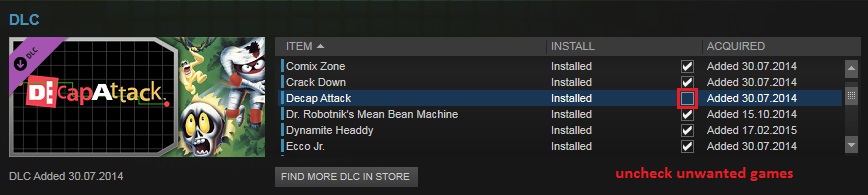
To bring the game(s) back, just check the checkbox and Steam will donwload the DLC again.
Edit: Steam user Foxysen brought to my attention, that the Sonic Games Collection contains all MD/GEN Sonic titles, along with other Sonic games.
Edit: As of 11/11/23, it is still possible to get those games as Steam gifts from a Steam friend from abroad.
- If you created save state files before you used the renaming tool, and want to retain your save states after renaming, also use GENESISSaveSort.bat or MEGADRIVESaveSort.bat, depending on how your folder is named.
The save state location should be:
C:\Users\USERNAME\Documents\SEGA Mega Drive Classics\ or
C:\Users\USERNAME\Documents\SEGA Genesis Classics\
- Also, be aware that disableing unwanted games / enableing games as proposed above will not work properly anymore. Use this tool wisely!
UPDATE: The new emulator supports in-game saving!
II - Controls
Below you find an illustration of a six-button Mega Drive/Genesis controller and a table for the emulator's default keyboad mapping for both, player 1 and player 2.
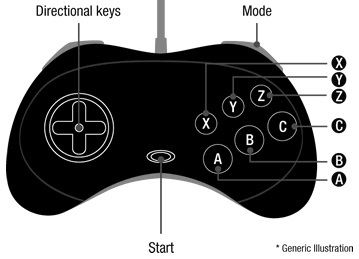
You can change the button to key mapping for both players in the emulator by going to "Options/Input Configuration" or switch from the keyboard to controller(s).
Emulating keyboard with a controller
Some USB controllers are supported by this emulator, others are not. I didn't have any issues with generic controllers that look like PS2 controllers, while my wireless xbox360 controllers would not be recognized.
If your controller is not recognized, a turnaround to make it work for this emulator is to use a tool that will bind your keyboard's keys to your controller. There are several programs that emulate keyboard and mouse input with a gamepad such as JoyToKey, Xpadder, Pinnacle Game Profiler and Enjoy2.
I've been using Joy2Key[joytokey.net] for free ever since and was able to bind all keyboard keys to my xbox360 controller, even the quick save/load keys (F5/F9) and the 'quit to menu' key ESC, which allows me to navigate through the Sega emulator without having to use the keyboard at all. Of course all the above mentioned tools can be used for any game that natively lacks joystick/joypad support, not only for this emulator.
6-button controller support
While most games from this collection get by with a 3-button Mega Drive controller (A, B, C buttons), others support the usage of 6-button Mega Drive controllers (with the extra buttons X, Y, Z). The buttons X, Y, Z (Q, W, E keys on your keyboard if you use the default settings) are useless for the games that don't support 6 buttons. This is not much of an issue nowadays since most PC controllers have enough buttons, but in case your are using a controller that has less than 6 buttons, you might not be able to play 6-button supported games properly.
There are only a bunch of games in this collection that support the 6-button contoller:
- Beyond Oasis
- Comix Zone
- Eternal Champions
- Streets of Rage 3
- ToeJam & Earl in Panic on Funkotron
- Shinobi III: Return of the Ninja Master (if you use a cheat)
- Virtua Fighter 2 (activate in options, e.g. for "Defence+Punch" used in some moves)
You can play these games with 3 buttons anyhow, although it is not recommended for Eternal Champions.
Mode button
The Mode button is more or less useless. It was initially used to make the Mega Drive / Genesis console recognise a 6-button controller as a 3-button controller, because some games didn't work properly with a 6-button controller.
Thanks to Steam user Foxysen for the information on the Mode button and list of 6-button supported games.
III - Extracting & Importing Roms
GitHub: https://github.com/GMMan/PscdPack
Downloads: https://github.com/GMMan/PscdPack/releases
- Run the program
- Click on "New/Open"
- Browse and select the .pak to open
- Click on "Extract ROM"
- Save the ROM somewhere
Importing ROMs
- Run the program
- Click on "New/Open"
- Navigate to the emulator's data folder, and type a file name. The file name should be in the format of "gXXXX.pak", where each "X" is a digit. The emulator will be looking for this naming scheme. Click Save.
- Click "Replace ROM"
- Browse to the ROM you want to load. The ROM should be in BIN format. If it's in SMD format, you will need to convert it to BIN first.
- The program will automatically fill out the fields. You should adjust the settings if needed, such as adding in the proper SRAM/EEPROM info or forcing a region. Please see the readme for more information on on-cartridge memory config options.
- Click "Save"
- Click "Close" or "Exit"
If you ever wondered whether these games can be played on a different emulator of your choice then the answer is yes. It is possible to play the roms on any MD/GEN emulator, though some work has to be done beforehand.
The rom files in this collection come as .pak files, which is a compression format. No other emulator supports reading from pak archives, hence you need to extract the roms first. There is this tool by Luigi Auriemma, called QUICK BMS, which lets you extract the rom files from the pak archive.
- place the sega_classics.bms in the folder where your pak files are stored (should be {...}\Steam\steamapps\common\Sega Classics\data)
- extract quickbms.zip somewhere and open quickbms.exe
- from here select the sega_classics.bms then select the .pak file you would like to extract and
then just select the same directory where to place the extracted file (just extract to the same dir where the pak files are)
The extracted files will be .bin files with the game's name. Unfortunately you will have to repeat step 4 for each rom as it will only extract one file at a time.
Thanks to Steam user Oakreef for linking QUICK BMS in the discussions.
IV - Mega Drive / Genesis Game List
This section contains all Mega Drive games available on Steam, and their respective pak file. The Simple Launcher orders the games accoring to the pak filenames by default, with Altered Beast (g0000.pak) being the first game and Wonder Boy in Monster World (g0057.pak) being the last game in the list. The new hub orders the games alpahbetically in the sleeve.
* The Simple Launcher uses g0055.pak, the new emulator uses TheRevengeOfTheShinobi.pak. See VII - Random facts for more info.
g9001.pak - Alien Soldier (JP)
g9002.pak - The Story of Thor (Beyond Oasis) (FR)
g9003.pak - The Story of Thor (Beyond Oasis) (GE)
g9004.pak - The Story of Thor (Beyond Oasis) (SP)
g9005.pak - The Story of Thor (Beyond Oasis) (JP)
g9006.pak - Dynamite Headdy (JP)
g9007.pak - Landstalker (EN)
g9008.pak - Landstalker (FR)
g9009.pak - Landstalker (GE)
g9010.pak - Ristar (JP)
g9011.pak - Bare Knuckle II (Streets of Rage 2) (JP)
g9012.pak - Streets of Rage 3 (EN)
g9013.pak - Bare Knuckle III (Streets of Rage 3) (JP)
V - Play Mods on Simple Launcher
On April 28, 2016 SEGA updated the Mega Drive Classics here on Steam by adding a new fancy emulator and the ability to play Mods, but the old emulator (now known as "Simple Launcher") didn't get any update and Workshop Mods are not accessible via the launcher naturally. However, there is a fiddly workaround to launch Mods on the Simple Launcher...
- Subscribe to a Mod in the SEGA Mega Drive & Genesis Classics Workshop. The Steam client will download the Workshop Mods to your Steam directory:
"C:\Program Files (x86)\Steam\steamapps\workshop\content\34270\". - Go to the directory and search for your Mod in a subfolder. It should be a .bin file.
- Copy that file to some other place on your hard drive, to compress it to a .pak archive. Read section III of this gudie about Importing Roms.
- After you put the .bin file into a .pak file as decribed in Section III of this guide, rename the file properly (e.g. g1001.pak for your first mod) and put it into the data folder of your Sega Classics collection:
"C:\Program Files (x86)\Steam\steamapps\common\Sega Classics\data\"
It should appear at the end of your game list in the Simple Launcher and you should be able to play it now.
I admit this is very tedious but that's the only way to launch mods from the workshop in the Simple Launcher.
VI - Write Steam Reviews for MD games
The Steam interface will not let you write a review for Sega Mega Drive games. The reason is simple, people need to have at least 5 minutes of play time in any game to be eligible for writing a Steam review. The problem here is, all Mega Drive games are DLC and Steam will not count play time for each DLC. While Valve fixed the problem for "normal" games on Steam, the Mega Drive games still cannot be reviewed.
I think that everyone who owns and uses any product on Steam, should be eligible to write a review, hence I will show you a workaround to write your review, which is kinda dodgy but well...
Workaround #1
What you need is:
- The game / DLC in your Steam library
- A software which I will neither call out nor link here.*
* Some hints though: It starts with S, has an A somewhere in the middle and ends with M - just let us call it MAX for now and remember, google is your friend. Use this application wisely, I do not recommend using it for anything else. Use at your own risk!
- Download MAX
- Open your Steam client
- MAX comes with 2 .exe files, Game.exe and Picker.exe. Open the Picker.
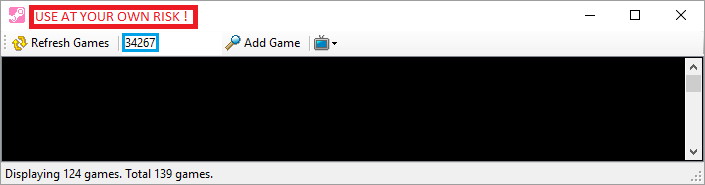 5. Now the game title appears below, double click it. A new window will pop up, just wait for at least 5 minutes before closing it again.
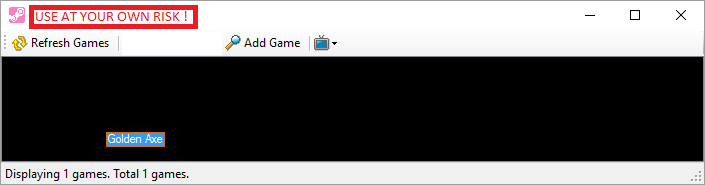 6. Now visit the Steam Store page of the game and write your review.
Make sure to close the application entirely again before resuming to play any games!
I wish there was a better way to do this and I'm happy to remove this section again if this changes. Until then there is really no other way around. Happy reviewing.
Workaround #2
Steam user Aevoa mentioned another way how to make yourself eligible to write reviews for your Mega Drive games. It looks even simplier than the other workaround I mentioned. Here's what they said:
Concerning the "Write Steam Reviews for MD Games", there's a method of spoofing app IDs without using the third party program. A lot of games on Steam come with a "appid" text file in their folders. If you download one of these games you can just go in and change the text file to whatever app ID you want, launch the game's .exe from the folder, and Steam will say you're playing your desired app ID. Idle it for more than 5 minutes, click exit, and you're golden.Most simplistic games have this text file it seems. I use a game called "Super Hexagon".
Actually, you can use any game to do do this. If a game doesn't have a "steam_appid.txt" just create one yourself.
VII - Random facts
Here's a list of interesting facts, that Steam user Foxysen submitted to me to include in this guide. Thanks for the heads up buddy.
- Since the launch of the new Hub emulator, all purchased Mega Drive games on Steam are also stored in the "Uncompressed ROMs" folder in the Sega Classics directory. In order to use them on a different emulator, their file endings must be renamed from ".68k"/".SGD" to ".bin" or ".gen". Some games even come with extra roms, like a Japanese version, e.g. Beyond Oasis, Dynamite Heady, and Streets of Rage 3.
- Some of these games actually were slightly edited similar their Virtual Console versions, mostly to avoid any legal trouble. Example: The red cross icon in Phantasy Star 2 was replaced by green "H".
- Alien Soldier is played at incorrect speed in new emulator. The Alien Soldier version that is included on Steam is the European PAL version, which had music optimized to correct the speed for 50Hz, while gameplay is a bit slower than intented. The new Hub emulator runs this PAL version at 60Hz, thus music is way too fast while the gameplay speed is either the same as in Japanese version or a bit faster. (Foxysen's tip: just use the Japanese version from workshop)
- Alien Storm has a "duel" mode that is accessable only if game detects only one controller. Since both emulators (Simple Launcher and the Hub) here on Steam always assume that both controllers are connected, it's impossible to play this mode.
- Beyond Oasis actually makes use of mode button. Pressing Mode+B allows you to quickly switch weapons. Also used in some cheat codes, I heard.
- Columns 3 actually supports up to 5 players multiplayer. Both Mega Drive emulators only support 2 players.
- The 2 Players Mode in Golden Axe 3 is disabled in the Simple Launcher.
- The Simple Launcher uses an older revision of The Revenge of Shinobi, where Godzilla and Spider-Man are still present (they were replaced in later revisions).
- Sword of Vermilion doesn't support in-game saving in the Simple Launcher. You must use the emulator's save states in order to keep your progress.
- There is a bug in the Simple Launcher. If you create a save state with the emulator and re-load it, it causes the emulator to fail writing in-game saves from that point. You are basically forced to use the emulator's save states in order to keep your progress after you loaded a save state from the emulator.
IIX - Steam Achievements
https://steamcommunity.com/sharedfiles/filedetails/?id=1398500429
IX - Steam Update History
On this section I will try to sum up the major changes in the Sega Collection on Steam
• Two-player online multiplayer
• Leaderboards
• Challenge Modes
• Additional graphics filters & border options
• ROMs from other regions for games with significant differences
• Fast-forward and rewind
• Sprite limit disable
• Mirror mode – reverse the screen for a fresh challenge
• VR support
• Mac and Linux support
• Steam Workshop support added: Users can upload Hacks/Mods for the games in the collection
- All SEGA Genesis & Mega Drive Games★ 5 (272)29k views332 ♥25 minUpdated May 22, 2016
- Mods & ROMs for SEGA Genesis & Mega Drive Classics★ 5 (185)22k views317 ♥15 minUpdated May 27, 2016
- SEGA Genesis Classics - Codes & Secrets★ 5 (433)17k views626 ♥191 minUpdated Feb 17, 2016
- Create a Mod for Steam Workshop★ 5 (227)12k views257 ♥1 minUpdated Oct 12, 2020
- How to play full screen at full speed with your own emulator for FREE★ 4 (141)10k views155 ♥4 minUpdated Aug 10, 2023
- Добавление любых ROM'ов Sega Mega Drive в данный эмулятор. Второй метод.★ 4 (124)8.2k views144 ♥1 minRussianUpdated Apr 9, 2021


- Upgrading to PremiumTeam Fortress 2★ 5 (20k)1441k views11k ♥6 minUpdated May 11, 2022
- No More Room in Hell Official ManualNo More Room in Hell★ 5 (2.8k)569k views2.1k ♥29 minUpdated Apr 22, 2019
- NMRiH Community Hosting GuidesNo More Room in Hell★ 5 (526)351k views653 ♥1 minUpdated Aug 10, 2022
- ULTIMATE GUIDE FOR GAME DEV TYCOONGame Dev Tycoon★ 5 (5.8k)326k views10k ♥4 minUpdated 23 Jan, 2014
- How to 'Git Gud' Soon™MORDHAU★ 5 (2k)318k views3k ♥68 minUpdated Nov 16, 2024
- Лучшие кооперативные игры SteamPAYDAY 2★ 5 (1.5k)315k views2.1k ♥56 minRussianUpdated Apr 27, 2025






This guide was created by its original author on the Steam Community. Are you the author and want it removed? Request removal.