Swapping the player's train in a scenario - no tools needed
Introduction
For this guide, I'm going to edit a scenario on the Cologne-Dusseldorf route, replacing the default train with one of my own choice.
For those interested, the new train I'm introducing is a Dutch Railways Mat '64 four car EMU. This train is not (yet?) available on Steam, but can be bought directly from the developer on http://www.christrains.com
Pick the scenario you want and clone it
It's a bad idea to directly edit the scenario for two reasons.
First, if you mess things up and then press save, you are left with a broken scenario.
Second, your changes may be thrown away when an update to Train Simulator or its DLC is released, and your file is overwritten. Or when you verify the integrity of your game files.
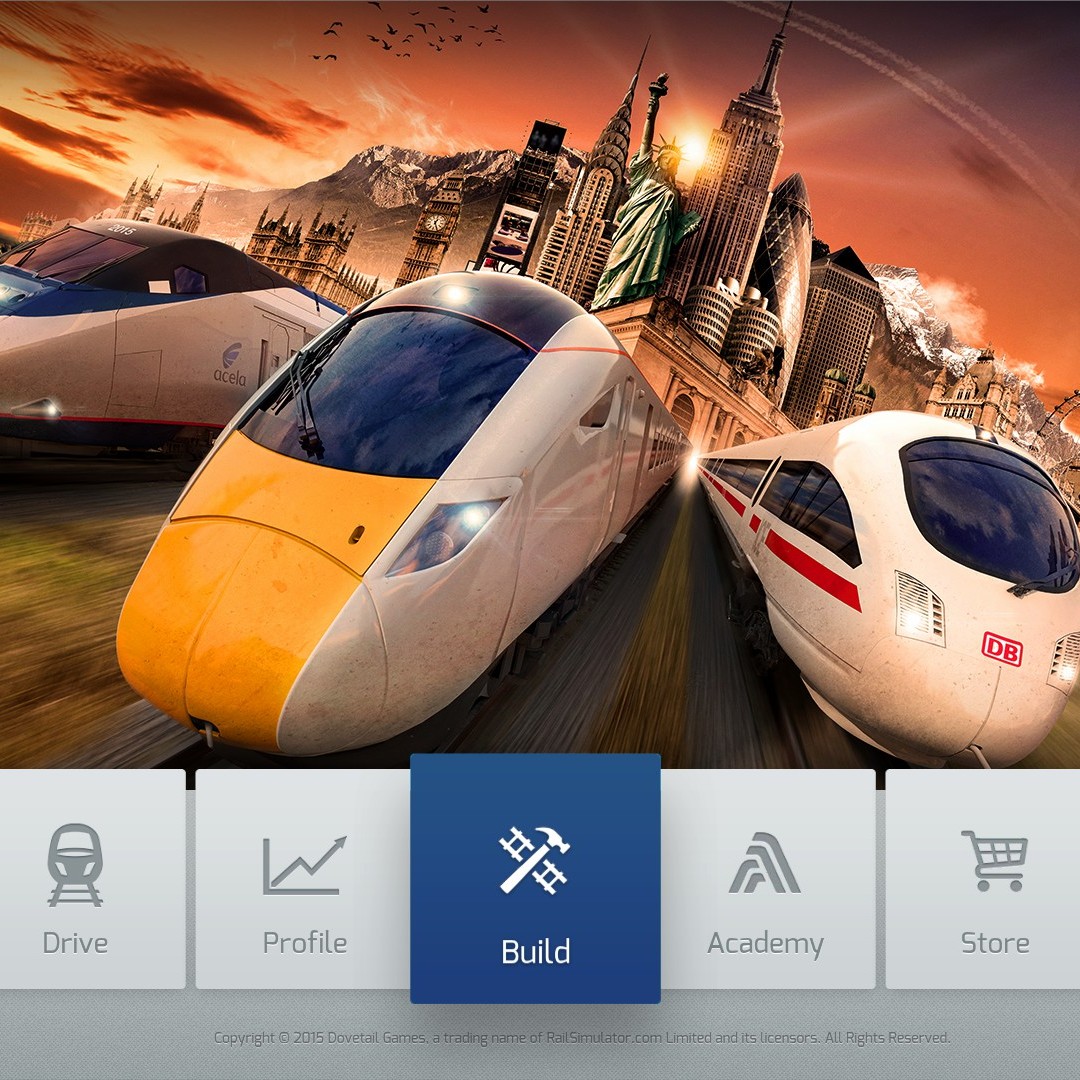
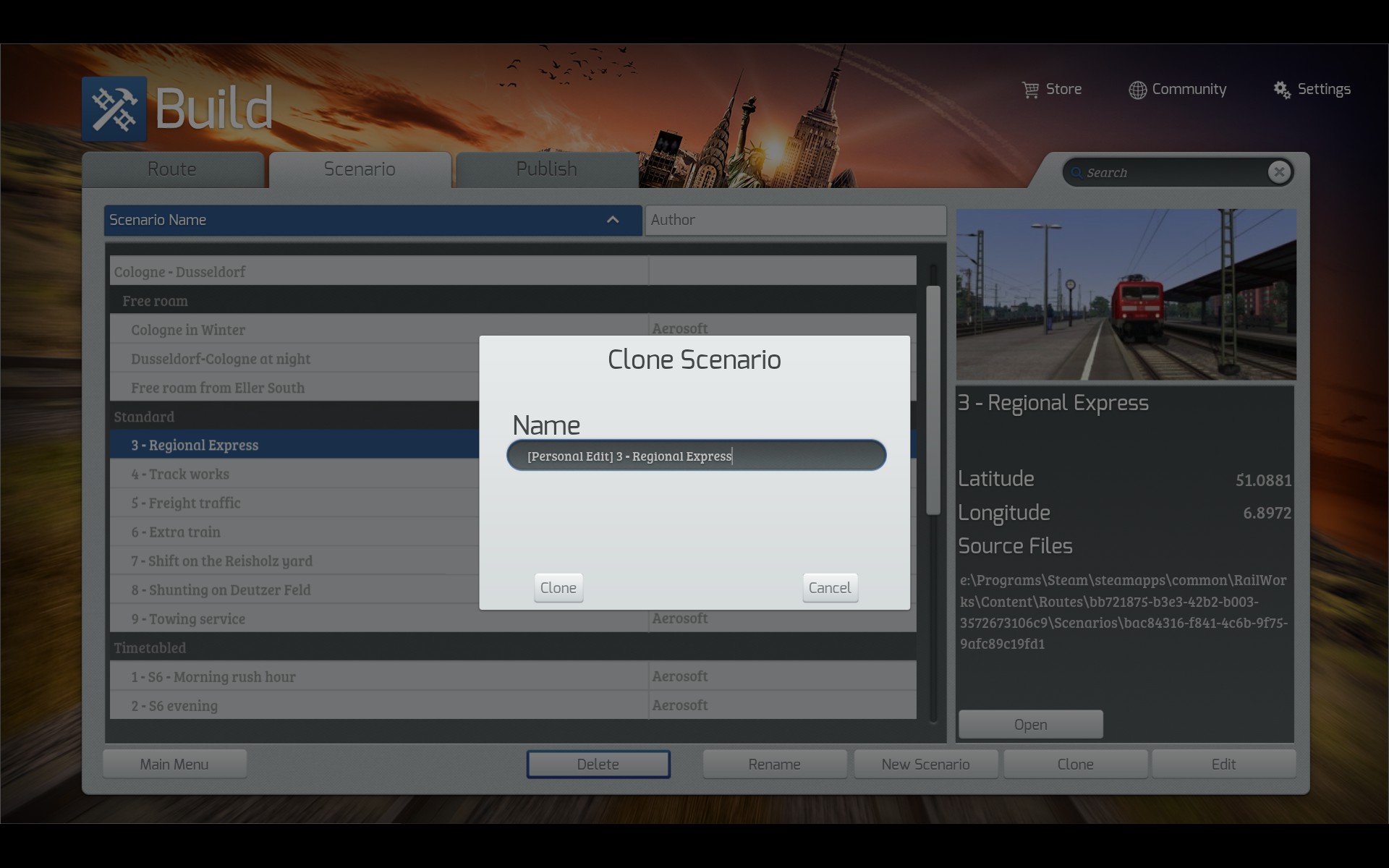 Click the big "Build" button in the main menu and click the "Scenario" tab. Find the scenario you want, select it, and click the "Clone" button. Give it a good name so you can easily find it, and still tell which scenario is the unmodified original.
I usually put a little text in front of the original scenario name, like "[Personal Edit]".
After your cloned scenario appears in the list, you can directly move on to editing it by pressing the "Edit" button at the bottom right of the screen.
(optional) Choose additional content to be loaded
At this point you should be in the scenario editor. Move your mouse to the top right corner of the screen and the scenario info panel will show up. You can change the season and weather if you want, but whatever you do, don't change the "Start Time".
If you want to swap the train with a train that's not included with the route you're playing. you first need to tell the game which additional content to load.
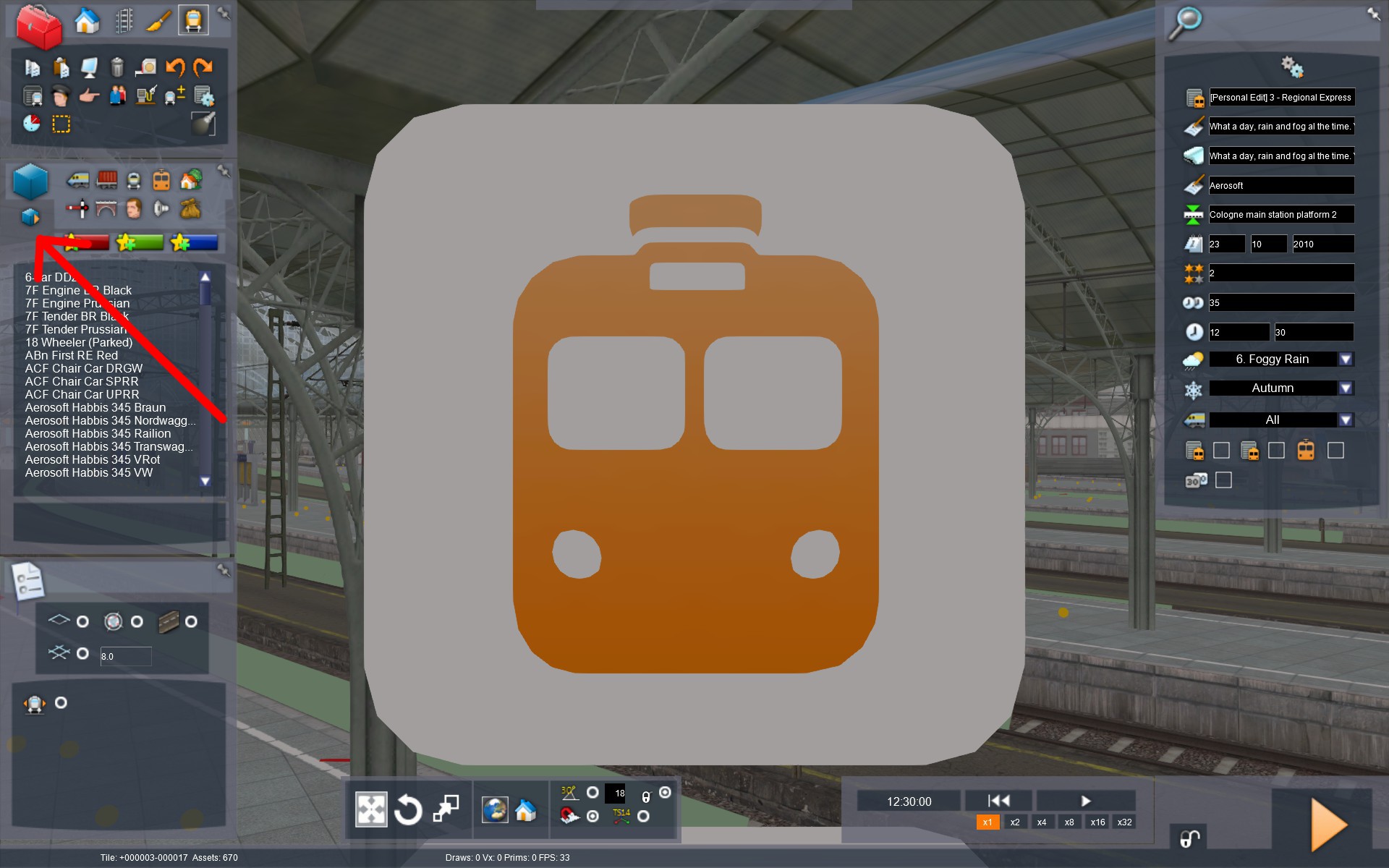 On the left of your screen, click the little blue cube with orange arrow. The mouseover text should say "Object Set Filter". You may need to move your mouse here first before the dialog window becomes visible.
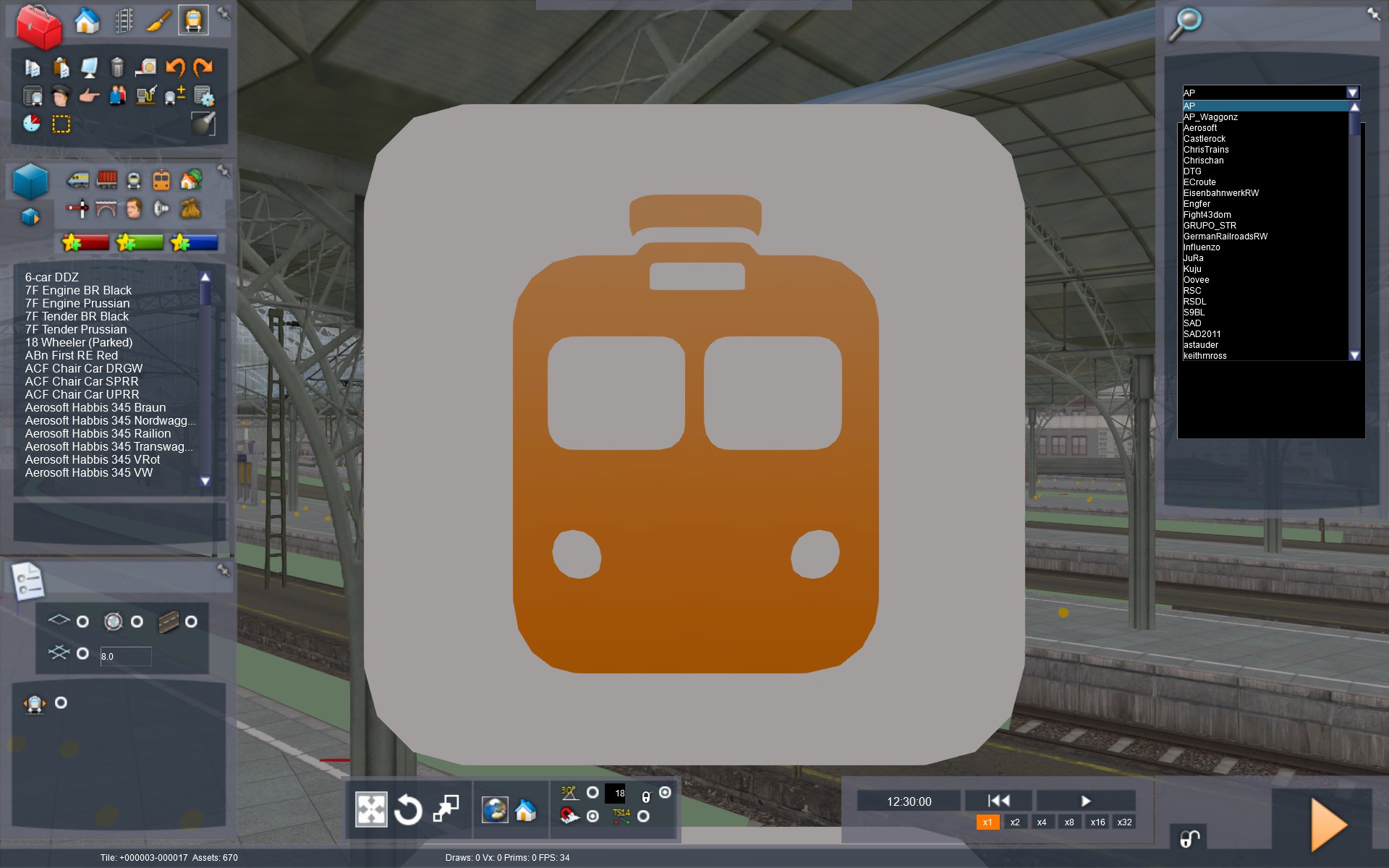 Now move your mouse back to the right of the screen. On the top is a drop-down menu with the names of various vendors.
After you pick a vendor, a list of content packs will appear below. Pick the content pack you want. You may need to do a little exploration to learn which train comes with which vendor. The vendor named "Kuju" contains the classical trains included with the game when it was still called Railworks. "RSC" contains more recent stuff. The names may be slightly different than the names used in the Steam store, e.g. "KentHighSpeed" is the London-Faversham High Speed DLC. The manuals usually mention where you can find your train of choice.
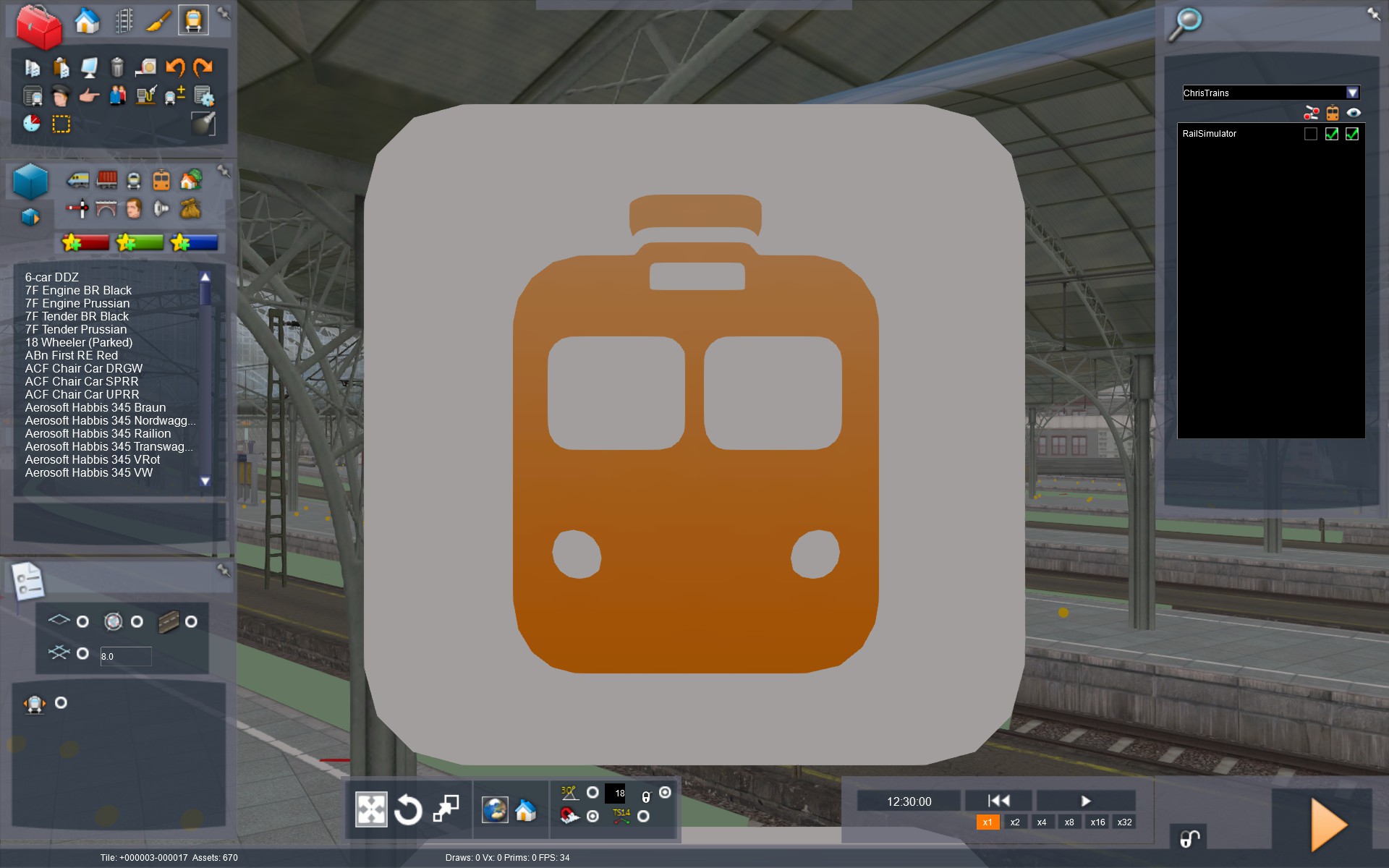 To indicate which content to load, click the middle checkbox next to the name, under the little train icon. The rightmost checkbox may also get ticked as you do this, don't worry about that. In my example, I'm using the vendor "ChrisTrains" because today I feel like driving one of their Dutch trains.
The more content you add, the longer your loading times will be, so enable as little as you have to.
Place the train and transfer the train's orders
NB: I'm not going into the finer details of using the scenario editor, as there are some good guides available on that already. I recommend SpacialKatana's video series.
You will now need to move around the map to find the player's train. Floating above the train are little icons representing the orders it has. Instructions for the player and AI trains look exactly the same, so we need to check if this is indeed the player's train.
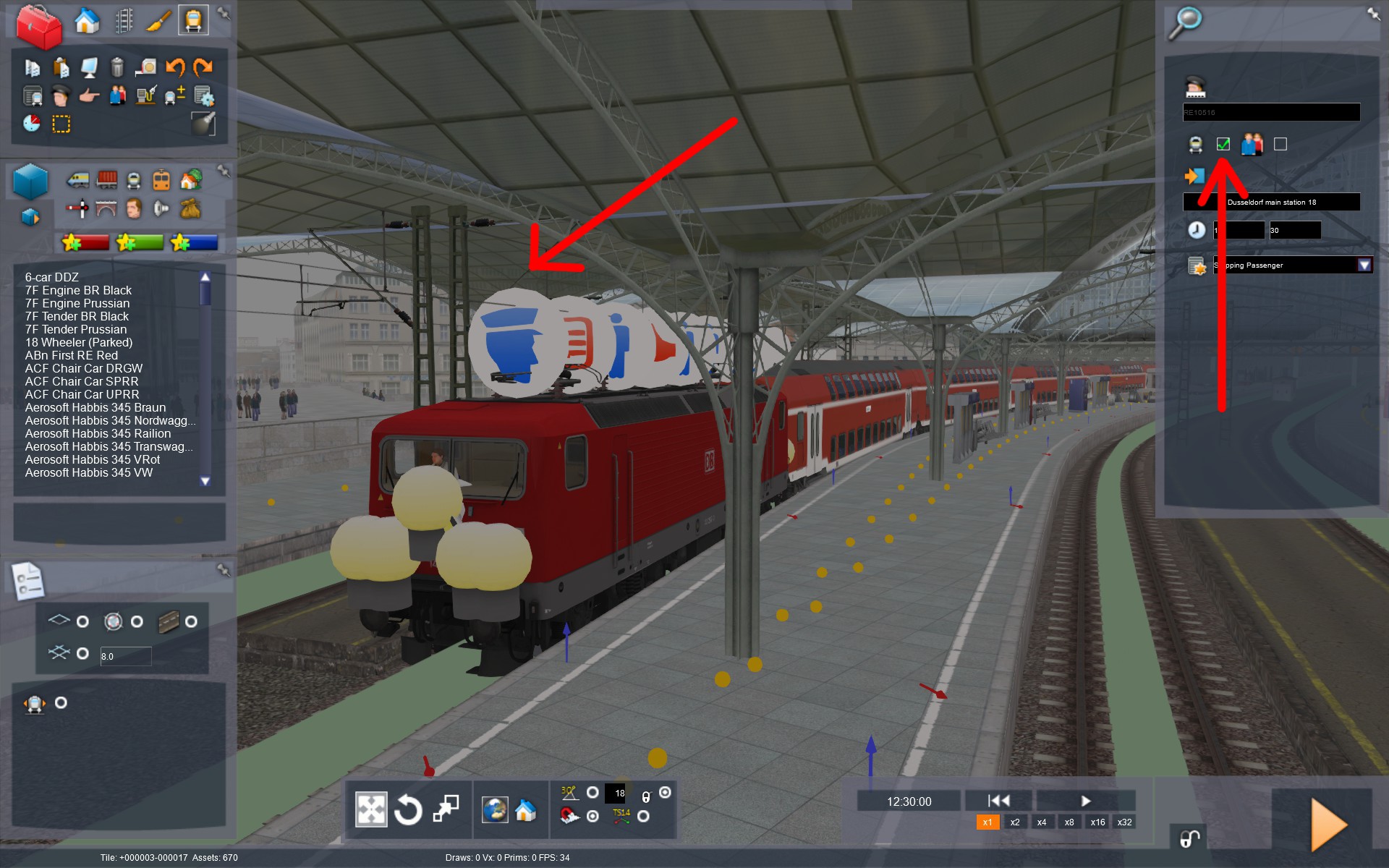 Doubleclick the frontmost icon floating above the train, and on the right a dialog will open. The box marked "Player Consist" should be ticked. If it's not, you're looking at an AI train. I don't recommend changing anything about the AI trains.
Find some space nearby where you can place the new train. In this case, there are plenty of empty tracks available, but you can also use the track in front or behind the train. Don't worry too much about it, you're only looking for a temporary holding space.
In the following examples, we're going to swap the player's red train with the yellow one. Remember that you can press Ctrl+Z to undo if you make a mistake.
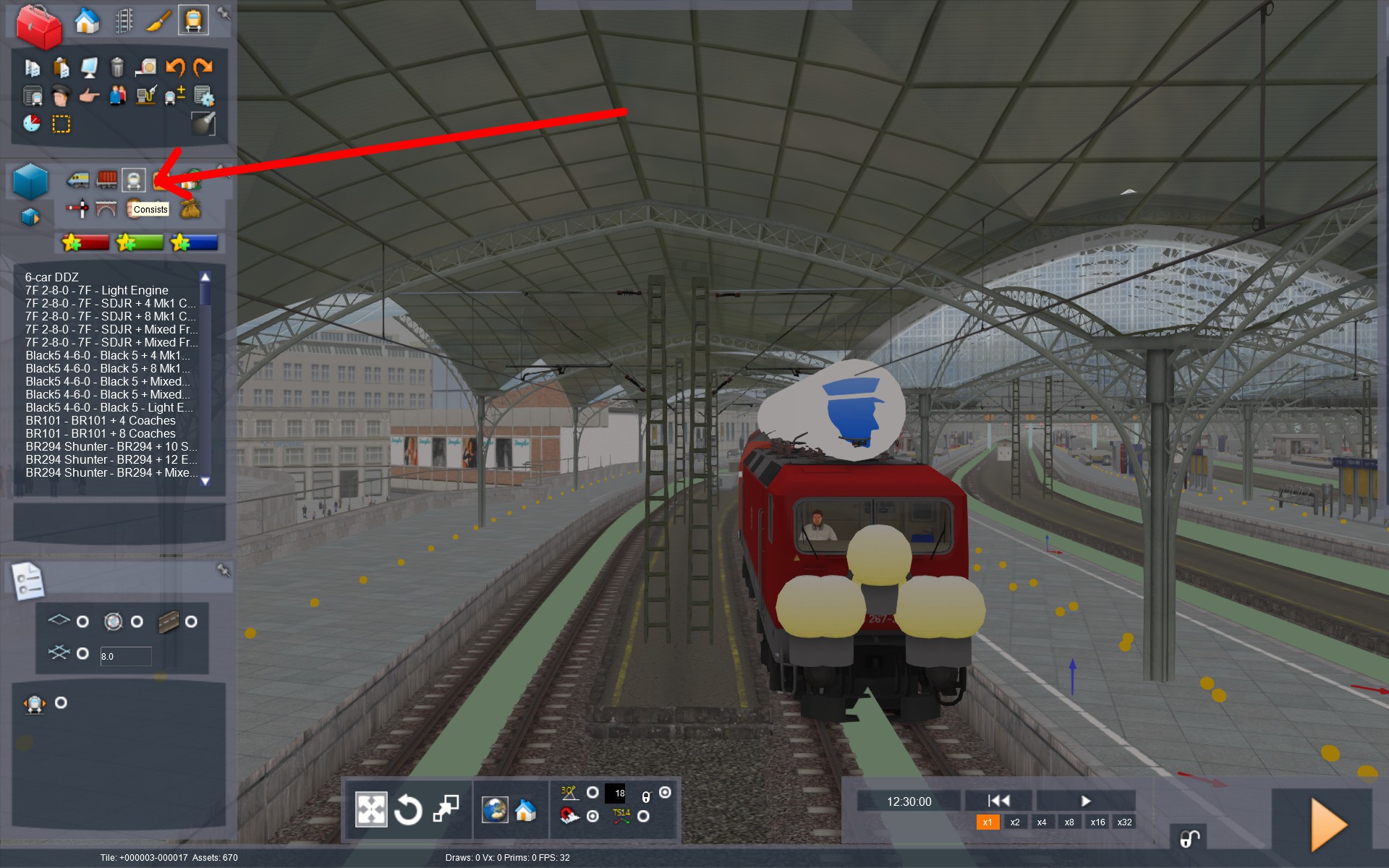 We're now going to place the new train. You can place a locomotive and add cars manually, but in this case I'm using a complete EMU set available as a consist. Click the "Consists" button on the left.
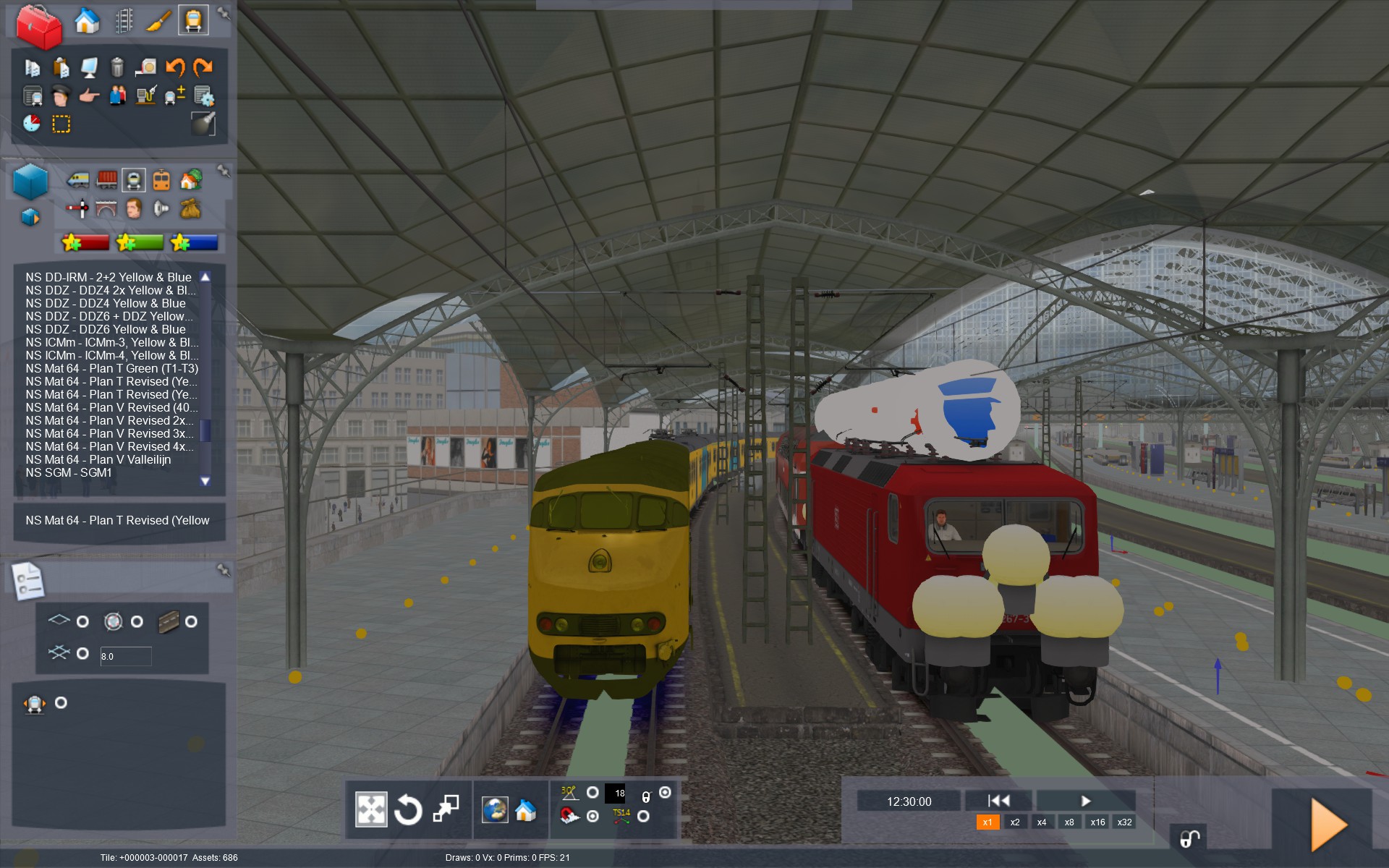 Click the consist of your choice and click on the free bit of track to place it. Make sure it's facing the same way as the train you want to replace. Shift-click the train to select the entire consist, and click the floating arrow above it to flip it around. With an EMU it may be difficult to tell which side is the front, as both sides have a cab.
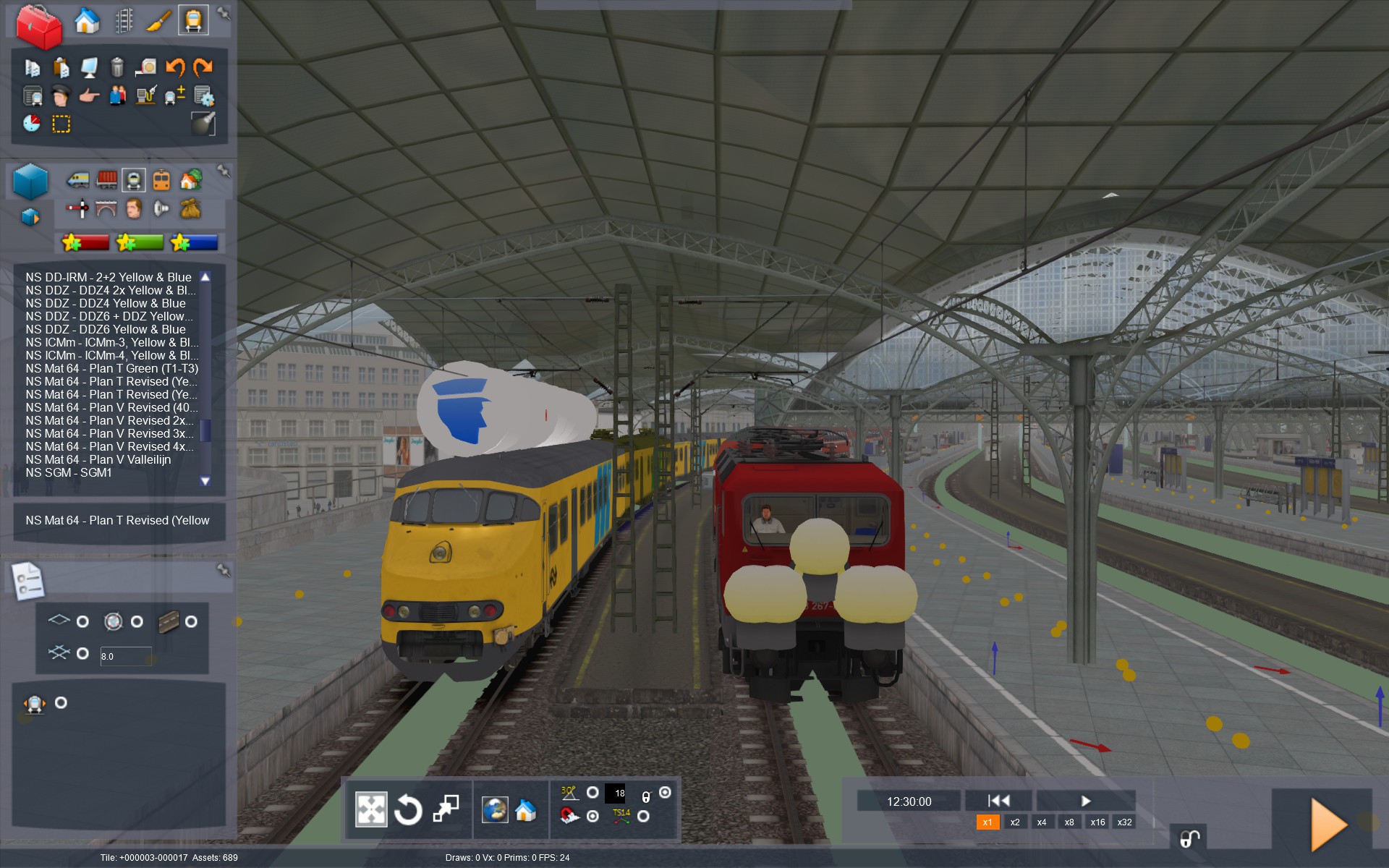 Click on the driver icon above the old train, and drag it to the new train. You may need to zoom out a bit so you can have both trains in view. The row of icons will now appear above the new train. And it looks like it's facing the right way too. The floating scenario instruction icons will always appear on the front side of the train.
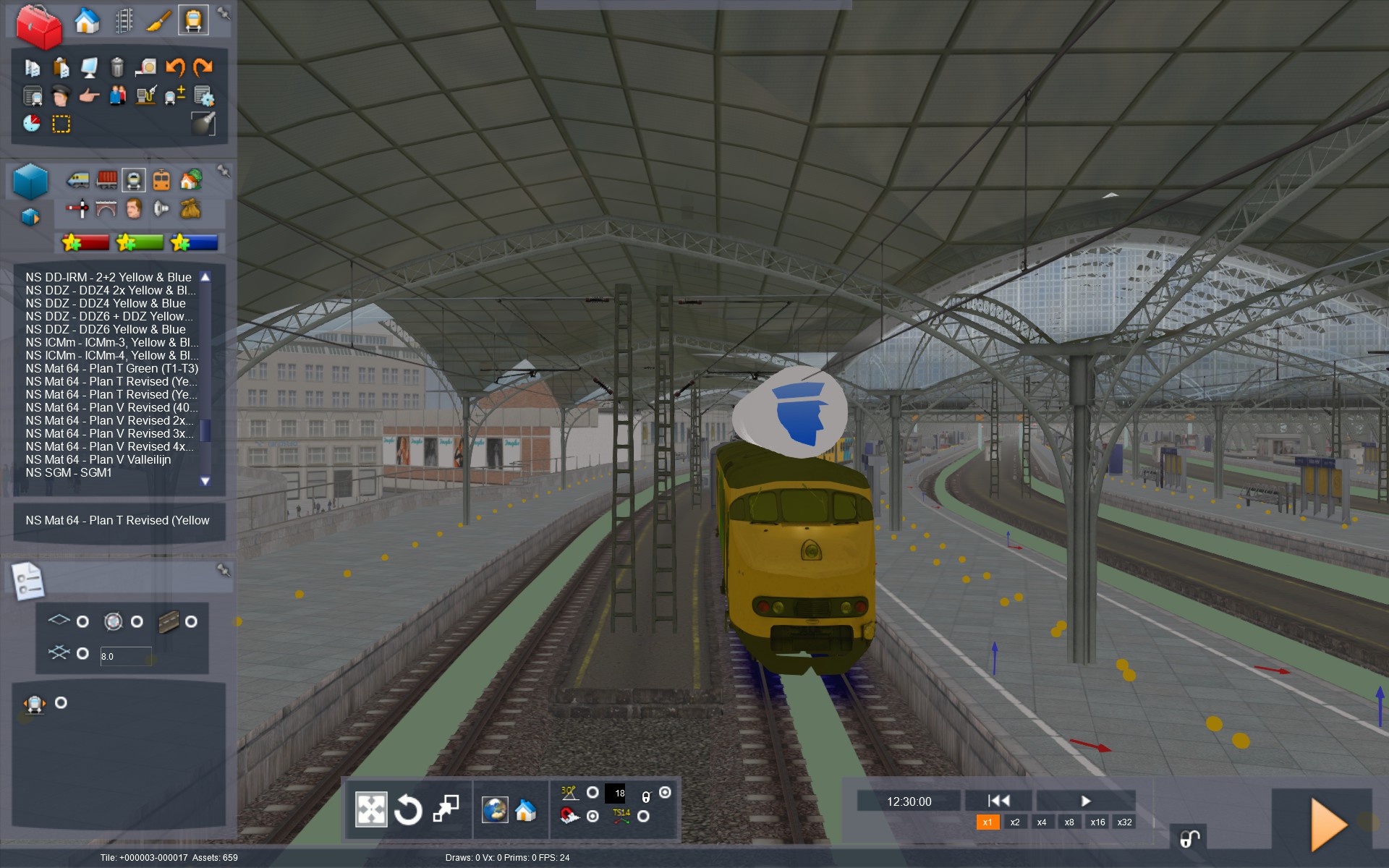 Shift-click the old train, and press the delete key to remove it. Now we need to move the new train into the old train's spot. Shift-click to select the entire train, and then shift-drag it into place. Remember to hold shift as you drag the train around, otherwise you'll just move a single car instead of the whole train.
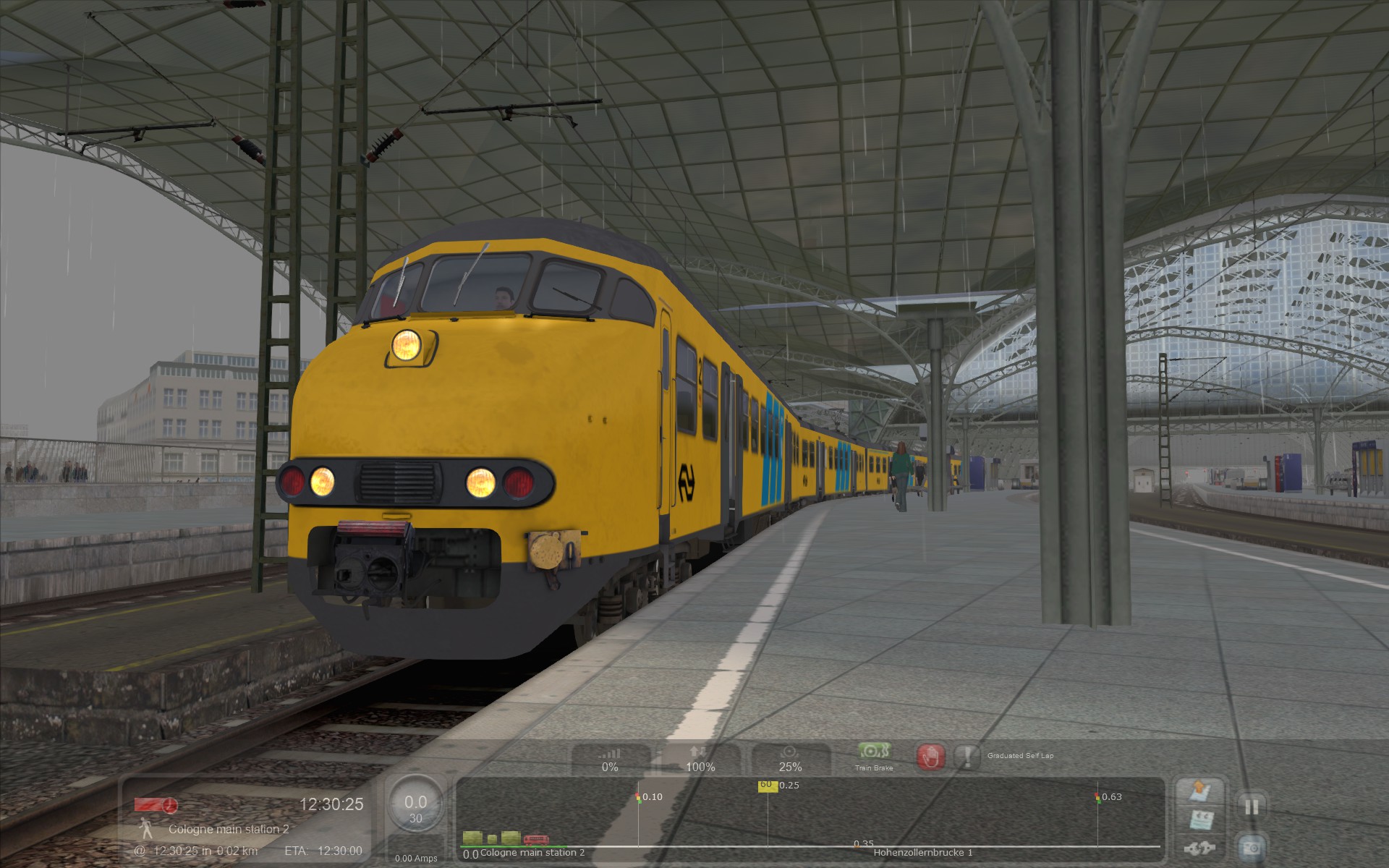 Click on the orange "Play" icon in the bottom right of the screen, and you'll be asked to save changes to the scenario. Say yes, and in a few seconds the scenario will begin.
Usually there should be no problems, but you may experience a few signalling issues, where the lights stay red forever. After saving the scenario, you can go back to the main menu and load it from there, that should fix this problem.
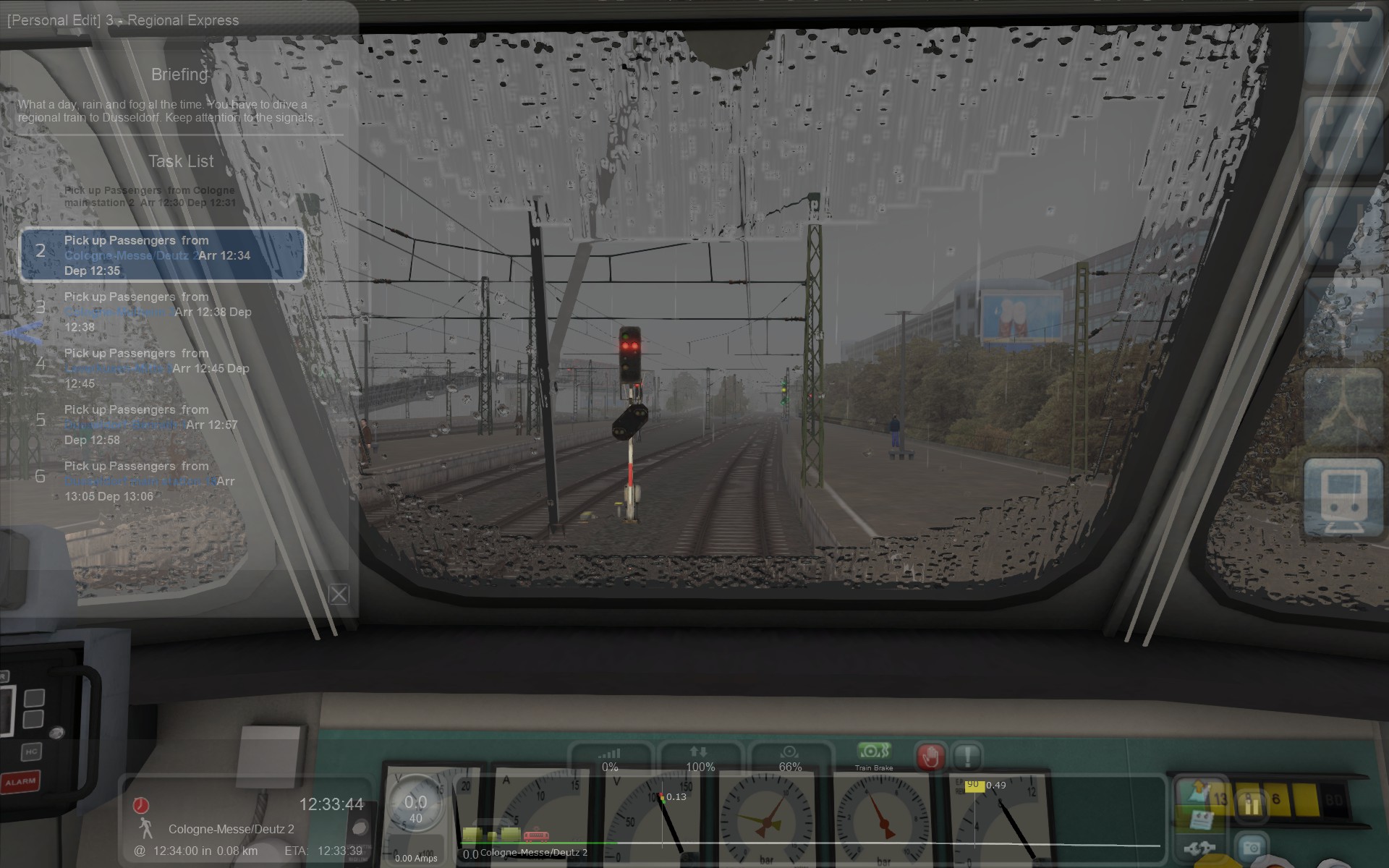 Just to prove that this works, when I press F1 you can see the timetable orders have been transfered to the new train.
Potential issues
Warning: This section has quite a bit of train nerd stuff going on.
Swapping a train may cause some problems, sometimes insignificant and sometimes game-breaking. Please keep these in mind. Usually things will only look a bit odd, but they will still work.
Generally speaking, in the UK the loading gauge is rather small. This is why you never really see double decker or bi-level trains there. In the US, the loading gauge is pretty big, cars with two standard shipping containers stacked on top of each other are a common sight. The German profile is somewhere in between those two. Despite this, the track gauge in all three countries is the same, 1435mm, also known as standard gauge.
The smallest loading gauge I can think of, with regards to Train Simulator, is on the Isle of Wight. The tunnels on that route are too small to fit regular UK-sized trains, so instead former London Underground Tube trains are used.
Also, the overhead wire may be too high for the pantograph to reach. This is mostly an issue if you use a UK or German train on a US route. In the game, even if the pantograph doesn't make contact, it should still work.
The wrong loading gauge shouldn't really cause any game-breaking problems, your train will just clip through tunnels and scenery without crashing. Theoretically, there's a chance your train can hit cars on parallel tracks because of its width. I haven't actually seen that happen, there's almost always enough space between the tracks.
How big of an issue this is, depends on the route and the train. I've found that often the train will work anyway. I've driven trains that require an overhead wire for power, on tracks that only had a third rail, and vice versa. Sometimes, you don't even need to raise the pantograph, even when there's only a third rail available. On the dashboard it may appear as if you have no power, but your train might move anyway. If not, just raise the pantograph. It'll look a bit odd, but your train should move.
If you don't like the way this looks, and your train is of the electric multiple unit (EMU) type, you may be able to swap out the car with the pantograph for one that doesn't. You may still need to press the "raise pantograph" button.
If you use a train that has a different safety system than the route, the safety system will simply not be active. All this means is that you, as the driver, will need to pay a little extra attention.
It is only really a problem if you need to depend on in-cab signalling, and you're in a train that has no support for it. You may be able to make do with information from the game's HUD.
Of course, the door can also be used to let passengers move to a different train that's coupled up to it, and many trains in the UK also have this capability. But some trains have this door purely for safely reasons, like the London Overground Class 378 and the Class 319. Another example are the trains on the London Underground. The more modern Docklands Light Railway doesn't have these emergency doors, because its tunnels are big enough to let passengers disembark using the regular side doors.
This, obviously, is not an issue that affects gameplay, it'll just look somewhat unrealistic.
Have fun!
I hope that this guide will let you get more out of the Train Simulator content you already own. In this guide, for example, I've replaced a German S-Bahn train on the Cologne-Dusseldorf route with a Dutch train. I was never a big fan of the default trains that came with this route, and I also had these Dutch trains lying around which didn't come with many scenarios of their own.
Instead of taking the time to create my own scenarios, I've simply swapped a train around so I can play the game the way I want to play it.
This text is licensed as Attribution-NonCommercial-ShareAlike 4.0 International (CC BY-NC-SA 4.0)[creativecommons.org].
This guide is not licensed for training an AI or to be minted as NFT.
Feel free to link to this guide.
If you have any feedback, additions, corrections, suggestions, etc., please leave a comment below and help make this guide even better.
- Driving and Firing Steam Engines★ 5 (1.1k)33k views1.1k ♥14 minUpdated Jan 3, 2013
- [ENG] TS2015 - Controls Overview★ 5 (641)26k views837 ♥3 minUpdated Mar 10, 2015
- Route maps★ 5 (408)22k views575 ♥28 minUpdated Mar 21
- Fixing the Out of Memory Error★ 5 (206)13k views302 ♥12 minUpdated Jun 15
- Horn and Bell Use★ 5 (352)11k views345 ♥11 minUpdated Dec 26, 2025
- The Simple guide to - Scenario Creation★ 5 (278)10k views541 ♥15 minUpdated Nov 25, 2015


- Upgrading to PremiumTeam Fortress 2★ 5 (20k)1441k views11k ♥6 minUpdated May 11, 2022
- No More Room in Hell Official ManualNo More Room in Hell★ 5 (2.8k)569k views2.1k ♥29 minUpdated Apr 22, 2019
- NMRiH Community Hosting GuidesNo More Room in Hell★ 5 (526)351k views653 ♥1 minUpdated Aug 10, 2022
- ULTIMATE GUIDE FOR GAME DEV TYCOONGame Dev Tycoon★ 5 (5.8k)326k views10k ♥4 minUpdated 23 Jan, 2014
- How to 'Git Gud' Soon™MORDHAU★ 5 (2k)318k views3k ♥68 minUpdated Nov 16, 2024
- Лучшие кооперативные игры SteamPAYDAY 2★ 5 (1.5k)315k views2.1k ♥56 minRussianUpdated Apr 27, 2025






This guide was created by its original author on the Steam Community. Are you the author and want it removed? Request removal.