The Complete Setup Guide For Hitman 2: Silent Assassin
Who Is This Guide For?
The guide works for both Steam and GOG versions of the game.
What is Covered?
- Fix the grey intro screen
- Fix broken cutscenes, black-screen hangs, and the first mission failing to start
- Fix characters appearing as black silhouettes
- Restore correct animations and engine physics
- Enable widescreen support
- Optionally play in windowed mode
- Optionally remap mouse and keyboard controls
- Optionally enable freecam
- Optionally install ReShade for enhanced visuals
1. Essential: Install DxWrapper
When starting the game, the opening video may not play, cutscenes may hang on a black screen, and you may notice graphics glitches during gameplay such as characters appearing as black silhouettes. DxWrapper solves all these problems. Coincidentally, DxWrapper also comes with a built-in asi loader for loading scripts. We will use this later to install a widescreen resolution plugin.
https://github.com/elishacloud/dxwrapper/releases/download/v1.7.8400.25/dxwrapper.zip
- dxwrapper.dll
- dxwrapper.ini
- d3d8.dll (found in the "Stub" folder)
- The intro video plays when launching the game.
- Starting a new game no longer hangs on a black screen, and the opening cutscene plays.
- Characters render with the correct textures.
- Game has anti-aliasing.
2. Essential: Limit The Frame Rate
- Items bouncing around excessively when dropped from the inventory.
- Enemies T-posing or getting randomly stuck.
- Enemies detecting you from across the map due to incorrect vision range.
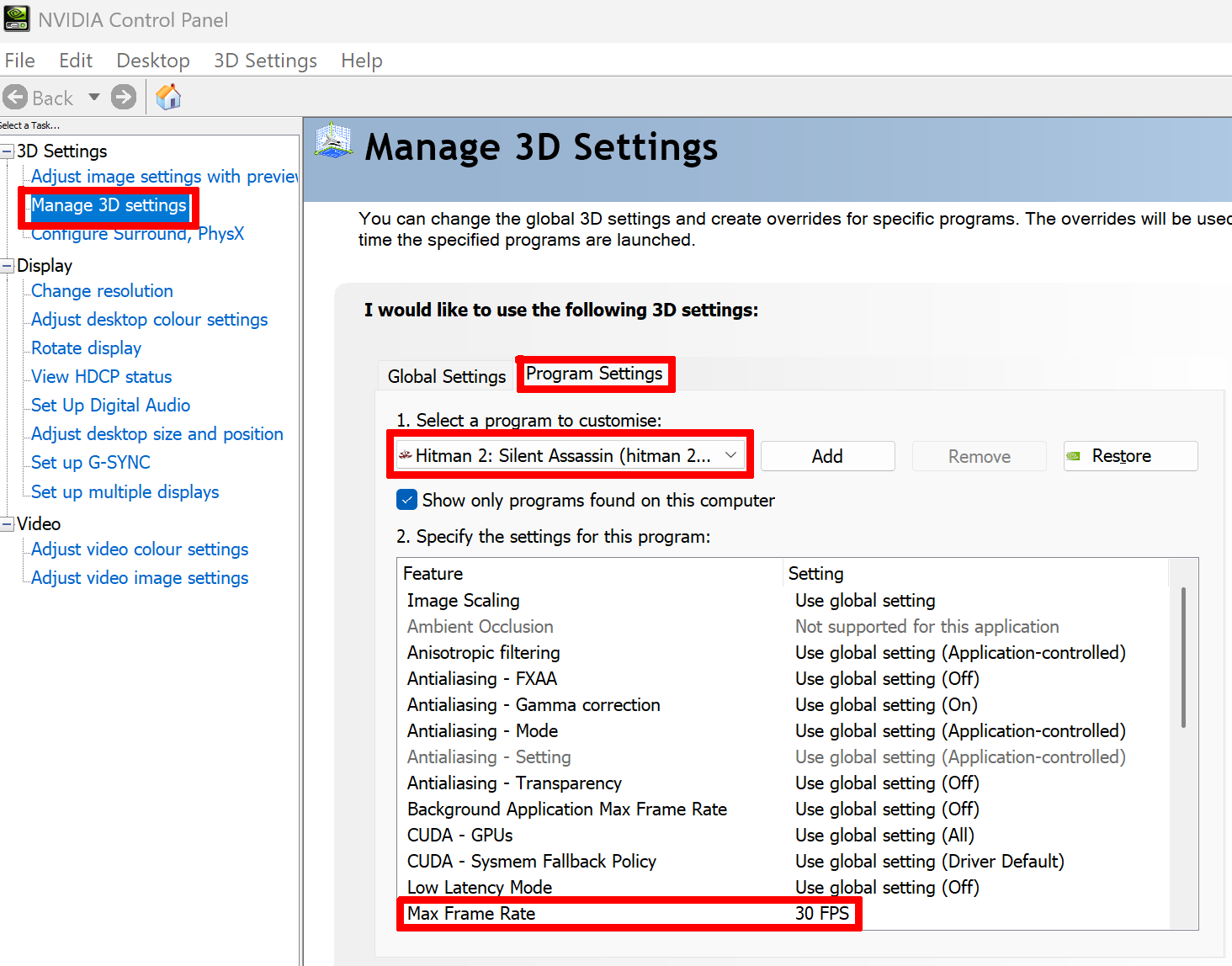 If you have an NVidia GPU, you can limit the frame rate using the NVidia Control Panel. This will permanently lock the game's frame rate.
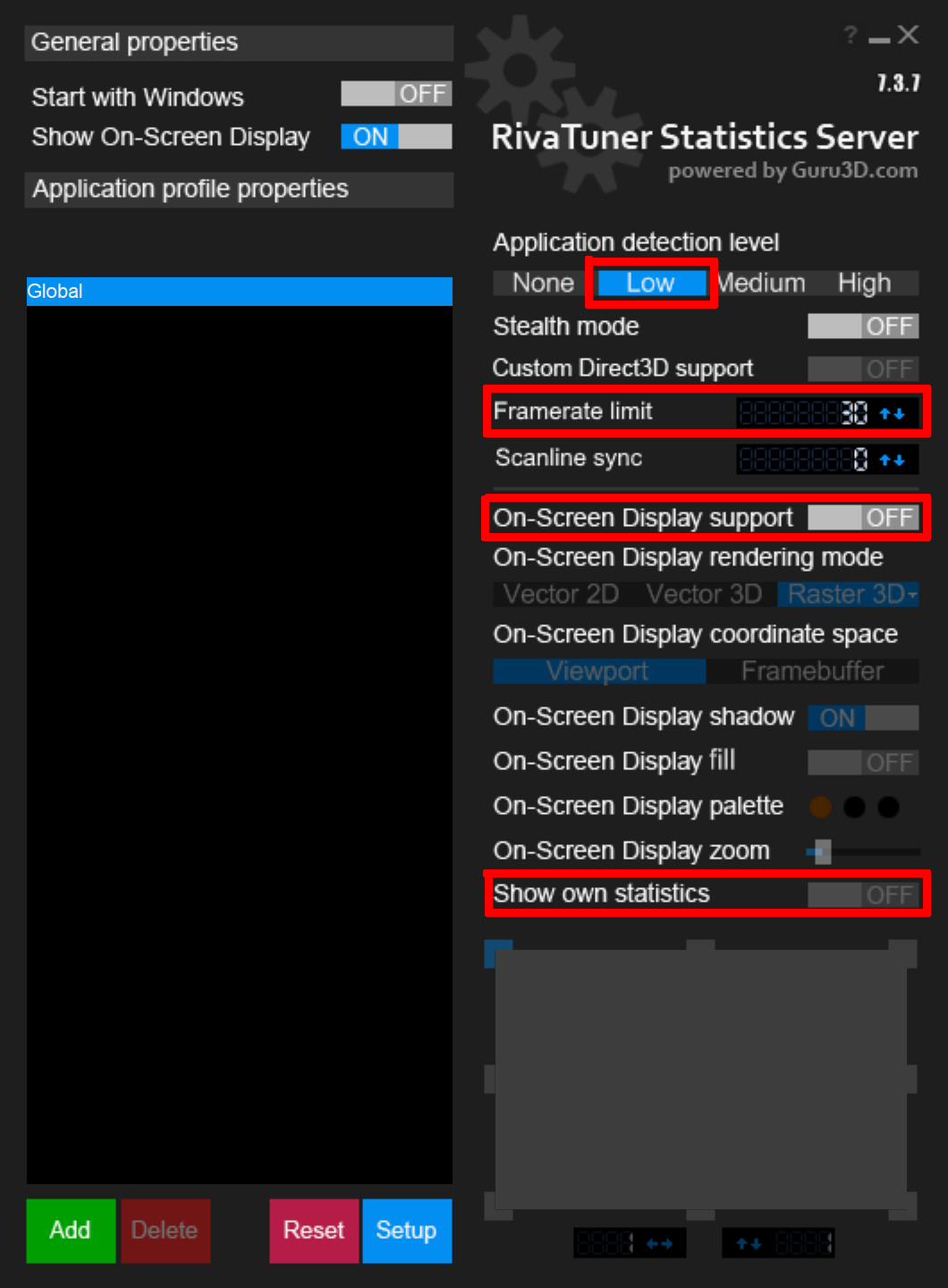 You can use RTSS Rivatuner Statistics Server[www.guru3d.com] to limit the frame rate. This works with all GPUs. After installing and running the application (by running the RivaTuner Statistics Server app from the search bar, or by launching RTSS.exe from the application folder), open the RivaTuner window from the system tray (it looks like a blue screen with a small red square in the top left), set Application detection level to Low, and then set the Framerate limit to 30. The Rivatuner application must be running for the limit to work.
Alternatively, in RivaTuner, enable On-Screen Display support and Show own statistics in Rivatuner, which will display the fps in-game. Alternatively, use steam's performance monitor, via Steam -> Settings -> In-Game -> Show performance monitor.
- Items behave correctly when dropped from the inventory.
- Enemies display correct animations and no longer T-pose.
- Enemies no longer get randomly stuck.
- Enemies have normal vision and detection behaviour.
3. Recommended: Install The Widescreen Plugin
Next, we'll install a plugin that enables custom resolutions not available in the game's menu—including widescreen resolutions.
- Download nemesis2000's widescreen fix from:
https://community.pcgamingwiki.com/files/file/2787-hitman-2-silent-assassin-widescreen-fix/⚠️Important: The archive also contains an old version of DxWrapper. Ignore those files. We only need the files in its scripts folder:- h2.ini
- h2w.asi
- h2.ini
- Copy h2.ini and h2w.asi from the archive into the game folder.
At this point, I suggest starting the game again to check that the new resolution takes effect. When you do so, it is possible that you get the following error:
- Edit h2.ini to set another resolution that you know is supported by your monitor. For instance, most monitors with a 16:9 aspect ratio will support 1280x720.
- Run the game in windowed mode instead i.e. move the h2w.asi file out of the game folder, run the game again without the plugin, follow the instructions below to set up windowed mode, then move the h2w.asi file back into the game folder.
- As a last resort, run the game without the widescreen fix (i.e. remove the h2w.asi file) and instead use the in-game options to pick a resolution.
- Game launches in widescreen.
- User interface is readable.
- Game does not crash when climbing the church stairs during the Kirov Park mission.
4. Optional: Enable Windowed Mode
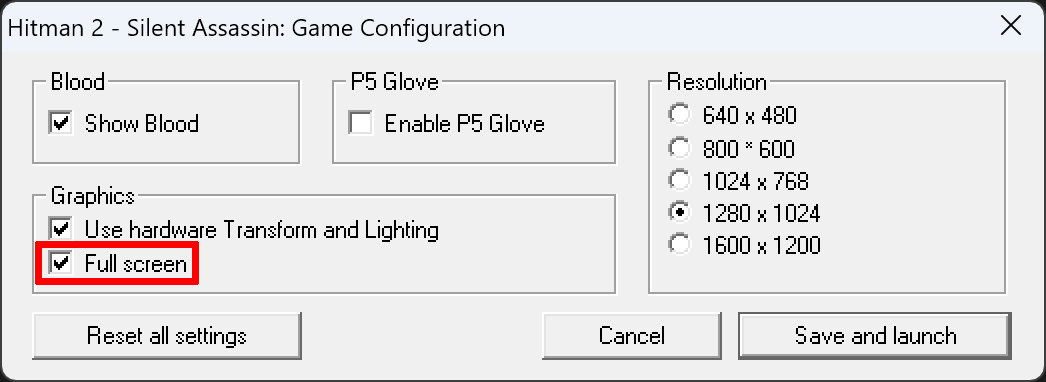 You can switch between full screen and windowed mode using the configuration utility (it's not in the in-game menu). Run config.exe in the game's root folder, and disable Full screen. Click Save and launch.
On steam, you will get the following error:
You can switch between full screen and windowed mode using the configuration utility (it's not in the in-game menu). Run config.exe in the game's root folder, and disable Full screen. Click Save and launch.
On steam, you will get the following error:The game should now run in a window located right in the centre of your screen. Unfortunately, you cannot grab the window to move it.
If you wish to adjust the window location, open Hitman2.ini in the game folder, and add the following line (anywhere, as long as it is on a separate line):
Restart the game to check that the position is as desired.
If you have a high resolution monitor, the game window may appear too small. We will fix this next.
- The game launches in windowed mode.
- The game window is at the location you want.
- If playing on a high DPI monitor: window is too small (will fix next).
5. Optional: Enable High DPI Scaling
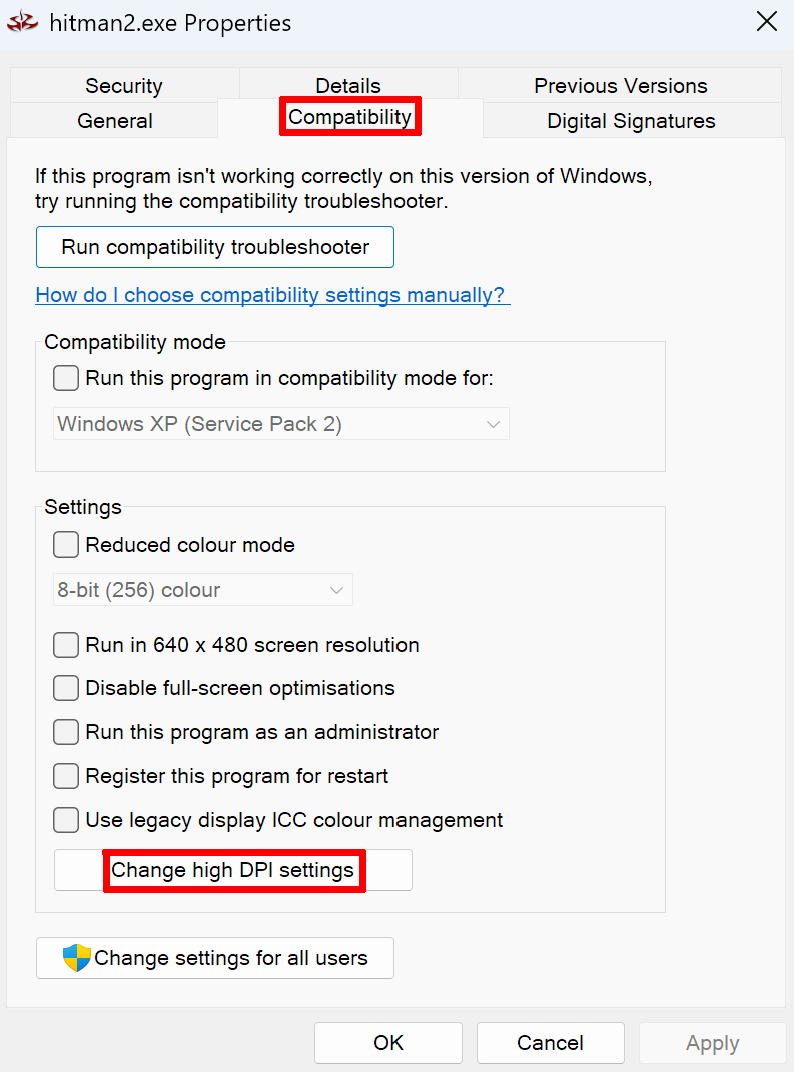
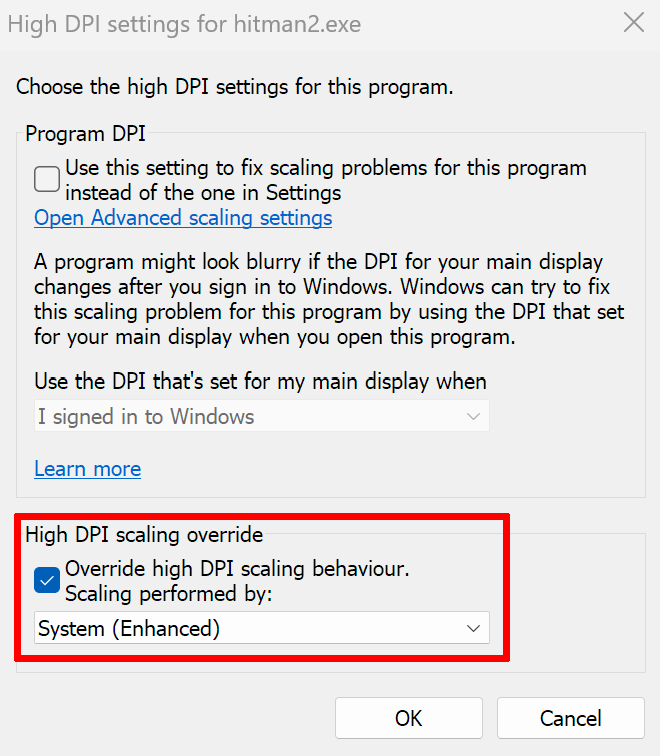
If the game window appears too small on a high-resolution monitor, you can enable high DPI scaling. In this way, the game's user interface is still appropriately sized, at the expense of some pixelation.
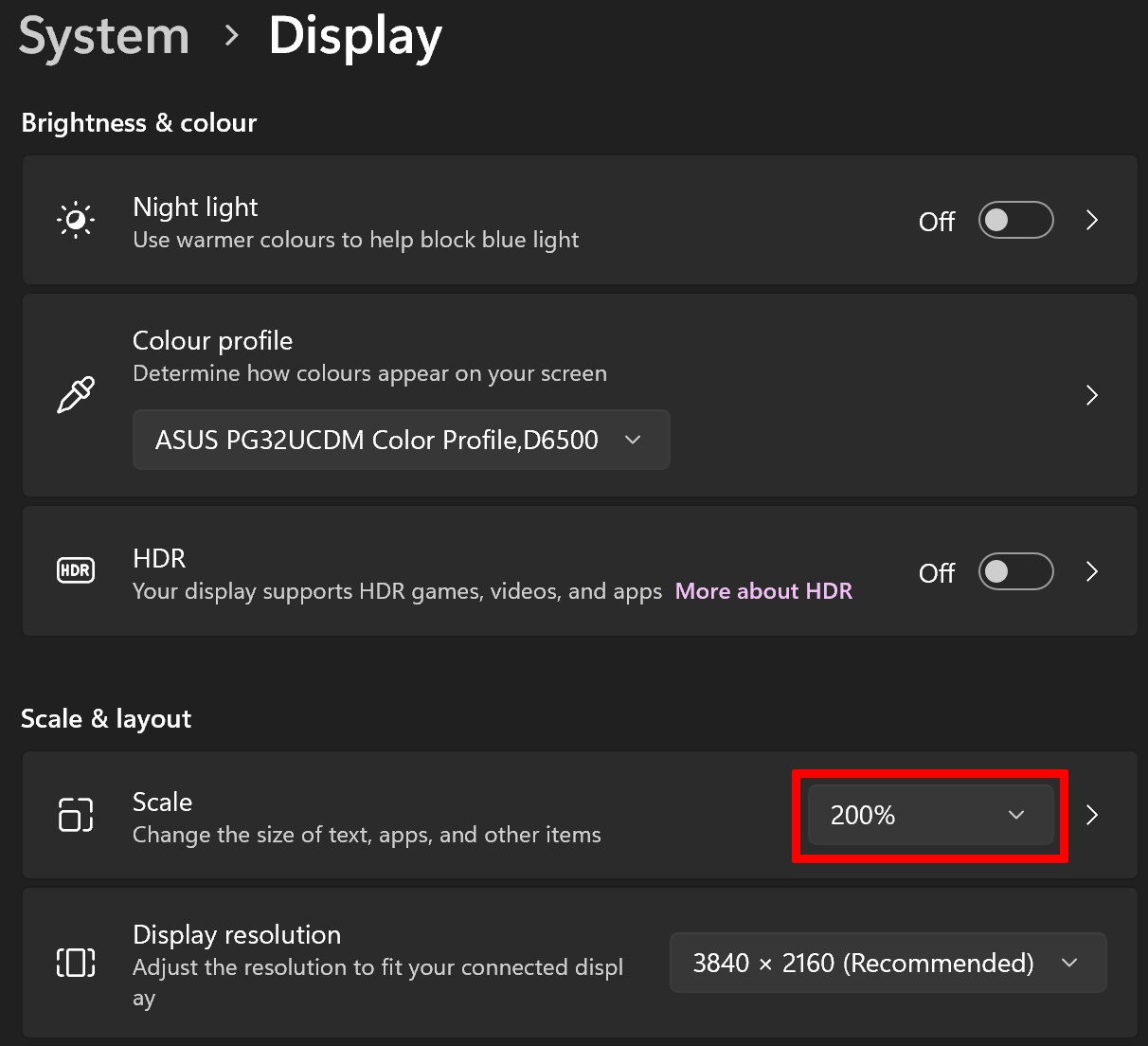 First, you need to have appropriate high-DPI scaling enabled on your monitor. You can check this in your system settings under Display. To enable, pick any appropriate value larger than 100%. I have it at 200% but the correct setting highly depends on your hardware and preferences.
- Right-click hitman2.exe.
- Select Properties.
- Open Compatibility.
- Select Change high DPI settings.
- Enable Override high DPI scaling behaviour.
- Select System (Enhanced) from the drop down menu.
- Click Ok, then Apply.
- Game window is now larger and appropriately scaled.
6. Optional: Remap Mouse & Keyboard Controls
The default controls in the game are slightly dated. You can remap them from the main menu via Options -> Control setup -> Button configuration. Here are some controls that resemble modern Hitman games. Obviously you can reassign these however you want.
The justification for using G for Equip lockpick is that it is the closest thing to the extremely useful "Empty hands" action from Codename 47. It's very useful to safely unequip your gun if you are carrying one, and the lockpick is not an illegal item to hold in the open. This is preferred over the Holster/inventory action which will equip whatever you had equipped before if you are not carrying anything, so it is not safe in case you accidentally press it.
Use of the right mouse button for the inventory menu makes it similar to the controls in Hitman Blood Money, where it is awkward to use any other key for the inventory menu.
7. Optional: Enable Freecam
The in-game free camera mode can be a very helpful tool for screenshots, for developing strategies, and for fun. To enable freecam, add the following to your keyboard.cfg file.
Press K to toggle freecam. Use the mouse to look around and the arrow keys to move forwards/backwards. Hold SHIFT for tilting, and hold CTRL for strafing.
8. Optional: Install ReShade
- Install ReShade[reshade.me] only after DxWrapper has been configured. (This is because DxWrapper translates the game's DirectX8 renderer to DirectX9 and ReShade does not support DirectX8.)
- Select DirectX9 during ReShade installation.
- Configuring ReShade is beyond the scope of this guide, as it depends heavily on personal preference. The official ReShade website[reshade.me] has detailed installation instructions and guides.
Final Checklist
- Working intro screen
- Working cutscenes
- Missions start normally
- Characters appear normally
- Readable user interface
- Stable 30 (or 60) FPS with correct animations and engine physics
- Optional freecam support
- Optional enhanced visuals
Closing Thoughts
- PC Gaming Wiki[www.pcgamingwiki.com]
- DxWrapper Wiki[github.com]
- Widescreen Fix on Nexus Mods[www.nexusmods.com]
Thanks for reading!
If you notice anything outdated or have suggestions related to the guide, please leave a comment. I try to keep this guide updated, and feedback helps improve it for everyone.
Finally, if this guide helped you, a thumbs up is always appreciated. It helps other players discover it too!
- Proper widescreen (NEW FIX)★ 5 (462)26k views424 ♥2 minUpdated Jul 4, 2019
- Полный русификатор Hitman 2: Бесшумный убийца★ 5 (311)14k views335 ♥1 minRussianUpdated Nov 2, 2024
- Hitman 2: Silent Assassin Windows Fix★ 4 (153)14k views188 ♥1 minUpdated Jul 5, 2024
- Uncensored Hitman 2 Silent Assassin for Steam★ 4 (155)11k views178 ♥1 minUpdated Aug 27, 2023
- Black screen and resolution fix★ 4 (87)8.6k views94 ♥1 min
- Hitman 2 - Perfect Silent Assassin Guide★ 4 (147)8k views235 ♥68 minUpdated Jun 13, 2014



- Upgrading to PremiumTeam Fortress 2★ 5 (20k)1441k views11k ♥6 minUpdated May 11, 2022
- No More Room in Hell Official ManualNo More Room in Hell★ 5 (2.8k)569k views2.1k ♥29 minUpdated Apr 22, 2019
- NMRiH Community Hosting GuidesNo More Room in Hell★ 5 (526)351k views653 ♥1 minUpdated Aug 10, 2022
- ULTIMATE GUIDE FOR GAME DEV TYCOONGame Dev Tycoon★ 5 (5.8k)326k views10k ♥4 minUpdated 23 Jan, 2014
- How to 'Git Gud' Soon™MORDHAU★ 5 (2k)318k views3k ♥68 minUpdated Nov 16, 2024
- Лучшие кооперативные игры SteamPAYDAY 2★ 5 (1.5k)315k views2.1k ♥56 minRussianUpdated Apr 27, 2025






This guide was created by its original author on the Steam Community. Are you the author and want it removed? Request removal.