The Sims 3 Tiny UI Fix
Introduction
Hello!
Welcome to my guide for Tiny UI Fix and how to scale The Sims 3 UI on higher resolution monitors on newer PC systems.
If you have any questions feel free to look at the F.A.Q Section for common questions that have been answered.
Happy Simming!!
This guide is intended to be used with game version 1.67 Steam on Windows 10 OS and Windows 11 OS.
Versions obtained without purchase are not supported at all!
Linux users should have no issues.
LIKE ANY TYPE OF GAME GUIDE THAT MAKES YOU EDIT THE GAME FILES ALWAYS, ALWAYS BACK-UP YOUR FILES BEFORE STARTING!
Getting Started
Installing The Mods Folder
For new users to The Sims 3 Modding this will show you how to install the Mods Folder into your game so your game will be able to read and use ".Package" file mods.
The "Mods" Folder is for .package files, .sims3pack Files need to be installed through the games launcher. I recommend this depth video by @SimMattically for more information about the different package types can be found HERE!
Step 1 - Download the mods folder using the download button from ModTheSims HERE![modthesims.info]
Once on the download page scroll down a little until you see a "Download" button, once found click on this link and it will download the file.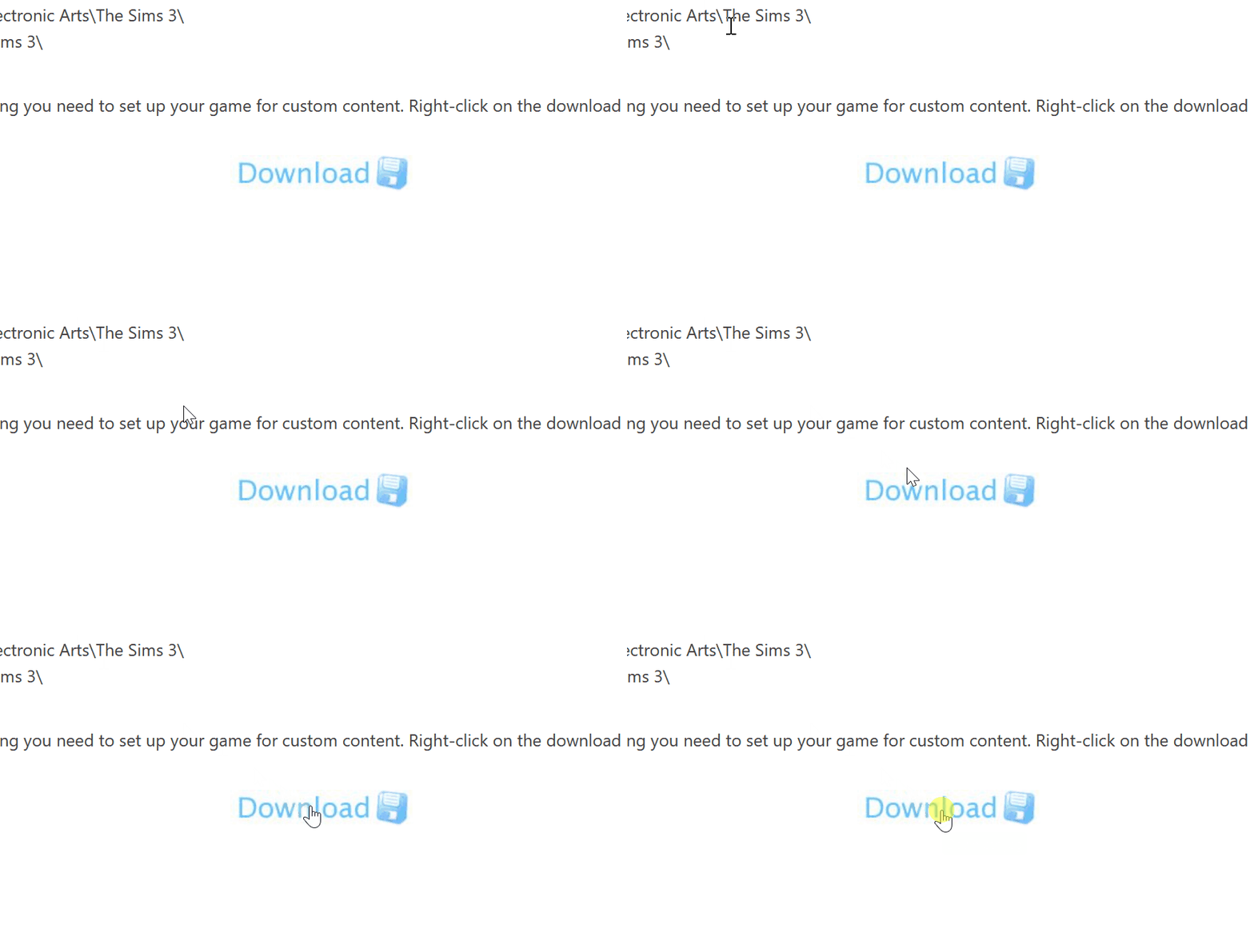
After the download is complete place the file somewhere easy to find like the desktop.
Step 2 - Once downloaded go to...
"Documents\Electronic Arts\The Sims 3"
Once there, open up the downloaded mods folder file and extract its contents right into The Sims 3 documents folder.
Step 4 - Just to make sure open up the mods folder and make sure the contents inside looks like this image below!
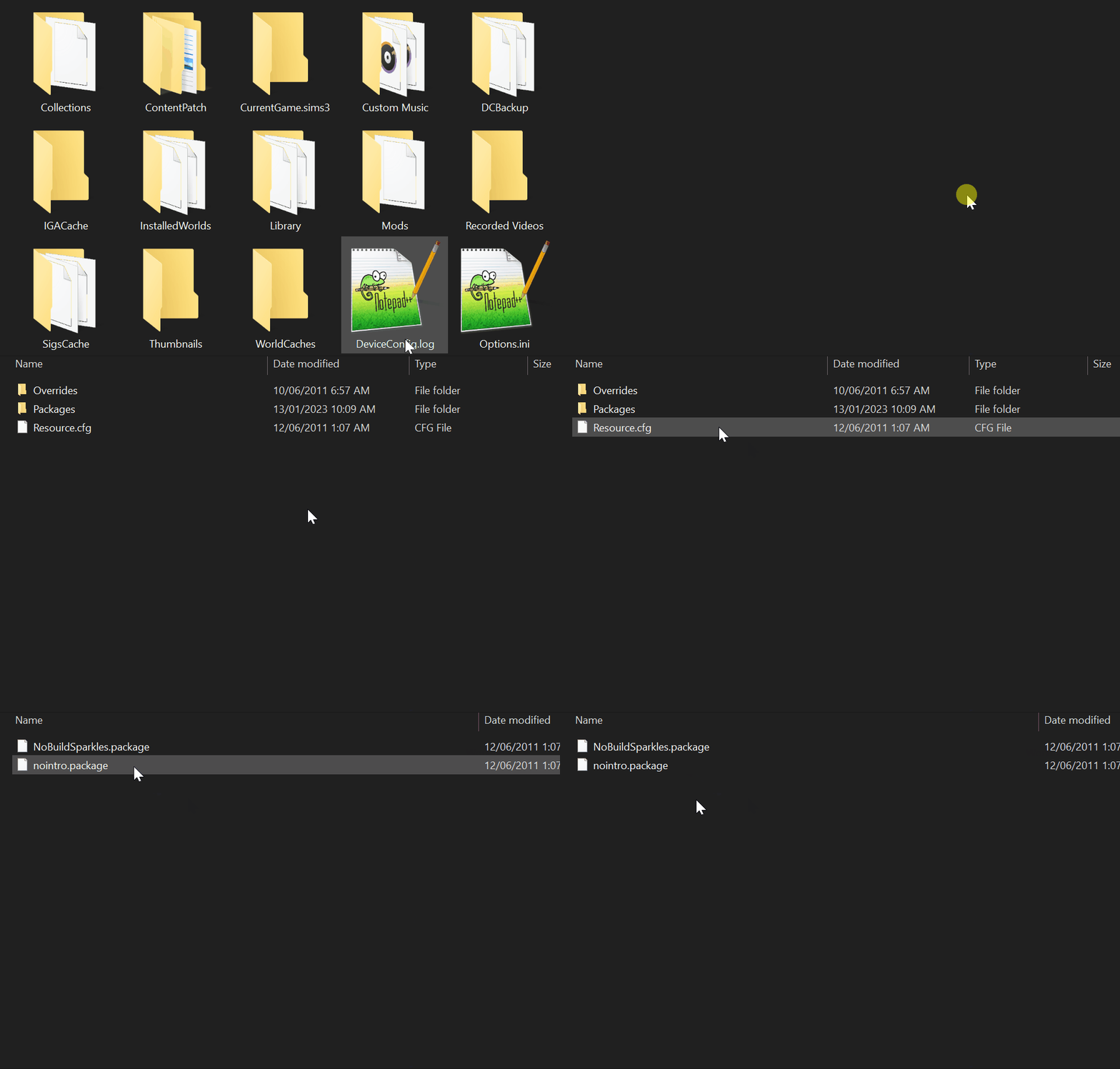 Files that should be present and that are needed are...
- Resource.cfg File
- Packages Folder
- Overrides Folder
The two package files that come inside the packages folder called...
- NoBuildSparkles.package
- nointro.package
If the maxis logo is still showing up on startup even with the "nointro.package" present in the mods folder for testing this is normal since the "nointro.package" was made before that intro screen was added in a later patch and uses a different file path to the other intro videos.
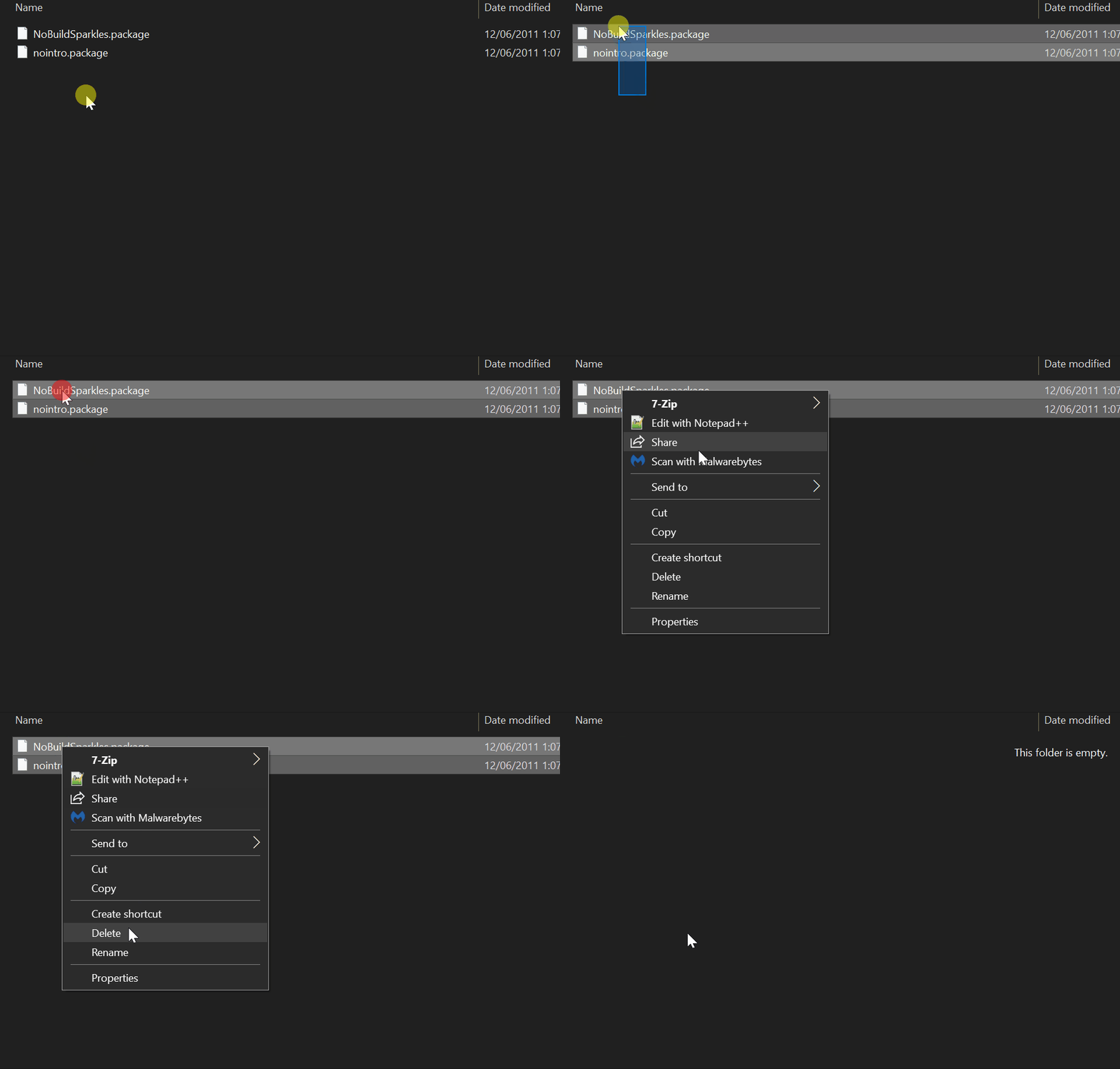
If you want to keep "nointro.package" to disable the intros and want the Maxis Logo Intro gone as well, you can download a mod for it HERE[modthesims.info] to be used along side "nointro.package".
Step 1 - Downloading Tiny UI Fix & Installation
Tiny UI Fix is the tool that we will be using to make The Sims 3 UI Scale with higher resolutions.
Step 1 - Download Tiny UI Fix From HERE![modthesims.info] or HERE![github.com]
Once on the Page Windows Users need to download the files called - "tiny-ui-fix-for-ts3.bat.zip"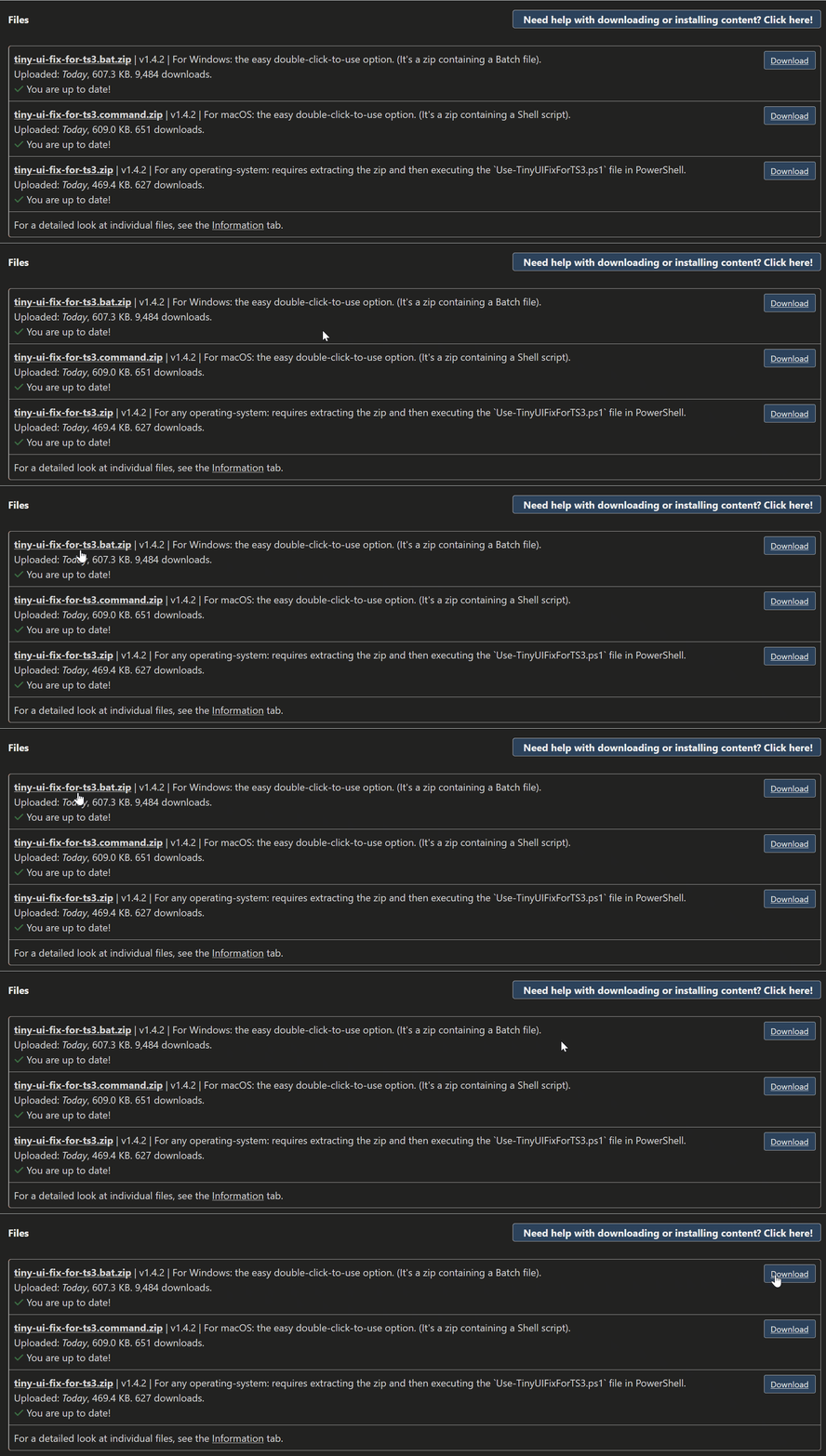
Once downloaded extract the contents into a newly created folder.
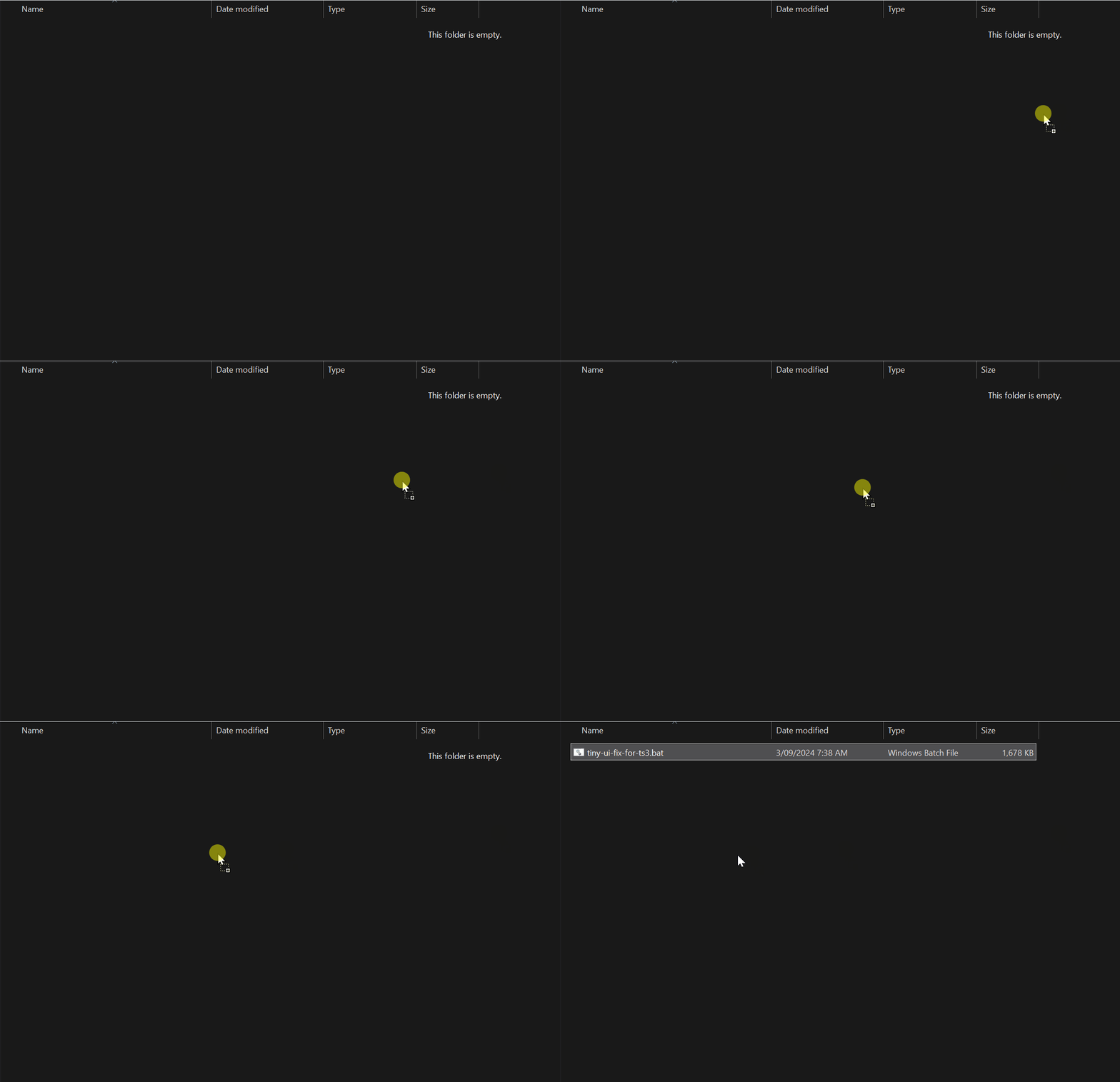 Next you will need to run the program by double clicking the "tiny-ui-fix-for-ts3.bat" file.
Step 2 - Once you have opened the program you will be greeted by this window.
Next you will need to run the program by double clicking the "tiny-ui-fix-for-ts3.bat" file.
Step 2 - Once you have opened the program you will be greeted by this window.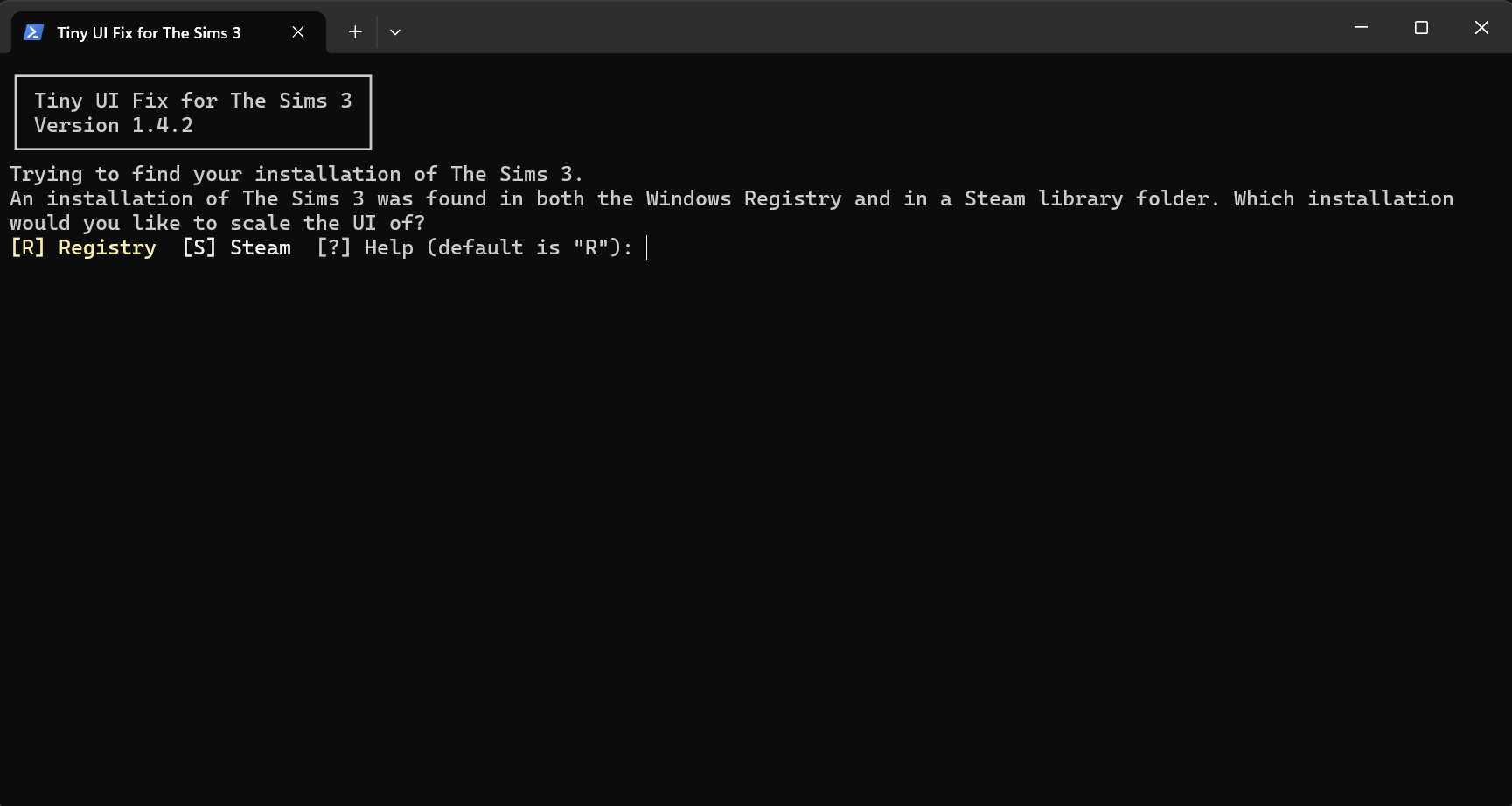
Since this guide is for the steam version of the game we will be typing in the letter "S". Once the letter has been typed in press "Enter"
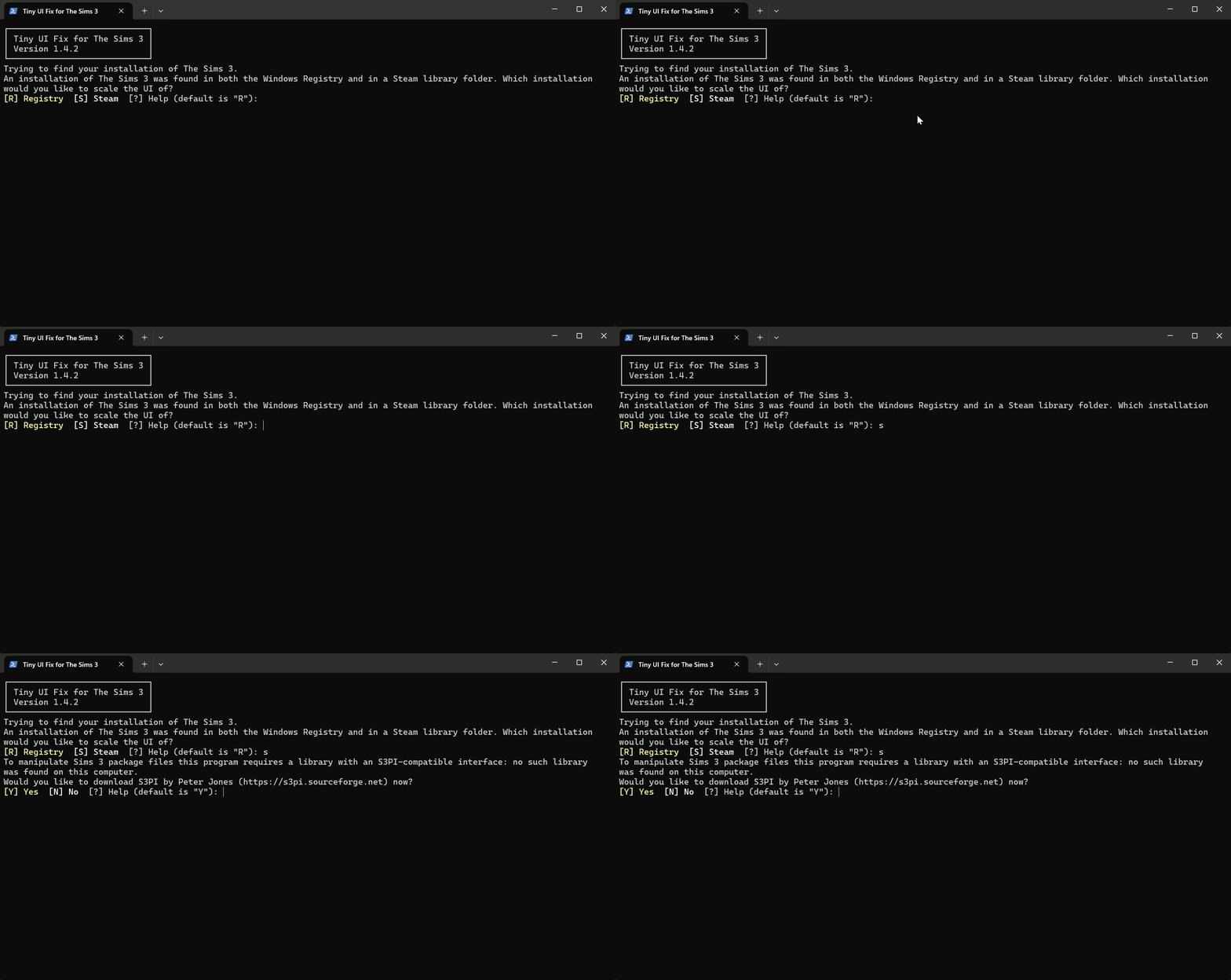
Once you have pressed "Enter" you will be asked to download two required libraries that being "S3PI" and "7zip" for Tiny UI Fix to work. Adding the letter "Y" and pressing "Enter" for both prompts is required.
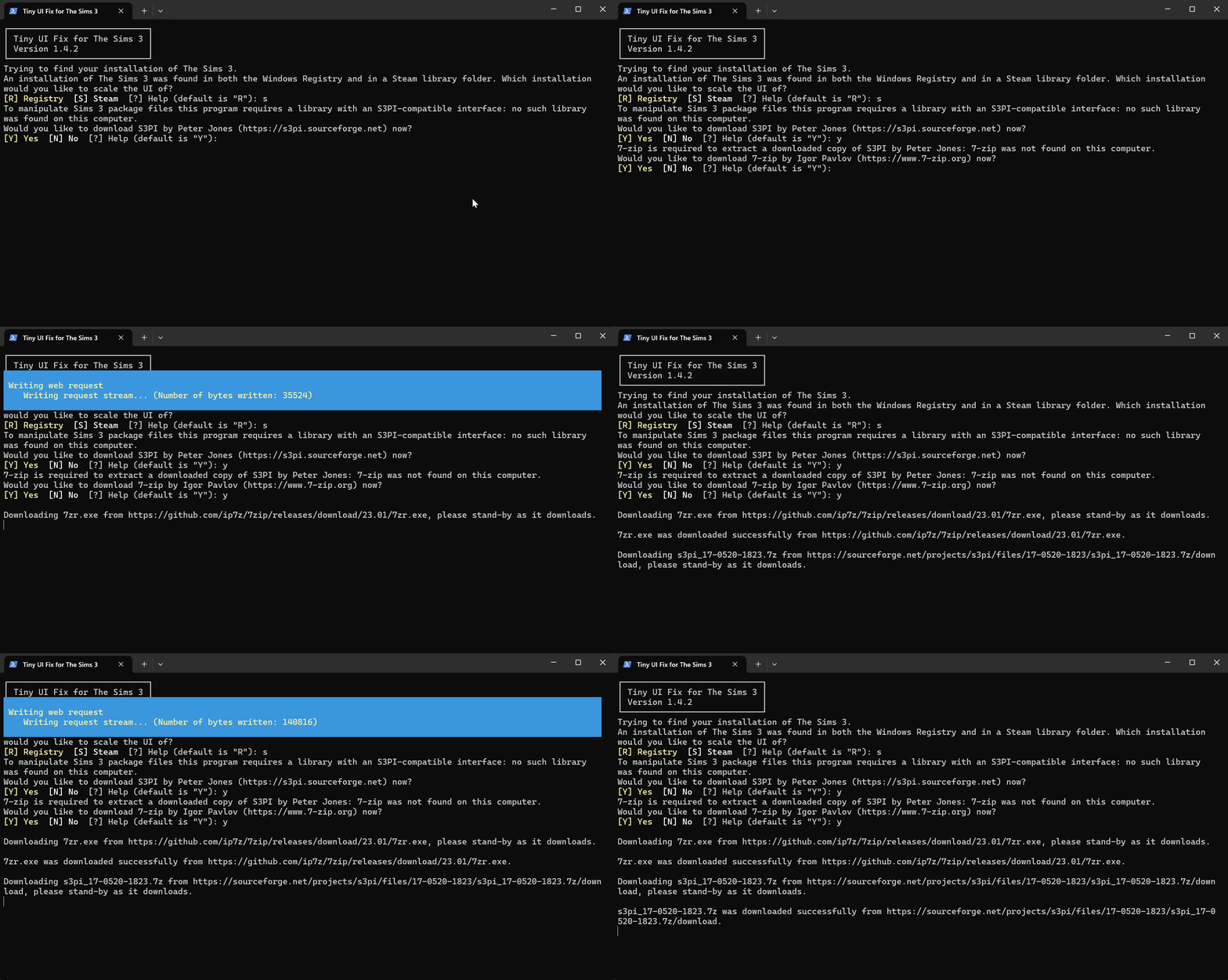
Once Both of the extra requirements have been downloaded you will see this message at the bottom of the window to continue press the "Enter" key on your keyboard.

Step 2 - Tiny UI Settings
Step 1 - After Completing the previous step you will be greeted by this window in your web browser.
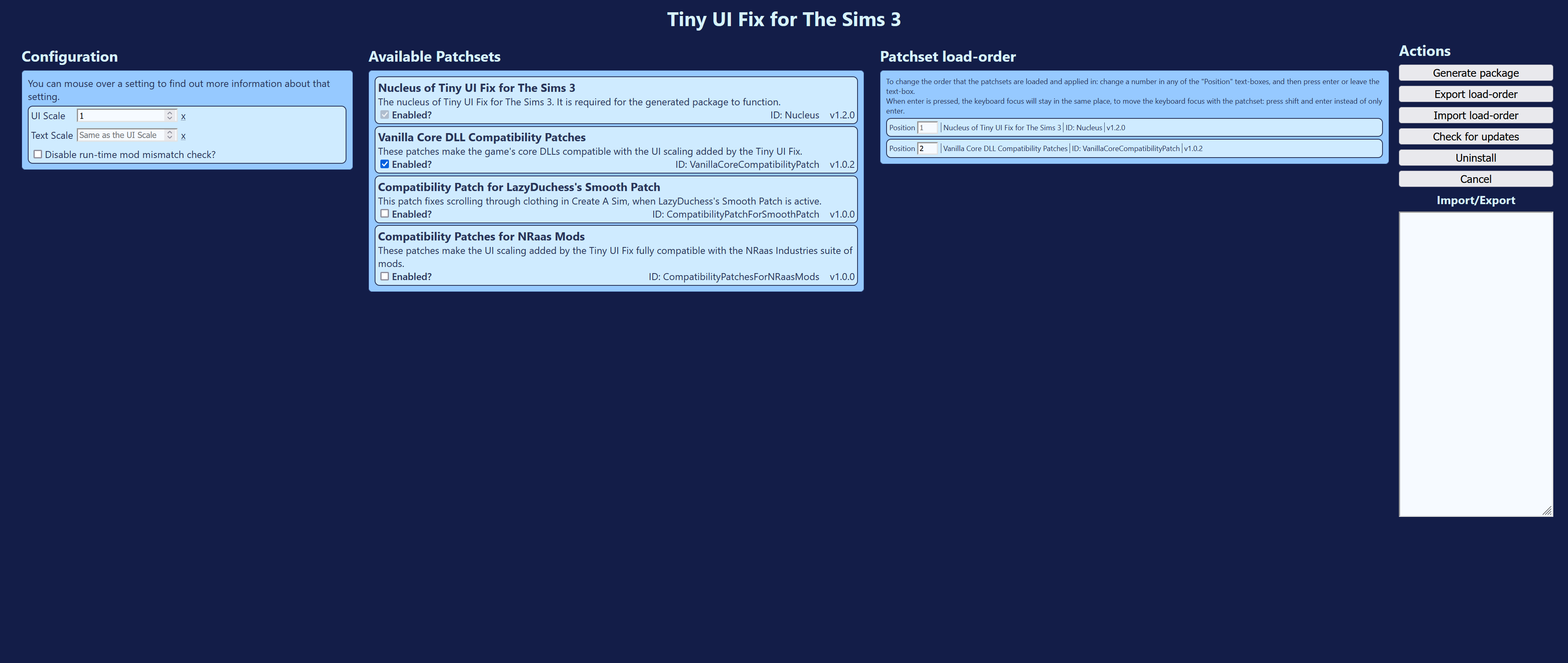
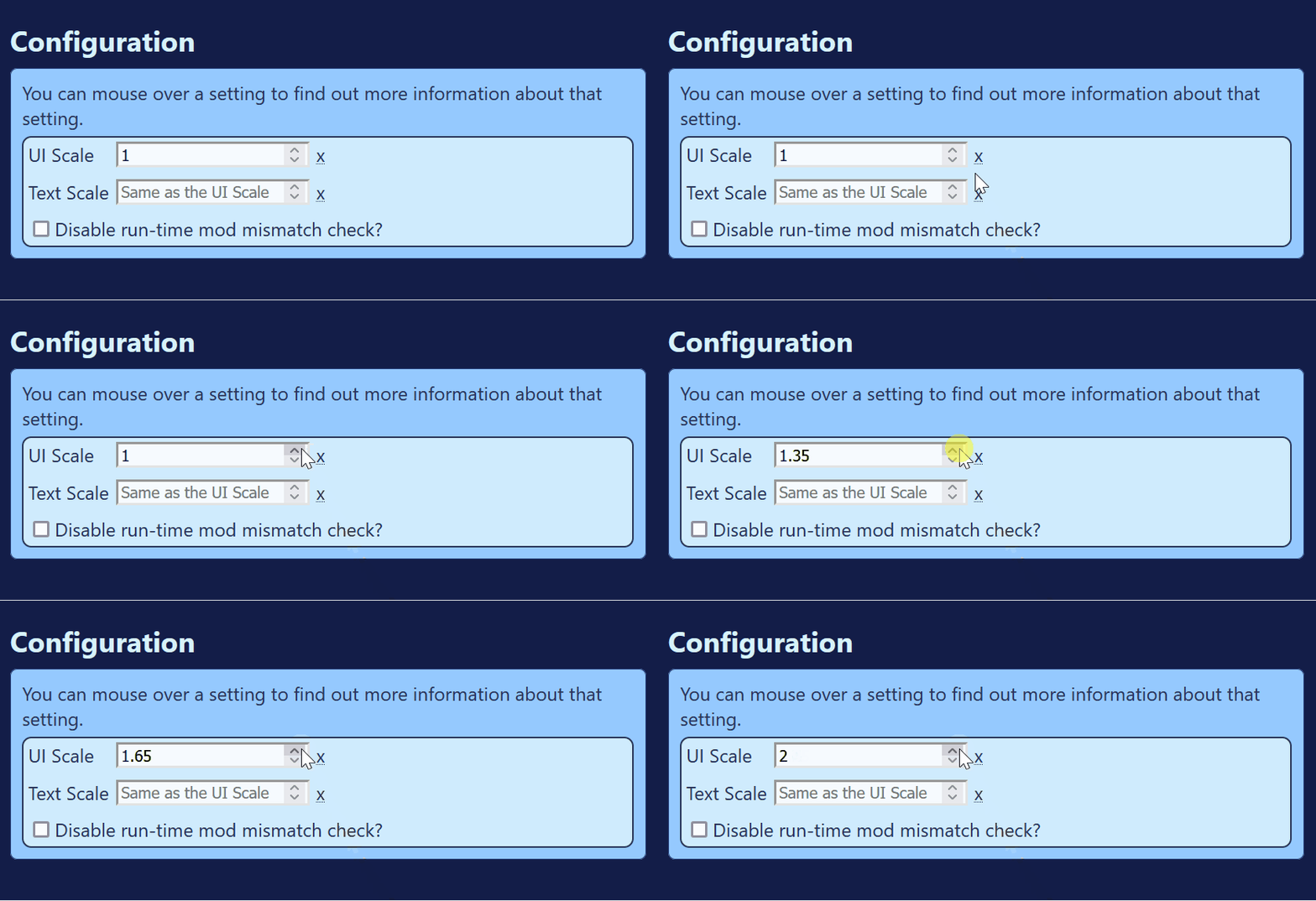
First thing you will need to do is set how much you wish to scale the games UI. I'd recormend these settings for...
- 8k (8129 x 4320) - Setting Size "4"
- 4k (3840 x 2160) - Setting Size "2"
- 1440p (2560 x 1440) - Setting Size "1.4"
(For this tutorial I will be setting it to "2")
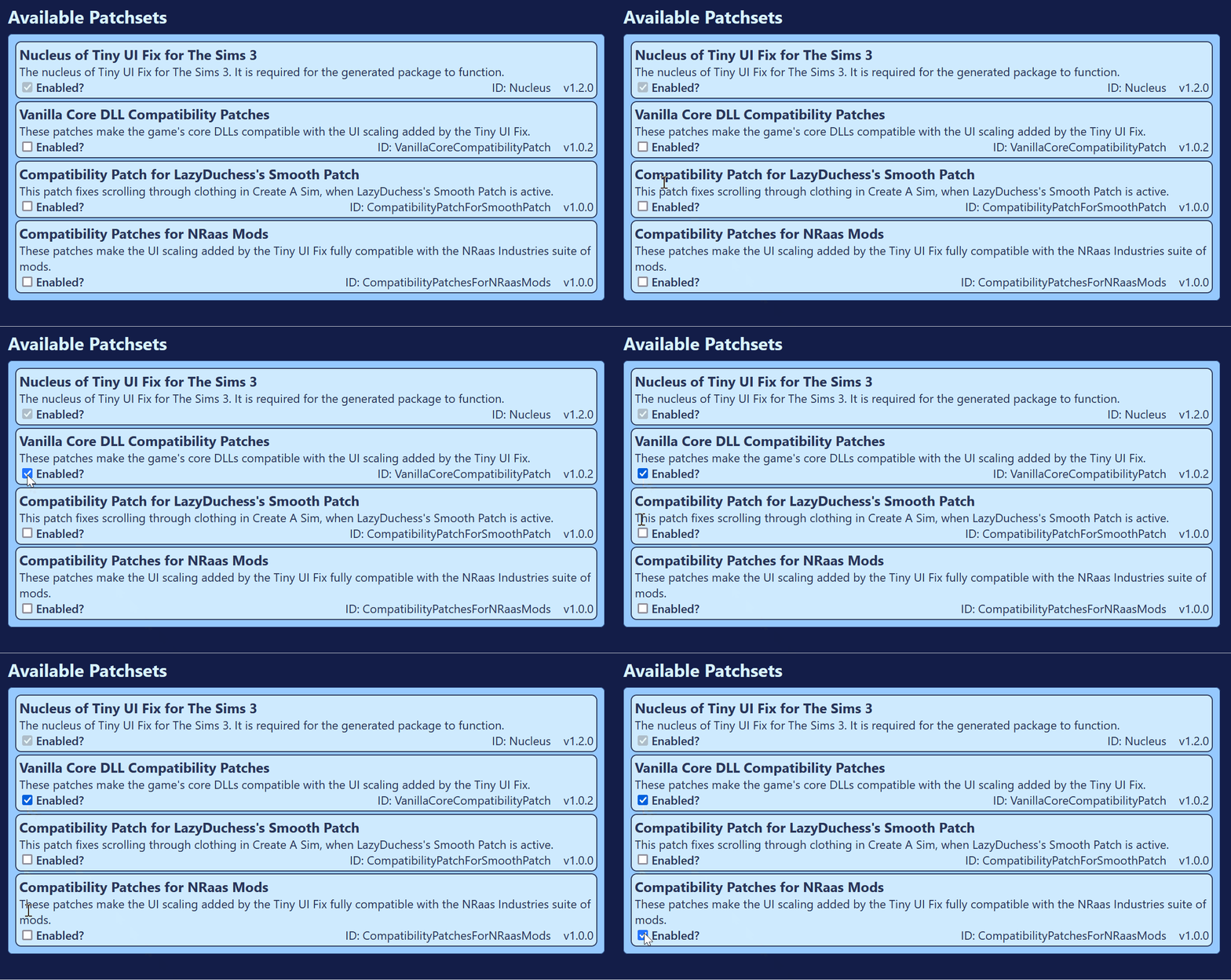
Step 2 - Next the "Avalible Patchsets" section has patches for Core Mods, Nraas Mods and Smooth Patch's .package file. This is located in the middle left section of the window. You will need to check the boxes for...
- Vanilla Core DLL Compatibility Patches
& - Compatibility Patches for NRaas Mods
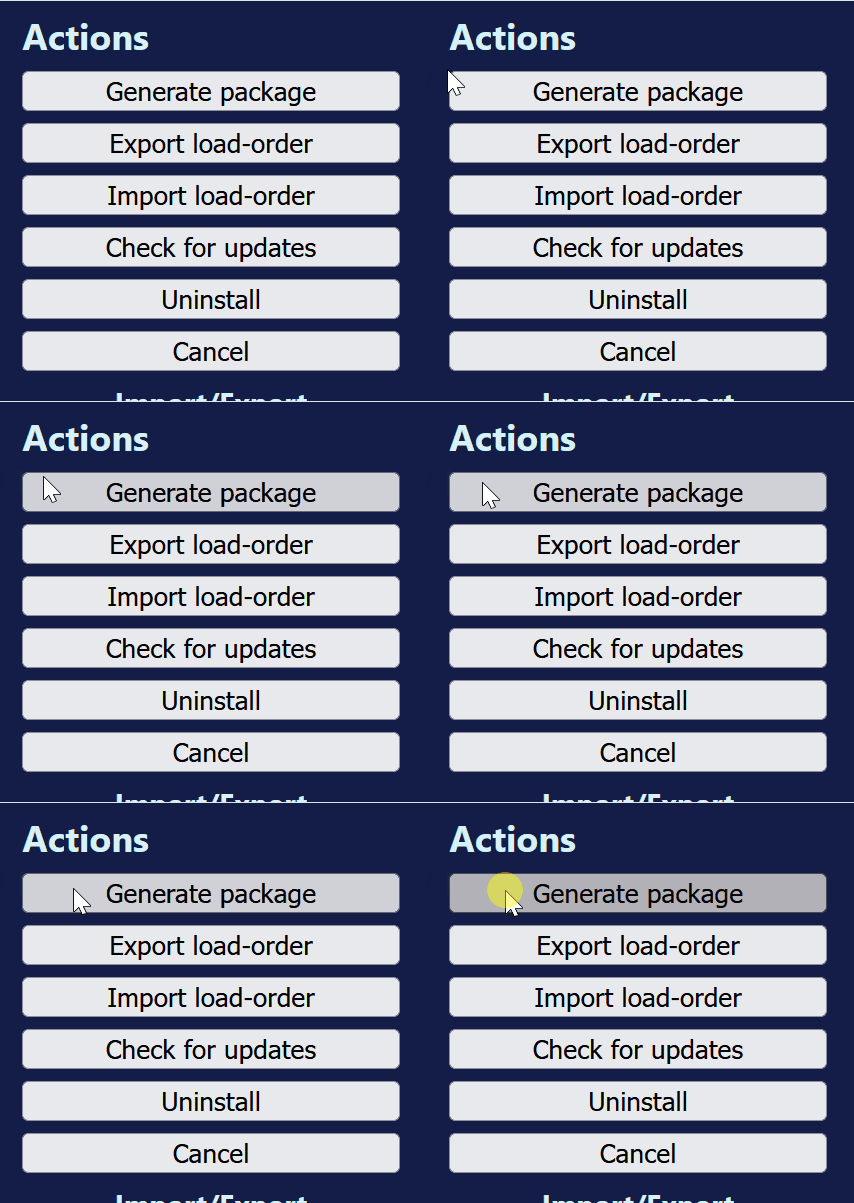
Step 3 - Once patches are slected go over the the far right corner of the window. Under the section "Actions" Click the "Generate Package" option.
Step 3 - Tiny UI Fix is Now Installed!
After Applying "Generate Package" You may close the web browser page and Tiny Ui Fix Will regenerate all of the games UI to the new up-scaled size you selected in the tool.
You will see this in the tool window this means it was successful and you are free to close the program and play the game!

F.A.Q. Section
Change Log Section
- 03/09/2024 - Published the guide.
- 26/11/2025 - Removed support for the EA App Version of the game (1.69). I do not own that version of the game so I can not test if mods work for it or not.
- The Sims 3 Performance & Bug Fix Guide 2026★ 5 (2.6k)108k views7.1k ♥41 minUpdated Jul 17
- Very Basic & Useful Mods★ 5 (612)46k views1.2k ♥7 minUpdated Jan 17, 2021
- The Sims(TM) 3 Cheats★ 5 (921)39k views1.8k ♥4 minUpdated Jun 5, 2016
- Toubleshooting for The Sims 3★ 5 (457)29k views983 ♥45 minUpdated Jan 2, 2022
- How to make Mac & Cheese According to the Sims 3★ 5 (1.2k)26k views671 ♥5 minUpdated Aug 28, 2016
- The Sims 3 Enhanced Vanilla Graphics★ 5 (235)24k views696 ♥10 minUpdated Jun 3


- Upgrading to PremiumTeam Fortress 2★ 5 (20k)1441k views11k ♥6 minUpdated May 11, 2022
- No More Room in Hell Official ManualNo More Room in Hell★ 5 (2.8k)569k views2.1k ♥29 minUpdated Apr 22, 2019
- NMRiH Community Hosting GuidesNo More Room in Hell★ 5 (526)351k views653 ♥1 minUpdated Aug 10, 2022
- ULTIMATE GUIDE FOR GAME DEV TYCOONGame Dev Tycoon★ 5 (5.8k)326k views10k ♥4 minUpdated 23 Jan, 2014
- How to 'Git Gud' Soon™MORDHAU★ 5 (2k)318k views3k ♥68 minUpdated Nov 16, 2024
- Лучшие кооперативные игры SteamPAYDAY 2★ 5 (1.5k)315k views2.1k ♥56 minRussianUpdated Apr 27, 2025






This guide was created by its original author on the Steam Community. Are you the author and want it removed? Request removal.