Getting In Touch With Your .ini
Intro

The Source

For a basic understanding of what you can do with the UDKPlayerInput.ini see this page:
https://docs.unrealengine.com/udk/Three/KeyBinds.html
This page also has all mapable keys for the game.
Mod Keys
In UDKPlayerInput.ini:
There exists 4 Mod keys:
-Alt
-Control
-Shift
-User defined key
What the Mod key does is instantly activates or deactivates a set of keybinds.
At line 20 of the ini file you will see the lineI use the Modkeys extensively in Chivalry, either to change my mouse speed on the fly, to change movement styles, or to Feint, parry, and block depending on the context that I am in.
-We want to have 2 entries for MouseX and 2 bindings for MouseY, so you must duplicate both commands as shown
or
I prefer to keep Speed=1 and change AbsoluteAxis=128, feel free to experiment with different values.
Lastly to make the keybind function as intended you have to change "Mod=False" to "Mod=True" within the fast speed section for both MouseX and MouseY keybinds.
Save your ini and restart your game for the changes to come into effect. In game press your mod key and watch the magic happen.
Remember you can use Alt, Shift, and Control, and all combinations off these three to mod keys to trigger any keybind change you want! That is insanely powerful especially if you know how to remap those keys on your keyboard!
The way this works is you hold RightMouseButton at all times. Depending on your actions with LeftMouseButton, you will either block or feint releasing RightMouseButton.
See the comments in the code block for details. Keep in mind I have set my Mod key to LeftMouseButton
You may notice that this form of feint only works with left mousebutton, so if you mousewheel stab, or overhead you wont be able to feint them with this method unless you do either of these:
- use alt, shift, and control modkeys to change which attack gets assigned to leftmousebutton
- keep a spare feint button (I use R for mine, theres no reason feint shouldnt be on R tbh)
Degrees of Freedom (DoF) Part 1
A key concept to understand movement in chivalry is this thing I call degrees of freedom (aka DoF). I define degrees of freedom as the amount of directions you can directly move your player in that is separate from rotation. In Chivalry, keyboard users are heavily limited in their DoF that controller players are not.
LOOK AT THE PICTURE (SEE THE PART OF BONE REMOVED)Below is the DoF of a typical keyboarder (YOU). You have 3 degrees of sprinting motion indicated by the red arrows, and 8 degrees of walking
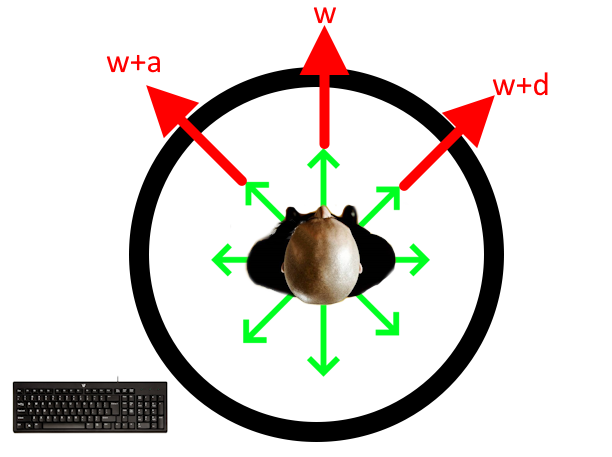 Below is the DoF of a Controller user (THEM). They have 256 × 256 = 65,536 possible combinations to walk in and about half that to run in (shown in red)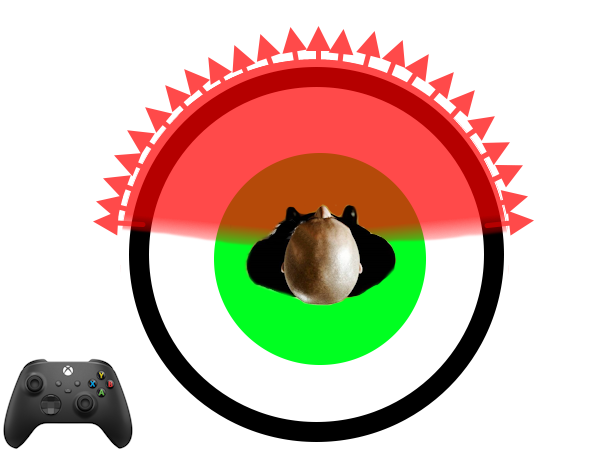
How do we quantify the advantage of a controller player? No one knows. But there is one way to think about it. Lets analyze how much angular distance it takes to rotate your player 180 degrees(as if you were retreating from an oncoming attack) assuming both controller and keyboarder were at the same mouse sensitivity....
A keyboarder would have to run diagonally after turning 135 degrees to escape an oncoming threat as soon as possible. (he is running holding w, he sees threat and wants to turn 180 as fast as possible, so he aligns W+A arrow in south direction)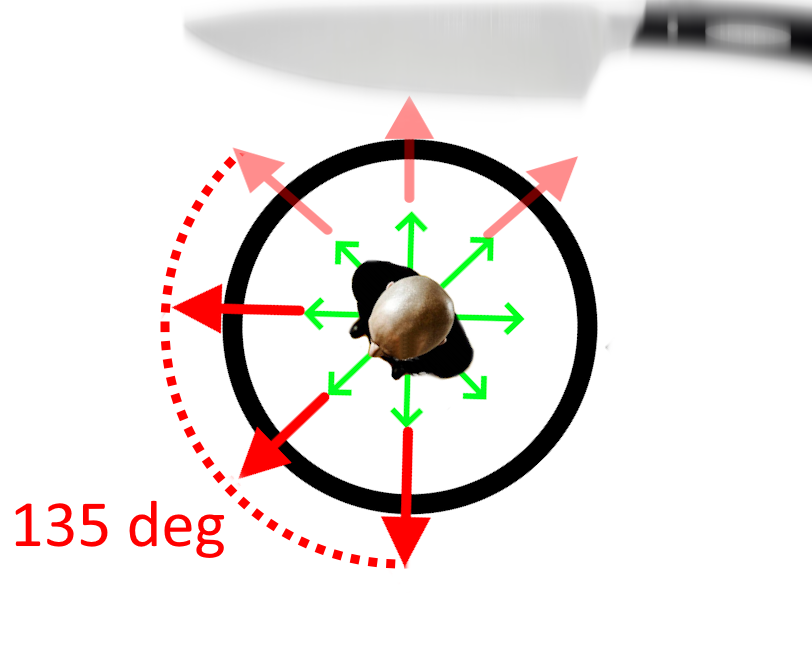
A controller player would just need to turn slightly over 90 degrees and run to escape the same threat as soon as possible.
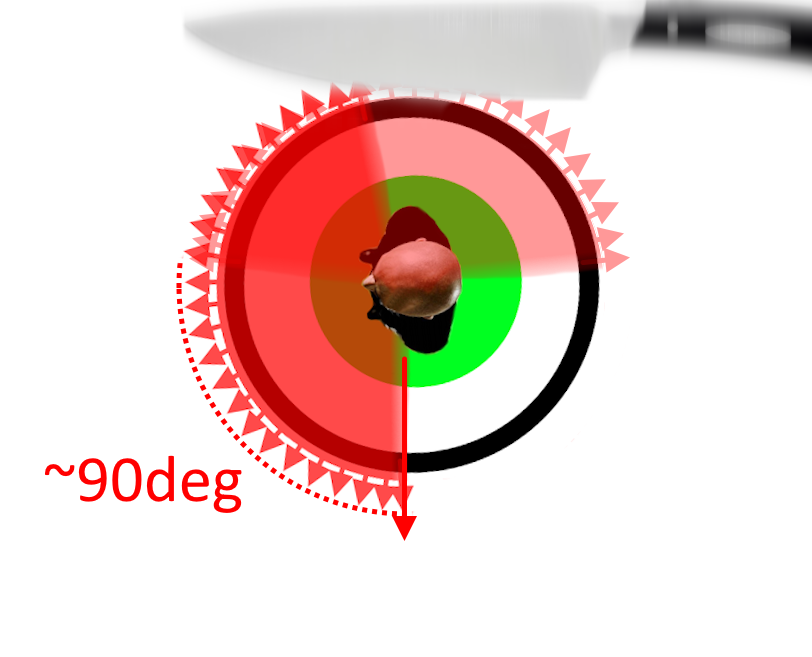
So in general controller players have at almost 50% extra time to reposition themselves in the face of an oncoming attack. This is not trivial, but the effect can be scaled down with higher mouse sensitivity (unless you are about to fire a projectile, then you are limited by the turn cap and the only thing that can help you is a controller)
So what can a keyboard player do to equalize this unfair advantage? What if they dont have a controller? What if they dont want to use a controller?
There are changes to the ini you can make to turn this into this:Now even though a keyboarder still doesnt have the same amount of DoF as a controller player, he now has 2 additional DoF which when used correctly can allow him to escape swings with the same amount of time as a controller player.
The secret is understanding what controller players are doing when they are sprinting at the limits of their DoF. Tilting an analog stick left or right at around 89 degrees while sprinting will put the player in a sprint state with a misaligned running animation. The running animation is just an artifact and has no effect on gameplay. The chase mechanic still functions normally because the game only cares about is who is sprinting and if they are sprinting in the same direction as you.
You can call it the JubiSlide, the slickback, glide, surf, side sprint whatever you want to call it...
There is the command you need to enable this motion:In console you would just use:
Degrees of Freedom (DoF) Part 2
In this section we look a little deeper into the effects of DoF while sprinting.
The truth is, my diagrams from earlier are oversimplified and they underestimate the true limitations that keyboard users have.
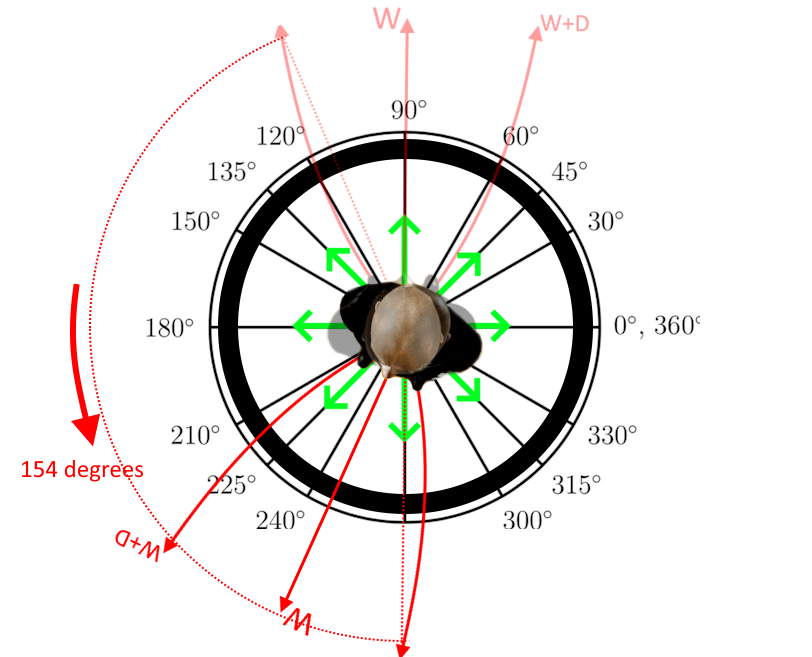
The problem with this diagram is that assumes your horizontal and vertical speeds are the same. Because you cant sprint when holding A or D, your horizontal speed is locked at your walking speed whereas your forward speed from holding W is accelerating to max sprint speed. This causes your player to run at a diagonal much shallower than 45 degrees. So the true diagram is different for every class.
If I were to show the true degrees of freedom for a keyboard archer it would look like this: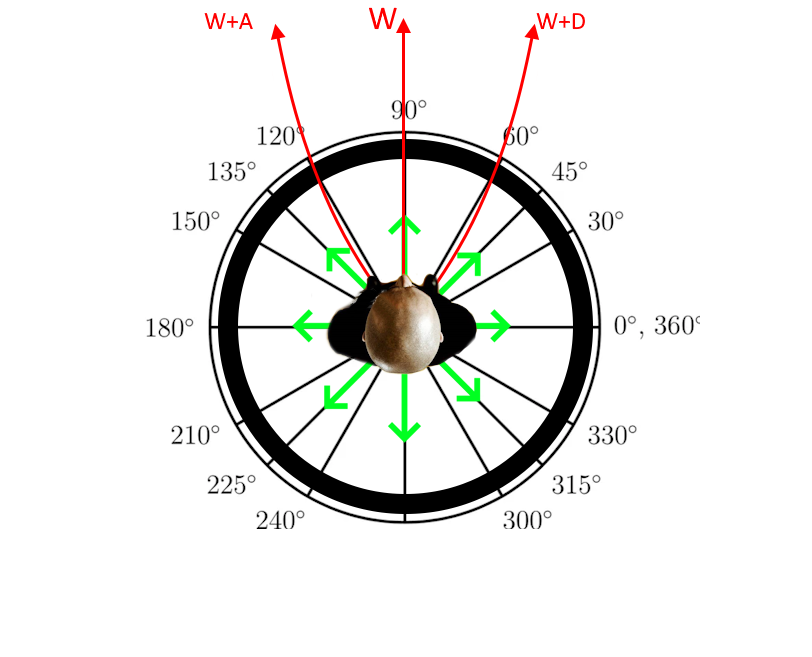
The archer's speed stats are as follows
-base forward sprint speed is 260units/s.
-horizontal speed is 160units/s
-max forward sprint speed is 330units/s.
If u do simple trig: Arctan(forwardspeed/horizontal speed)
You can calculate that the initial angle of W+D is 58 degrees and the final angle is 64 degrees (which archer reaches after about 5 seconds of sprint). SO not only does moving diagonally lower your degrees of freedom, but it also causes your player to run in an arc instead of a straight line!
If your player is slower than archer, your DoF is a few degrees wider and if you are faster, your DoF are slightly compressed. Because of the compression of the DoF, this contributes to even more time lost in rotation from trying to turn away from an incoming attack:
 Controller users are also subject to compression of DoF but it isnt as severe because they still have much more DoF than a keyboard user. The DoF compression for a controller player is below: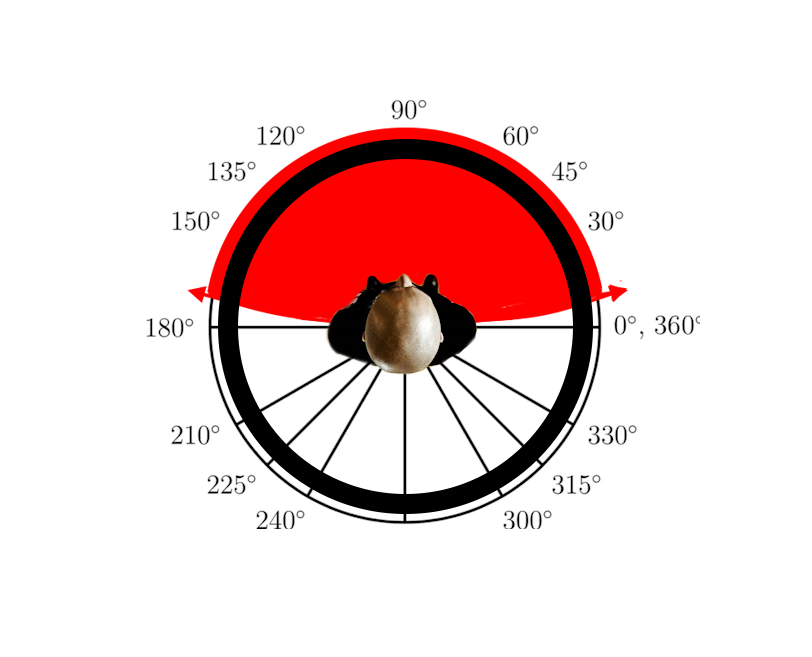
In my experience the minimum sprint angle for a controller is between 5 and 10 degrees. From base sprint to full sprint you can expect to lose 2 or 3 DoF on a controller indicated by the arc on the edges of the red region.
To calculate the controller's DOF I use a modification of the same equation:
Arctan([Xspeed*Xinput]/[Yspeed*Yinput])=direction traveled
X and Y input are just the values of the analog stick input, which correspond to astrafe speed and abasey speed values respectively.
A 9 degree sprint is what you get when you set W = axis Abasey speed=0.1 when A or D is set to axis astrafe speed =1 from the previous section. It becomes 11 degrees at full sprint as archer.
We need to turn this into this:
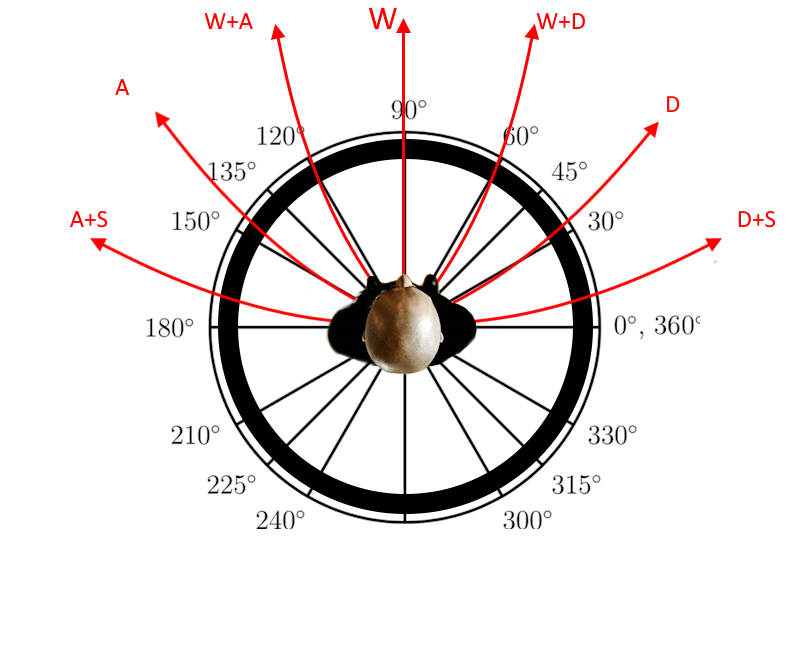
7 DoF Sprint

There is one thing you should know, I have acclimated to a different set of binds from you. I use different keys to strafe, instead of A and D, I use Q and E. Most of you probably feint and use with Q and E, I honestly recommend you bind R to both Feint and Use as it makes more sense. I also use mousewheel up to jump and reprogrammed my keyboard to bind Alt to my Spacebar, that way I'm not imploding my hand while using the alt mod key. Mousewheel jump is useful for bhopping, a cool technique I came up with that allows you to sprint in one direction, look backwards, and maintain your top speed. This will have its own section soon. The angles used in the code are (measured assuming top speed):
W=90 degrees = Xinput=0, Yinput=1
W+Q/E=~64 degrees= Xinput=1,Yinput=1
Alt+Q/E=~35 degrees=Xinput=1, Yinput=0.34
Alt+Q/E+S=~9 degrees=Xinput=1,Yinput=0.08
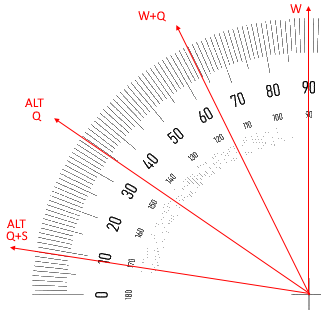
You can add even more angles if u read this guide and understand how it works, you have access to several mod keys to double your DoF beyond this if you wanted. Personally I use 10 DoF.
QStrafe Left, set to -1 default
E: Strafe Right, set to 1 default
W: Move forward set to 1 default
S:Axis Abasey Speed=-.26
When we hold S in this mode we want to activate our side sprint DoF. To do this we need to pick a number such that when Q or E is held, Both Abasy components added together will result in a value of 0.08. I chose s=-0.26.
QAxis aStrafe Speed=-1 | Axis Abasey Speed=0.34
When you hold Alt+Q we will run diagonally leftward at an angle of 35 degrees, so we have a strafe component and a forward component. aStrafe speed is our Xinput and our Yinput is abasey speed.
E:Axis aStrafe Speed=1 |Axis Abasey Speed=0.34
Same explanation as Q but for Right Diagonal run
W: Axis Abasey Speed=0.66
We choose 0.66 so that when we press W+E or W+Q, our abasey speeds add up to equal 1 and we run at 64 degrees just like the default case. If you choose you can pick a different abasey speed here which will give you 2 more DoF of your choice.
The two DoFs that arent used? Alt+W+S+Q/E, some people wont even be able to input this many keys on their keyboard. Pressing Alt+W+S+E/Q equates to about 56 degree movement. Its better to just change W abasey speed than to use this key combination to get that direction. Its not a comfortable bind.
To Be Continued...
-Instant 180s (just for fun not really useful for gameplay)
- the bunny hop
-the keybind matrix
-toggle hold projectile
-how to play chiv 1 handed
-cover different ini's besides udkplayerinput.ini?
-known glitches? maybe..
Miscellaneous Binds
Using Binds to set Binds
3 levels: 64, 145, 120 (120 comes for free because transitioning to a fov higher than 120 will require a weapon swap.)
The problem with using the setbind command with a keybind is that it will stutter your game for a fraction of a second, so only use this for actions that you arent spamming otherwise you will have a hard time playing. I think thats because your are writing to the game file at the same time every time you activate the bind. From my testing there was no advantage to stuttering the game, everyone around you will be able to play normally, its just affects you client side.
See how creative you can get with it.
- Manly Man's Guide to Manliness★ 5 (1.3k)40k views754 ♥19 minUpdated May 24, 2015
- A Guide to Advanced and Obscure Mechanics in Chivalry: How to gain an edge over everyone else.★ 5 (797)28k views941 ♥14 minUpdated Nov 1, 2014
- All Taunts, Respects and Insults!★ 5 (353)19k views280 ♥5 minCzechUpdated Oct 2, 2016
- Фехтование в Chivalry для чайников★ 5 (316)15k views322 ♥8 minRussian
- Быстро открываем оружие без читов.★ 4 (216)14k views190 ♥1 minRussianUpdated Oct 9, 2015
- Chivalry: Medieval Warfare Guide★ 4 (174)11k views196 ♥4 minUpdated May 10, 2025




- Upgrading to PremiumTeam Fortress 2★ 5 (20k)1441k views11k ♥6 minUpdated May 11, 2022
- No More Room in Hell Official ManualNo More Room in Hell★ 5 (2.8k)569k views2.1k ♥29 minUpdated Apr 22, 2019
- NMRiH Community Hosting GuidesNo More Room in Hell★ 5 (526)351k views653 ♥1 minUpdated Aug 10, 2022
- ULTIMATE GUIDE FOR GAME DEV TYCOONGame Dev Tycoon★ 5 (5.8k)326k views10k ♥4 minUpdated 23 Jan, 2014
- How to 'Git Gud' Soon™MORDHAU★ 5 (2k)318k views3k ♥68 minUpdated Nov 16, 2024
- Лучшие кооперативные игры SteamPAYDAY 2★ 5 (1.5k)315k views2.1k ♥56 minRussianUpdated Apr 27, 2025






This guide was created by its original author on the Steam Community. Are you the author and want it removed? Request removal.