Launching Problems Start-up Fix
The Problem
MapleStory is a wonderful game, In my opinion that is. A couple months ago I decided I would come back to MapleStory and play it again. Downloading the game was fine. I didn't run into any problems that way. I started up the game and on the bottom right corner I saw the Nexon Game Security sign pop up for a good 30 seconds. Then the whole game would disappear. I thought, "Well this is the first time the game is running.. Probably just a test or something."

I clicked play again. Same problem occured. So I decided to open task manager up and went looking for the game. There was NO sign of the game running. I clicked play once again and had task manager up and watched the process it went through. Once again the game completely closed out. I thought, "Well I'll come back to it a different day and see if anything changes.
So I came back about 2 days later still not working. I wasn't happy that I couldn't play a childhood game. So I contacted Nexon Support. The person who helped me wasnt much help. It was the typical questions..
Did you re-download the game?
Did you re-download the launcher?
Is your internet working correctly?
Did you restart your computer?
I tried all of that.. The guy walked me through something where I couldn't even open Steam anymore. I redid the whole process so I could use Steam again. I went searching in Steam to see a good amount of people were having the same problems I am. I found no-one had solutions. So I did some research. YouTube and Google can be your friend sometimes...
The Solution
After doing my research finding something was near impossible. I am so happy that I know a lot about computers and softwares. So I used Windows Registry Editor. It was time to make some changes.
This process may seem confusing try to follow along though.
- Go into start menu or press windows key
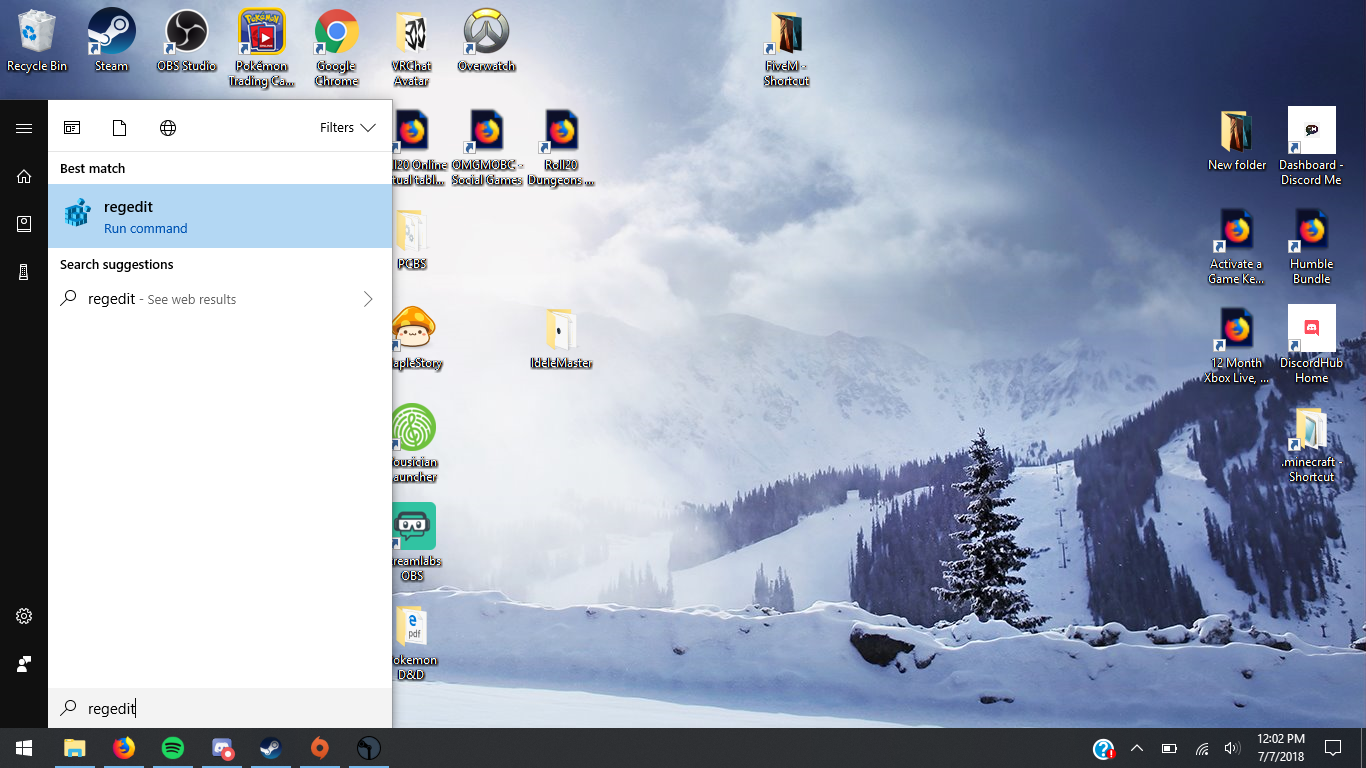
- On the side click KEY_LOCAL_MACHINE
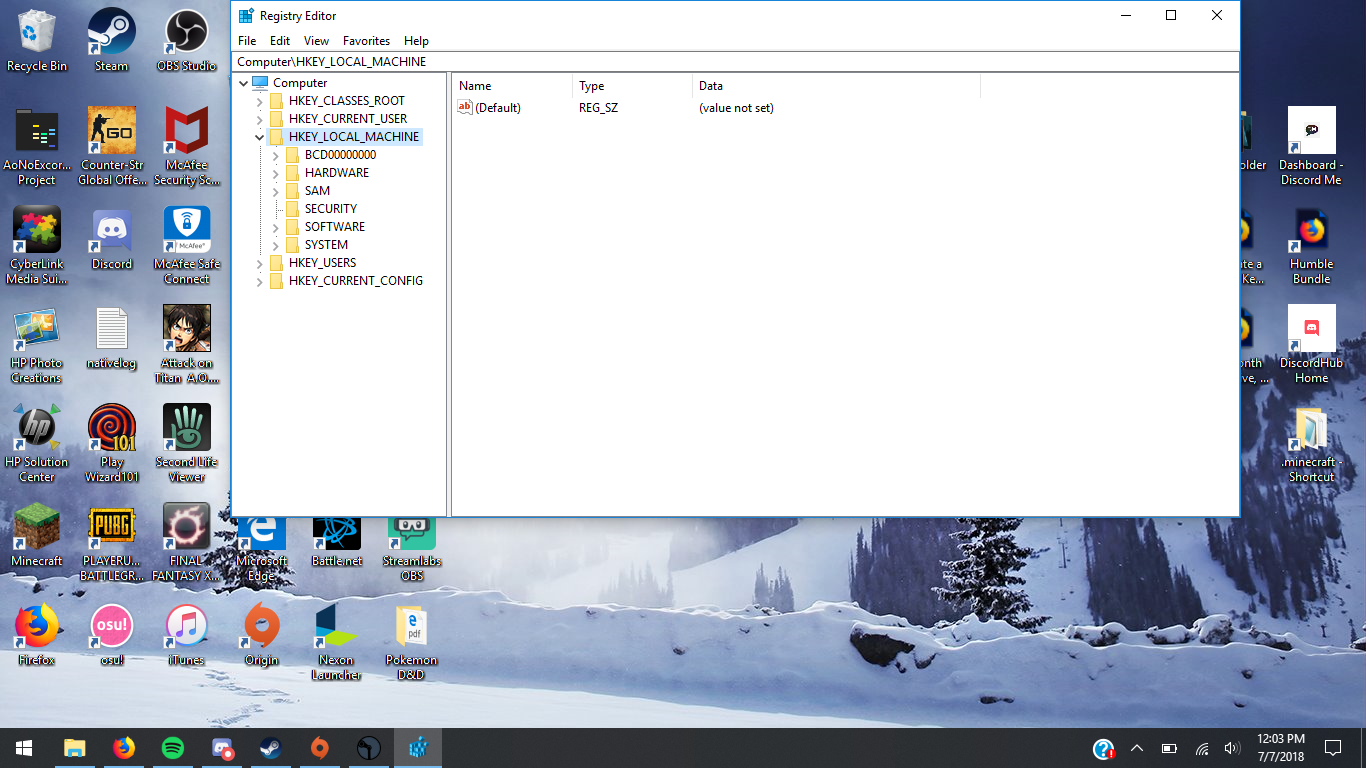
- Go into SOFTWARE
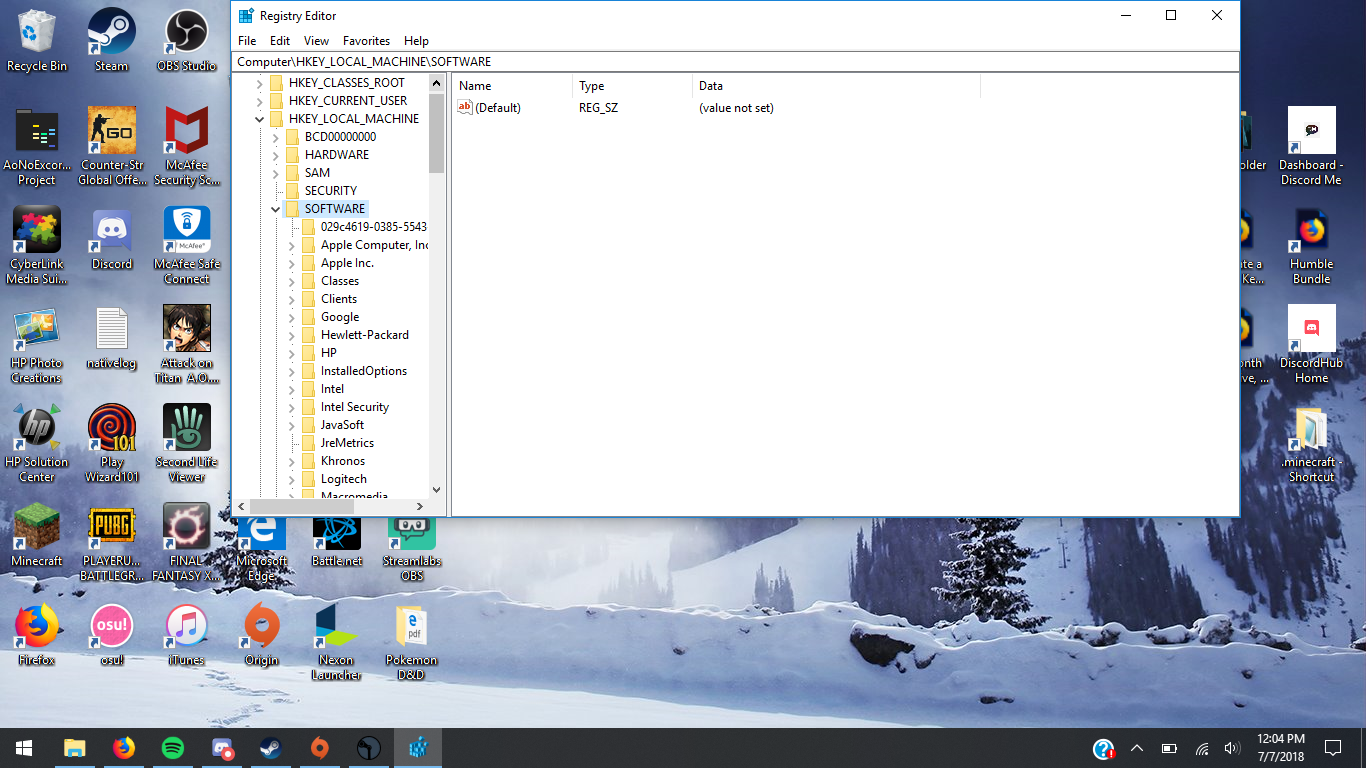
- Scroll down into WOW6432NODE and click
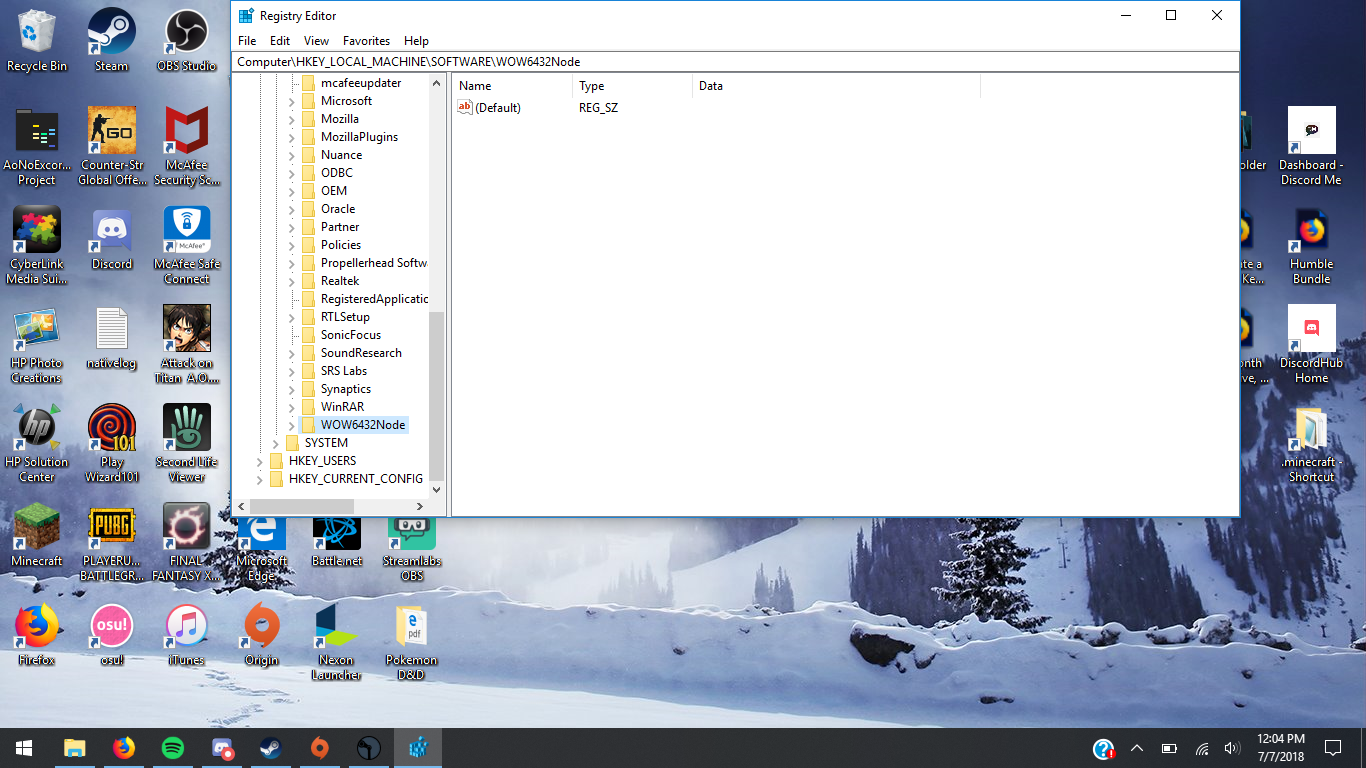
- Scroll down into Wizet and click
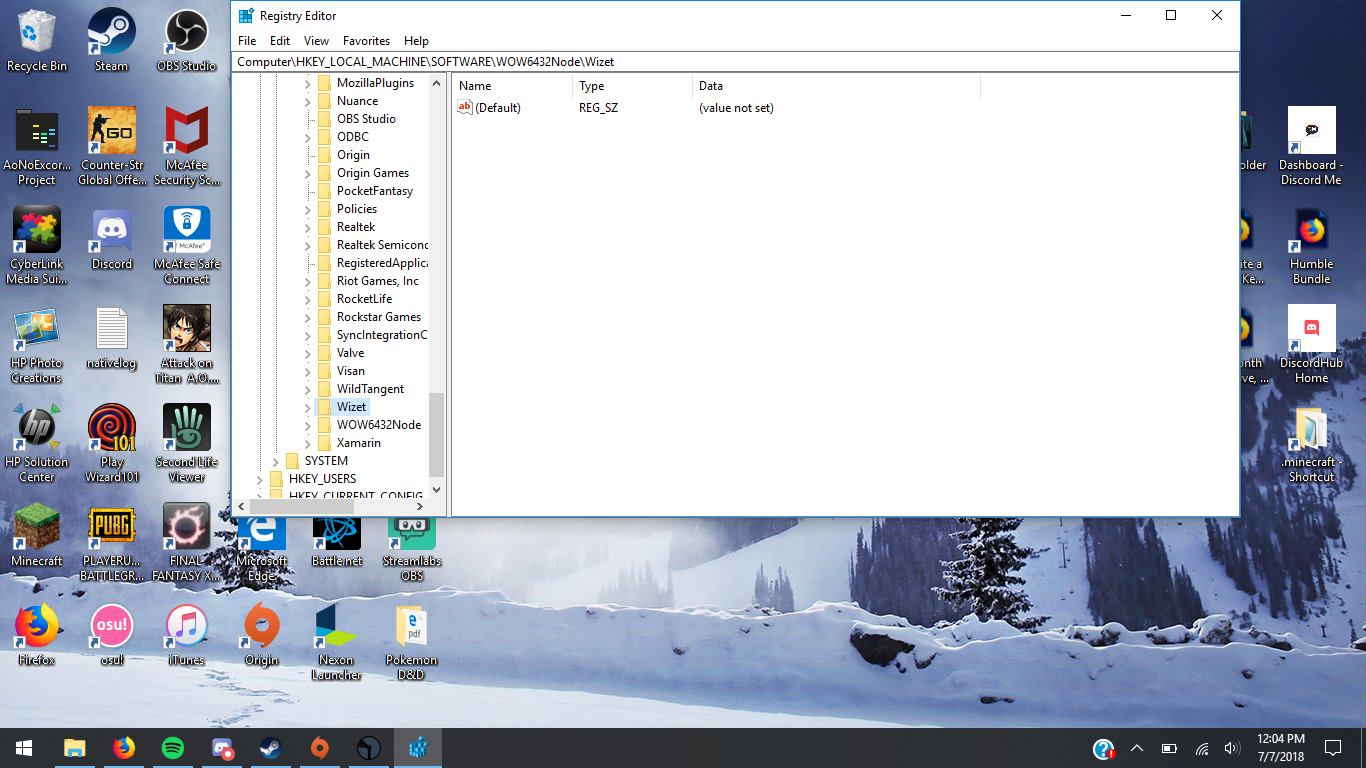
- Find MapleStory right click and click on new, then click DWORD(32 bit) value
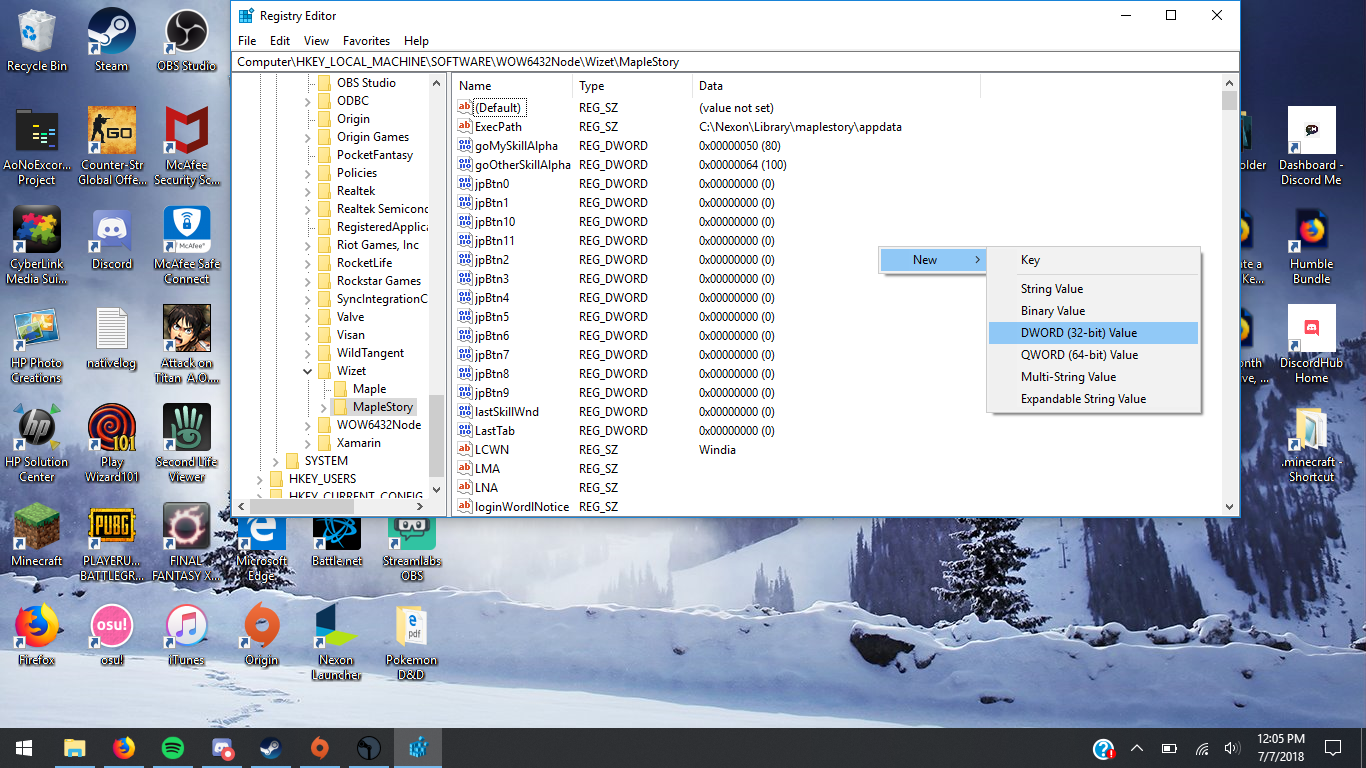
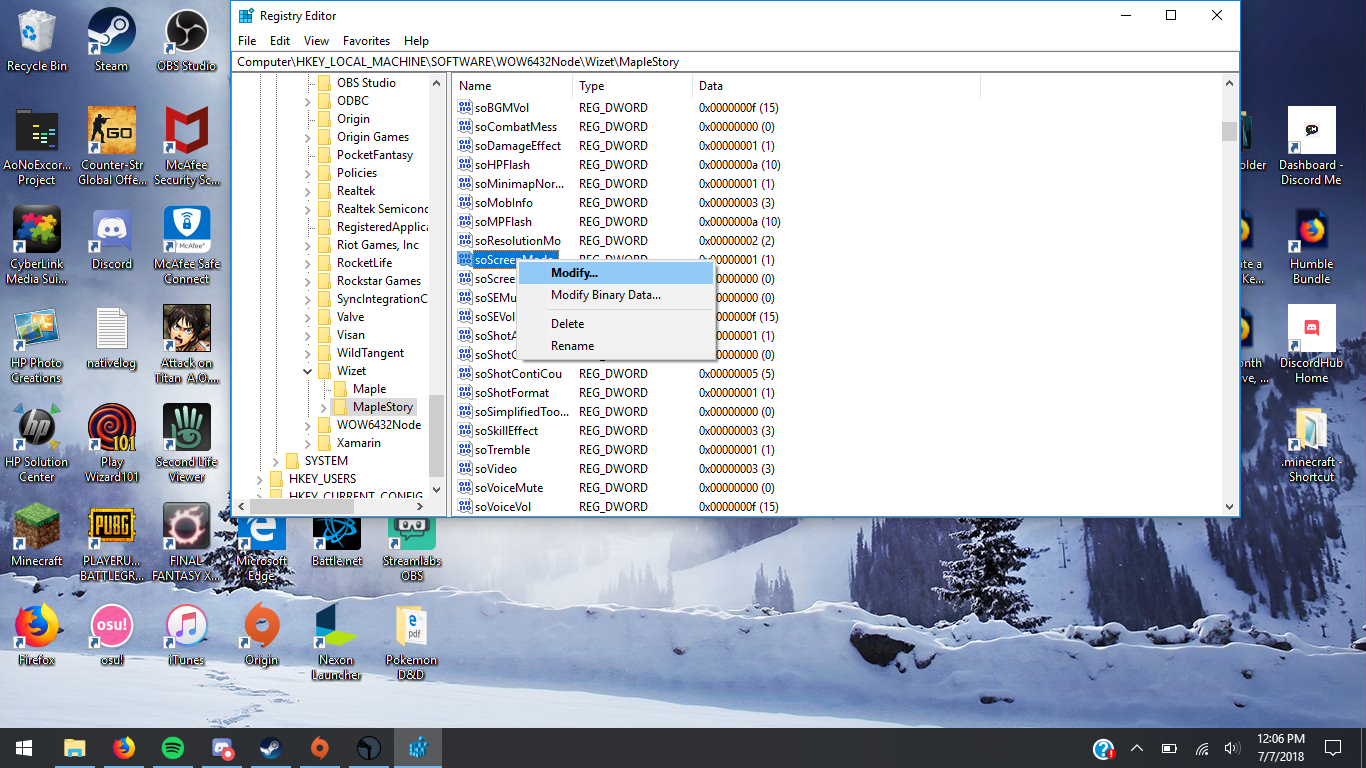
- Name it: soScreenMode
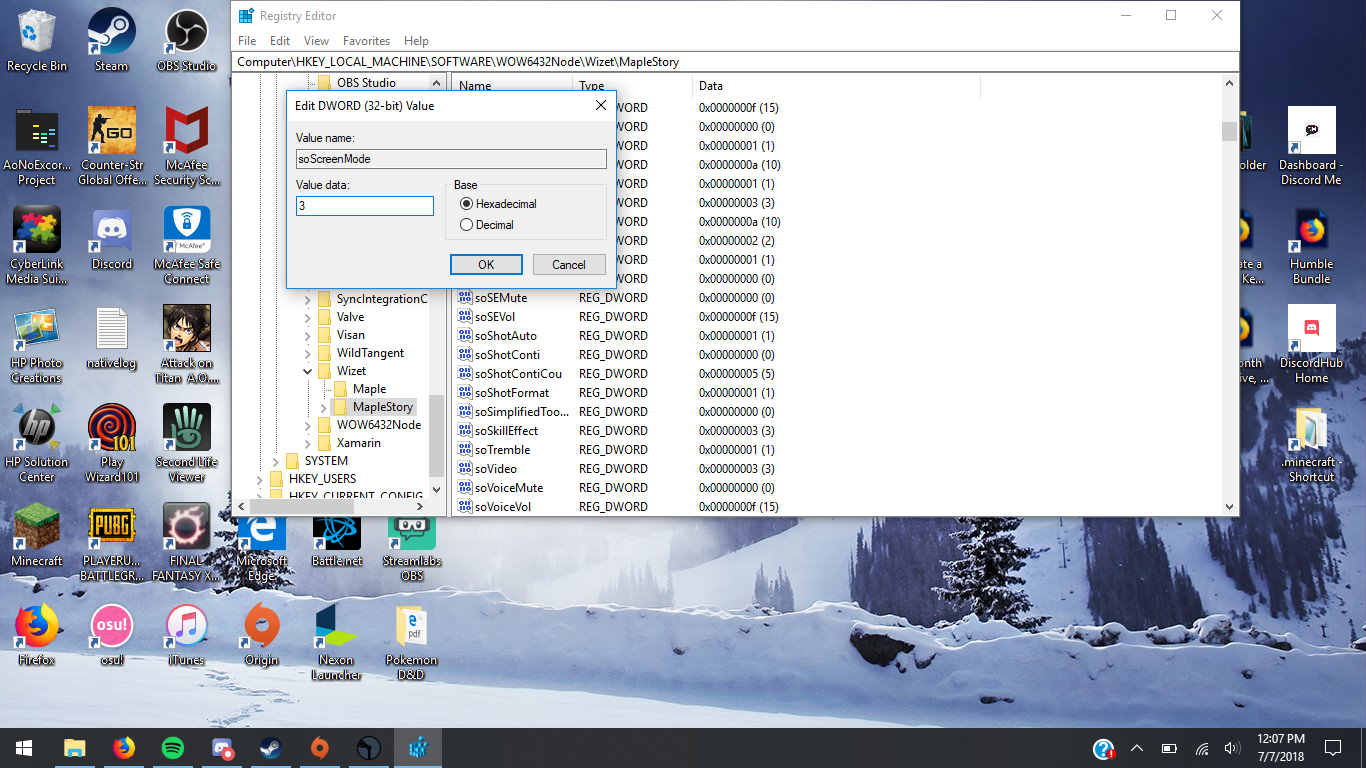
- Right click it and press modify
- Change the Value Data to 3
- Run the game!
- THE ULTIMATE REBOOT GUIDE (very outdated)★ 5 (184)17k views412 ♥28 minUpdated Aug 12, 2020
- How to Pick Up Items★ 4 (289)17k views69 ♥1 minUpdated Jul 9, 2016
- A painfully detailed guide to MapleStory [DEC UPDATE] MAPLESCOUTER AND MORE★ 5 (191)13k views410 ♥82 minUpdated May 12
- Reboot Link Skill Farming Guide★ 4 (68)7.9k views132 ♥7 minUpdated May 15, 2017
- [Reboot] So You're Level 150★ 4 (55)5.6k views129 ♥26 minUpdated Jun 1, 2019
- Level 1-???: Best Training Grounds4.1k views37 ♥16 minUpdated Sep 16, 2014





- Upgrading to PremiumTeam Fortress 2★ 5 (20k)1441k views11k ♥6 minUpdated May 11, 2022
- No More Room in Hell Official ManualNo More Room in Hell★ 5 (2.8k)569k views2.1k ♥29 minUpdated Apr 22, 2019
- NMRiH Community Hosting GuidesNo More Room in Hell★ 5 (526)351k views653 ♥1 minUpdated Aug 10, 2022
- ULTIMATE GUIDE FOR GAME DEV TYCOONGame Dev Tycoon★ 5 (5.8k)326k views10k ♥4 minUpdated 23 Jan, 2014
- How to 'Git Gud' Soon™MORDHAU★ 5 (2k)318k views3k ♥68 minUpdated Nov 16, 2024
- Лучшие кооперативные игры SteamPAYDAY 2★ 5 (1.5k)315k views2.1k ♥56 minRussianUpdated Apr 27, 2025






This guide was created by its original author on the Steam Community. Are you the author and want it removed? Request removal.