Limit FPS using only Nvidia Control Panel
Make sure to rate the guide, so more people that need this will see it front page.
Open your Nvidia control panel, and head to "Manage 3D settings"
You will see 2 tabs:
Global settings and Program settings.
Click Program settings, then check if the game appears in the default list.
If it doesn't - un-check "show only programs found on this computer".
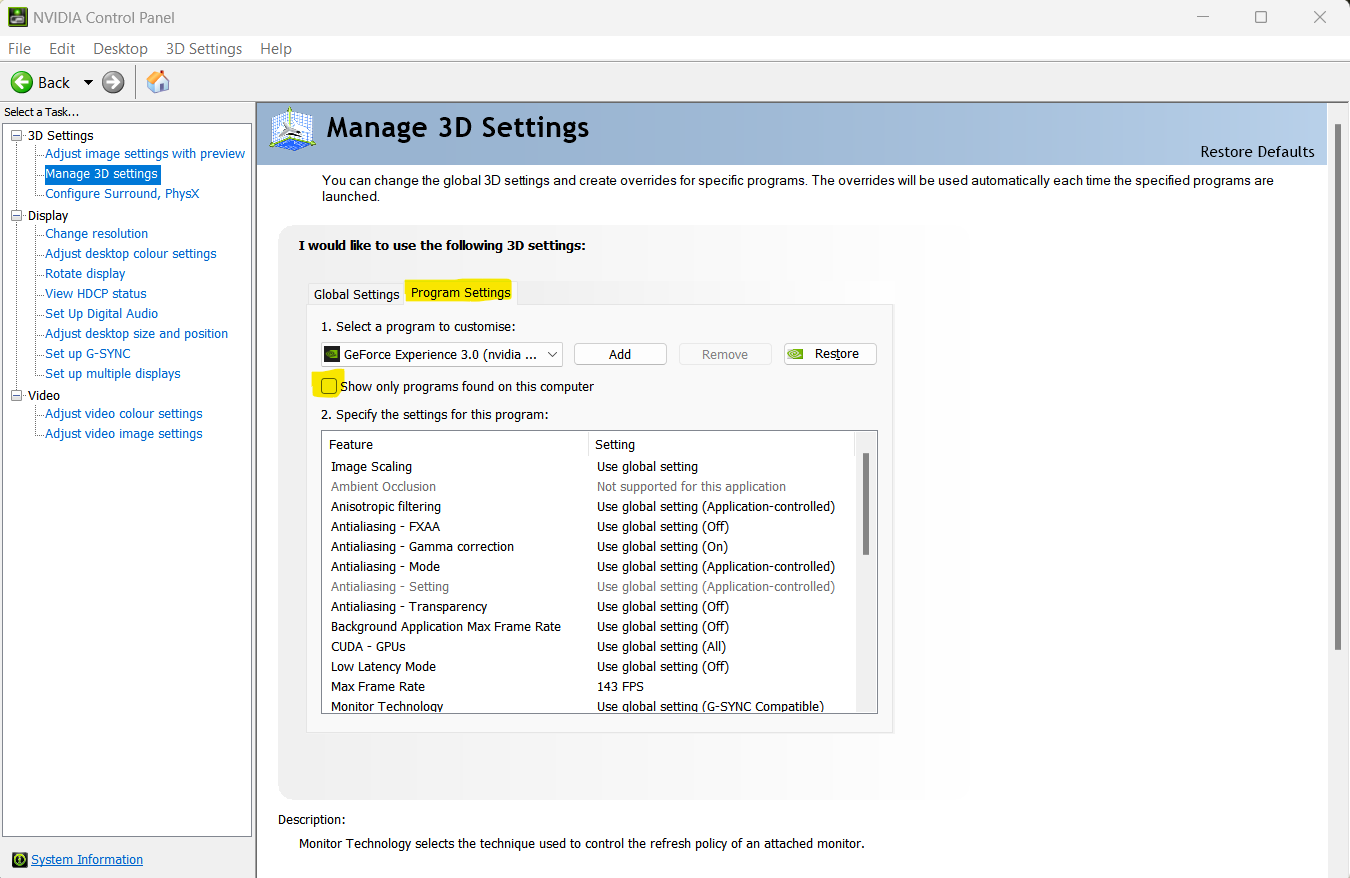
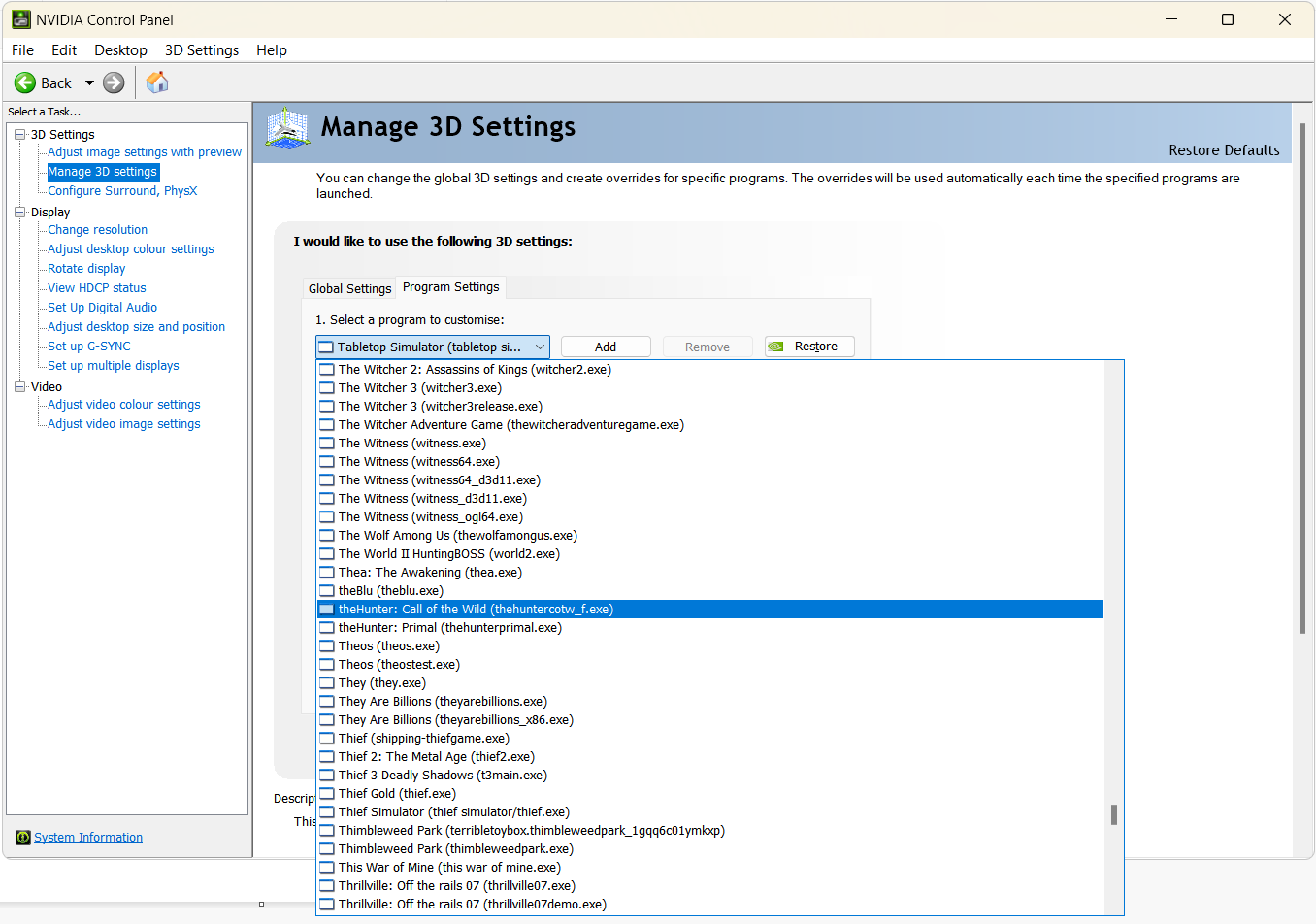
Go to "1.Select a program to customise" and start scrolling down until you find "theHunter: Call of the Wild (thehuntercotw_f.exe)" and select it.
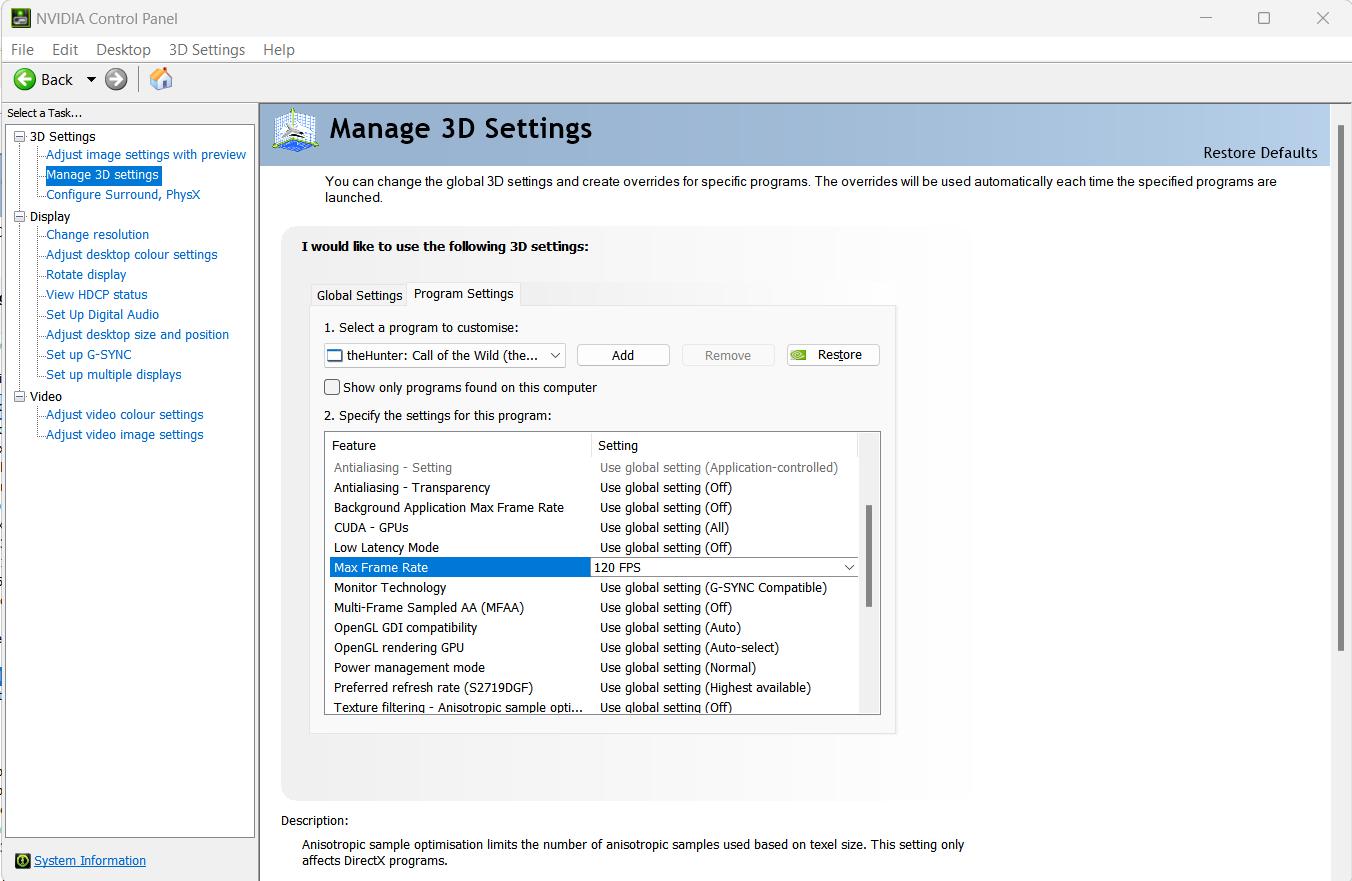
Under "2.Specify the settings for this program" scroll down to "Max Frame Rate"
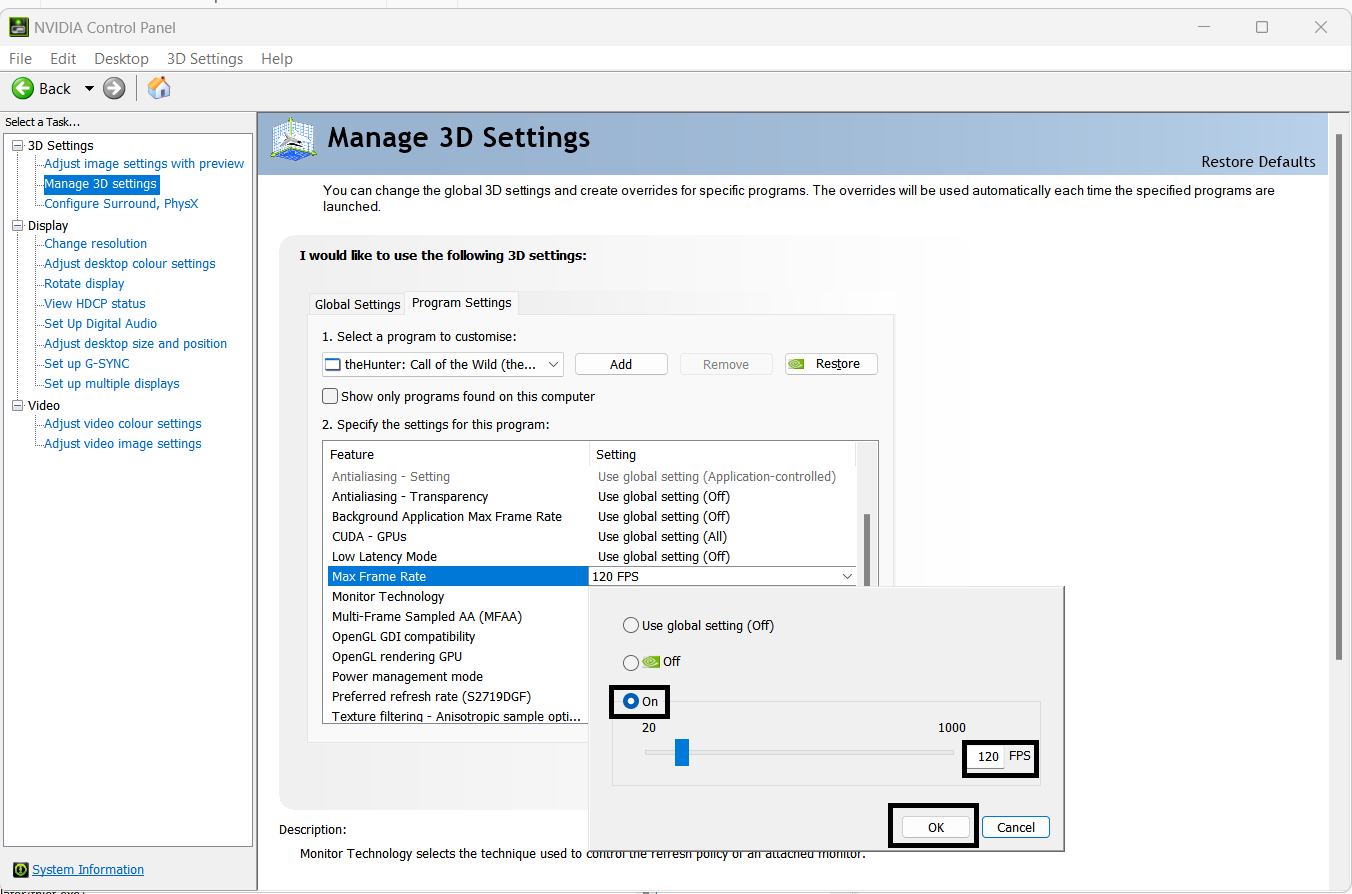
Click on the drop down arrow, select "on" and then input the wanted FPS limit for the app then hit "Ok" and then "Apply".
(You can limited to whatever you want, 30, 60, 80, 120 and so on.)


If the panel doesn't find the games .exe, try these:
In the "manage 3d settings" right above the list of already "found" .exe's, there's an "add" option which opens an arrow scroll down of currently running things.
Try launching THCOW while the panel is open, and then click that add and see if it appears there.
and:
In NVIDIA GeForce experience, click scan for games/add a game manually to register it with the app.
Have fun~
░▐█▄▄▄▄▄▄▄▄▄▄▄▄▄▄▄▄▄▄▄█▄☆
░███████████████████████
░▓▓▓▓▓▓▓▓▓▓▓▓██▓▓▓▓▓▓▓▓◤
╬▀░▐▓▓▓▓▓▓▌▀█░░░█▀░
▒░░▓▓▓▓▓▓█▄▄▄▄▄█▀╬░
░░█▓▓▓▓▓▌░▒▒▒▒▒▒▒▒▒
░▐█▓▓▓▓▓░░▒▒▒▒▒▒▒▒▒
░▐██████▌╬░▒▒▒▒▒▒▒▒
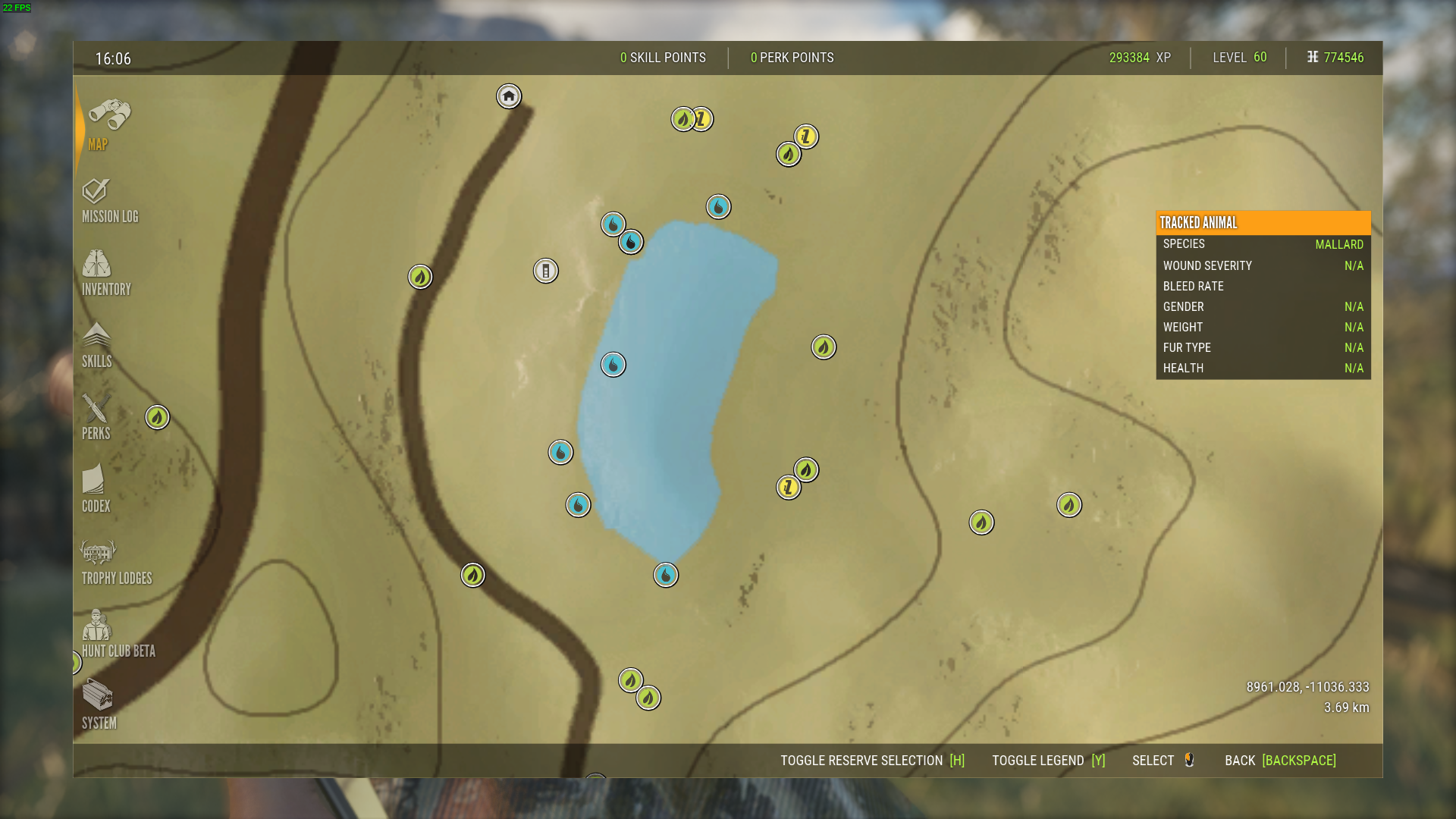
- Animal Location Maps (Parque update!)★ 5 (1.7k)84k views4.4k ♥1 minUpdated 1 Jan, 2019
- NEW Animal Location Maps (Hi-Res) - INTISUYU PERU UPDATE!★ 5 (1.6k)55k views4.3k ♥1 minGermanUpdated 24 Jun
- ALL NEED ZONE TIMES FOR EVERY ANIMAL (SUNDARPATAN NEPAL)★ 5 (754)36k views2k ♥19 minUpdated 28 Jun, 2024
- Beginner's Guide: New Players, New Hunters★ 5 (405)24k views681 ♥33 minUpdated 3 Jan, 2023
- Trophy Ratings & Fur Types★ 5 (800)24k views2k ♥36 minUpdated 10 Jun
- All-In-One Guide Fur Variations/Need Zones★ 5 (929)21k views2.3k ♥77 minUpdated 23 Mar, 2025




- Upgrading to PremiumTeam Fortress 2★ 5 (20k)1441k views11k ♥6 minUpdated May 11, 2022
- No More Room in Hell Official ManualNo More Room in Hell★ 5 (2.8k)569k views2.1k ♥29 minUpdated Apr 22, 2019
- NMRiH Community Hosting GuidesNo More Room in Hell★ 5 (526)351k views653 ♥1 minUpdated Aug 10, 2022
- ULTIMATE GUIDE FOR GAME DEV TYCOONGame Dev Tycoon★ 5 (5.8k)326k views10k ♥4 minUpdated 23 Jan, 2014
- How to 'Git Gud' Soon™MORDHAU★ 5 (2k)318k views3k ♥68 minUpdated Nov 16, 2024
- Лучшие кооперативные игры SteamPAYDAY 2★ 5 (1.5k)315k views2.1k ♥56 minRussianUpdated Apr 27, 2025






This guide was created by its original author on the Steam Community. Are you the author and want it removed? Request removal.