Make your KOTOR playthrough more enjoyable
Why I made this Guide
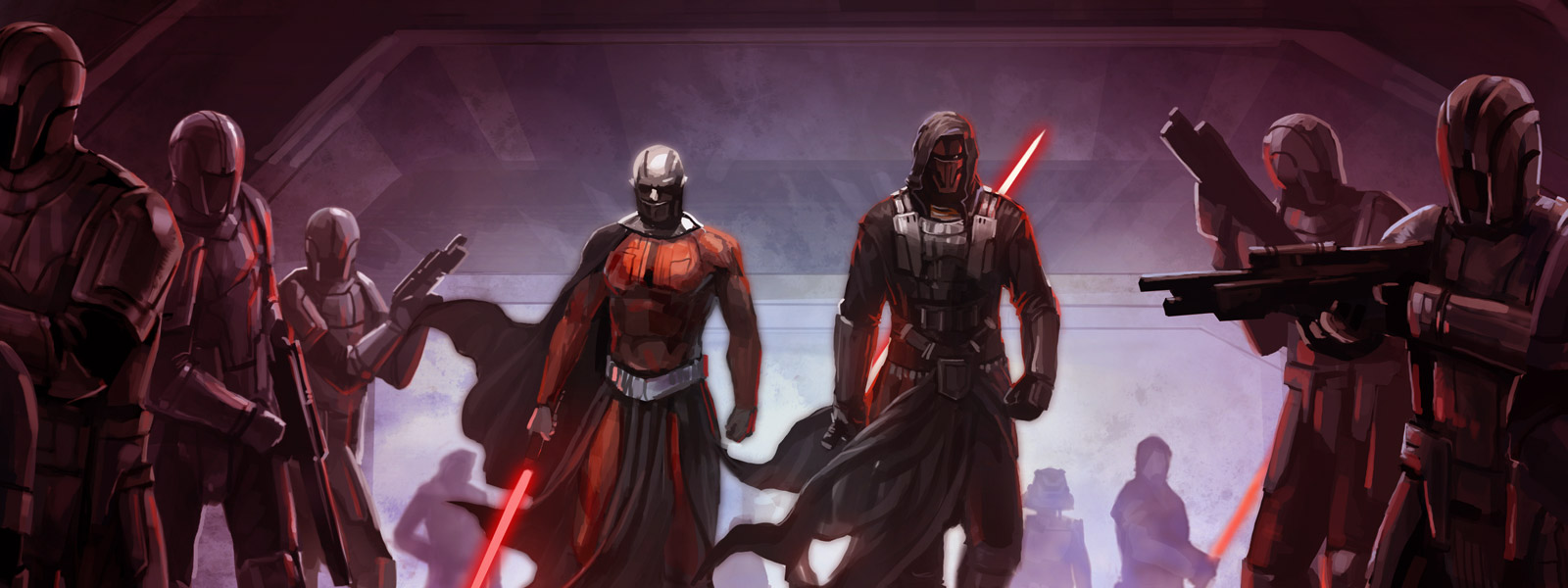
Star Wars: Knights of the Old Republic is undoubtedly a timeless classic amongst all Star Wars games and videogames in general. It is a product of the golden era of Bioware RPGs and features an extensive story with great characters, a dense atmosphere and rich environments that should delight every Star Wars fan.
However, something that won’t delight most players are the outdated gameplay mechanics and graphics of this old gem. KOTOR was released in 2003 and you can definitely tell. This game is greatly in need of a Remake, one that was just recently announced but then probably cancelled (?) for at least a good while.
For this reason and since I recently modded the game for my own playthrough, I put together this guide for those who don’t want to wait for a potential Remake and enjoy a modernized playthrough of KOTOR that stays true to the original vision of the developers.
Agenda
All mods, fixes and patches have been tested with the Steam version of KOTOR. If any of the modfiles give you trouble, try installing the game on a different harddrive than C (since C:/Program Files is admin protected, it may cause problems).
Bugfixes
As of recently, the Community Patch was officially updated beyond the version 1.10.0. This also means, that the installer for the patch was replaced with the newer HoloPatcher. Because this patcher was created using python and bundled into a single EXE, some AntiVirus software falsely detect it as a virus (sometimes this removes the INSTALL.EXE completely while extracting the archive). This is a false positive, the entire project is open source. You can also use the latest HoloPatcher version (or one suitable for your OS) instead HERE[deadlystream.com]. Just replace the INSTALL.EXE from the downloaded Community Patch before installing. This is optional though.
- Optional: Download the latest HoloPatcher[deadlystream.com] and use it instead of the bundled INSTALL.EXE contained in the K1 Community Patch (useful if you are on Linux or MacOS)
- Download and install the K1 Community Patch[deadlystream.com]. All you have to do is point the installer to your game directory (the swkotor folder, e.g. D:\SteamLibrary\steamapps\common\swkotor)
Widescreen Fix
- Make a backup of swkotor.exe in your game directory. Then replace swkotor.exe with the hex editable version from here[deadlystream.com] (needs to be unzipped using e.g. 7zip)
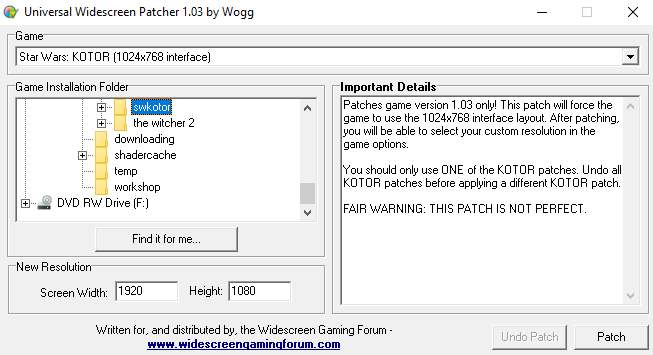
- Download and run uniws[community.pcgamingwiki.com]. Select "Star Wars: KOTOR (1024x768 interface)" in the dropdown menu and locate your swkotor game directory. Select your desired game resolution (e.g., 1920x1080) and click "Patch"
- Open the swkotor.ini file in the game directory and change the "Height=…" and "Width=…" values to your selected game resolution (simply add both lines below [Graphics Options] if they're not there yet)
- Download KotOR High Resolution Menus[deadlystream.com] and copy the files from the folder named after the chosen resolution into the Override folder (e.g., gui.1920x1080 for 1920x1080)
- Copy hires_patcher.bat and hires_patcher.exe into the swkotor folder and run hires_patcher.bat (Again enter the desired resolution, for the rest you can just press enter)
Here is an example of how uniws should look like before hitting Patch if you want the game to run at 1920x1080:
Bigger font
For resolutions of 1080p or higher, the on-screen text might get too small for comfortable reading.
So if you would like bigger texts, you can install this font mod[deadlystream.com].
The text is separated into three categories: Names, Menu and Dialogue/Descriptions.
For each section, you may choose one folder to copy the files from into your Override folder. You can choose between the default size, medium, big and very big.
The font size "Big" seems to cause crashes for some, so choose "VeryBig" instead.
If you choose a bigger font size than default for the Dialogue/Descriptions category, you won't be able to see the small number next to items indicating the item count. So sadly, if you want the dialogue text to be bigger you have to live with this downside.
Otherwise, just don't copy any files from the Dialogue/Descriptions category and the item count number will work.
Texture Mods
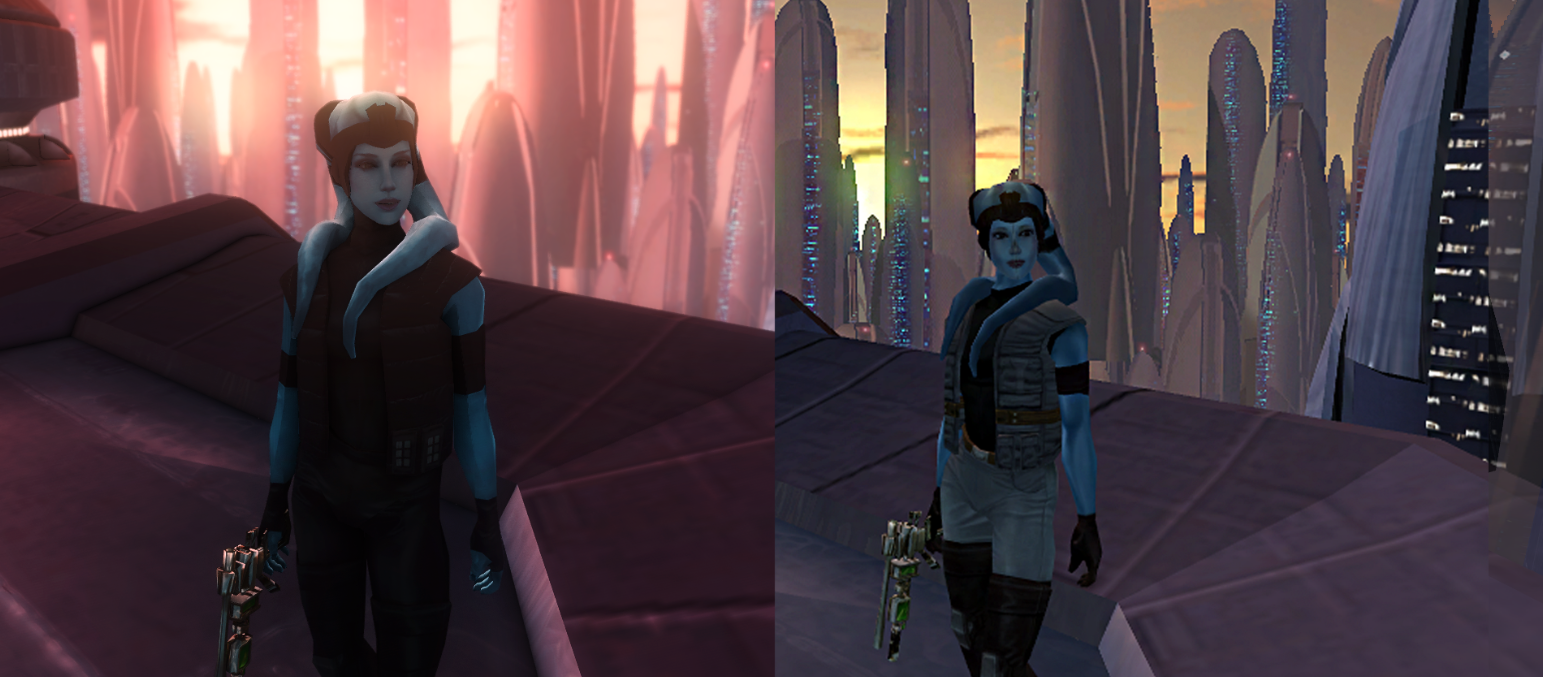
First, download High Quality Blasters[www.nexusmods.com] and run the installer like you did with the Community Patch. All the following mods must simply be downloaded and loosely placed in the Override folder (no subfolders!). You usually know that you are copying the right files if you see some .tga or .txi files. Some mods give you the choice between the uncompressed TGA version and the slightly worse but better performing TPC version, so choose according to your hardware constrains. BUT: In order for the Fen's character textures to work correctly, you need to download the uncompressed TGA version of Ultimate Character Overhaul. Otherwise Fen's doesn't correctly override the crew member textures. (Thanks Diagyx!).
Install in the following order and override when asked:
- Ultimate Character Overhaul Redux (Choose the TGA version here)[www.nexusmods.com]
- Fen's Bastila[www.nexusmods.com]
- Fen's HK-47[www.nexusmods.com]
- Fen's Juhani[www.nexusmods.com]
- Fen's Jolee[www.nexusmods.com]
- Fen's Zaalbar[www.nexusmods.com]
- Fen's Canderous[www.nexusmods.com]
- Fen's Mission[www.nexusmods.com]
- Fen's T3-M4[www.nexusmods.com] (gives T3-M4 a black paint job)
OR
Astro Droids Pack HD[www.nexusmods.com] (keeps original paint job, thanks Edelcast!) - Fen's Carth[www.nexusmods.com]
- Fen's Player[www.nexusmods.com]
- Fen's Female Player[www.nexusmods.com]
- High Quality Skyboxes II[www.nexusmods.com]
- Ultimate Taris High Resolution[www.nexusmods.com]
- Ultimate Tatooine High Resolution[www.nexusmods.com]
- Ultimate Kashyyyk High Resolution[www.nexusmods.com]
- Ultimate Manaan High Resolution[www.nexusmods.com]
- Ultimate Korriban High Resolution[www.nexusmods.com]
- Ultimate Dantooine High Resolution[www.nexusmods.com]
- Ultimate Unknown World High Resolution[www.nexusmods.com]
- Ultimate Endar Spire High Resolution[www.nexusmods.com]
- Hi-Res Beam Effects 2.0[deadlystream.com]
- Fire and Ice HD[www.nexusmods.com]
- High Resolution Lightsaber Beams[www.nexusmods.com]
- Loadscreens in Color[www.nexusmods.com]
Reshade
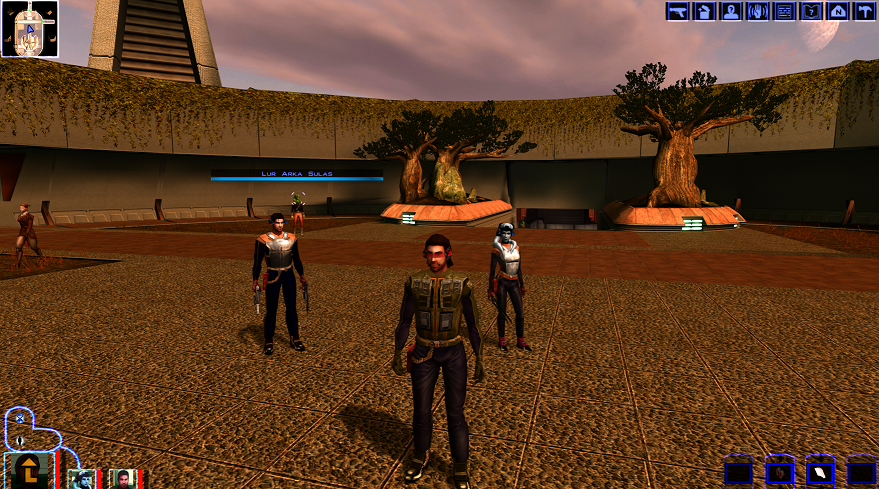
To further boost graphics, you can use a reshade preset like Fens – Reshade[www.nexusmods.com].
I personally tried it and ended up removing it again, but it comes down to a matter of taste.
Gameplay
After the bugfixes, widescreen support and visual overhaul you are still left with a very janky and outdated game of course. If you are not from that era of games or have a high resilience against janky gameplay, the game might make you want to quit after a few hours of playing. I encourage you, however, to give the game a chance and play at least till you reach the second planet before deciding to give up on the game.
Character Builds
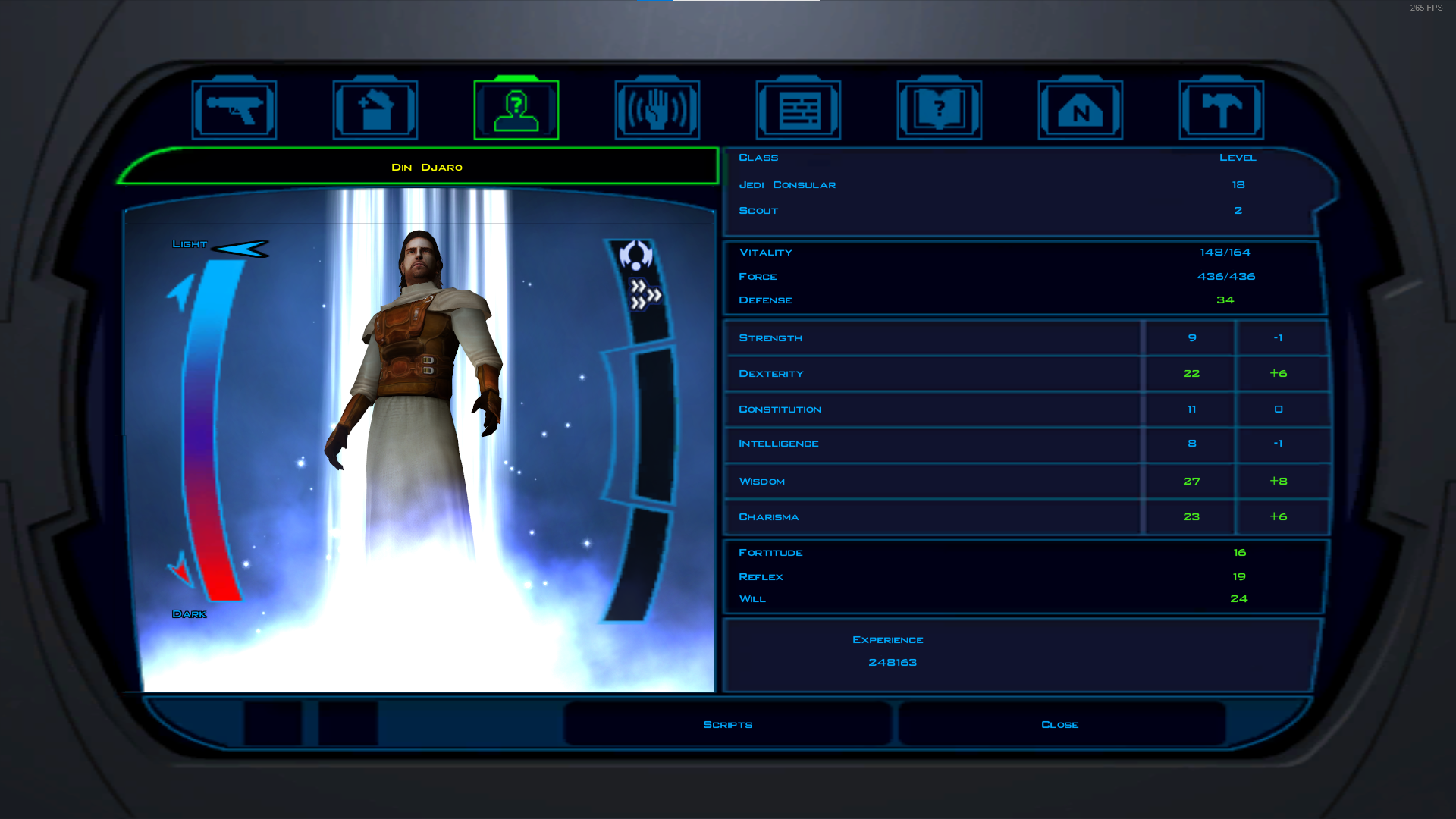
From what I have heard from friends, read online and experienced myself, the game can be quite challenging, especially if you screw up your build.
Here is a link to some nice KOTOR builds[sites.google.com] that I used in my personal playthrough. The first planet can be quite rough using these builds, as you don’t level up early on to receive more Jedi/Sith levels, but after that the game becomes almost too easy. So, if you want to enjoy the game and lore without many hiccups (apart from the start), I can definitely recommend these builds.
Planet Order
Don't get the Star Map on your first visit of Kashyyyk, as getting your fourth Star Map (on Manaan, if you follow this list) would lock you out of some side quest content for characters that will be gone after. So make sure to revisit the planets before getting the fourth Star Map in total)
- Dantooine (1st Star Map)
- Tatooine (2nd Star Map)
- Kashyyyk
- Manaan (3rd Star Map)
- Tatooine (Sidequests)
- Dantooine (Sidequests)
- Kashyyyk (Sidequests)
- Manaan (Sidequests)
- Korriban (4th Star Map)
- Tatooine (Sidequests)
- Kashyyyk (5th Star Map)
Troubleshooting
In general, if you are having any issues that are not featured in this troubleshooting section or your problem can't be fixed by what is written here, you can visit the Neocities KOTOR Community Portal[kotor.neocities.org] which features additional (up to date) help sections. They also have alternative, more extensive, mod lists for both games which include many more mods!
Make sure that:
- You selected the correct folder location (swkotor folder)
- You replaced the swkotor.exe with the editable one (step 1 in the widescreen section)
- You selected the correct dropdown item in UniWS (KOTOR 1024x768)
- You are running UniWS as admin
This means that either UniWS was not run correctly or the entries in the swkotor.ini were not made correctly.
In order to fix this problem, try redoing these steps:- Replace swkotor.exe again with the hexeditable EXE
- Run UniWS again: Make sure to select the CORRECT item in the dropdown menu, select the CORRECT game directory location and enter the CORRECT resolution corresponding to your copied menu files.
- Adjust the "Width=..." and "Height=..." entries in swkotor.ini to the CORRECT corresponding screen resolution
- Also redo the hires_patcher.bat step in the widescreen fix section
If the problem still remains, try removing the HD Menu files from the Override folder. If you can now see the menu properly (even if it is scaled wrong/behaving incorrectly), you can be sure you did something wrong with the steps above. If the menu is still blank, you may have encountered a different problem I am yet unaware of.
Make sure you place both files in the game directory (where the swkotor.exe is) and run hires_patcher.bat.
Also make sure, that you enter the correct resolution within the script.
- Try enabling VSync in the ingame options menu
- Redo the widescreen fix and in the hires_patcher.bat step, type in 'yes' instead of 'no' when asked about the dialog letterboxing
The game might not work well with very high framerates.
There is a fix described here for the resolution 1280x800, maybe this helps fix your problems.
- Replace the EXE with the editable one
- Patch with UniWS (Select KOTOR 1024x768 in dropdown AND enter the final resolution e.g. 1920x1080 )
- Edit/Add "Width=1920" and "Height=1080" in swkotor.ini (replace values with final resolution)
- Copy the modfiles from the HD Menu mod to Override (e.g. files from inside 16-by-9\gui.1920x1080)
- Copy hires_patcher.exe and hires_patcher.bat into the game folder and run hires_patcher.bat
- While running it, enter the final resolution (e.g 1920x1080) and press enter for the rest
The grass can be bugged for some hardware configurations.
Try disabling the grass in the swkotor.ini file.
Make sure you downloaded the .TGA version of the Ultimate Character Overhaul mod.
Otherwise the Fen's textures don't overwrite the files correctly and the ones from UCO are used instead.
Try setting the line 'FrameBuffer=1' to 'FrameBuffer=0' in the swkotor.ini.
After pressing "Install Mod", a popup should open which allows you to select a game folder.
The popup might be not visible if it is on a different monitor and since the installer is waiting for a selection, nothing is happening on the installation screen.
Try to deactivate all monitors except your main monitor.
Additionally, make sure that there are no subfolders within your Override folder. All files need to be placed directly into the Override folder without any subfolders.
If all of this doesn't fix the issue, try uninstalling the game, remove the Override folder and reinstall the game again.
- The Definitive Improvement Guide★ 5 (1.6k)158k views4.1k ♥22 minUpdated Mar 25, 2021
- KotOR Cheat Codes★ 5 (1.6k)123k views4.2k ♥4 minUpdated Nov 23, 2014
- [How-To] KotOR on modern systems (incl. Widescreen)★ 5 (778)95k views1.8k ♥4 minUpdated Nov 24, 2015
- KoToR Best Order of Planets★ 5 (689)73k views1.6k ♥1 min
- [Windows 10] My Steps To Running The Game On WIndows 10★ 5 (617)64k views1.7k ♥2 minUpdated Nov 2, 2018
- KOTOR Simple Setup & Config Guide★ 5 (346)60k views477 ♥2 minUpdated Jun 19, 2013




- Upgrading to PremiumTeam Fortress 2★ 5 (20k)1441k views11k ♥6 minUpdated May 11, 2022
- No More Room in Hell Official ManualNo More Room in Hell★ 5 (2.8k)569k views2.1k ♥29 minUpdated Apr 22, 2019
- NMRiH Community Hosting GuidesNo More Room in Hell★ 5 (526)351k views653 ♥1 minUpdated Aug 10, 2022
- ULTIMATE GUIDE FOR GAME DEV TYCOONGame Dev Tycoon★ 5 (5.8k)326k views10k ♥4 minUpdated 23 Jan, 2014
- How to 'Git Gud' Soon™MORDHAU★ 5 (2k)318k views3k ♥68 minUpdated Nov 16, 2024
- Лучшие кооперативные игры SteamPAYDAY 2★ 5 (1.5k)315k views2.1k ♥56 minRussianUpdated Apr 27, 2025






This guide was created by its original author on the Steam Community. Are you the author and want it removed? Request removal.