The Definitive Improvement Guide
Introduction
Hello and welcome. When it comes to "old school" RPG classics, I probably not only know about them, but also played them at some point. With that, I've come to face the reality that many of these wonderful titles were not designed with future improvements in mind. Because I have the knowledge (and almost obsession) to go about fixing these games, I've decided to write the "Definitive Improvement Guide" series to improve the experience people have with the games. While I strongly recommend playing the game without any modifications first, it's obviously your choice.
In this guide you will find every aspect covered, whether it be gameplay or graphics, I've tried to include as much as I can.
I will be talking about editing ini files, and as thus, you will need a text editor to open them. Notepad in Windows is a great choice. The ini files are located in ...\SteamApps\common\swkotor\ or simply with the main kotor folder.
In Windows 7, it will look like: A:\Program Files (x86)\Steam\SteamApps\common\swkotor
Ini files have a sectional header that's placed in [square brackets]. Under the header, there are keys with values. This is the styling I will be using for the rest of this guide.
Please enjoy, and comment any improvements you would like to see.
To-Do List/Change Log
3:37 PM 25/03/2021
- Added notice under "High Refresh Rate" that running the game above the "locked" 60fps can cause issues (such as character movement).
9:18 AM 01/01/2020
- Added Widescreen Patch Issues tip from user Sactravas. Have Flawless inject while game is running, not automatically.
8:39 PM 12/08/2019
- Added tip for game crashes, install to boot drive (C:\). Thanks to BioHaZarD PT
12:46 PM 25/05/2019
- Added link to source Flawless Widescreen as site appears to be down.
- Made Graphical Improvements: Flawless Widescreen section (thanks to Insult).
- Added location to place flawless plugins (thanks to Insult).
- Added Service Pack notice for game fix (thanks to Insult).
- Added notice to try setting resolution to 1024x768 first (thanks to Insult).
- Added resolution info in Fix: Game Crashes (thanks to Insult).
8:04 PM 21/04/2019
- Update guide to reflect finicky nature of Flawless. The memory patch can take quite a few more tries than the guide originally indicated.
6:06 PM 21/04/2018
- Restored soft shadow fix, likely a mistake within the re-organization update in 2017.
9:15 PM 11/12/2017
- Added more sections, moved things around. Ran into character limits with long sections.
8:44 PM 11/12/2017
- Added non-centered UI fix, via DPI Scaling for Win 8/8.1/10.
- Added way to address grass clipping models for AMD users.
- Added notice that enabling Vsync might help game to work on Win10.
- Added Frame Buffer=0 fix (some driver/OS combos have serious issues with frame buffers).
- Added wording to tell users to also try Adaptive V-Sync for Nvidia instead of VSync=1.
- Addressed game crash after leaving Levaithan.
- Added sound fix for AMD users.
- Added graphic enhancement: Remove Force Speed Blur
3:05 PM 03/12/2017 (Housekeeping)
- Added grass fix (Grass=0). May resolve crashes/issues on certain planets.
6:59 PM 18/11/2017 (Housekeeping)
- Added the hardware mouse fix to the list of things to try.
- Added some additional wording to clarify that the memory patch isn't a set-and-forget.
- Added potential fix for Flawless not updating UI to match resolution (uncentered buttons).
1:44 AM 22/10/2017 (Investigating Windows 10 Issues)
- Tested with bare metal hardware (my laptop with Win10 Home). Game ran perfectly out of the box.
- Tested with VirtualBox, game crashed when it started to draw graphics.
- Tested with VMware Workstation Player. Game runs to title screen. Gameplay causes a crash.
- Tests confirm thoughts that graphics drivers are the root cause if everything else has been tried.
8:55 PM 2017-05-15 (General Review)
- Links verified to be working.
- Added additional fix for game stability (after Taris).
9:51 PM 2016-06-21 (Updated Links)
- Links turned out to be broken. Updated to resolve this.
12:22 PM 2015-07-14 (Game Completed)
- Movies checked, some cause game to minimize but doesn't cause a crash.
- Quicksaves corrupt at later stages of the game (~16 hours), unsure why this is.
- No further items to address as the game works and is playable. Guide is complete.
8:08 PM 2015-05-02
- Double check results and expand on movie issues.
- Expand the general bugs/workaround section. I remember there being more issues...
11:20 PM 2015-05-01
- Expand the general bugs/workaround section. I remember there being more issues...
2015-04-29 (Release)
- Expand the "It doesn't work" section
- Include some more pictures
Fix: Game Crashes
For this old game (2003), it seems I'm going to have to make a section just for the standard "Nothing works" people. I haven't had a whole lot of trouble myself, but looking on the internet it sure looks like Windows 8 and above users have the most issues.
Formally tested working and playable on:- Windows 7 Pro 64-bit (Version 6.1.7601 Service Pack 1 Build 7601)
- Windows 8.1 Pro 64-bit (Version 6.3.9600 Build 9600)
- Microsoft Windows 10 Home 64-bit (Build Version 14393.1593)
- Microsoft Windows 10 Pro Technical Preview 64-bit (Version 10.0.10041 Build 10041)
The game even runs the main menu with minimal virtualization drivers for 3D graphics.
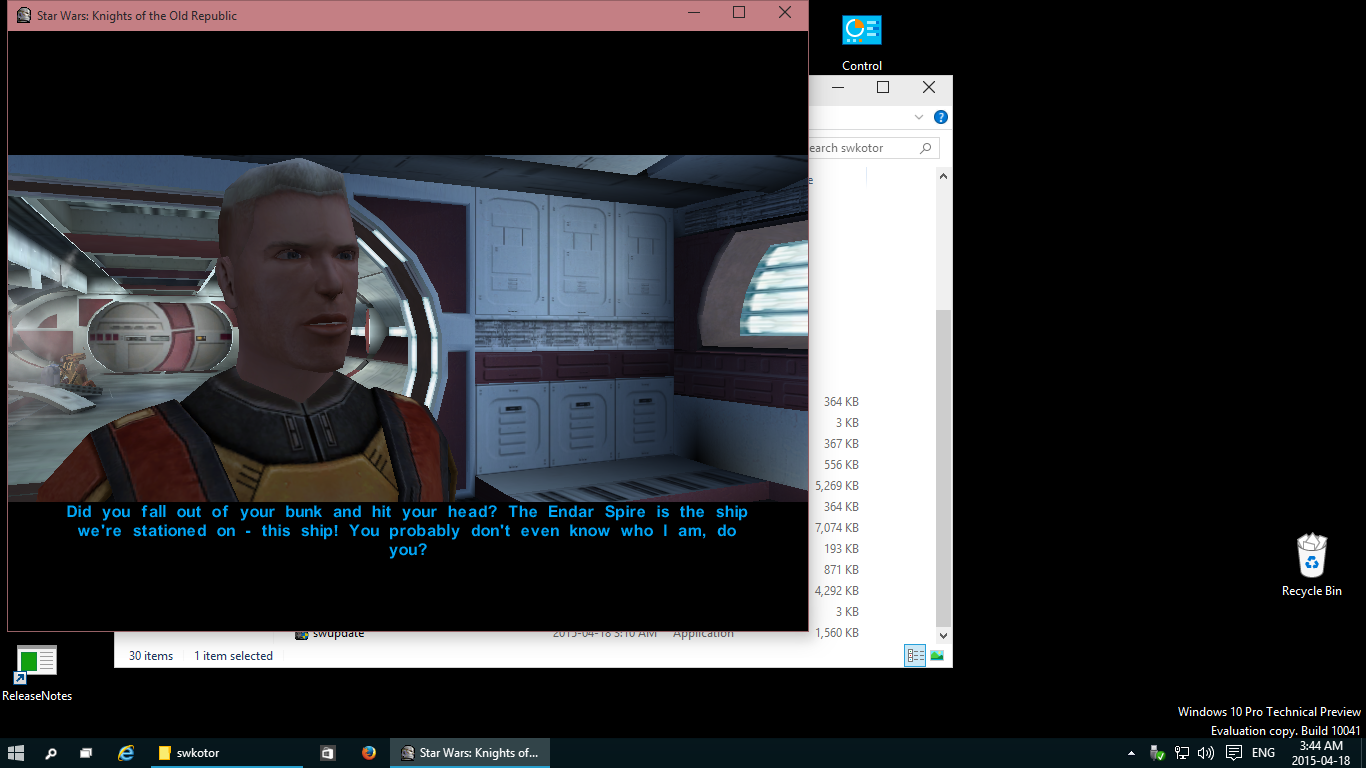 KotOR I working on Windows 10. Windowed for purpose of showing version information.
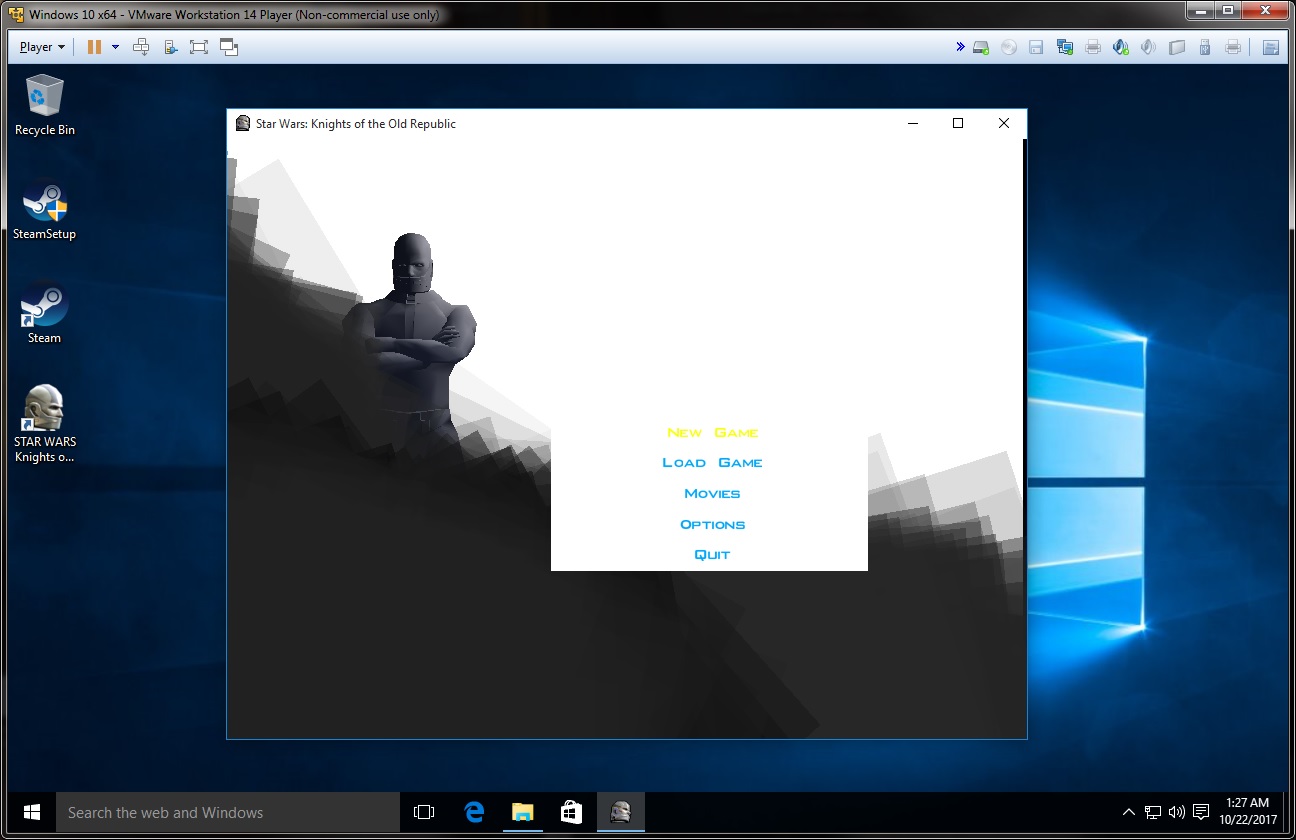 VMware Player even runs the game at the menu. If the game does not run, it is likely graphics drivers.
In case of the eventual "idk.. someone fix it for me" people.. Firing off one by one:
- Turn off "Soft Shadows" in the options menu, or in the ini file with Soft Shadows=0
- Disable the Steam Overlay (seems to be the only way to get it to work on Windows 8.1 Pro)
- Run with Windows XP Service Pack 3 Compatibility (/wo Steam Overlay)
- Disable introduction movies (see Gameplay Improvements)
- Try running it in a window (See last part of Graphical Improvements)
- Edit ini file so that Frame Buffer=0 & Disable Vertex Buffer Objects=1
- Edit ini file so that DisableVisualBuffers=0 or DisableVisualBuffers=1
- Edit ini file so that EnableHardwareMouse=1 or EnableHardwareMouse=0
- Edit ini file so that Grass=0 and Frame Buffer=0
- Edit ini file so that VSync=1 or Enable Adaptive V-Sync in Nvidia's Control Panel.
- Update a file: http://knightsoftheoldrepublic.filefront.com/file/TSL_Windows_Vista_Fix;85439
- Mess around with swconfig.exe (Steam\steamapps\common\swkotor\swconfig.exe)
- Ensure your graphics card drivers are up to date (especially Intel integrated graphics!)
- If you are loading a save file forever, it's quite likely the save file is corrupted.
- Set the game's resolution to 1024x768, or any other resolution in the 4:3 ratio.
- Try uninstalling the game, and then reinstalling it on boot drive (C:\).
1. Disable movies completely
You can edit the swkotor.ini file talked about later on, so that Disable Movies=1 under [Game Options].
2. Rename/delete certain movie files
As of my tests 8:08 PM 2015-05-02, it would seem there are certain files causing issues. The following files should be deleted or renamed.
Fix: Gameplay Bugs
- Unable to move character after combat.
Fix: Graphical/Sound Bugs
- White textures.
- Grass Clips Characters.
- Game Doesn't Have Sound For AMD Users.
- Game Lacks Sound/Crackling Sound.
It would seem the more I play the title, the more I remember about certain bugs and what not. Below is a small list of some workarounds and bugs that you will most certainly encounter during your play with KOTOR.
This is caused by the driver lacking support for the 3D instructions the game needs. If you want a more technical break down, it's caused by the fake graphics "hardware" implementation via software. I was quite suprised that the game even ran, considering VirtualBox was unable to even run the game (it crashed the exact moment when a graphics call was made).
You will need to either update your graphics drivers, reinstall them from scratch, or upgrade your system. While this game does have some very low specs, it does require some "high end" functions that dedicated cards had back in the day. Integrated chipsets (such as Intel's Integrated graphics) may not support this game. However, Intel's GMA did seem to support the game (~2005).
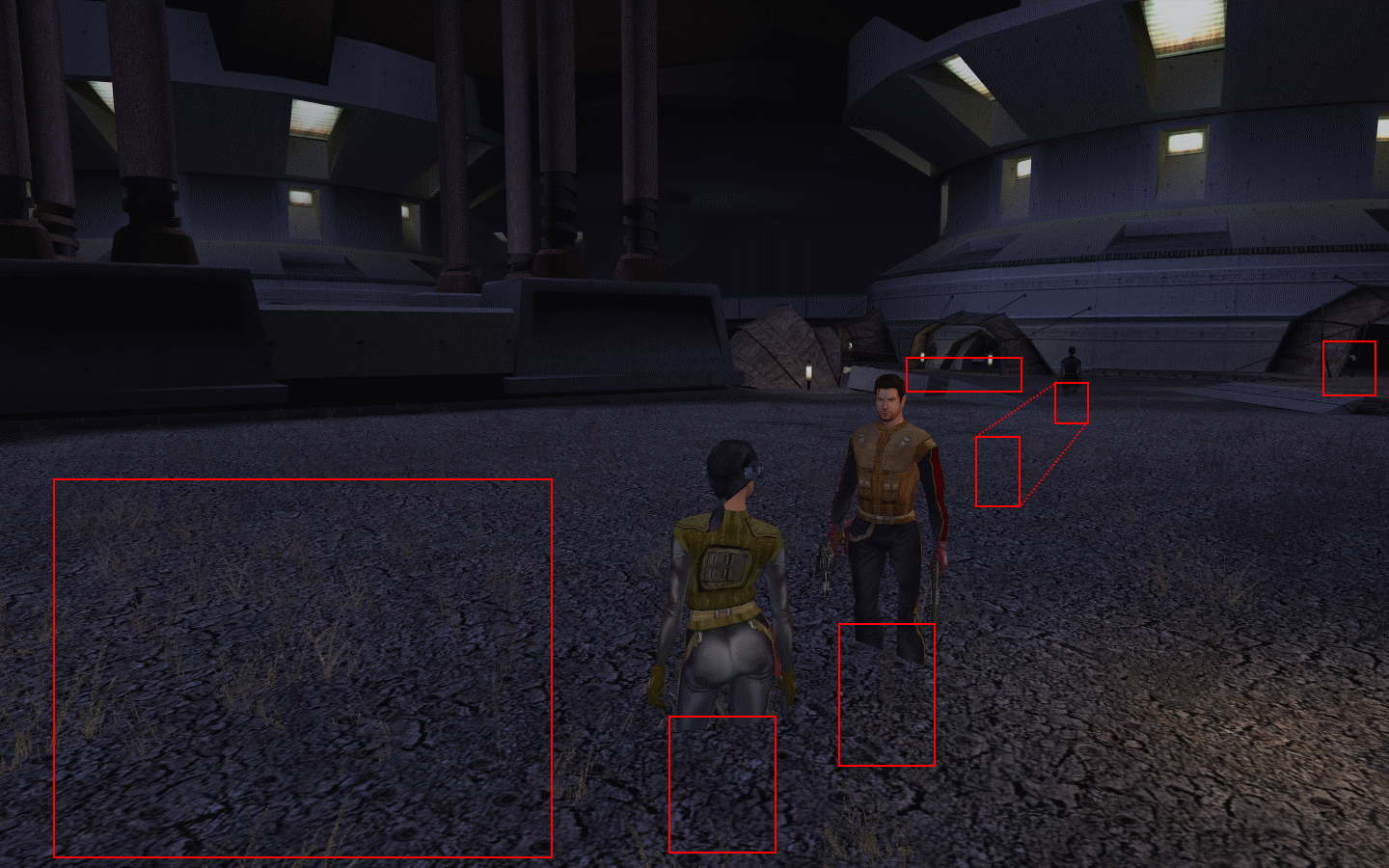
To resolve this, you will need to override the OpenGL calls that the game uses, by applying a memory patch.
GLOverride from http://www.humus.name/index.php?page=Cool can provide this functionality. After extracting the files to the main SWKotOR folder, open opengl32.ini and set ForceAlphaToCoverage=1
Fix: Widescreen Patch Issues
If you find that the widescreen patch does not work, consult this section.
If you are looking for the widescreen patch, please continue to the section below.
- 64-bit systems need both MVC++ 2010 Redistributable Packages
- Inconclusive results of Widescreen fix on Windows 8.1, but game runs fine otherwise.
- Ran out of the box with Windows 10.
- The game even runs the menu box with minimal virtualization drivers for 3D graphics.
- If you are trying to patch to a resolution below "Full HD" (a.k.a 1920x1080), the patch fails.
- UniWS (the static, binary patcher) is the only way to get a widescreen below 1920x1080.
- Flawless is a memory patcher, it's not a binary patcher. It needs to be applied on game startup.
- Try setting the game's resolution to something 4:3 (1024x768) first, and then applying the patch.
- Using different OS levels for compatibility mode may be required (Service pack 2 instead of 3 for XP).
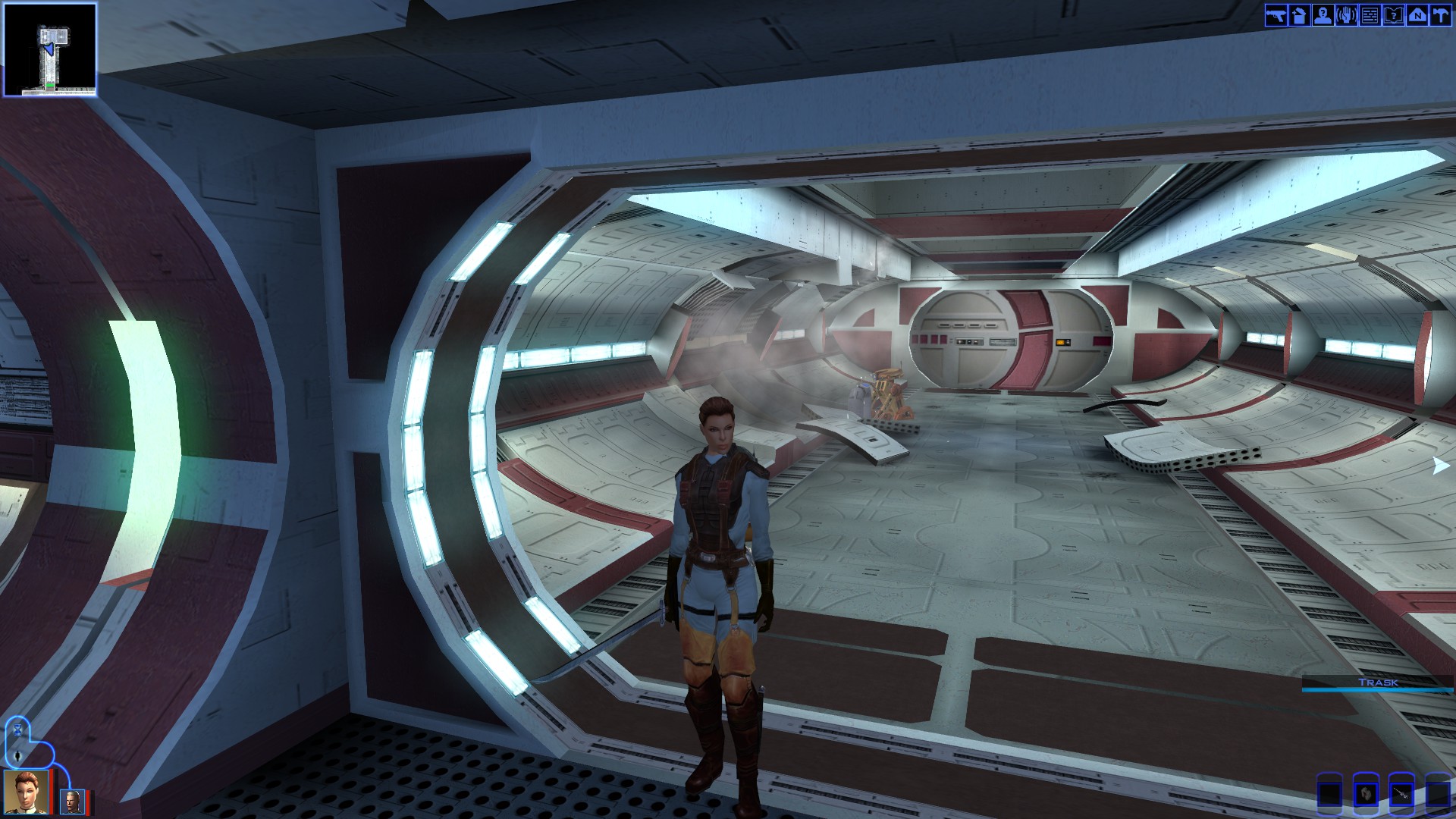
Fullscreen on Windows 7.
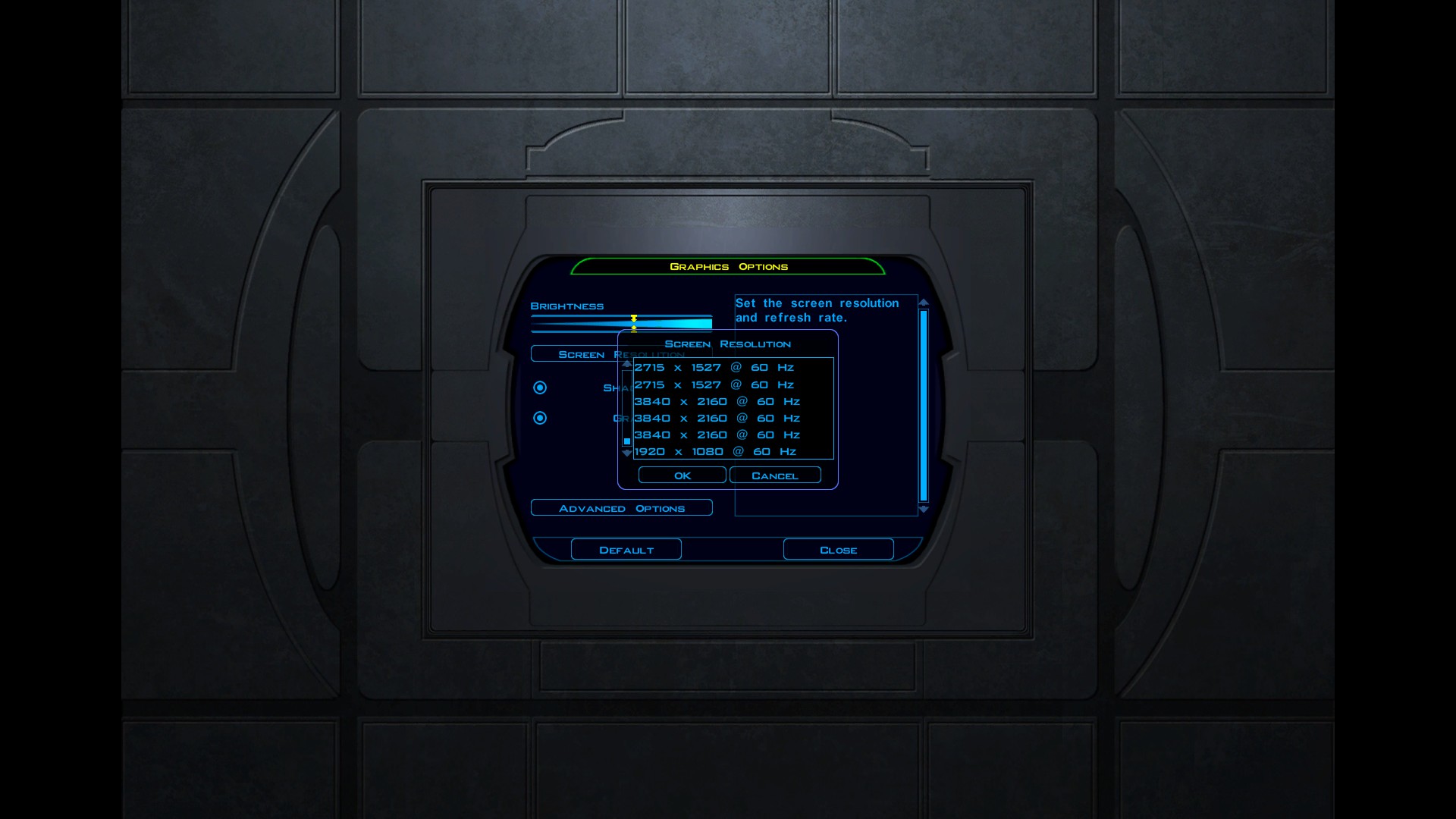 The widescreen fix should result in this (most likely after a few retries).
http://www.microsoft.com/en-us/download/details.aspx?id=5555
http://www.microsoft.com/en-us/download/details.aspx?id=14632
You could also be using a resolution of 1440x900 or smaller. The Flawless will either crash the game or just simply not work no matter how many times you use it. UniWS seems to be your only hope, but I haven't tested it myself.
The user Sactravas reports that making Flawless Widescreen inject while the game is running (turning off automatic injection) seems to fix the issue of no widescreen resolutions showing.
You will likely have retry Flawless a few times. In one case I've had to restart the game 4 times for the patch to apply. Furthermore, the memory patch is not permanent.
You can try fixing this by backing up your override folder (this contains your mods!), deleting everything inside, and then running Flawless again.
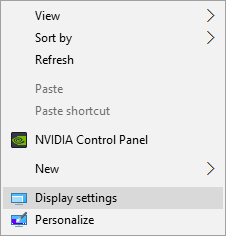
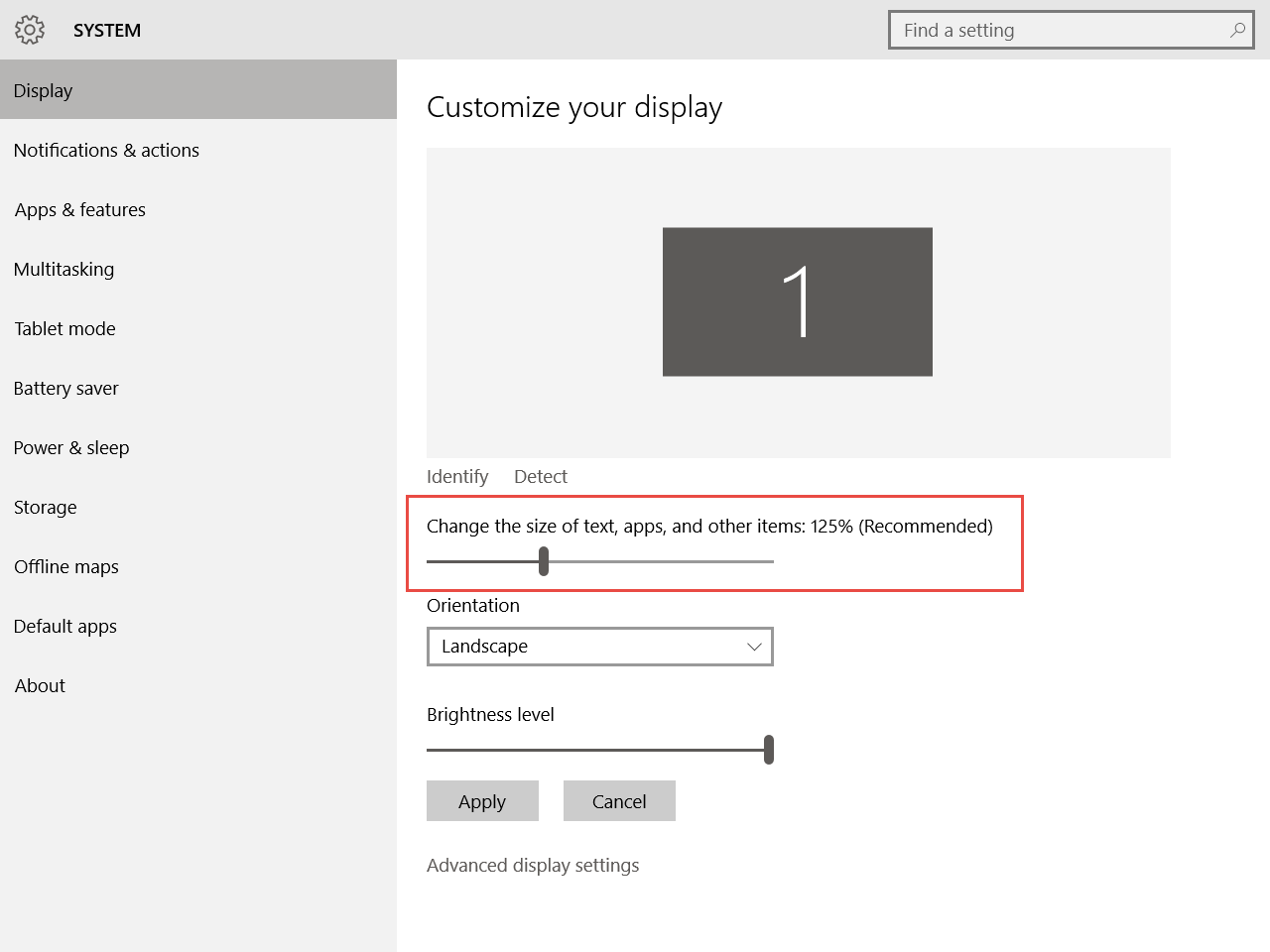
If you are using Windows 8/8.1/10 (the troublesome 3), try disabling DPI scaling. You can do this by right clicking swkotor.exe (or swkotor with the fancy icon) → Properties → Compatibility → Tick "Disable display scaling on high DPI settings". Another way to resolve this is to set your display scaling setting within Windows to 100%, not the 120% or 125% it may default to. Right click on the desktop → Display Settings → 100% Scaling.
Graphical Improvements: Flawless Widescreen
As a user has pointed out (Insult), the Flawless Widescreen site appears to be down, and for over 5 days. This may prevent the program from working, and the "easy" patching method from working.
To source the components for Flawless Widescreen, one only needs to visit the reddit page in which users have shared their plugins and needed components to get Flawless Widescreen working.
https://www.reddit.com/r/ultrawidemasterrace/comments/bqwvtk/flawless_widescreen_plugins/
It will be noted here, that these files are binaries, and the security and integrity can not be verified. It is up to you as the end user, to determine if you trust the binary contents of any of the files.
You can place plugins in to: (Flawless Widescreen)\PluginCache\FWS_Plugins\Modules\
Graphical Improvements: Widescreen
- Widescreen without the Steam Overlay (Easy)
- Widescreen with the Steam Overlay (Hard)
- Widescreen via a permanent binary patch (Hardest)
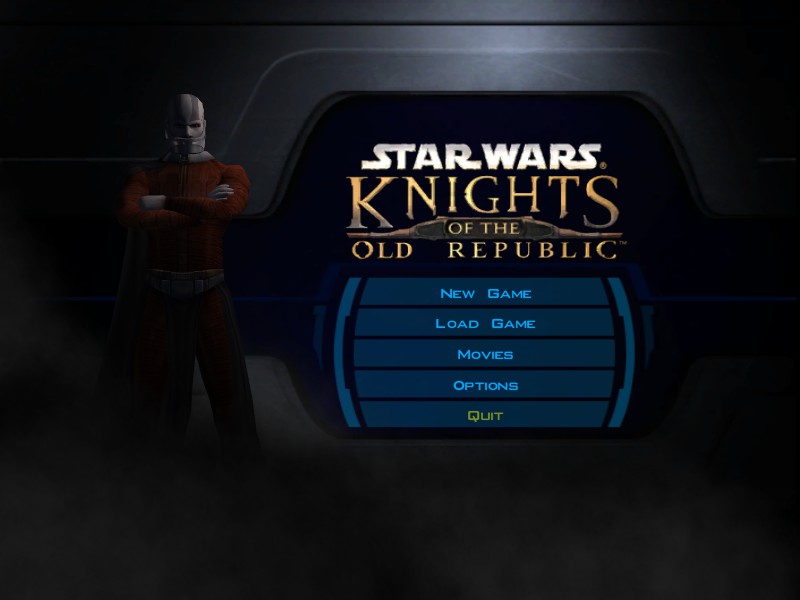 Without fullscreen fix. (800x600)
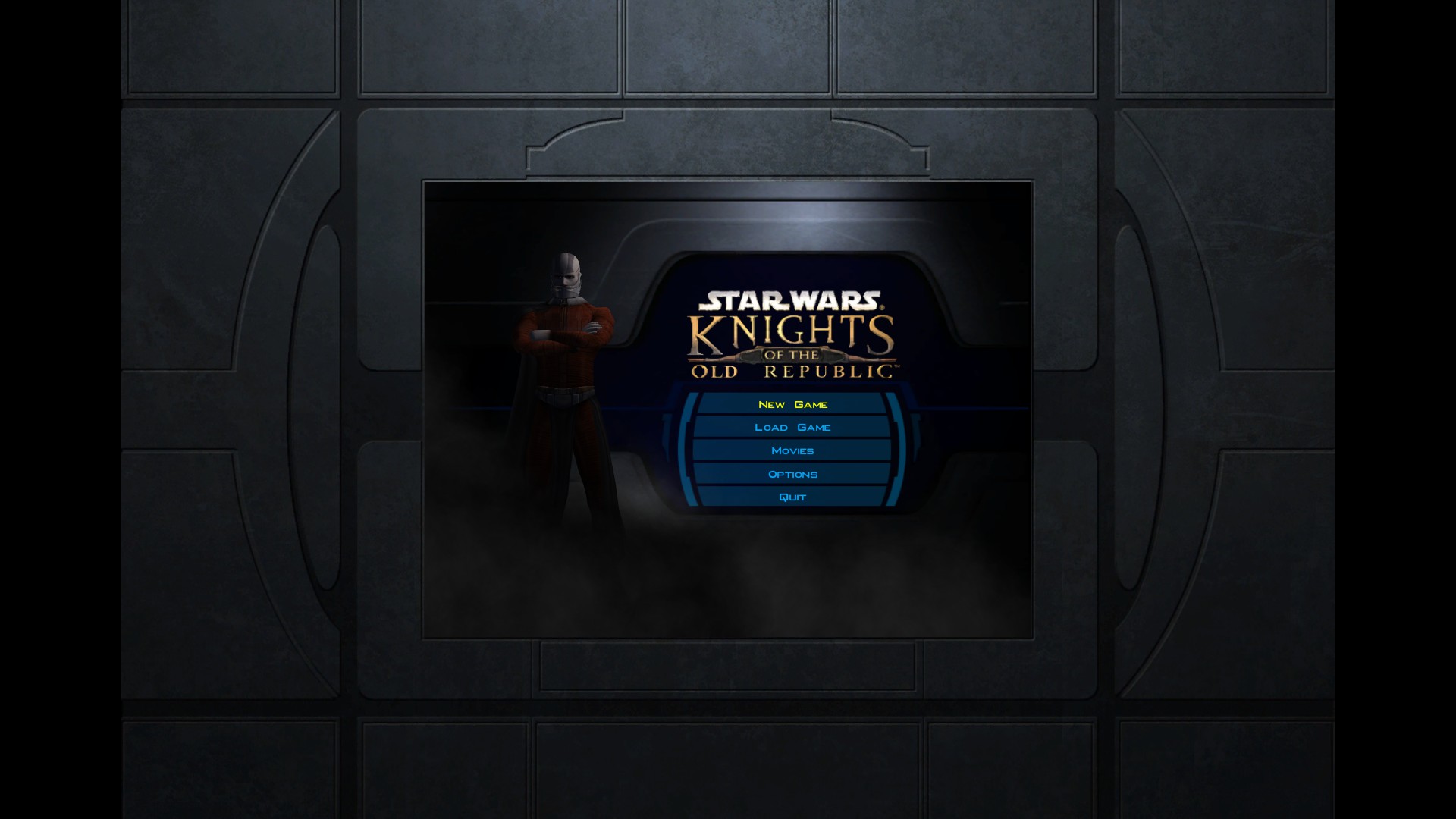 With the fullscreen fix. (1920x1080)
The first thing I should go about saying is that you can't simply "run and forget" like other guides state. If you've looked through the how many other guides on Steam, you will probably find they don't work, and they are a massive waste of your time.
I don't look at the guides on Steam very often because simply they don't go into enough detail, they don't work, or they have the organization of a 3rd grader.
The method I detail below (if you have made it this far) should work for you. This isn't a copy-paste like the how ever many other guides. I've done the fixing first hand with all the searching around, so there should be no hassle for you.
I hate to continue on this point, but some of the things the other guides don't address in this department but I do:- How to fix the crashing with the Steam overlay.
- How to go about avoiding compatibility mode.
- Making sure the mouse works correctly.
It will take some will power to fix the resolution problem. There's two methods I will outline here, and you will be able to pick which one "you can live with".
First we are going to navigate to the "swkotor.exe" location. This will obviously vary, but it should be on the drive you installed Steam to. In my case I installed it to my "A" drive. Because it's there, I will navigate to: A:\Program Files (x86)\Steam\SteamApps\common\swkotor
With this folder open:- We are going to right click swkotor.exe (or swkotor with a fancy icon).
- From there click on Properties
- With the new window select Compatibility → Run this program... → Windows XP (Service ... 3)
- Hit Apply then OK.
Now that's done, we have to make edits to an ini file. These "ini" files are simple human readable files that allow for easy setting changes.
I will navigate to: A:\Program Files (x86)\Steam\SteamApps\common\swkotor
Depending on how your system is setup, you should be able to just double click swkotor.ini (or the swkotor without the fancy icon). A text editor should open up, and this is how we are going to make changes.
If this is not the case:- We are going to right click swkotor.ini.
- From there hover on Open with... and select Notepad
- If Notepad isn't there, Choose default program... → Browse → C:\Windows\notepad.exe
- Hit Open then OK.
In that file we are going to look for a section header called [Graphics Options]
Under that header we are going to set the following keys and values (in no order):
[Graphics Options]
...
Height=1080
Width=1920
V-Sync=0
...
EnableHardwareMouse=1
FullScreen=1
Disable Vertex Buffer Objects=1
AllowWindowedMode=1
It should be noted that:
The key AllowWindowedMode does not exist by default. It is however handy to know about if you want to run a windowed mode that fits your resolution better.
The keys Height and Width should be set to the desired resolution (most likely native). You can find these values by right clicking on the desktop → Screen resolution
Now, we have to use a third-party utility to make this all work. It's called Flawless Widescreen. Consult the "Graphical Improvements: Flawless Widescreen" section of the guide for a link to it.
So once you have found and installed Flawless, you will have to download the KotOR plugin from within it.
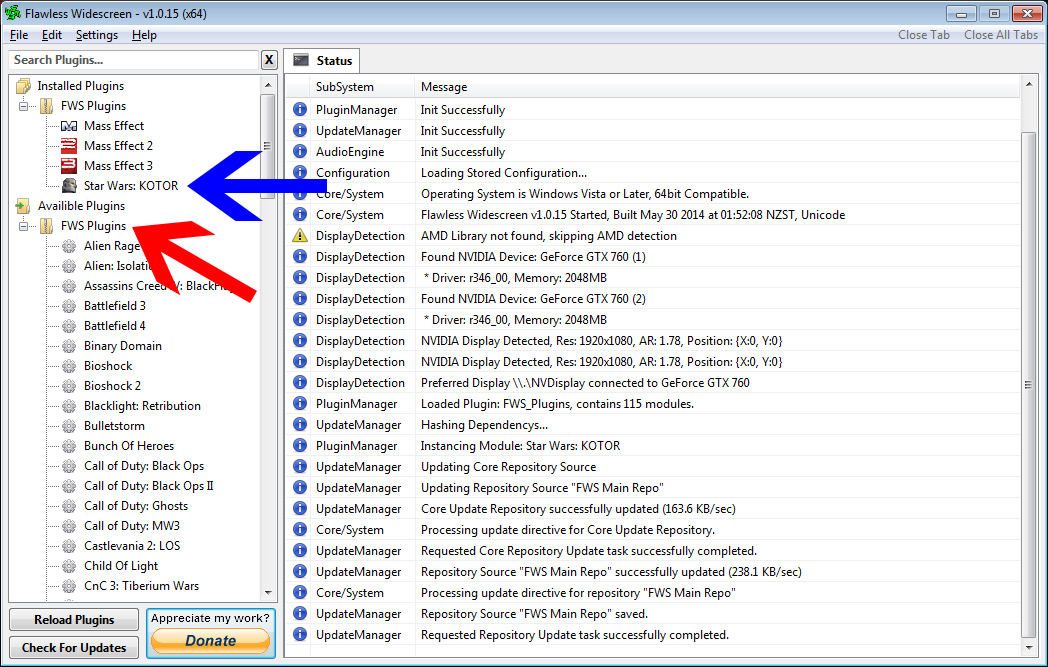
- (Red Arrow) Look in the FWS Plugins list for Star Wars: KOTOR.
- Click it once (yes once and only once) and it will download.
- (Blue Arrow) Once it's done, click on it. Flawless Widescreen is now ready.
Presuming KotOR I is installed, go ahead now and open Steam. From the game list, right click on Star Wars: Knights of the Old Republic. → Properties → Untick Enable Steam overlay.. Now you can run the game with a little kicker...
The unfortunate part is that it will may take a few tries in some cases for your resolution to visible in the game. Each time you run the game, go from the main menu → Options → Graphical Options → Screen Resolution, and check to see if your desired resolution is in the list. Again, it can and probably will take a few game restarts for it to appear in the list. Once it is, set it. Presuming you have set things correctly everything should now scale correctly, but the Steam Overlay will not work.
Unlike above, I presume you know a few things, so I'm just going to fire them off.
We have to make edits to an ini file. The one in question is "swkotor.ini" located in ..\Steam\SteamApps\common\swkotor
In that file we are going to look for a section header called [Graphics Options]
Under that header we are going to set the following keys and values (in no order):
[Graphics Options]
...
Height=Y
Width=X
V-Sync=0
...
EnableHardwareMouse=1
FullScreen=1
Disable Vertex Buffer Objects=1
AllowWindowedMode=1
We have to make a Registry fix here. This will address: "The NVIDIA OpenGL driver lost connection with the display driver due to exceeding the windows Time-Out limit and is unable to continue." message later on.
Navigate to HKEY_LOCAL_MACHINE\SYSTEM\CurrentControlSet\Control\GraphicsDrivers and add a new entry titled TdrDelay. If you are 32-bit, make it DWORD, and for 64-bit use a QWORD. Set it to 8 and restart.
Using Flawless Widescreen, download the Star Wars: KOTOR plugin from within, and open it. Consult the "Graphical Improvements: Flawless Widescreen" section of the guide for a link to both.
The difference here is that while this is basically the same process as above, the key part is that compatibility mode isn't on, and the Overlay will work. You can now run the game.
The unfortunate side is that it can take up to 8 attempts in some cases for your resolution to visible in the game. Each time you run the game, go from the main menu → Options → Graphical Options → Screen Resolution, and check to see if your desired resolution is in the list. Again, it can and probably will take a few game restarts for it to appear in the list.
The caveat here is that UniWS requires you to replace the Steam copy of the game's exe file with another one. More is described at WSGF's page:
http://www.wsgf.org/article/star-wars-knights-old-republic
If you plan to run SWKotOR at widescreen resolutions below 1440x900 it will either crash, or dialog text will be missing. It is advised by the article's author (skipclarke) to apply a patch for 1530x864, and then use the graphic driver's scaling feature to scale the resolution down (to 720p and so on).
Graphical Improvements: Other
- Using a high refresh rate.
- Running the game in window mode.
- Removing the force speed blur.
I should make a note here, because several messages were sent my way. Running the game above 60 FPS can cause issues with the game's internals. Movement and such might be an issue. Either manage with this (see "Movement Bug: Unable to move character after combat" above) or limit the refresh rate with v-sync.
[Graphics Options]
...
Height=Y
Width=X
V-Sync=0
...
EnableHardwareMouse=1
FullScreen=0
Disable Vertex Buffer Objects=1
AllowWindowedMode=1
http://deadlystream.com/forum/topic/3154-remove-speed-blur-only-tsl-mod/
Gameplay Improvements
- Remove Introduction Movies
- Enable/Use Cheats
- Store Improvements
- Force Power Additions
- Skip Taris
- Modify Save Games
- Mod Tools
- biologo.bik
- leclogo.bik
- legal.bik
In order to do this, you have to edit the swkotor.ini file and add a line to enable cheats:
[Game Options]
GUIsInScreenShot=1
EnableScreenShot=0
Reverse Mouse Buttons=0
Hide InGame GUI=0
...
EnableCheats=1
Save this addition, and you should now be able to press ' (single quote) to show the console. Some common cheats are listed below:
You can look here for more codes to use: http://knightsoftheoldrepublic.filefront.com/info/cheatskotor1
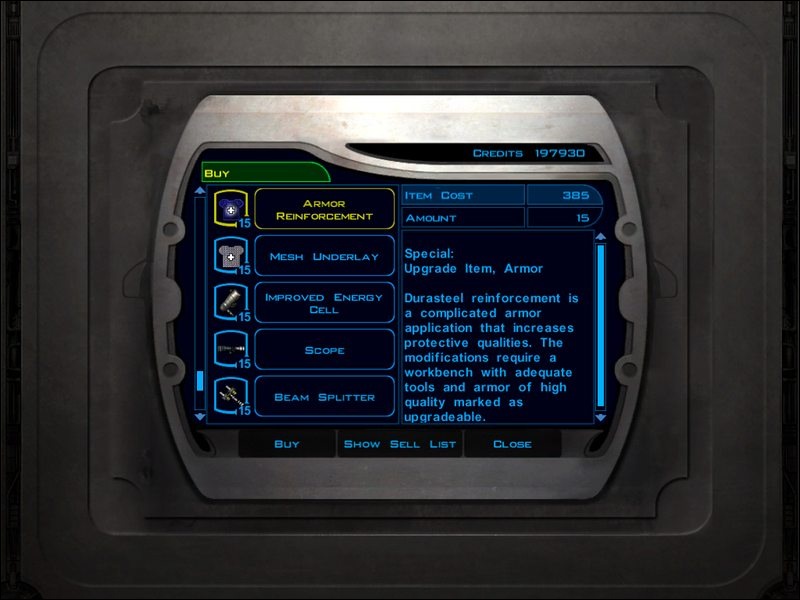
Download the files from here: http://www.lonebullet.com/file/mods/enhanced-merchants-for-k1/15747
And make sure to place them into the override folder located at: ...\Steam\SteamApps\common\swkotor\Override
Included is:
- 7 lightsaber forms.
- 4 light side powers.
- 4 universal powers.
- 3 dark side powers.
- Increasing the opponent difficulty slightly.
- Removing cross-class skill penalties.
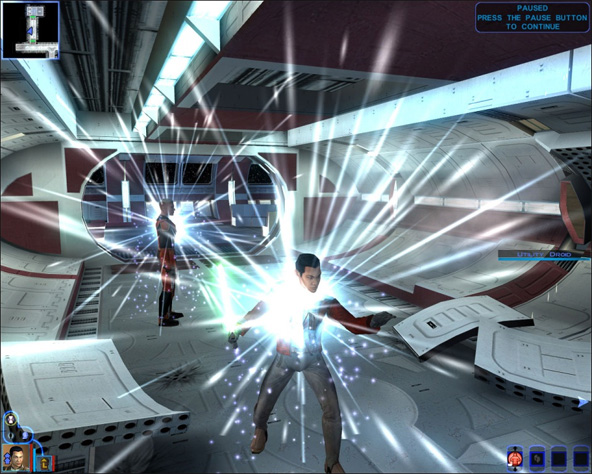
You can download the mod here: http://www.lonebullet.com/file/mods/k1-force-pack-20/15638
You can download the mod here: http://www.moddb.com/games/star-wars-knights-of-the-old-republic/downloads/super-skip-taris-and-endar-spire
You can find KSE v3.3.3 for both KotOR I and II at http://www.starwarsknights.com/tools.php
- KotOR Cheat Codes★ 5 (1.6k)123k views4.2k ♥4 minUpdated Nov 23, 2014
- Make your KOTOR playthrough more enjoyable★ 5 (1.8k)97k views5k ♥13 minUpdated Jun 24
- [How-To] KotOR on modern systems (incl. Widescreen)★ 5 (778)95k views1.8k ♥4 minUpdated Nov 24, 2015
- KoToR Best Order of Planets★ 5 (689)73k views1.6k ♥1 min
- [Windows 10] My Steps To Running The Game On WIndows 10★ 5 (617)64k views1.7k ♥2 minUpdated Nov 2, 2018
- KOTOR Simple Setup & Config Guide★ 5 (346)60k views477 ♥2 minUpdated Jun 19, 2013




- Upgrading to PremiumTeam Fortress 2★ 5 (20k)1441k views11k ♥6 minUpdated May 11, 2022
- No More Room in Hell Official ManualNo More Room in Hell★ 5 (2.8k)569k views2.1k ♥29 minUpdated Apr 22, 2019
- NMRiH Community Hosting GuidesNo More Room in Hell★ 5 (526)351k views653 ♥1 minUpdated Aug 10, 2022
- ULTIMATE GUIDE FOR GAME DEV TYCOONGame Dev Tycoon★ 5 (5.8k)326k views10k ♥4 minUpdated 23 Jan, 2014
- How to 'Git Gud' Soon™MORDHAU★ 5 (2k)318k views3k ♥68 minUpdated Nov 16, 2024
- Лучшие кооперативные игры SteamPAYDAY 2★ 5 (1.5k)315k views2.1k ♥56 minRussianUpdated Apr 27, 2025






This guide was created by its original author on the Steam Community. Are you the author and want it removed? Request removal.