Factorio★ 5 · 472 ratings27k views1k favorites11 min readby Bmb92Updated May 13, 2025View on Steam ↗
Share
*Important*
These are the *default* controls listed below. If you do not like any of the controls, they can be changed in the settings menu.
This guide is for keyboard and mice controls only. My controller does not work with Factorio. If anyone wants to send me a resource for controller controls, leave a comment.
BEGINNER (0-50 HOURS)
--- Player Abilities & Managing Inventory
Shortcut Key(s), Press:
Effect
Shortcut Key(s), Press:
Effect
“Z”
drop the item you are holding on the ground.
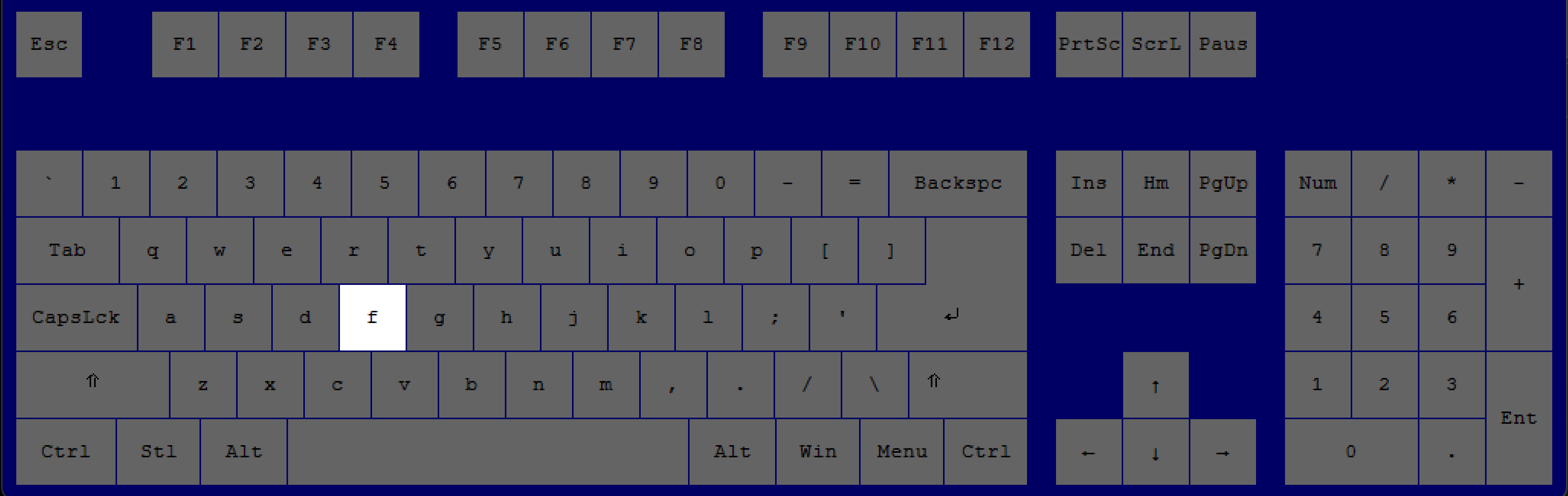
“F”
pick up the nearest item(s) on the ground.
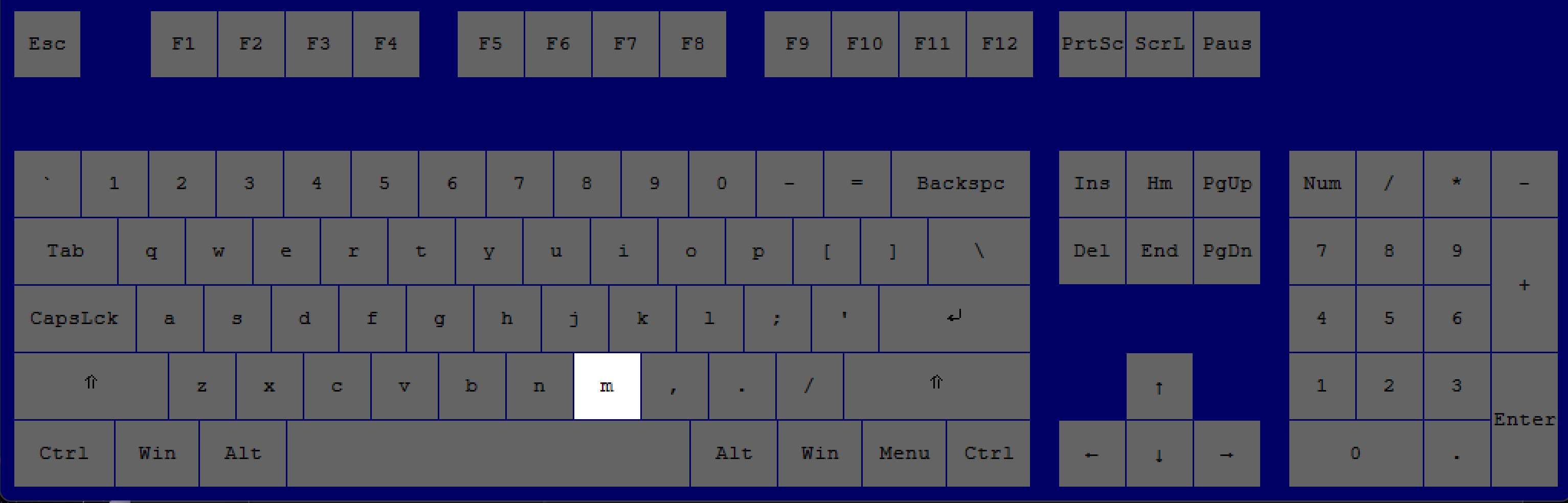
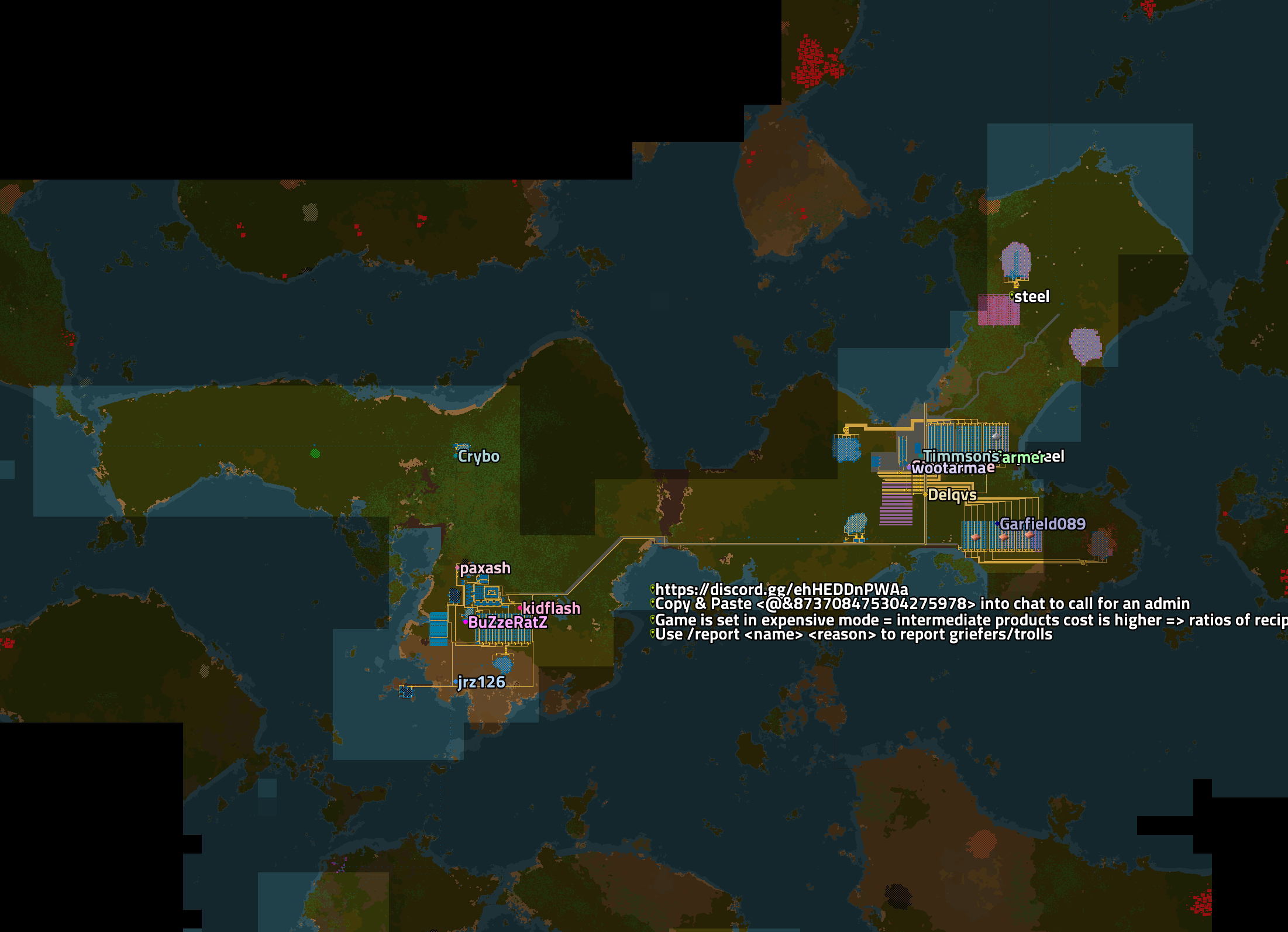
“M"
-OR-
“TAB"
to access the in-game map.
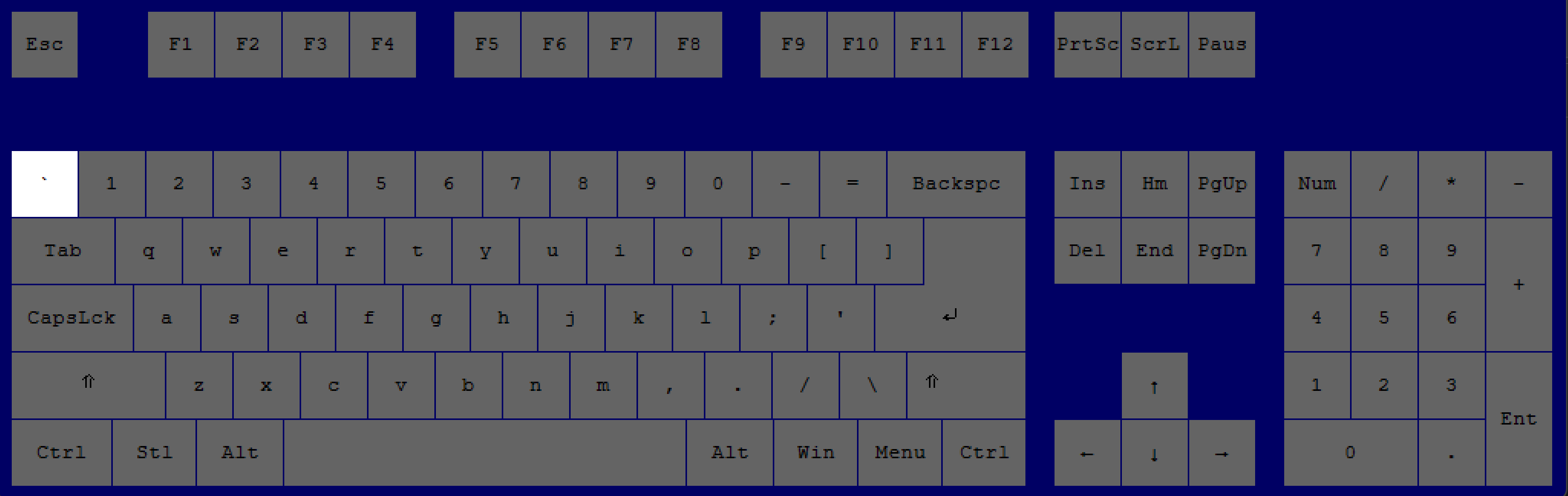
“~”
Open chat in multiplayer or the console in single-player.
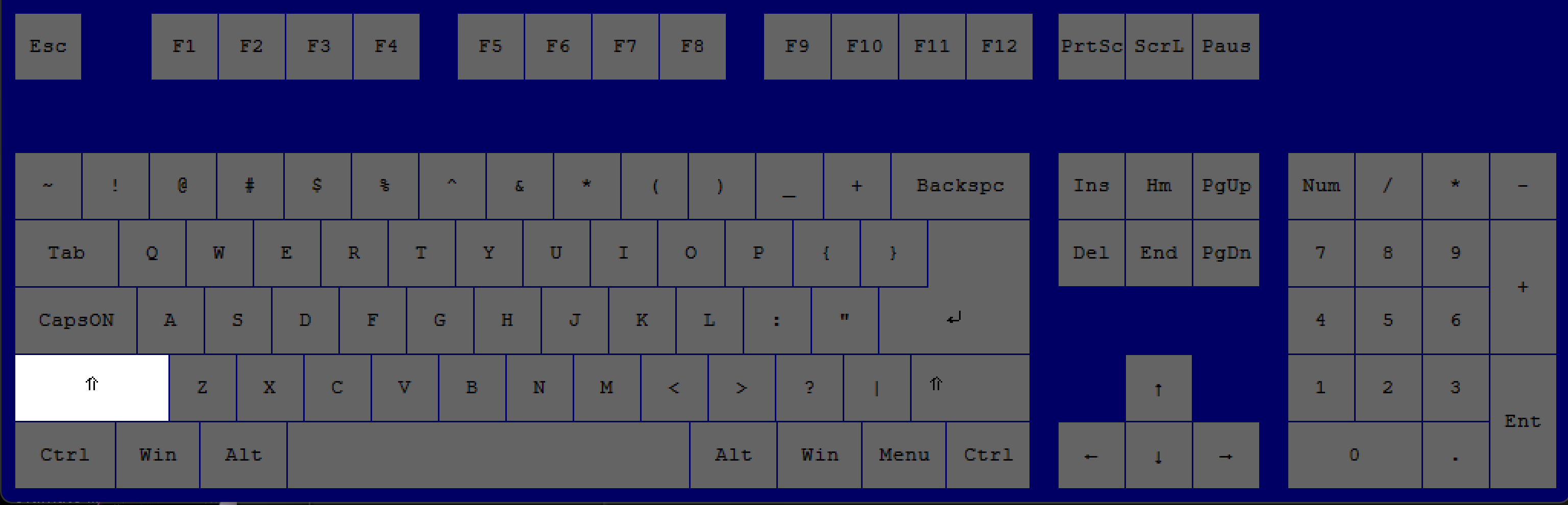
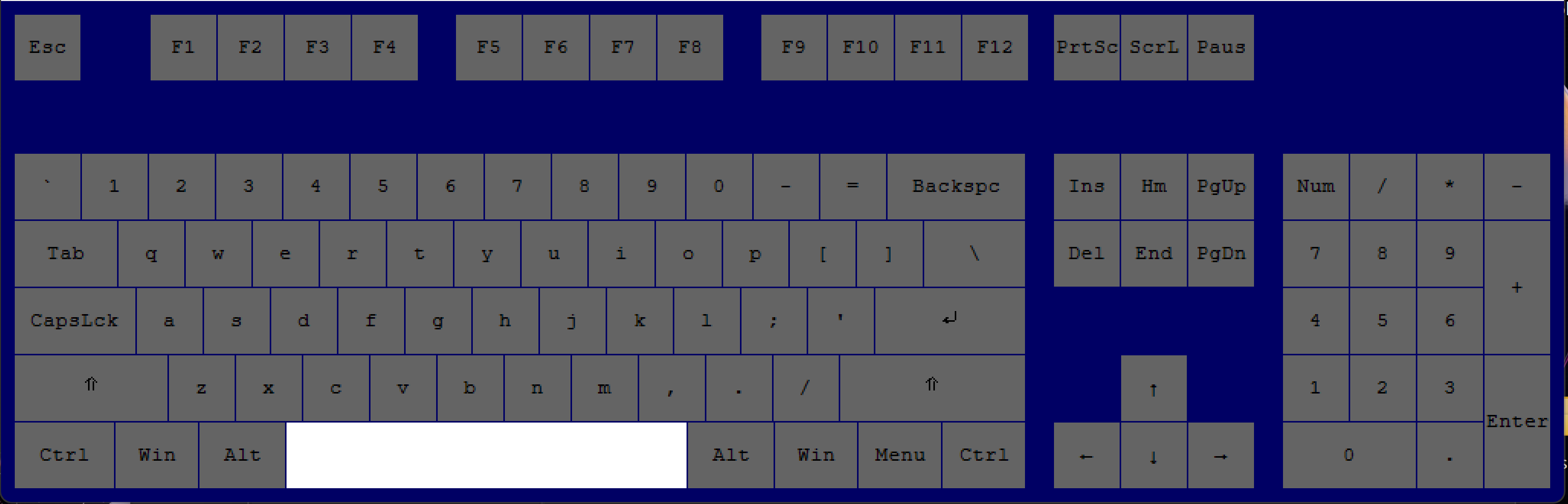
“Shift”
+
“Space”
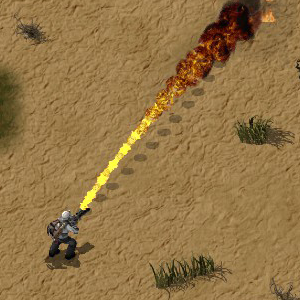
shoot the weapon you are holding (with ammo) at a target.
“C"
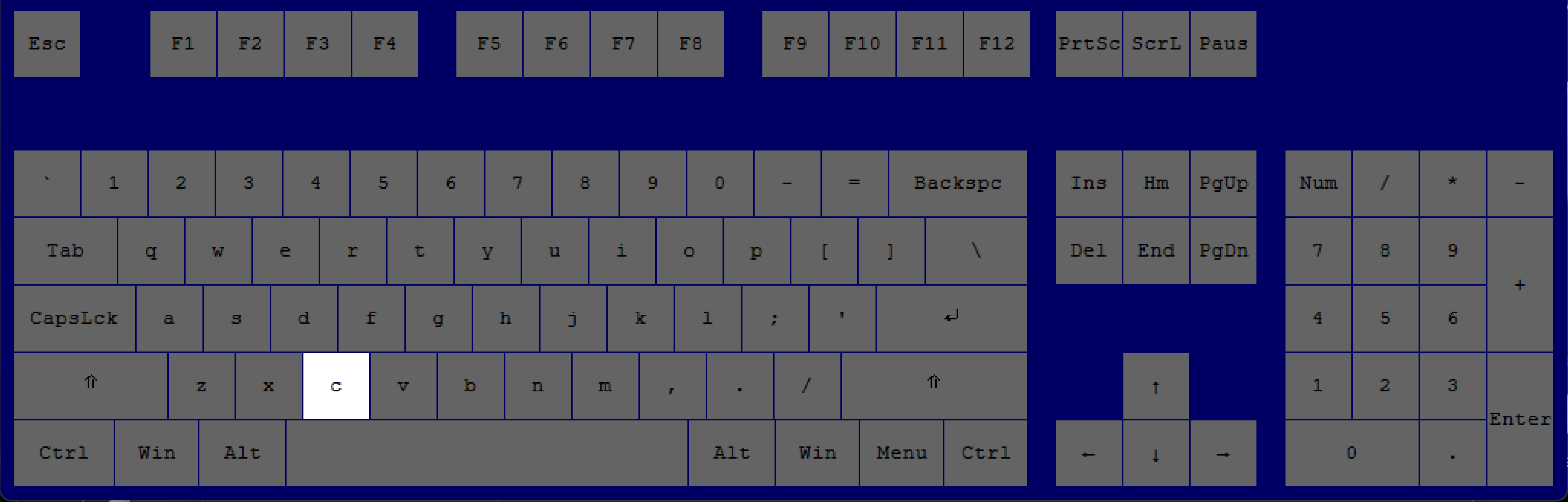
change weapons (you need to have multiple weapons equipped to change weapons).
“1"
"2"
"3"
"4"
"5"
"6"
"7"
"8"
"9”
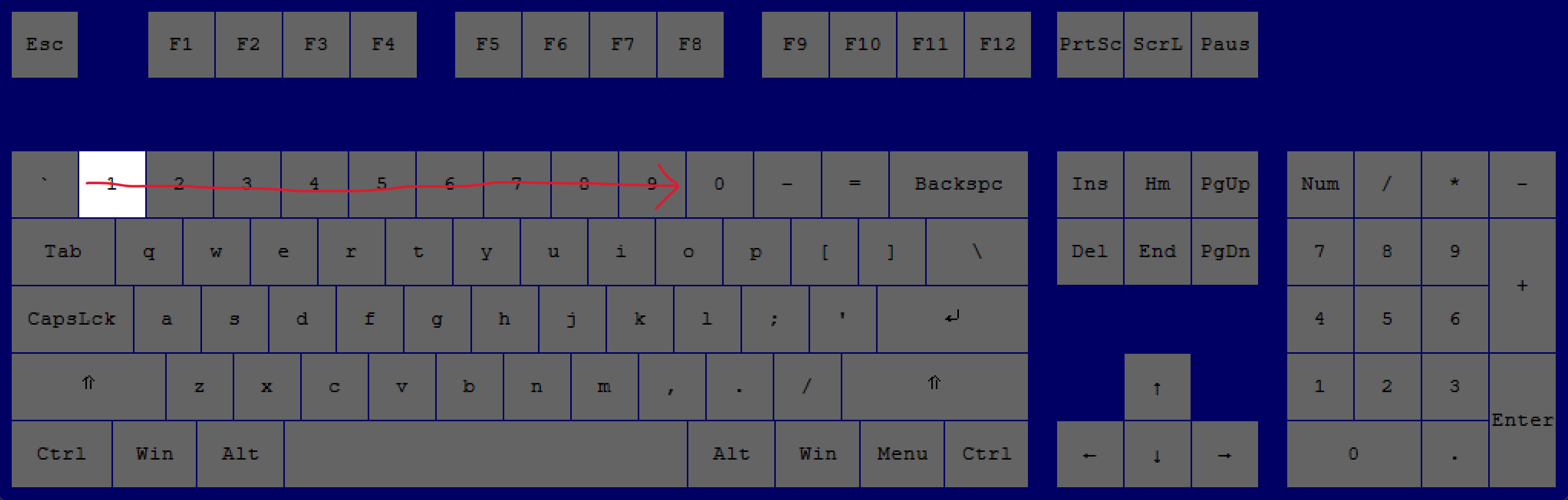
quick-select the item accordingly in your hotbar.
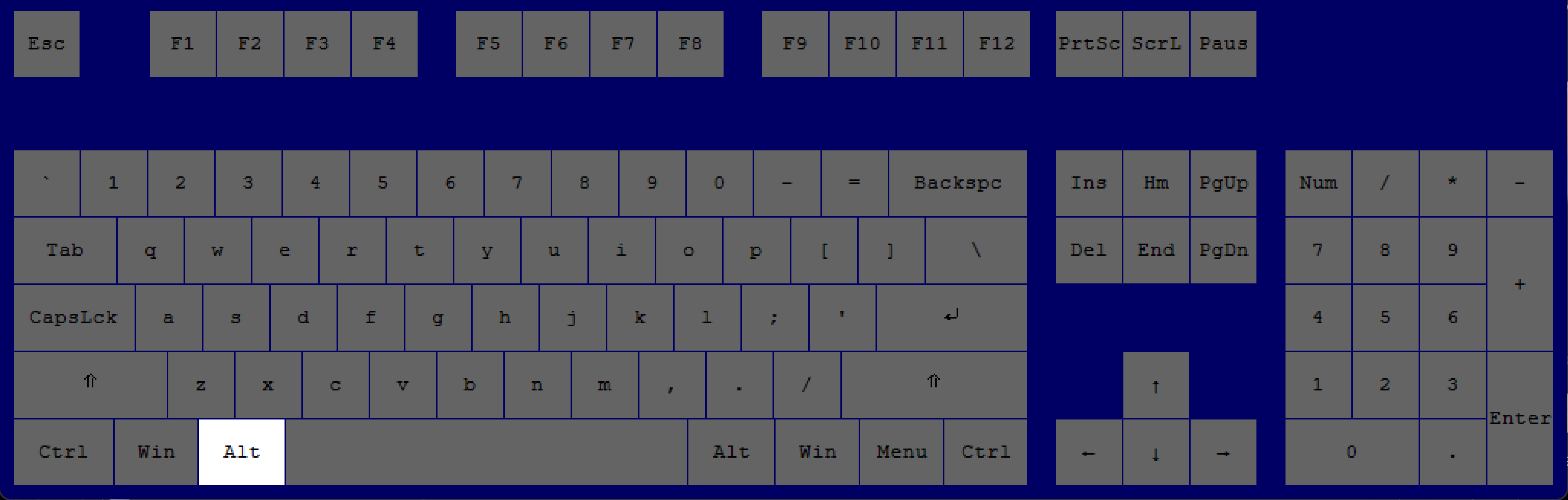
“Alt"
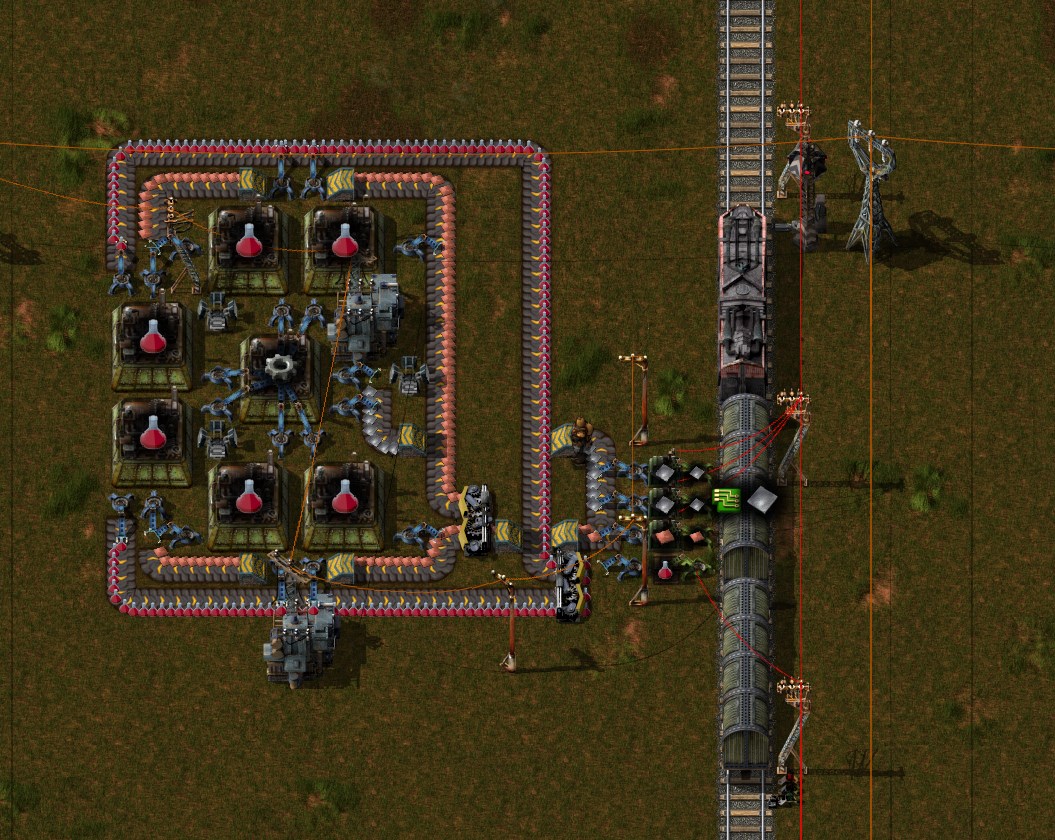
Show alternative view/layout. In chests or assembling machines, it'll show what is inside or what is being made. ALSO works on the in-game map.
--- Construction Tips
Shortcut Key(s), Press:
Effect
Shortcut Key(s), Press:
Effect
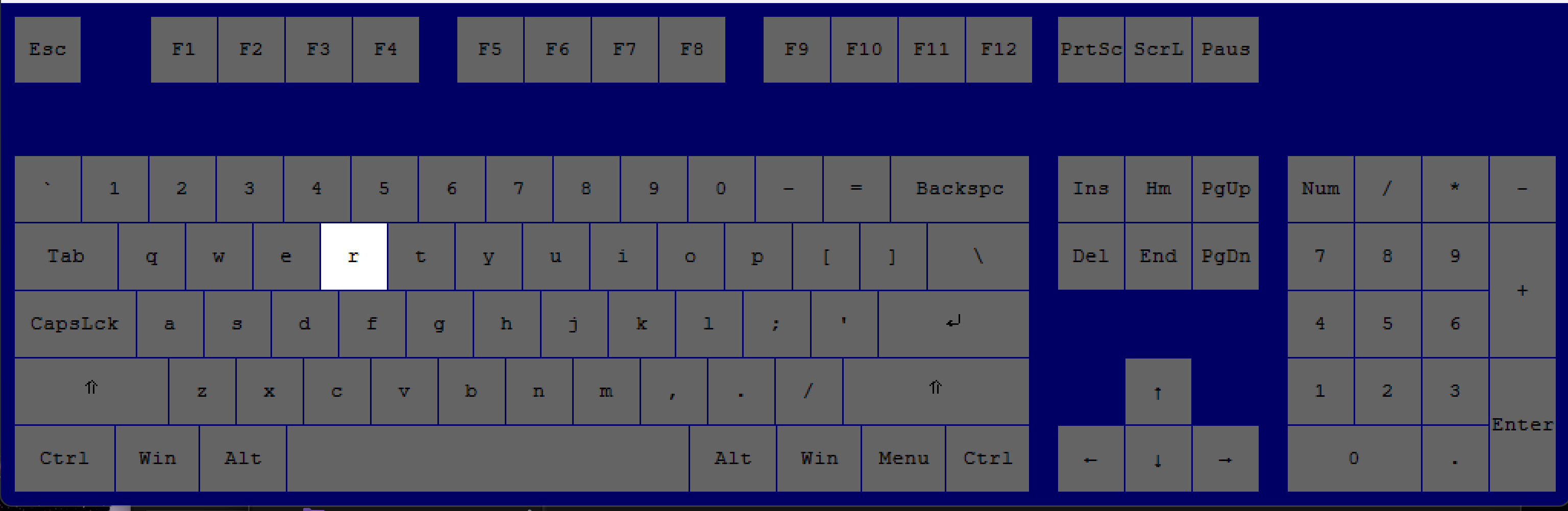
“R”
over an entity including a placed blueprint or soon to be placed blueprint
rotate or reverse that entity (clockwise).
“Shift"
+
"R”
over an entity including a placed blueprint or soon to be placed blueprint
reverse rotate an entity (counterclockwise).
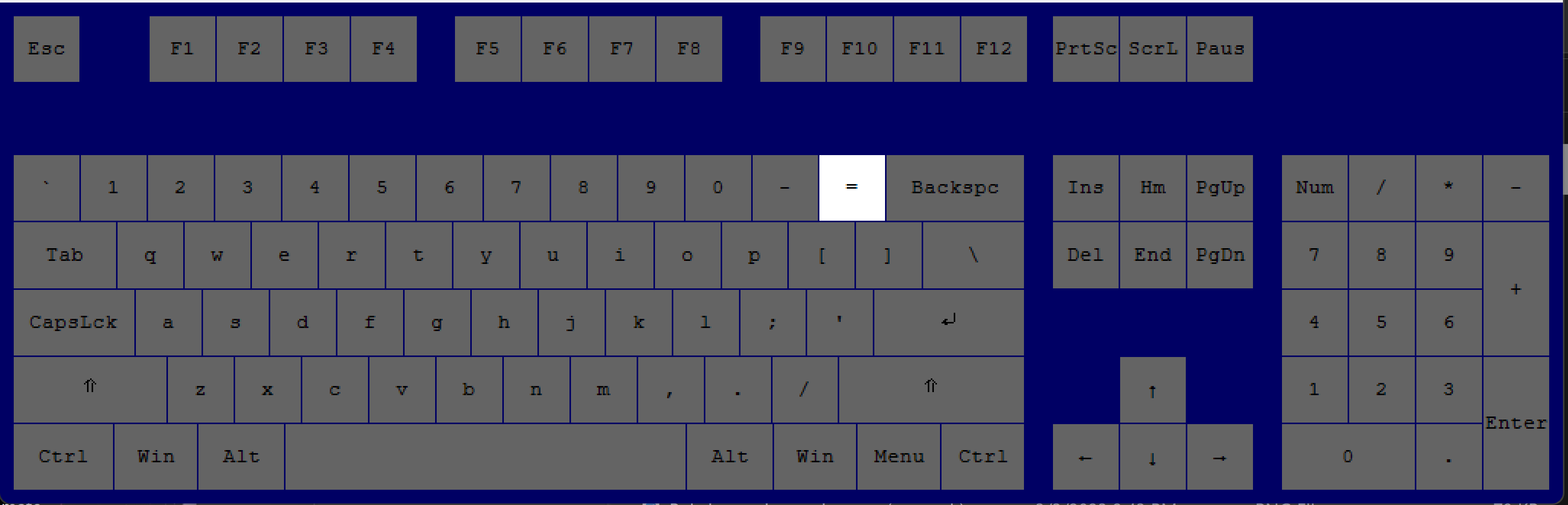
“="
WHILE holding a tile
increase the size of the tile you want to place.
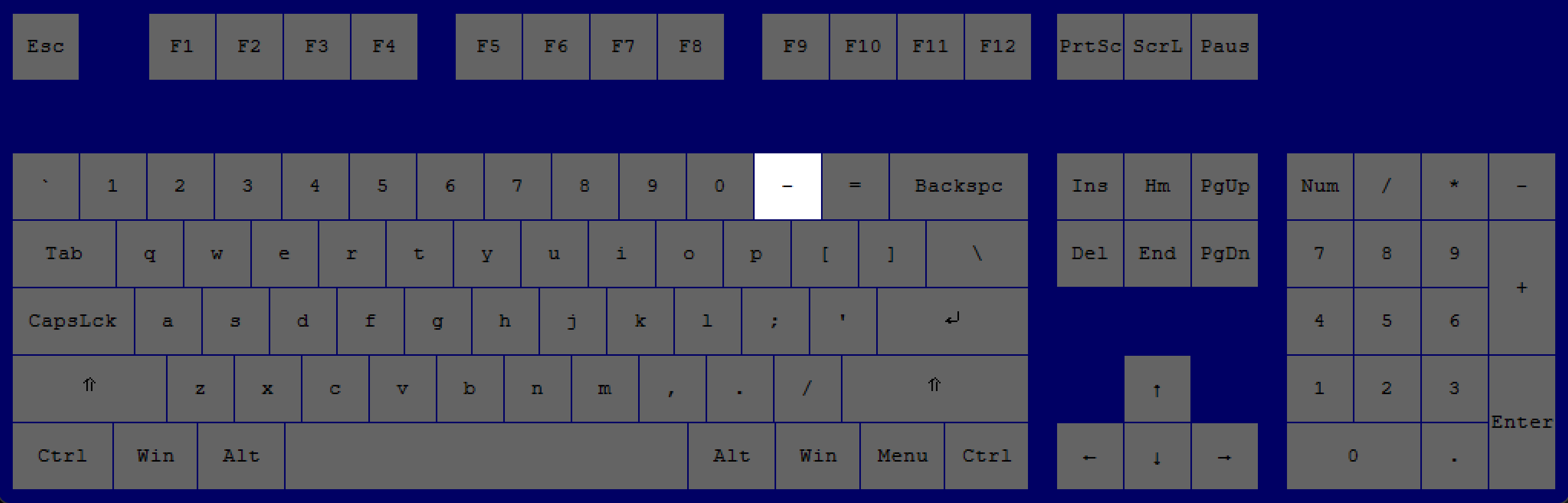
“-"
WHILE holding a tile
decrease the size of the tile you want to place.
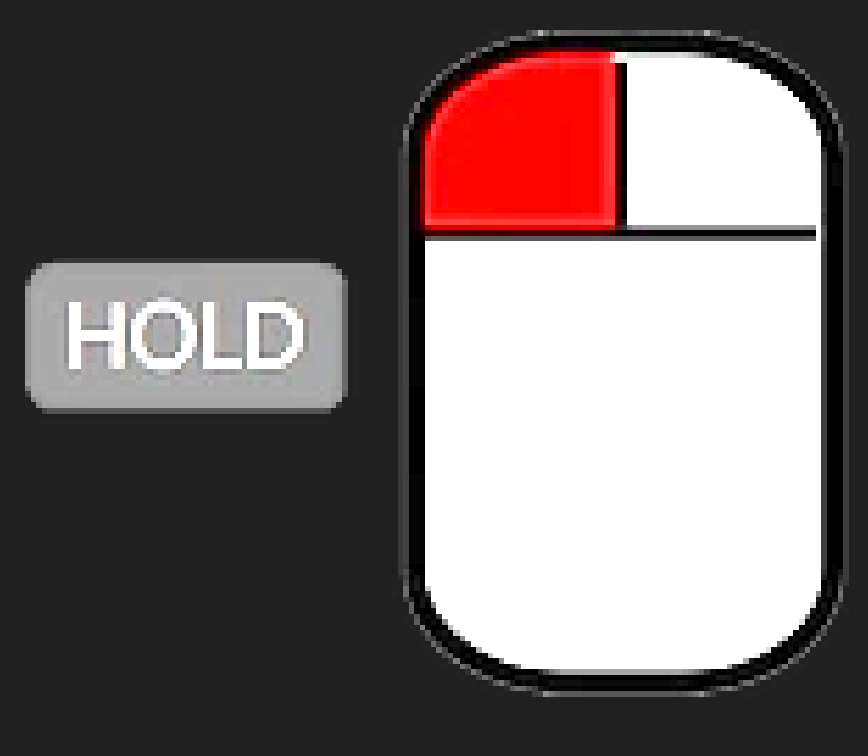
Hold down
"Left Click"
WHILE placing a blueprint or item and moving in any direction
allow you to tile a blueprint or item easily.
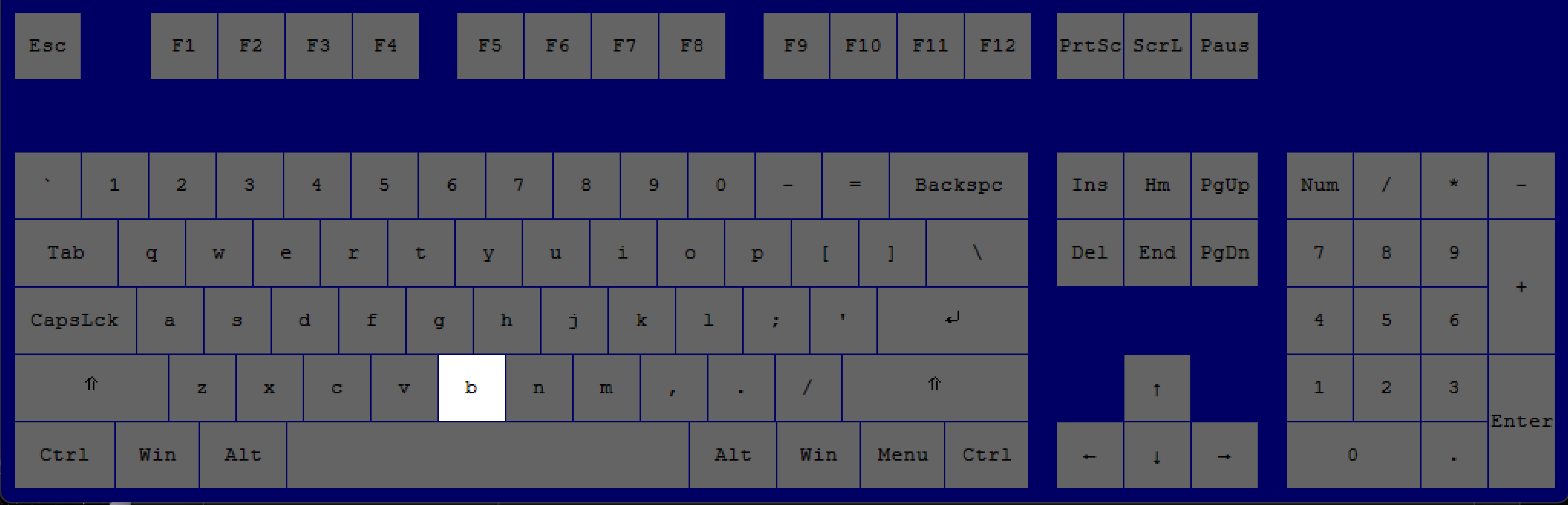
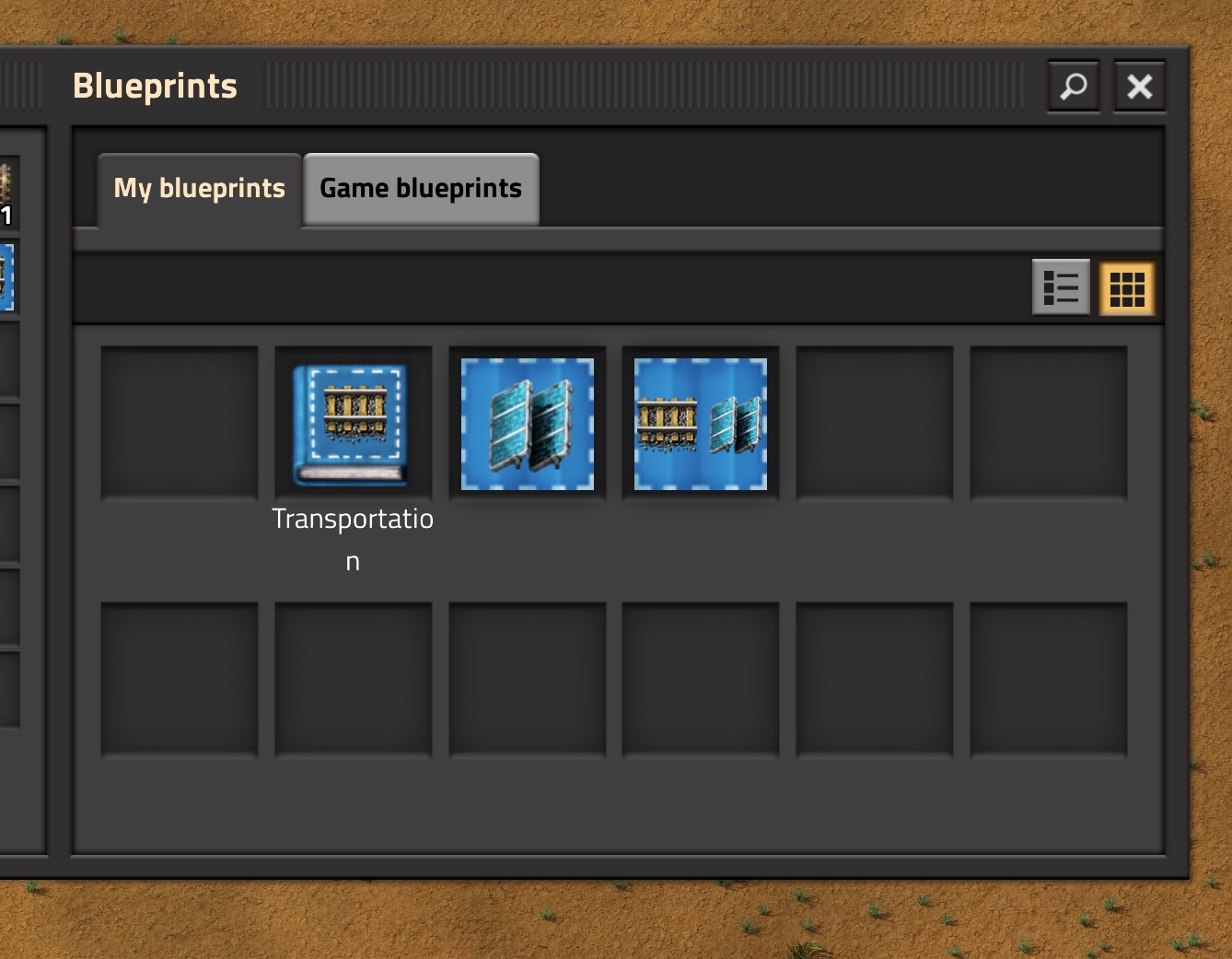
“B"
to access a list of your, stored blueprints.
--- Blueprints & Managing Entities
Shortcut Key(s), Press
Effect
Shortcut Key(s), Press
Effect
"V"
WHILE holding a blueprint
flip the blueprint only left to right, on a vertical axis.
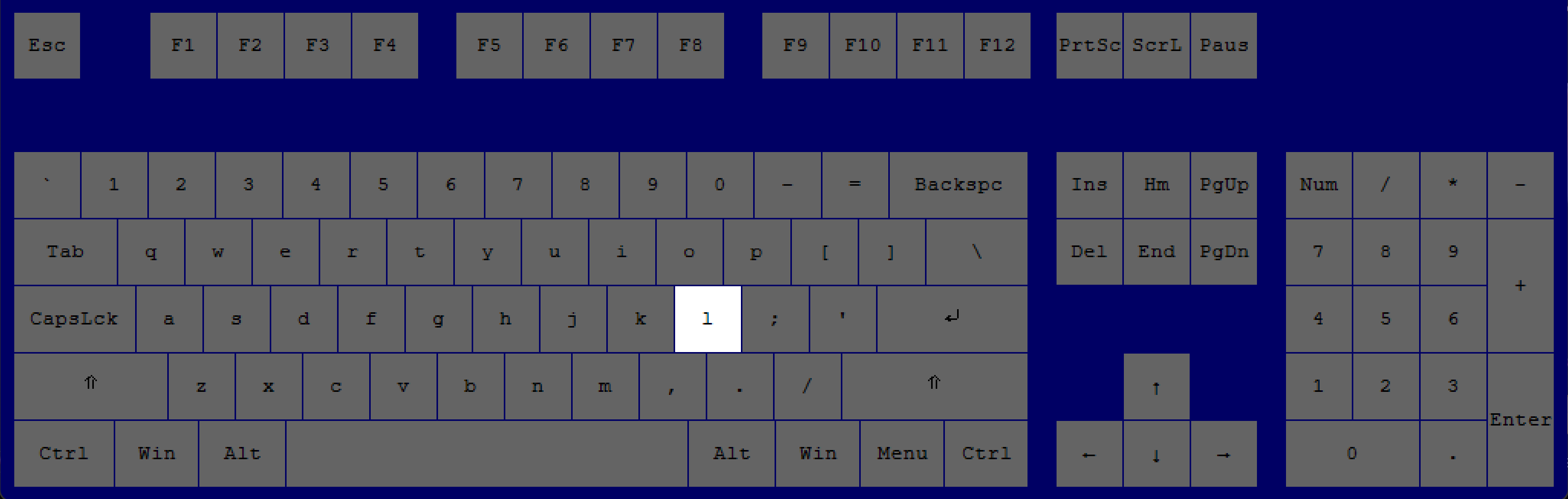
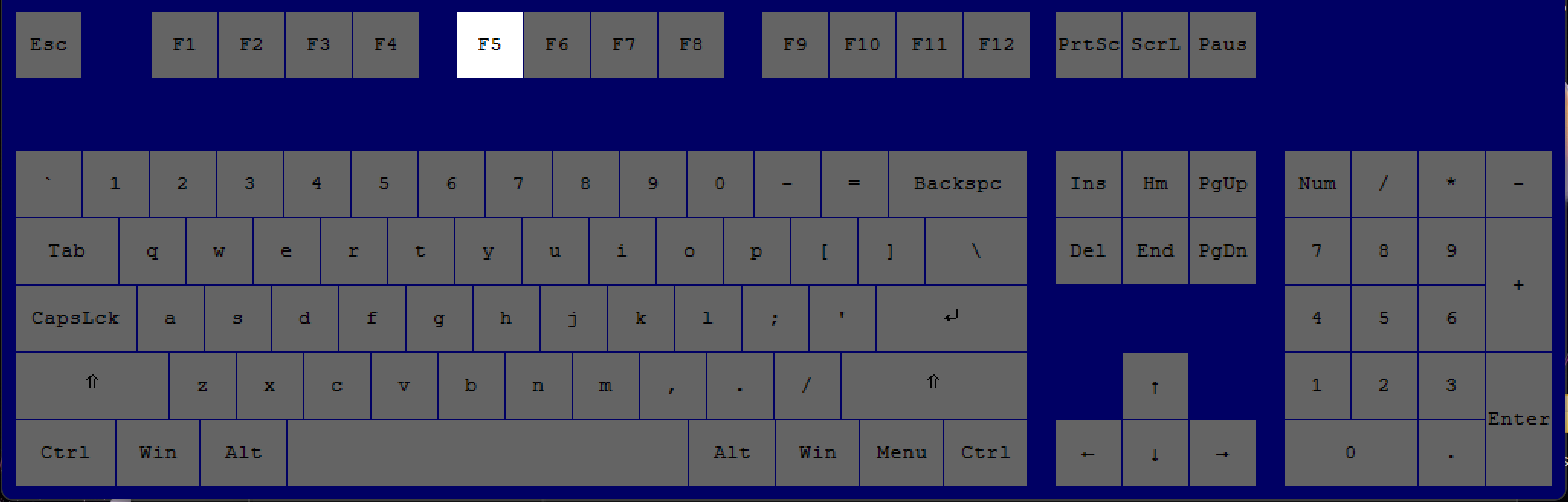
Designate a spot on the map (most useful for pointing things out in multiplayer). The mod "Recipe Logistic Request" disables currently this. Check discussions to see if it's been fixed.
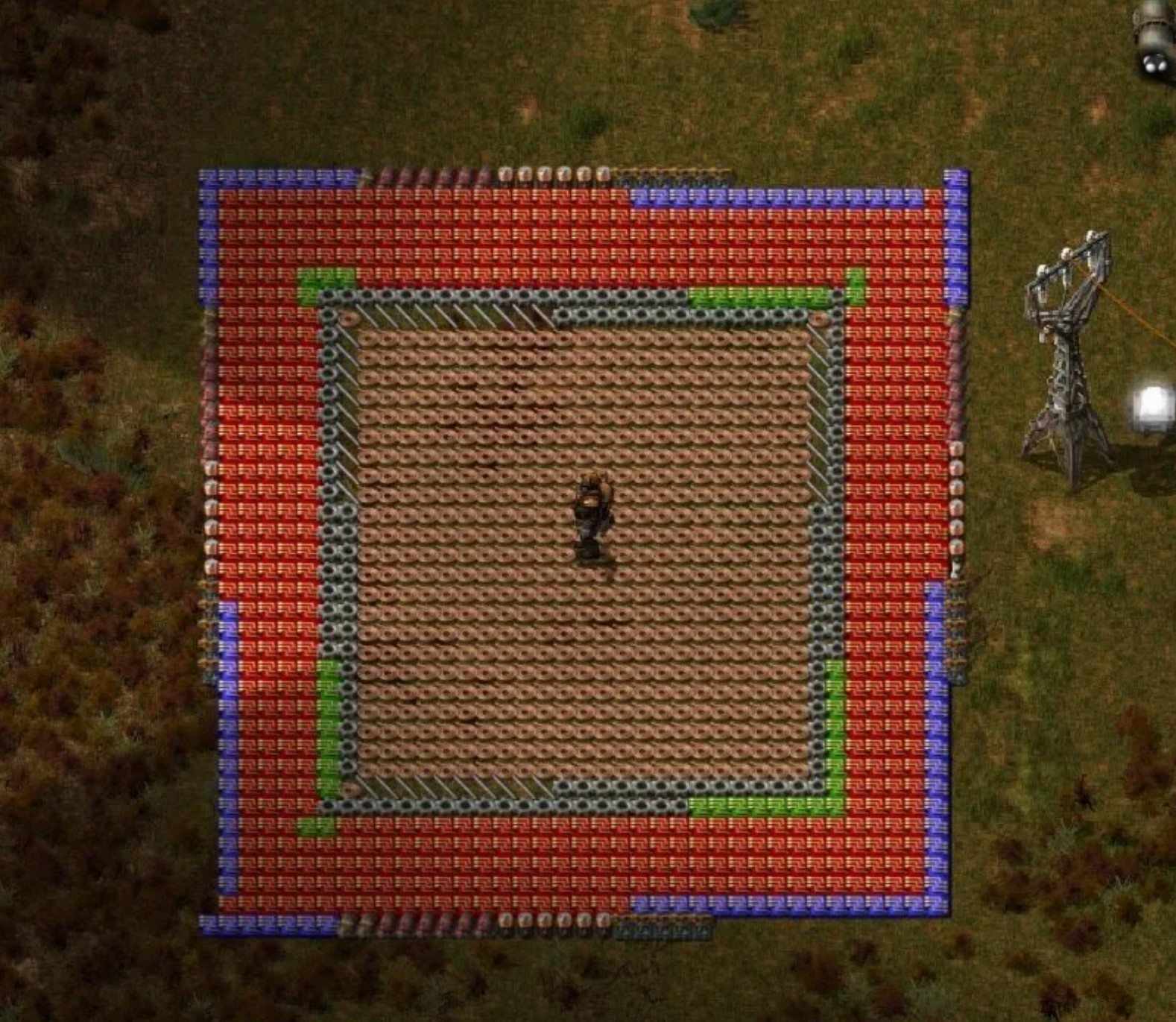
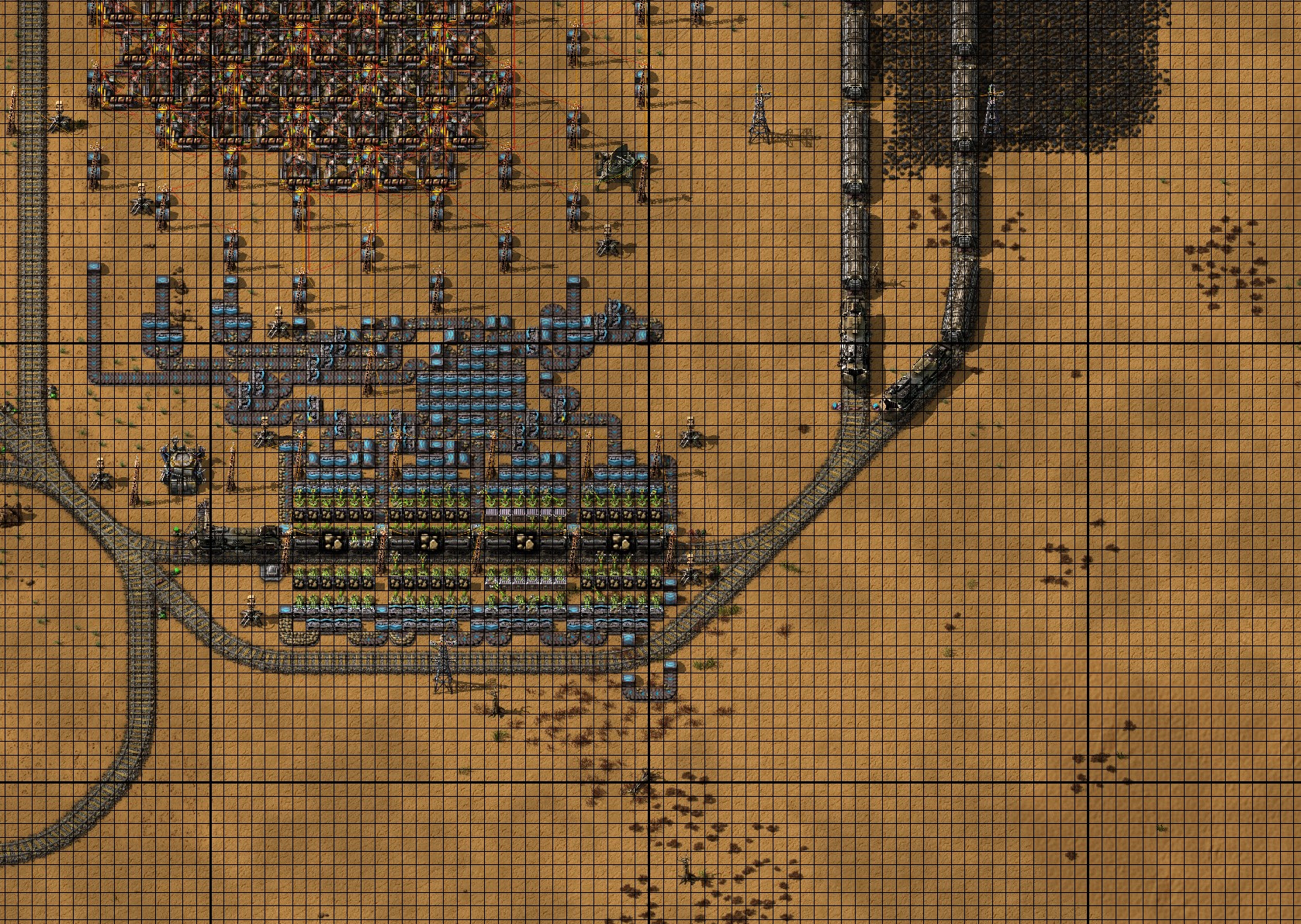
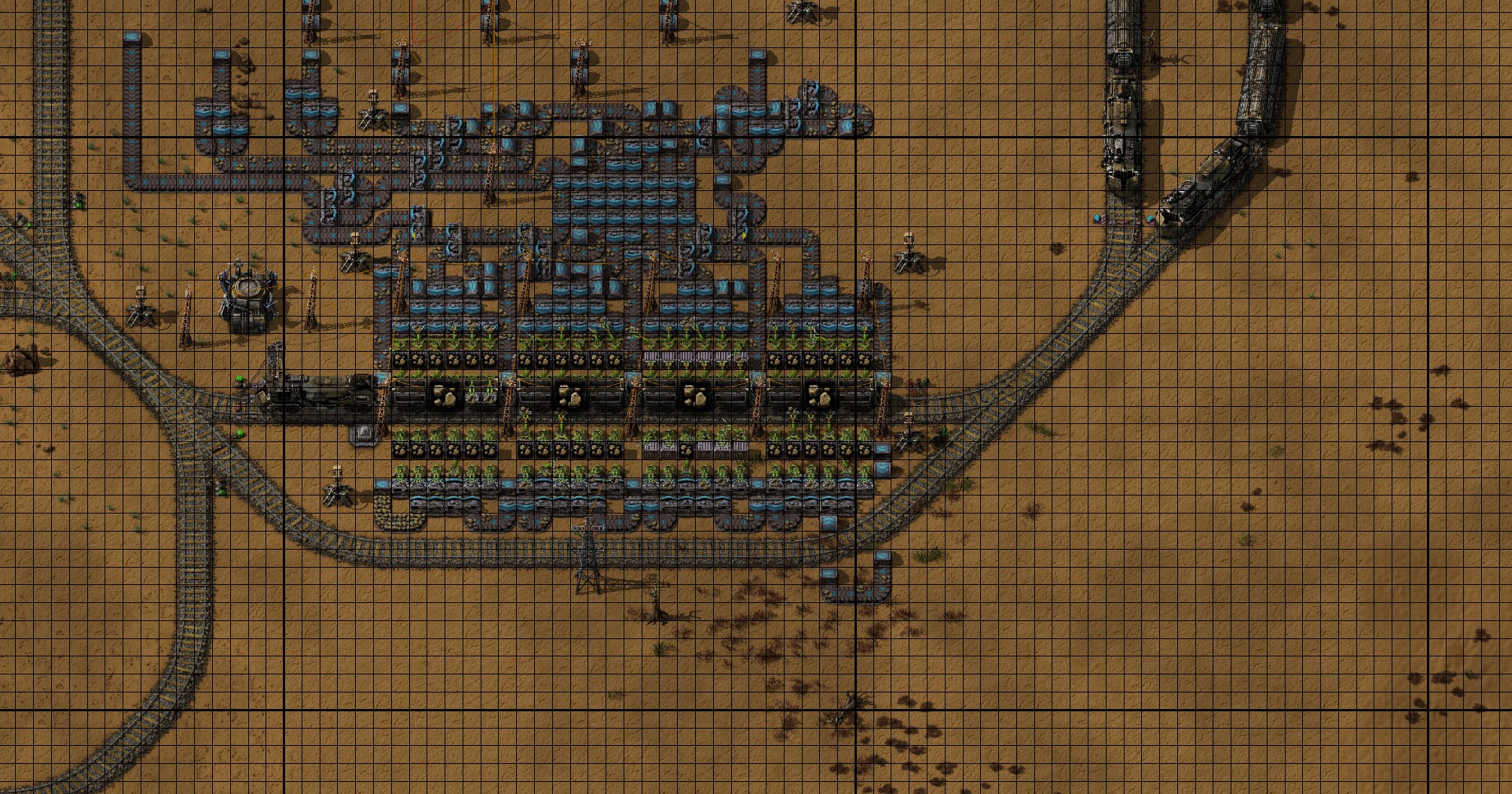
see the in-game grid without pausing.
(Credit: Aika_Innet)
“Pause”
WHILE in singleplayer or hosting a multiplayer session, only. Most laptops don't have this button, and it will need to be reprogrammed.
see the in-game grid while paused.
“Ctrl"
+
"Z"
undo construction OR deconstruction of the last 160 entities.
“Ctrl"
+
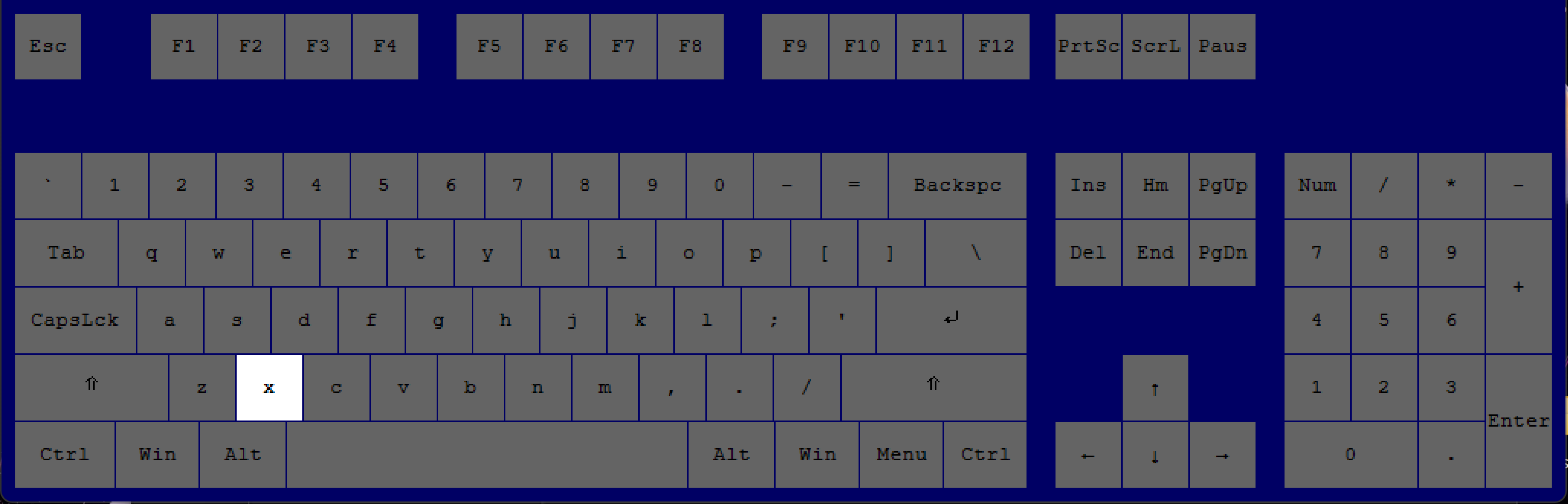
"X”
bring out the "Cut Blueprint Editor" to cut and paste a blueprint.
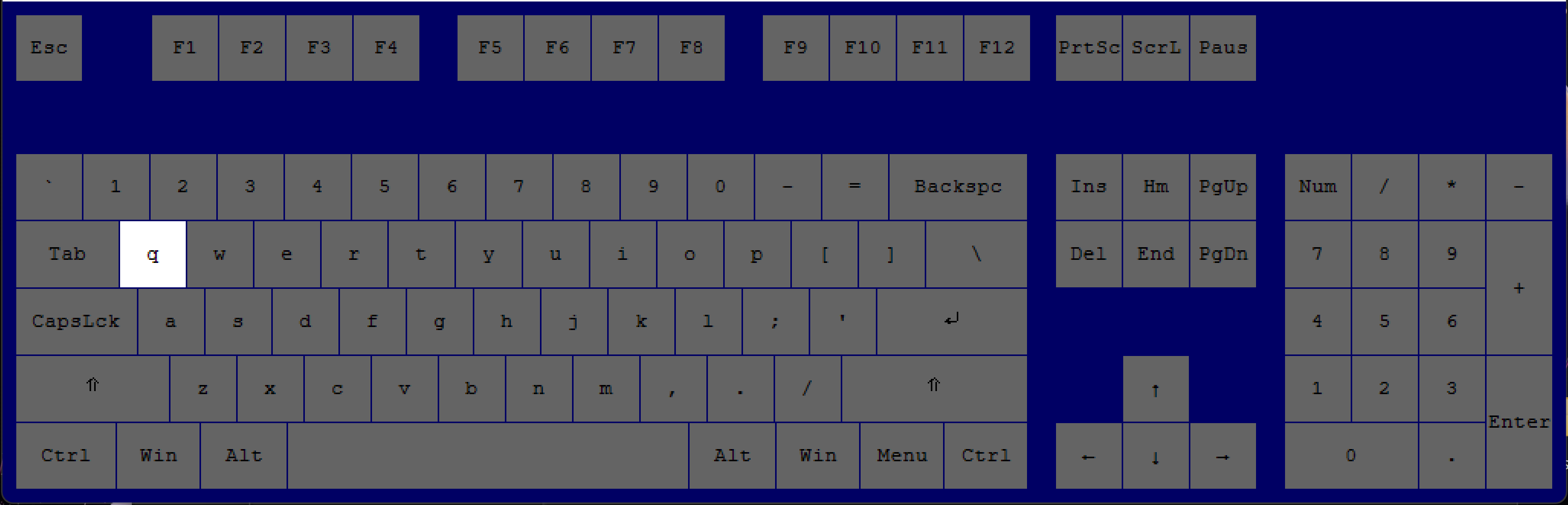
“Q”
over a placed blueprint with that item in your inventory
bring that item out of your inventory on top of the blueprint (most useful during early-game).
“Q”
over a placed object with that item in your inventory
(Credit: Hicsy)
bring that item out of your inventory.
“Alt”
+
“R”
-OR-
"G"
-OR-
"C"
bring out in the following order:
Red Wire, -OR- Green Wire -OR- Copper Wire
Press "Q" to get rid of the cursor.
--- Blueprints & Managing Entities
Shortcut Key(s), Press
Effect
Shortcut Key(s), Press
Effect
“Shift"
+
"Right Click”
over any entity
copy an entity’s contents to be pasted on an entity that is the same.
For example, a requester chest to another requestor chest, an assembly machine to another assembly machine, a combinator to another combinator, one train to another train, one train station to another train station, or anything else.
“Shift"
+
"Left Click”
over any entity
paste an entity’s contents to an entity that is the same.
For example, a requester chest to another requestor chest, an assembly machine to another assembly machine, a combinator to another combinator, one train to another train, one train station to another train station, or anything else.
"Q"
deselect the blueprint you are holding. With "CTRL + C" or "CTRL + X", it will not save the blueprint.
(CREDIT: Tacobell_Sniper)
Hold down
"Shift" + "Right Click"
while holding a deconstruction, upgrade, or downgrade planner, and then highlighting some entities
de-mark the things you just marked for deconstruction/upgrade/downgrade.
For example, you highlight a bunch of objects with the deconstruction planner. Then, you decide you want to keep the power poles. Hold shift and highlight the powerpoles (with the deconstruction planner in hand), and it will cause those objects to not be marked for deconstruction. If you have a deconstruction/upgrade/downgrade planner specifically made to highlight certain objects, like powerpoles, then when you press shift it will only de-highlight those certain objects.
(Thank you: @sOvr9000)
Hold down
Right Click
WHILE holding an upgrade/downgrade planner and highlighting objects
reverse "upgrade" or reverse "downgrade" objects. So, actually downgrade or upgrade instead.
For example, you have an upgrade planner that upgrades speed module 1 to speed module 2. By holding down right click, with that upgrade planner in hand, and then highlighting objects, you will go from speed module 2 to speed module 1.
(Thanks: @sOvr9000)
With a blueprint in the cursor:
"SHIFT"
+
"Arrow Keys"
adjust the Grid position. Click to see demonstration[cdn.factorio.com].
CONTROL + Arrow keys - adjusts the Absolute grid offset.
Use the copy and paste function mentioned in "Blueprints & Managing Entities" section
ON an assembler (copy) TO a requester chest (paste)
to request all the needed items for that assembler quickly.
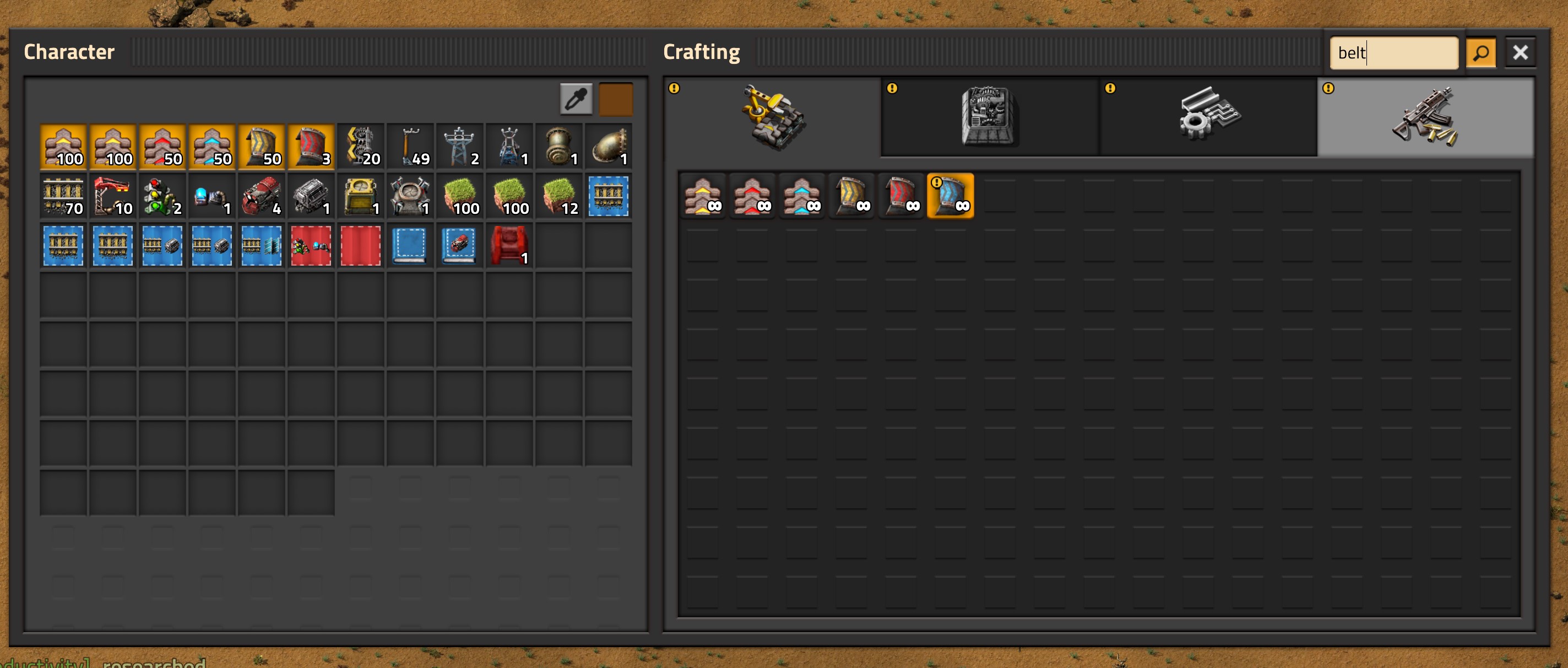
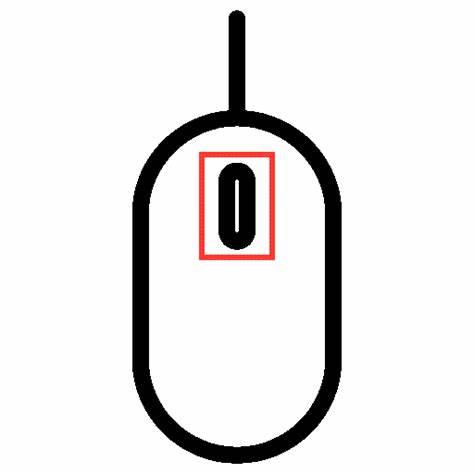
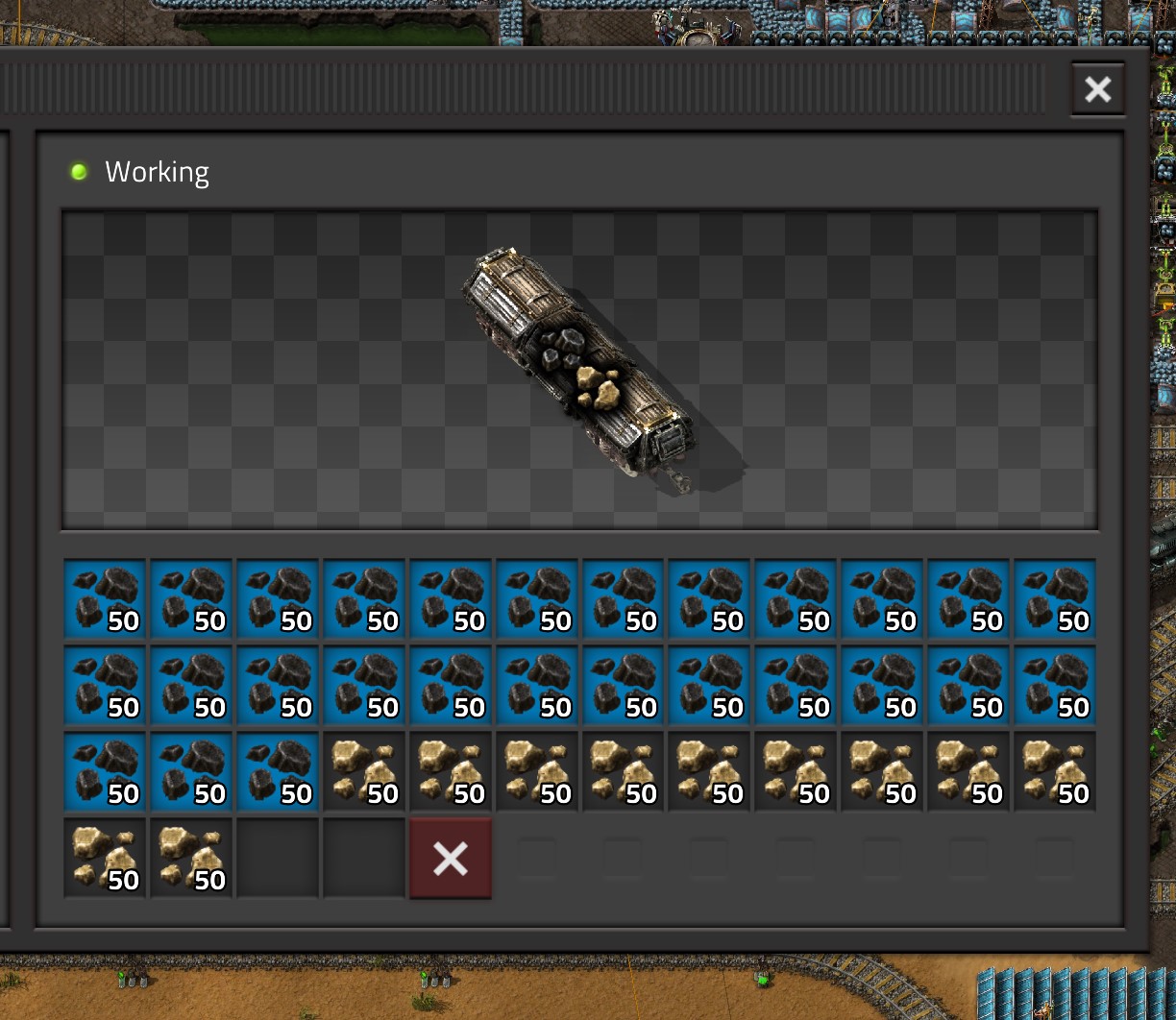
"Middle Click"
on cargo train or player inventory slots
filter train cargo or player inventory slots.
Works just like request slots on logistic chests, but with "Middle Click", instead of "Left Click". You can copy and paste that filter with the "Shift + Right Click" and "Shift + Left Click" or save it in a blueprint.
Thanks: @Sandbox Enjoyer
Hold down
"Shift"
+
"Right Click"
WHILE editing inside 1 blueprint and "snap to grid" is checked
manipulate the location of the "snap to grid", green box.
Inside your character logistics menu (click on your character to open the menu)
Highlight entities more than once with the upgrade or downgrade planner
to upgrade or downgrade those entities more than once, before bots can replace them.
So, for example, if you want to go from speed module 1 to speed module 3, you can highlight the object 2 times, to upgrade it twice.
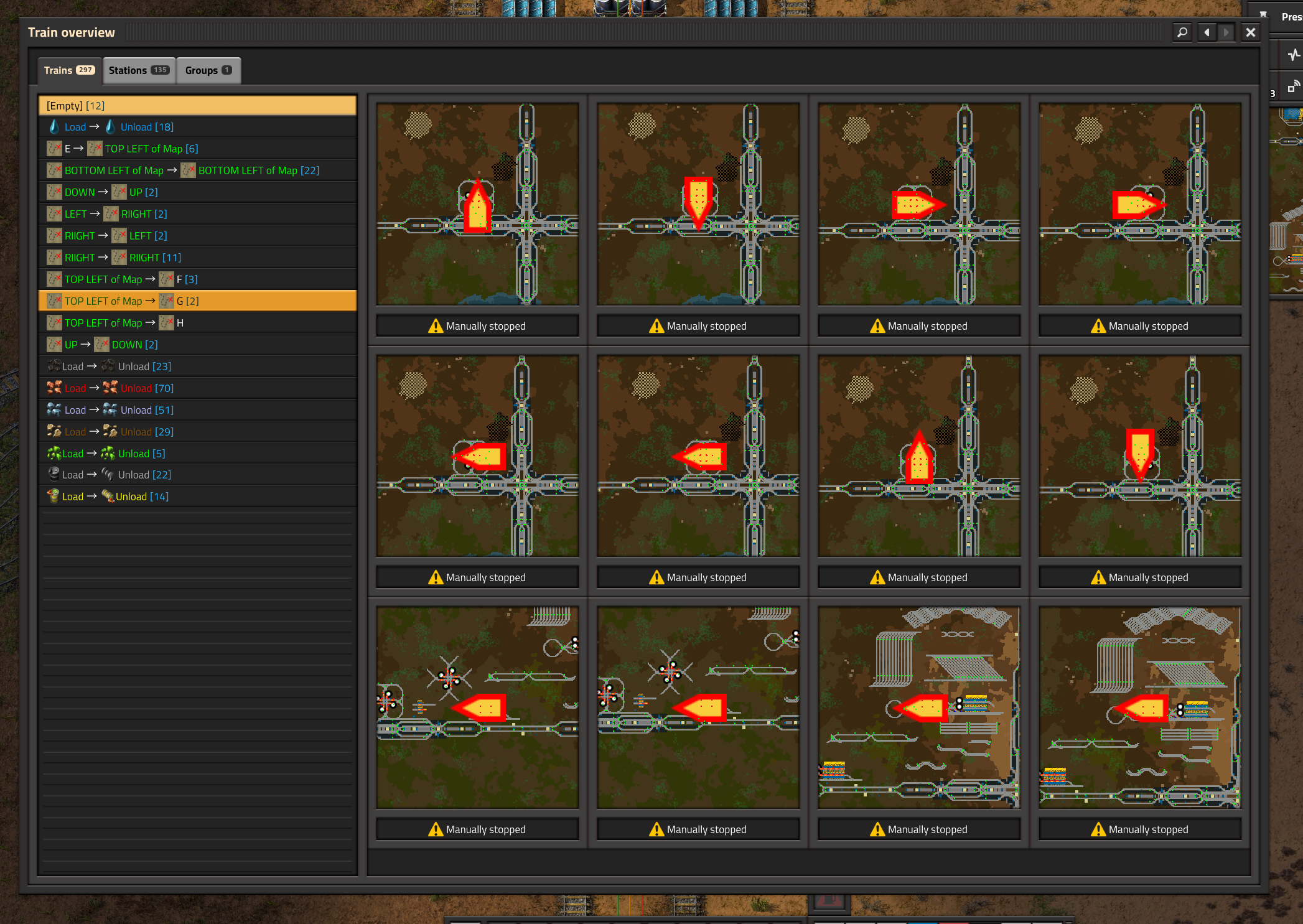
Inside the train interface and mousing over the tracks on map Hold down
"Ctrl"
+ press
"Right Click"
show the path your train will take to get somewhere.
Pressing "right click" on the map, while holding "Ctrl", makes the selected train take the highlighted route.
If you are inside a train and open the map, the train you are in is automatically selected and you travel to any track.
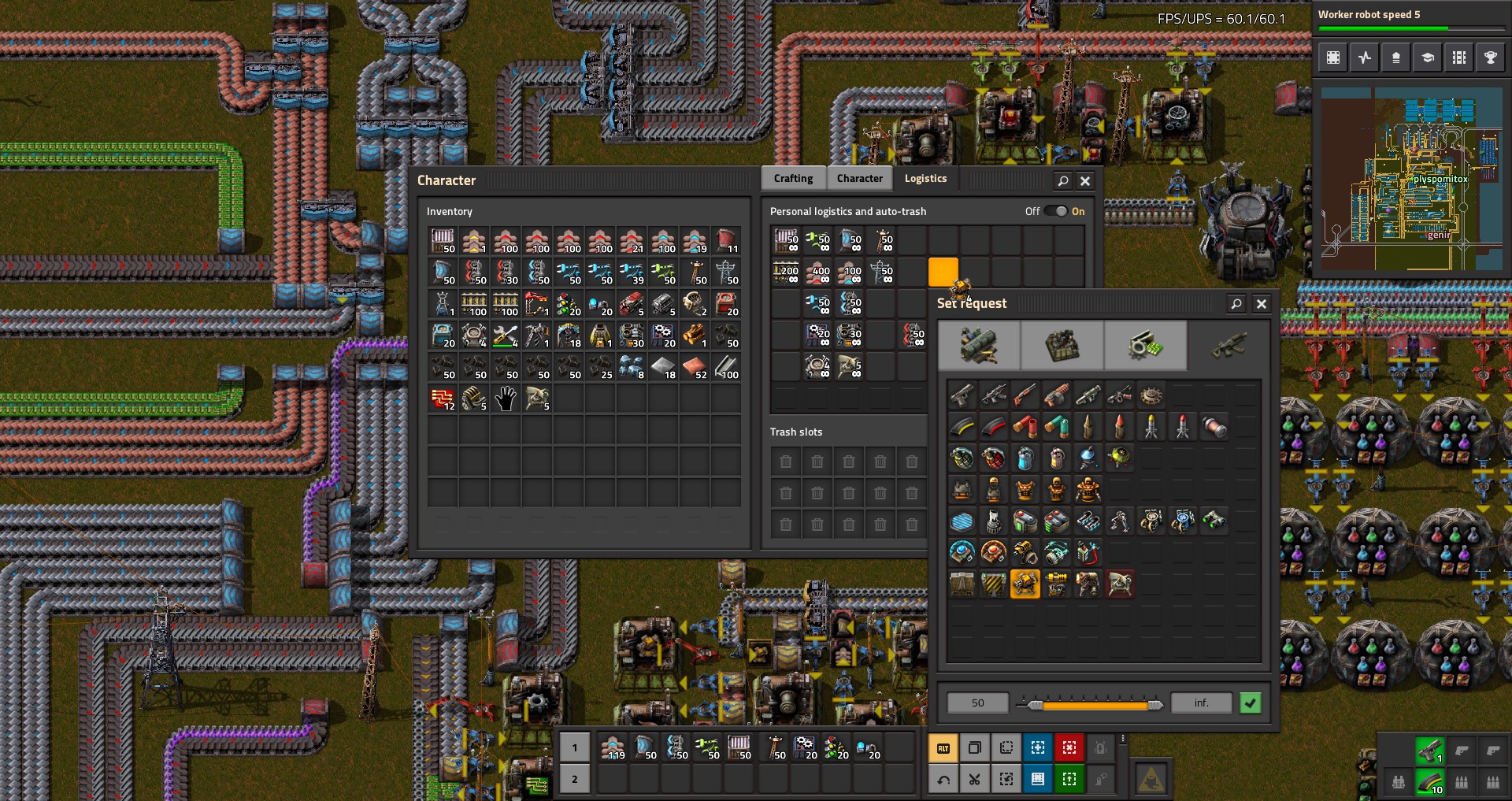
while in the logistics request menu, having an item selected, Hold down
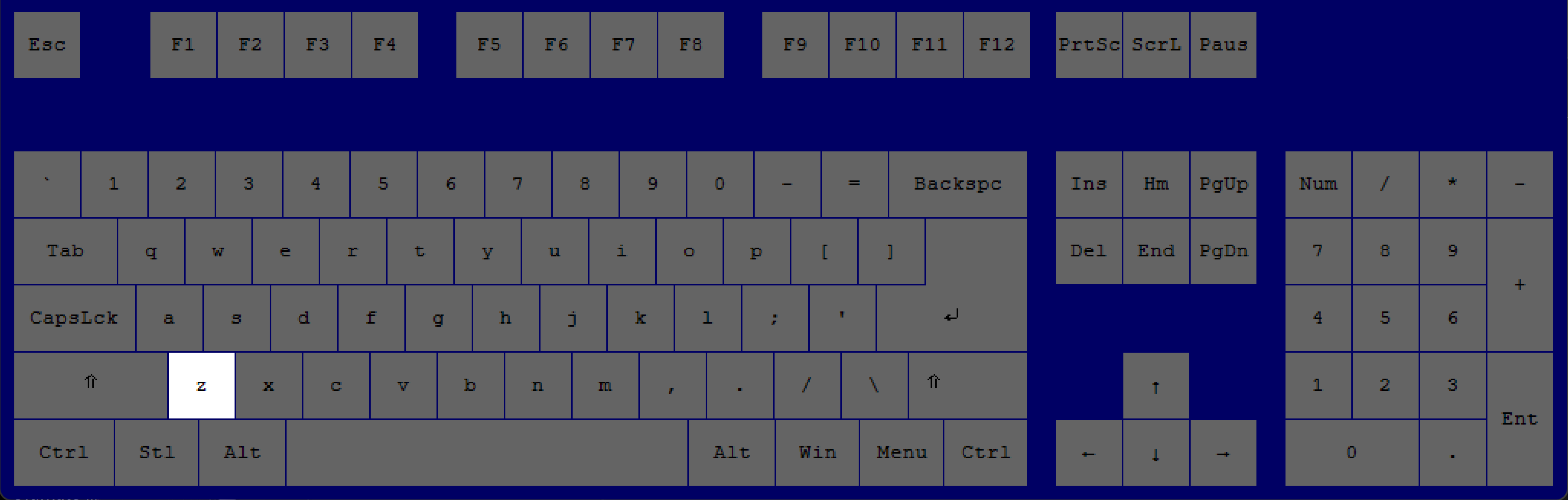
 +
+
 +
+
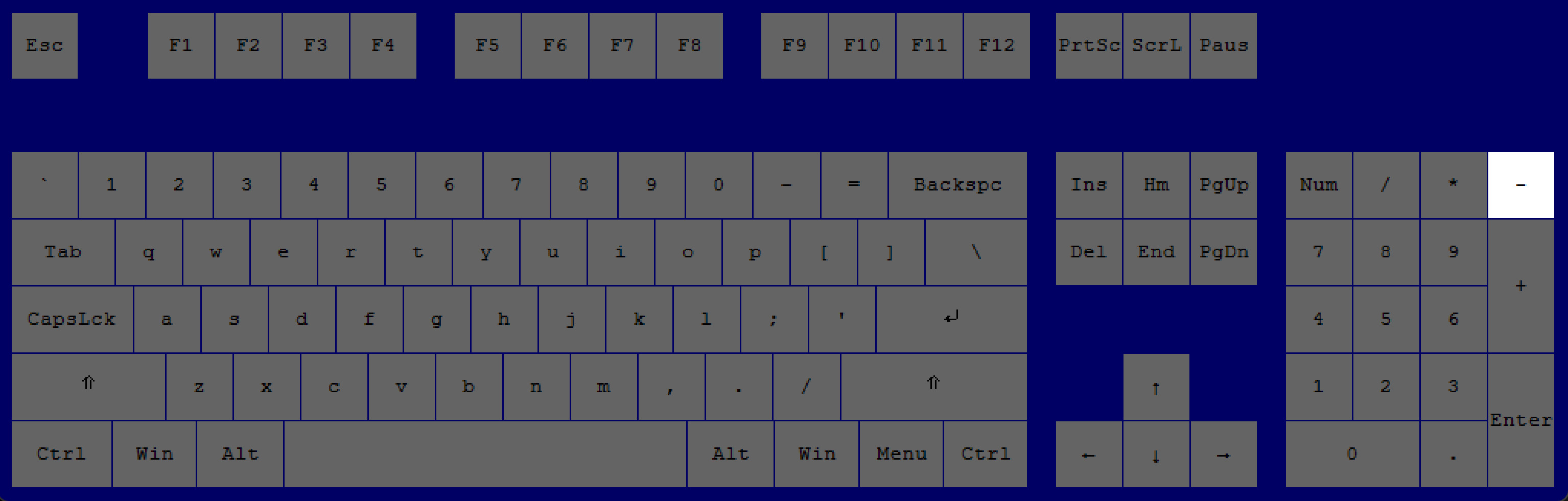
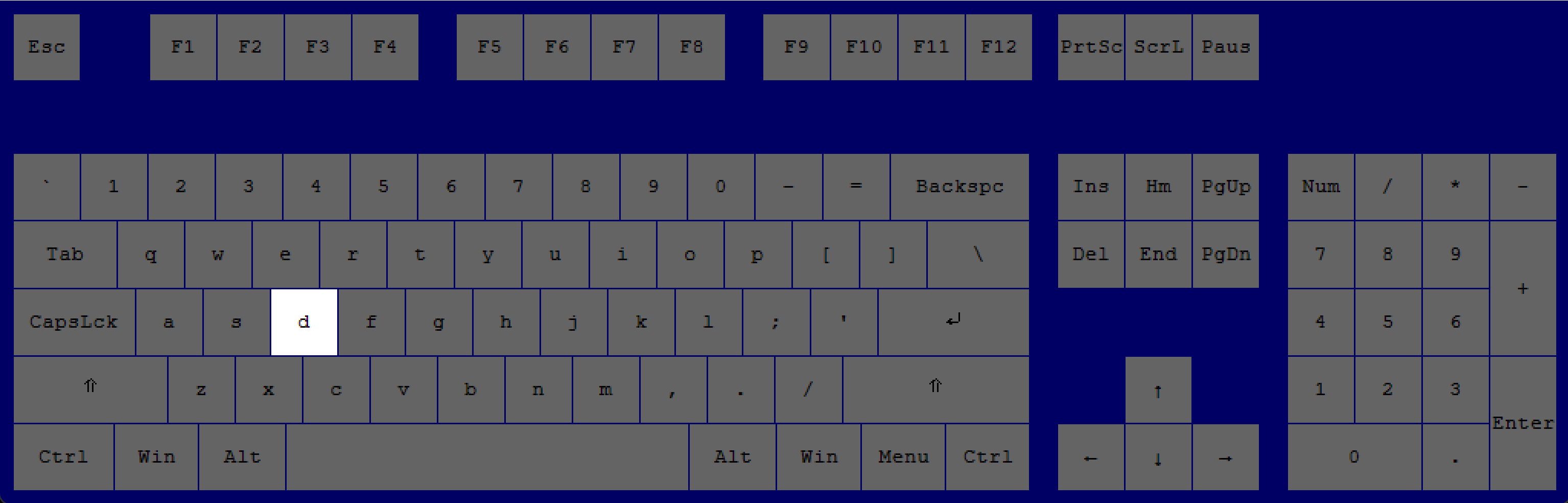
 (Credit: Aika_Innet)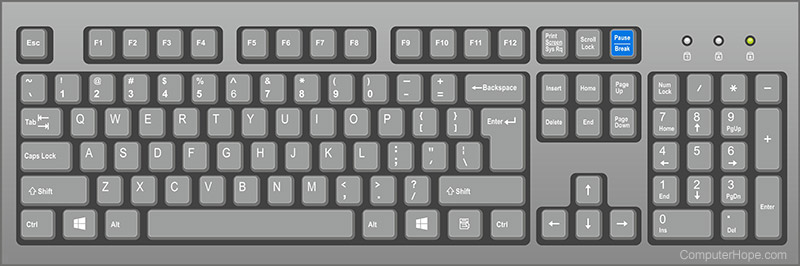
 Thanks: @Sandbox Enjoyer