Simple Guide to Setting up New Vegas in 2026
Introduction
This guide was designed to be fool proof, don't take it personally if it beats you over the head with information, I just want to make sure you make no mistakes.
This was made with Windows 10, I can't solve problems with other operating systems, it should work perfectly fine with Windows 7 and I have been told it works fine with Windows 11.
I heavily recommend you have all of the DLC before starting.
Not having them will limit what mods you can use, ultimately you don't need them to make New Vegas functional, but it's much cheaper to buy the "Fallout New Vegas Ultimate" package.
The "Fallout New Vegas Ultimate" is a package and not a bundle, so the base game will not be subtracted from its total price if you buy the base game alone and then the package later, the final price of doing this will be almost the same price as buying everything separately, so I do not recommend it but if you have to do it then wait for a sale to buy the DLC.
Step 1: Run your game once
After your game is installed, run you game one time, you don't need to go into the game itself.
Seeing this is enough, click EXIT and move on to the next step.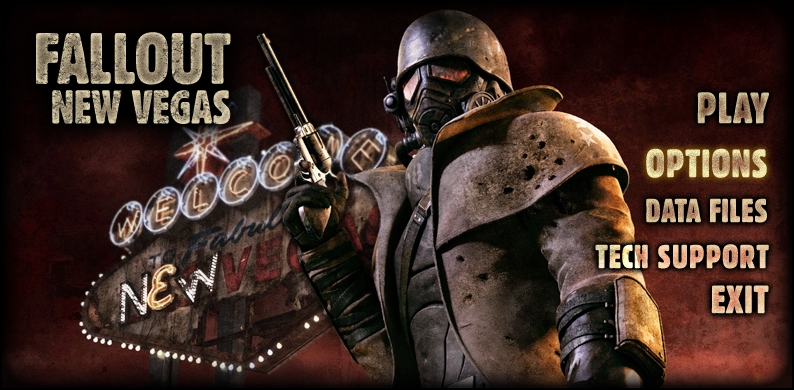
This creates the files you need in order to set up your game properly.
Step 2: Setting up your .ini files
First you will need to install Notepad++ 64bit version[notepad-plus-plus.org] because the normal Notepad that comes with windows does not have the ability to save these files correctly.
Then to see file extensions such as ".ini" or ".exe", open File Explorer (any folder will do) and click the "View" tab at the top, there you can enable "File name extensions."
This will take effect globally across your computer and now everything will show you their file extension.
The .ini files you need to edit are located at Documents > my games > FalloutNV.
This is the only place you will find them.
- Make sure they're not set to "read only", otherwise you won't be able to edit them.
- If for some reason you cannot save the changes normally, use "Save As" to make a different .ini in different location on your computer, then delete the existing .ini and move the new one into it's place.
- In your text document editor, use "Ctrl + F" to quickly find the sections you're looking for, this should be the search function as it is with most text file editors.
- If you installed MO before editing these files, you can find MO's version of them at "ModOrganizer(the install location) > Fallout NV > profiles > Default"
If they're not labeled ".ini", don't worry about it.
That's just the file extension that tells the computer how to operate it, these files will always be .ini on creation.
Each section of these settings files is labeled with a word in [Brackets], you don't have to copy the whole thing you see below, just what's under the word in brackets, the bracketed word will tell you where you can find those settings.
On windows you can press Ctrl + F to search for lines.If something isn't in there by default, simply add it to the end of the section stated below.
Here is an example:
Right click "Fallout.ini" and select Edit, find the following and edit them to match.
[Controls]
fForegroundMouseAccelBase=0
fForegroundMouseAccelTop=0
fForegroundMouseBase=0
fForegroundMouseMult=0
[General]
bLoadFaceGenHeadEGTFiles=1
Save and close the file
Now do the same for "FalloutPrefs.ini" to match the following.
[Launcher]
bEnableFileSelection=1
[General]
bLoadFaceGenHeadEGTFiles=1
[Display]
iSize W=Your monitor's horizontal resolution
iSize H=Your monitor's vertical resolution
Save and close the file, this completes all you need to do with these files.
Step 3: Download NVSE
This is the backbone of modding, it allows mods to preform actions they otherwise wouldn't be able to due to engine limitations.
As for the 4 Gigabit Patch, New Vegas is a very old game running on an engine that was already outdated when the game was made, this causes it to frequently crash due to the game asking for more computing power than the engine knows how to provide.
This patch allows the engine to use the power the game asks of it.
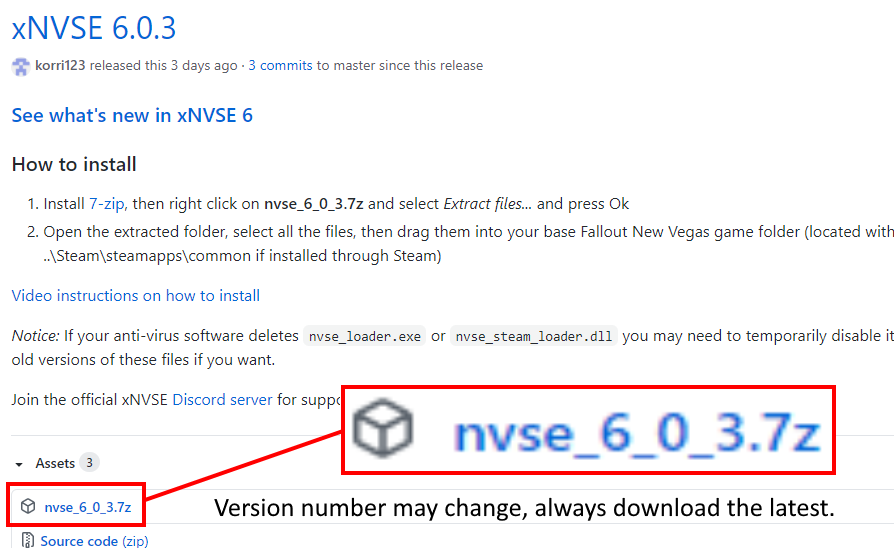
Step 4: Download the 4GB Patch

Step 5: Patch your game
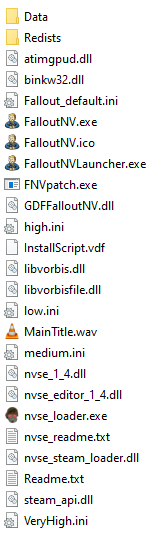
Drag and drop the contents of the zip files to your New Vegas root folder, which can normally be found here

Your root folder should now look like this
Step 6: Mod Organizer
Now that everything else is set up, you can begin installing mods, and the best way to do that is with Mod Organizer 2.
Vortex should work fine too, but don't expect me to know how it works.
You can find it here
https://www.nexusmods.com/skyrimspecialedition/mods/6194
The Skyrim Special Edition nexus page is just a place to host the file, it works well for every Bethesda game.
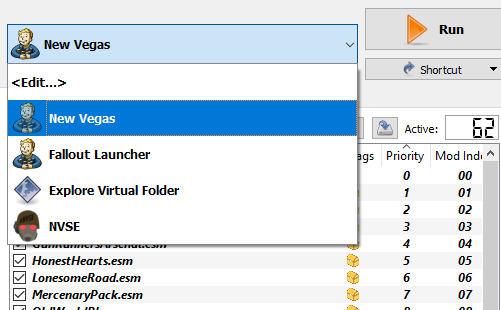
The Archive version allows you to drag and drop the files already unpacked.The Installer version is the same as above, except instead it will find it's own place to be installed. Once it is installed, run it and make sure that "New Vegas" is your selected executable to run, this is the patched version of your game made by the 4GB Patcher.
This executable will automatically run NVSE, but you do not need to run it right now.
Step 7: Installing the basics
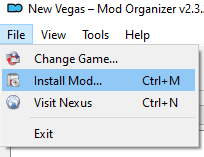
Then select the zip file and click "Open" like this
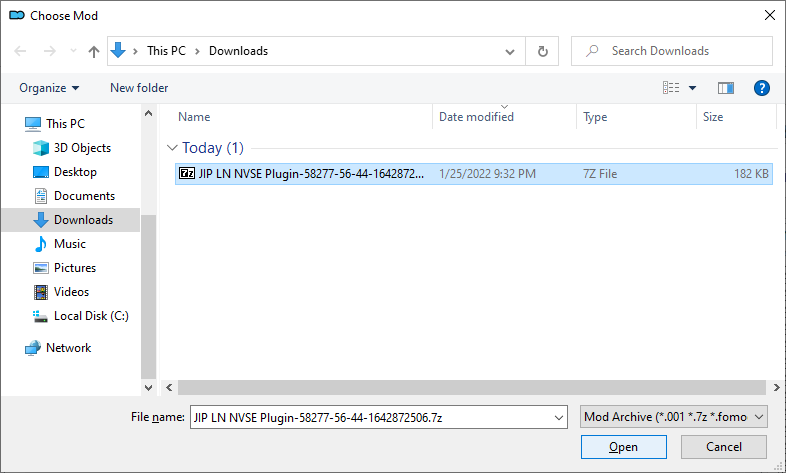
Use the above instructions to install the following mods:
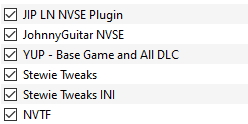
Minimum Required Mods: These should be installed through MO in the order they are listed.
- JIP LN NVSE Plugin[www.nexusmods.com]
This is an extension of NVSE that needs NVSE to function and is required by many mods out there. - JohnnyGuitar NVSE[www.nexusmods.com]
Fixes many bugs not covered by other patches - Yukichigai Unofficial Patch - YUP[www.nexusmods.com]
Download and install the YUP version in your language.
- Scroll down the files page to "Optional Files" and download "YUP - Individual ESMs"
- When installing select "Manual" and uncheck the DLCs that you do not have
- lStewieAl's Tweaks[www.nexusmods.com]
Fixes many bugs not covered by other patches. - Stewie Tweaks INI[www.nexusmods.com]
This is the same mod page as above, to get what you need, follow these instructions:
Scroll down under the Files section to "Optional Files" and download "Stewie Tweaks INI." - User Interface Organizer[www.nexusmods.com]
While most of StewieAI's Tweaks works automatically, there are additional features you can enable through the "Tweaks" menu under Settings at the title screen, you need this mod to enable that menu's functionality.
Make sure this mod is always at the bottom of your mod list, any other UI mods loaded after it will not work properly otherwise. - NVTF - New Vegas Tick Fix[www.nexusmods.com]
This is an updated version of Stutter Remover.
If you see SR recommenced by someone else, know that you have an updated version of it already and do not need to install the original.

Troubleshooting Common Problems
- Game won't save
Make sure the "FalloutNV.exe" is allowed by your antivirus, if it's not then it may prevent the game from making save files. - No mouse cursor
I've been told that if you have a controller plugged in, New Vegas will choose that as your control scheme, you have to restart the game without it plugged in. - Infinite loading screen when I load a save file
Try loading a different save, then when you get a save to load, load the save you wanted to load.
If none of your saves load, try starting a new game and then loading your save.Try to save frequently and preferably indoors as they're very low-stress on the game's engine.
- Dead Money: Elijah audio crackling/buzzing
Try this https://www.nexusmods.com/newvegas/mods/77073 - Crashing After Opening Cinematic
It's an issue with your GPU drivers, you're probably on AMD or on a NVidia laptop.
It's a known issue, see here for a fix.[performance.moddinglinked.com]
Problems with setting it up
- "MSVCR120.dll was not found" when running the 4GB patcher
4GB Patcher requires "VC++ x86 Runtime", a download is listed under "Requirements" on the mod page, simply download and install.
Problems outside of the game
- Game won't launch
This may be a problem with your anti-virus or permissions; One person said McAfee was infinitely scanning some of their game's files when they tried to launch it via Mod Organizer. You also could try launching Mod Organizer as an administrator.
Unfortunately I've never experienced this problem myself, so this as much as I can say. - Cannot click anything
This is something I've run into recently with Mod Organizer, I will end my playing of NV and not be able to click anything.Hold Alt and press Tab, keep pressing until MO is selected, then release Alt.
With MO as your active window, press F5 to refresh it, this seems to fix the issue. - Game window won't close after exiting
Press either Alt+Ctrl+Del or Ctrl+Shift+Esc to bring up Task Manager, then use the arrow keys to select FalloutNV.exe and press Delete to close it
Advanced Modding [Not Required]
https://steamcommunity.com/sharedfiles/filedetails/?id=2407272794
Additional Help
Leave a comment describing your issue and I'll see if I can help you out.
- New Vegas 2024 Essential Modding Guide★ 5 (1.4k)112k views3.9k ♥37 minUpdated Jan 19
- Fallout:NV Console Command List / Weapons / Armor / NPC's and World Objects★ 5 (948)67k views2.4k ♥33 minUpdated Aug 6, 2025
- 100% Achievement Guide: Fallout - New Vegas★ 5 (1.5k)37k views4.6k ♥98 minUpdated May 9
- Interactive Map★ 5 (614)27k views957 ♥1 minBulgarianUpdated 30 Jan
- Complete Achievement Guide (Includes DLC)★ 5 (808)23k views2.1k ♥26 minUpdated Aug 5, 2025
- A Game-Breaking (But Still Fun) Melee Build★ 5 (239)19k views862 ♥5 minUpdated Feb 25


- Upgrading to PremiumTeam Fortress 2★ 5 (20k)1441k views11k ♥6 minUpdated May 11, 2022
- No More Room in Hell Official ManualNo More Room in Hell★ 5 (2.8k)569k views2.1k ♥29 minUpdated Apr 22, 2019
- NMRiH Community Hosting GuidesNo More Room in Hell★ 5 (526)351k views653 ♥1 minUpdated Aug 10, 2022
- ULTIMATE GUIDE FOR GAME DEV TYCOONGame Dev Tycoon★ 5 (5.8k)326k views10k ♥4 minUpdated 23 Jan, 2014
- How to 'Git Gud' Soon™MORDHAU★ 5 (2k)318k views3k ♥68 minUpdated Nov 16, 2024
- Лучшие кооперативные игры SteamPAYDAY 2★ 5 (1.5k)315k views2.1k ♥56 minRussianUpdated Apr 27, 2025






This guide was created by its original author on the Steam Community. Are you the author and want it removed? Request removal.