TacMaps: Interactive Maps, Need Zones & Grind Tracker | COTW
Getting started with TacMaps
TacMaps keeps the parts of a hunt that are awkward to manage in-game. This is the quickest way to get a basic map going:
- 1. Open the interactive map[cotw.tictactical.co.uk].
- 2. Choose a reserve and the animal you are hunting.
- 3. Add the need zones and locations you want to check again.
- 4. Leave notes on any markers you are likely to forget.
- 5. Open the Grind Log[cotw.tictactical.co.uk] if you want to track harvests.
- 6. Save the map or create a share link when the setup is ready.
You do not need to map the whole reserve at once. I normally start with a few confirmed spots and build it up as I go.
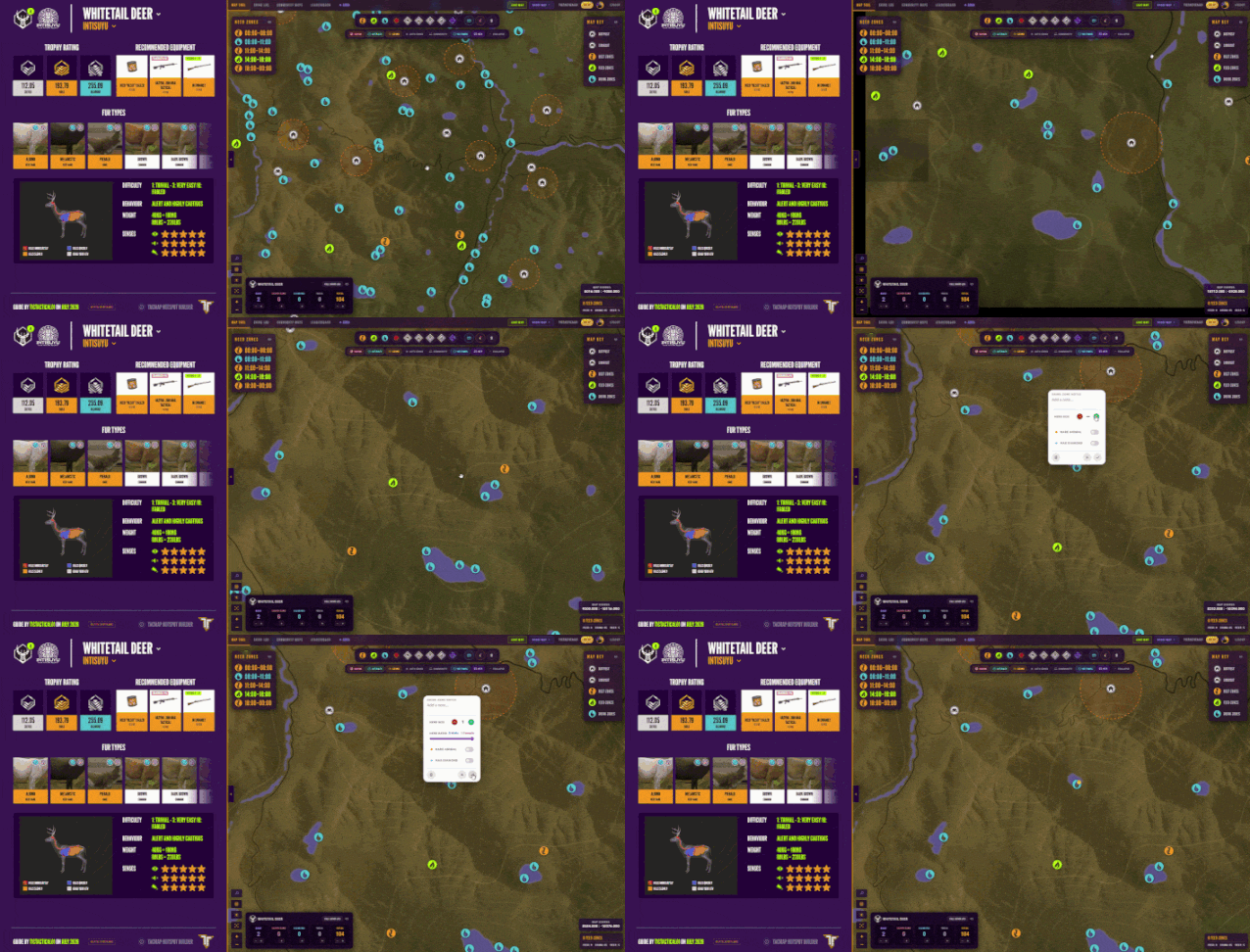
Last checked: July 2026
I will update this guide when the main tools or screenshots change.
TacMaps does not use mods or read or change your game data. Discord login is used for saving and syncing your TacMaps data across devices.
Interactive map and need zones
The map is built around your own population and route. Choose a reserve and animal, then use the filters to remove anything you do not need.
- 1. Choose the reserve from the map selector.
- 2. Pick the animal you are hunting.
- 3. Use the zone and marker filters to clean up the view.
- 4. Select a marker type, then place it on the map.
- 5. Open the marker if you want to add a note.
- 6. Use Save Map when you want to keep the setup.
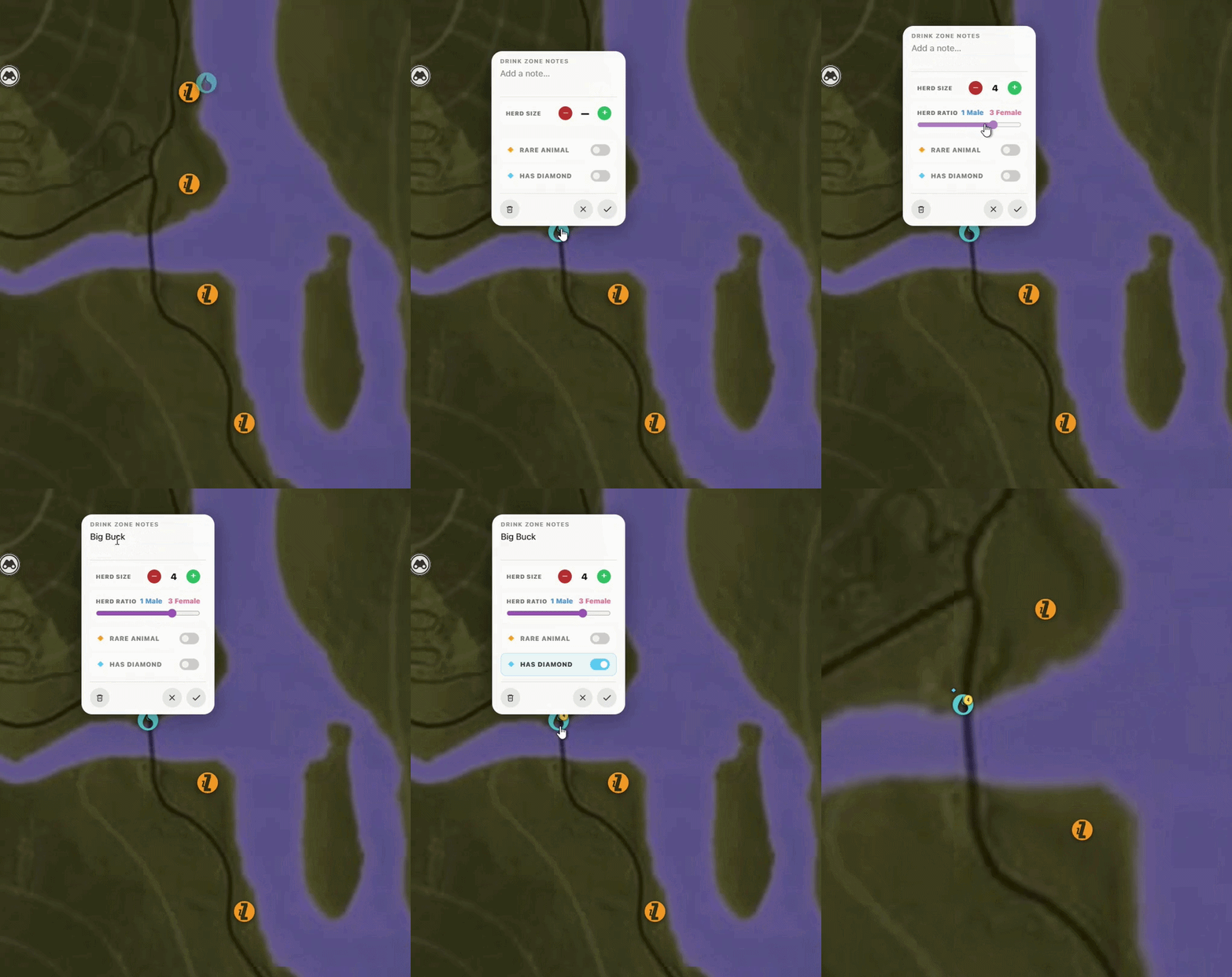
A note can hold a herd detail, a need-zone time, a problem with the spot, or simply a reminder for the next session.
I find the map easier to use when it is kept fairly clean. Add the zones you are checking, then build it up once you have confirmed more of them.
Interactive map
https://cotw.tictactical.co.uk
Keeping a grind organised
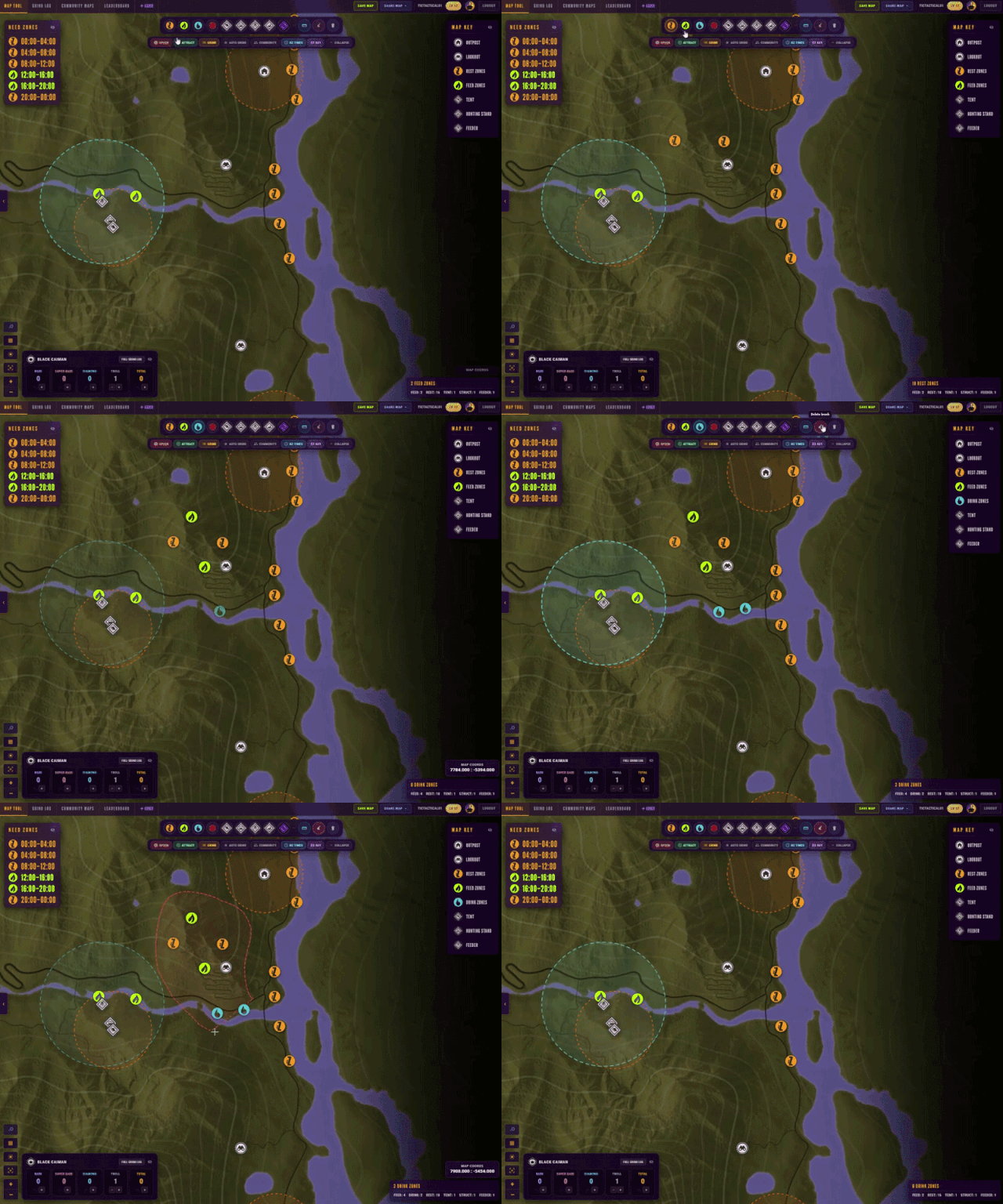
TacMaps keeps the route, notes and counts for a grind together. That is handy when you leave it for a few days and come back with no idea which lake you were working on.
The map planner is for laying out the run itself. The Grind Log[cotw.tictactical.co.uk] keeps the harvest counts, trophies and notes from each session.
- 1. Choose the reserve and animal.
- 2. Mark the reliable zones you want in the rotation.
- 3. Place the tents, structures and feeders you plan to use.
- 4. Open the Grind Log and start or select the matching grind.
- 5. Update the harvest and trophy counts as you play.
I would keep it simple at first. A few reliable zones and a route you can repeat are more useful than trying to log every animal on the reserve.
Auto Grind, map notes, and placement tools
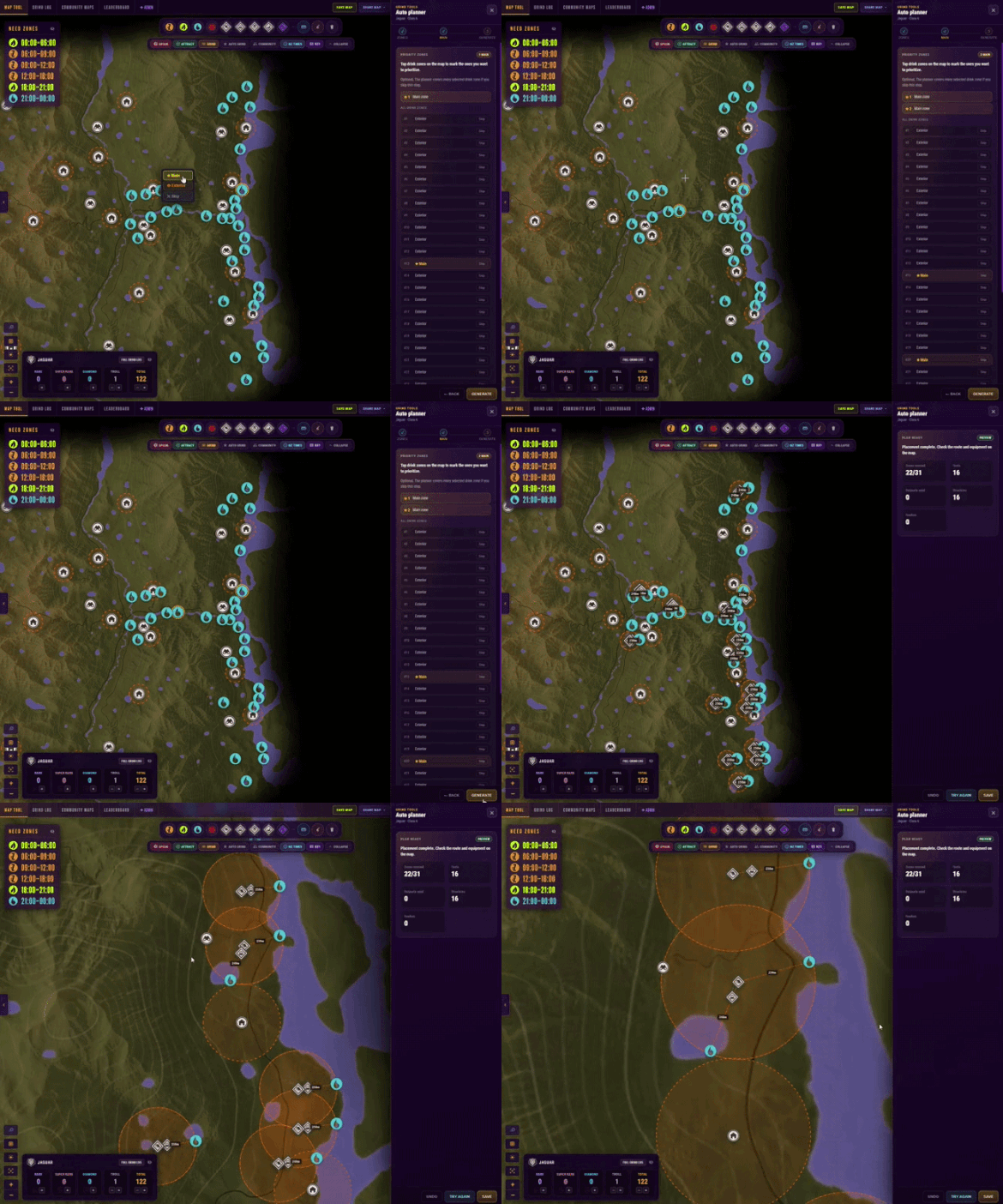
The Auto Grind tool[cotw.tictactical.co.uk] takes the need zones you select and puts together a suggested setup. I treat it as a starting point and move things around if the route does not suit the way I want to hunt it.
- 1. Select the need zones you want to use.
- 2. Mark the zones that should be treated as the main part of the grind.
- 3. Add any exterior zones you still want covered.
- 4. Open Auto Grind and generate the plan.
- 5. Check the tents, structures, feeders and zones it has covered.
- 6. Adjust anything that does not fit your route.
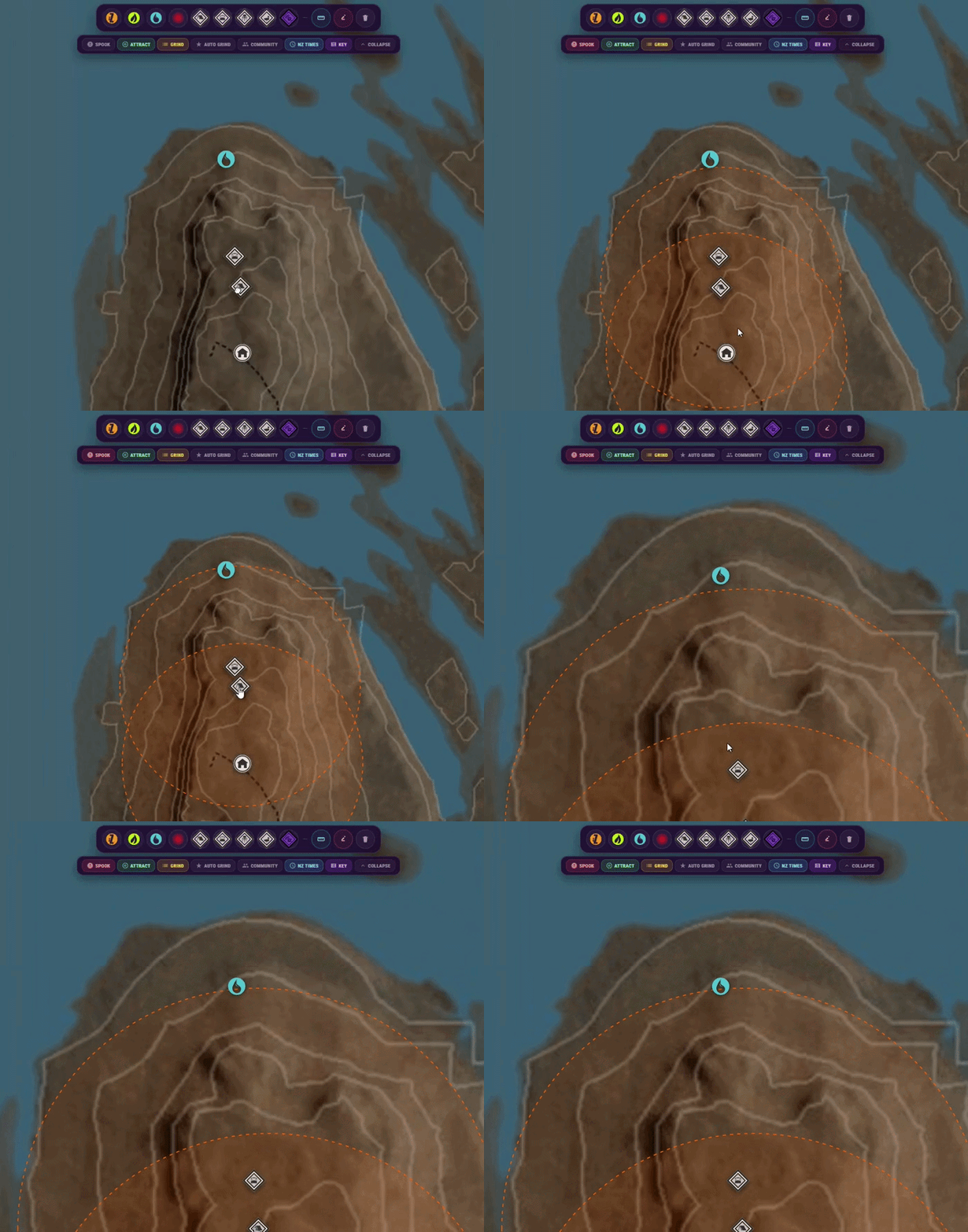
Spook distance shows the 250 m area around tents and the relevant map locations. It helps when a tent looks fine at first glance but is a bit too close to a zone.
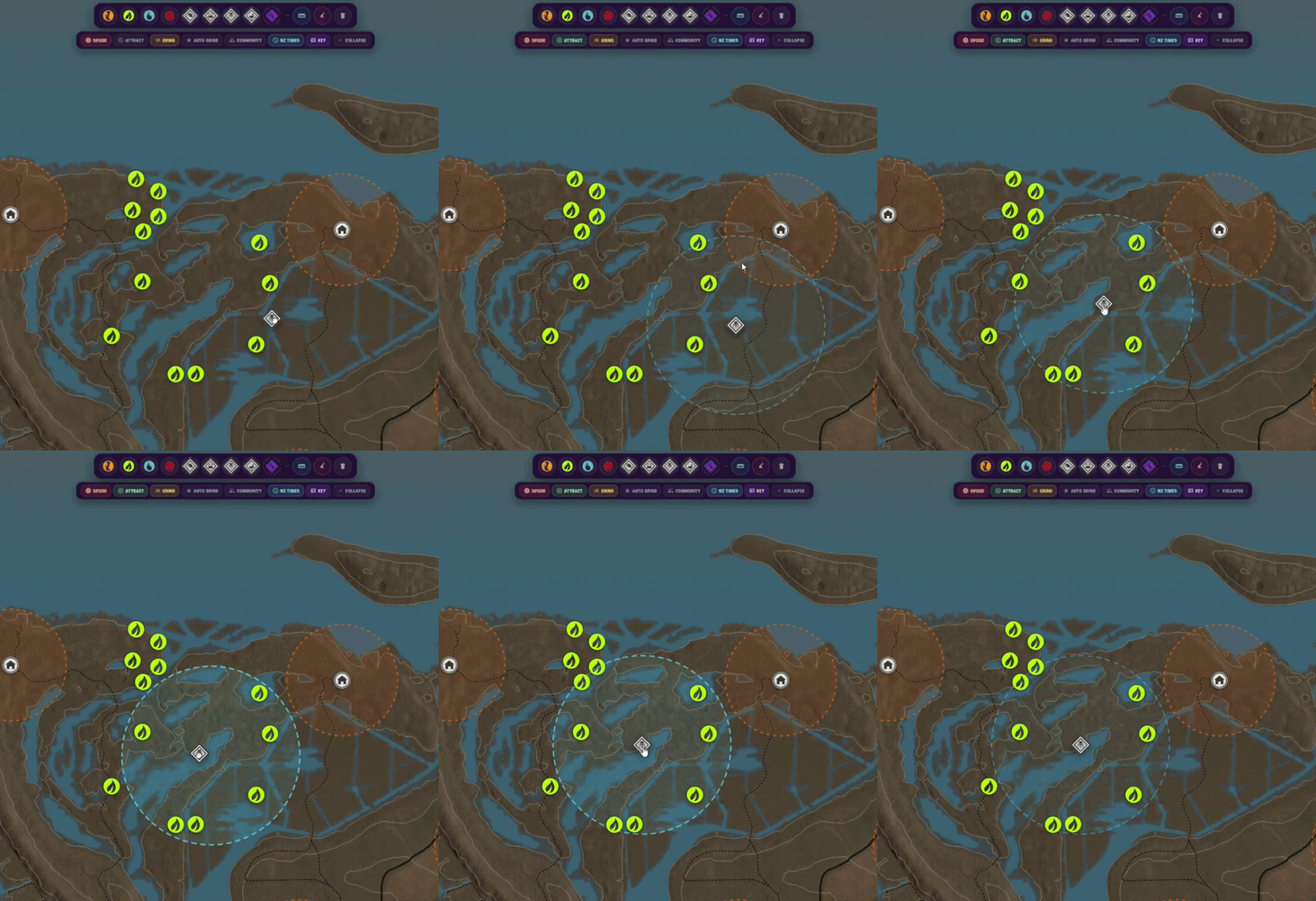
Attraction radius shows the area around feeders, scent items and decoys. I turn the overlays on while placing things, then hide them again once the setup is done.
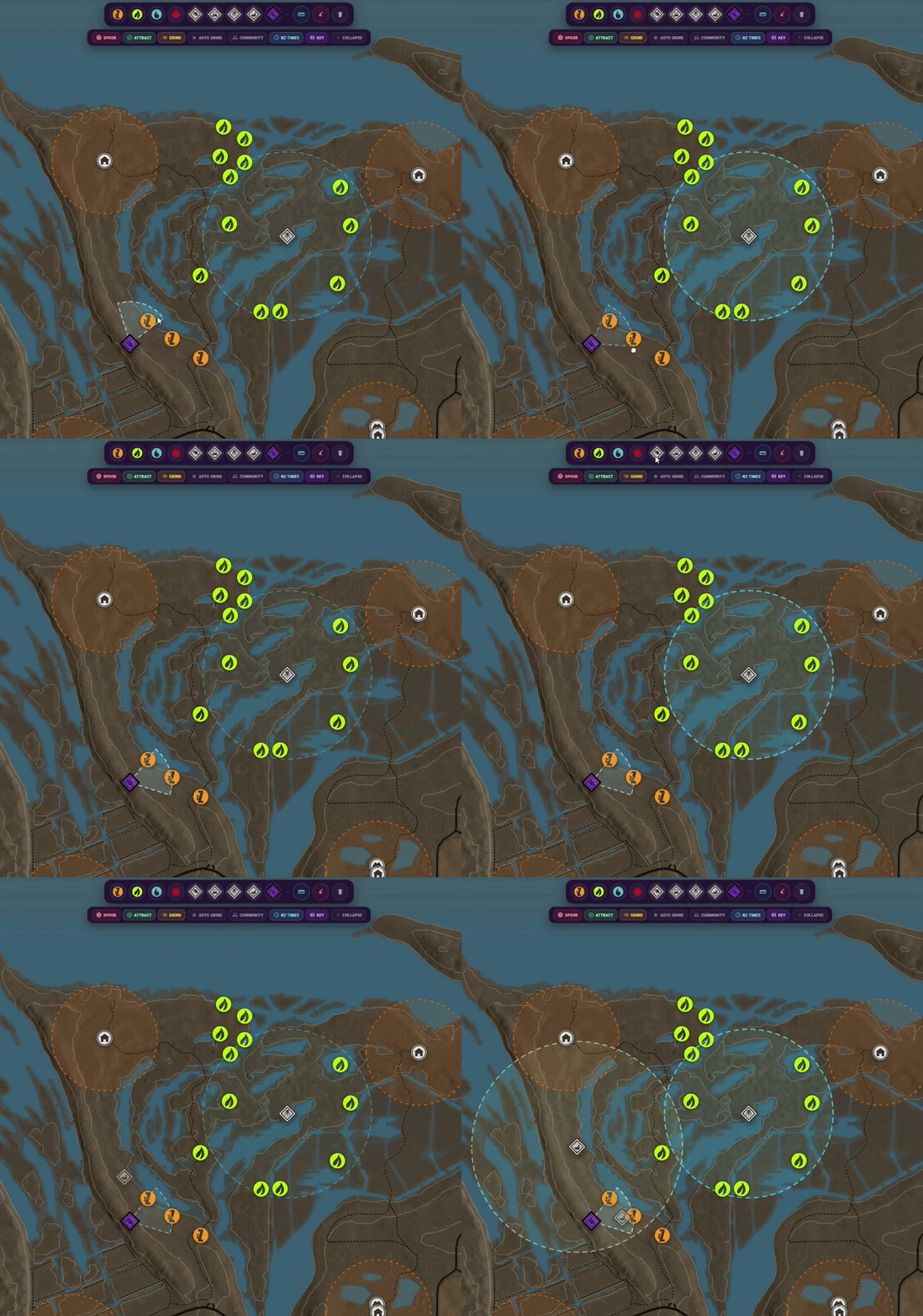
TacMaps keeps to the usual in-game limits of 16 tents and 8 feeders per map. The counts stay on screen while you work.
You can also leave notes on individual markers for herd details, timings or anything else you will probably forget later. I know I do.
Auto Grind and map tools
https://cotw.tictactical.co.uk
Grind counters and community insights
The Harvest Log[cotw.tictactical.co.uk] keeps the basic numbers for a grind: total harvests, rares, diamonds, super rares, trolls and Great Ones.
- 1. Open the full Grind Log.
- 2. Select the reserve, animal and grind you are working on.
- 3. Update the total after each harvest.
- 4. Record diamonds, rares, super rares and trolls separately.
- 5. Mark the grind as complete when it is finished.
The same counters work with the TacMaps Stream Deck plugin[cotw.tictactical.co.uk], so pressing a button on the deck updates the grind online. The plugin is still pending Elgato approval at the moment.
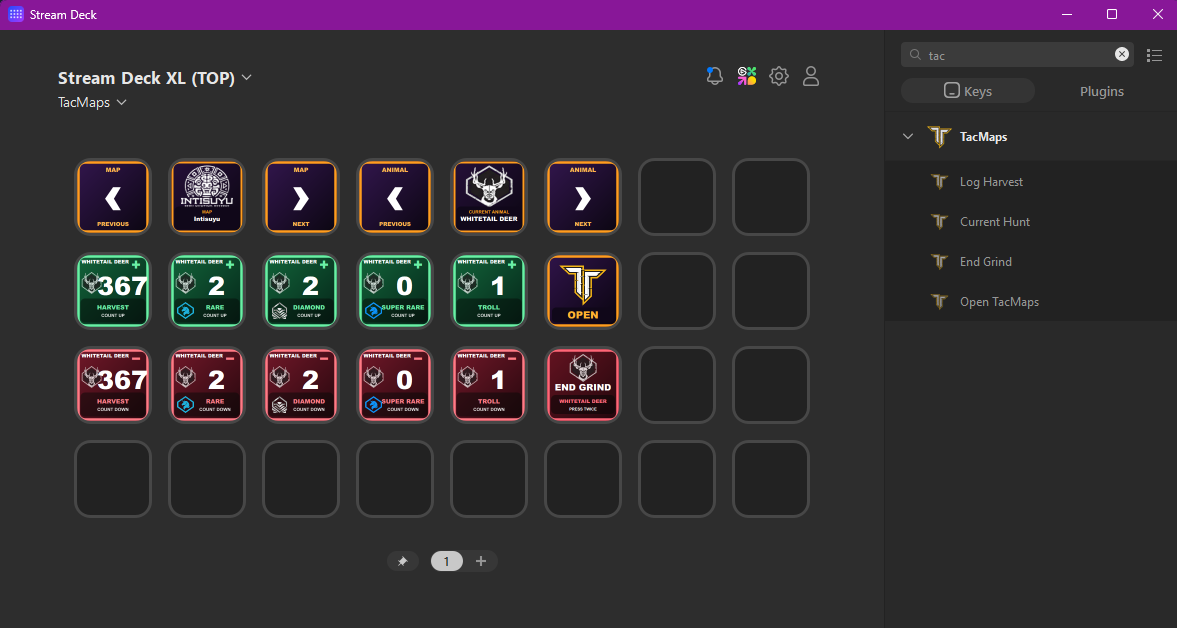
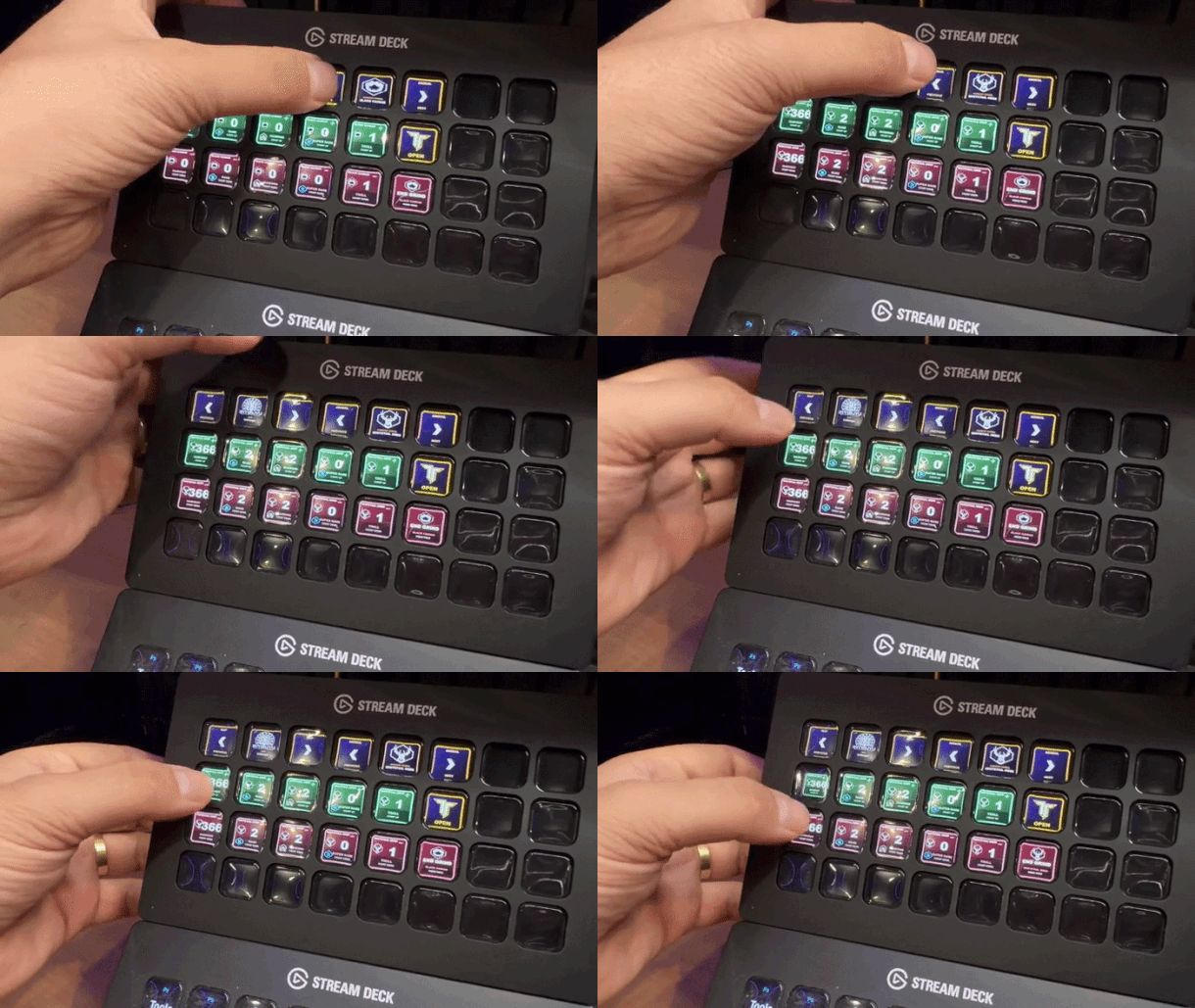
The interesting bit for me is what we can learn once more completed grinds are logged. Things like how long a Fallow Deer grind usually takes, which grinds are finishing quickest, or what sort of setup people used.
Zone data works in a similar way. More than 13,000 zones have been placed so far, which means TacMaps can start building ghost zones and heatmaps from places people have actually found animals. It can also show how many people have a zone close to yours.
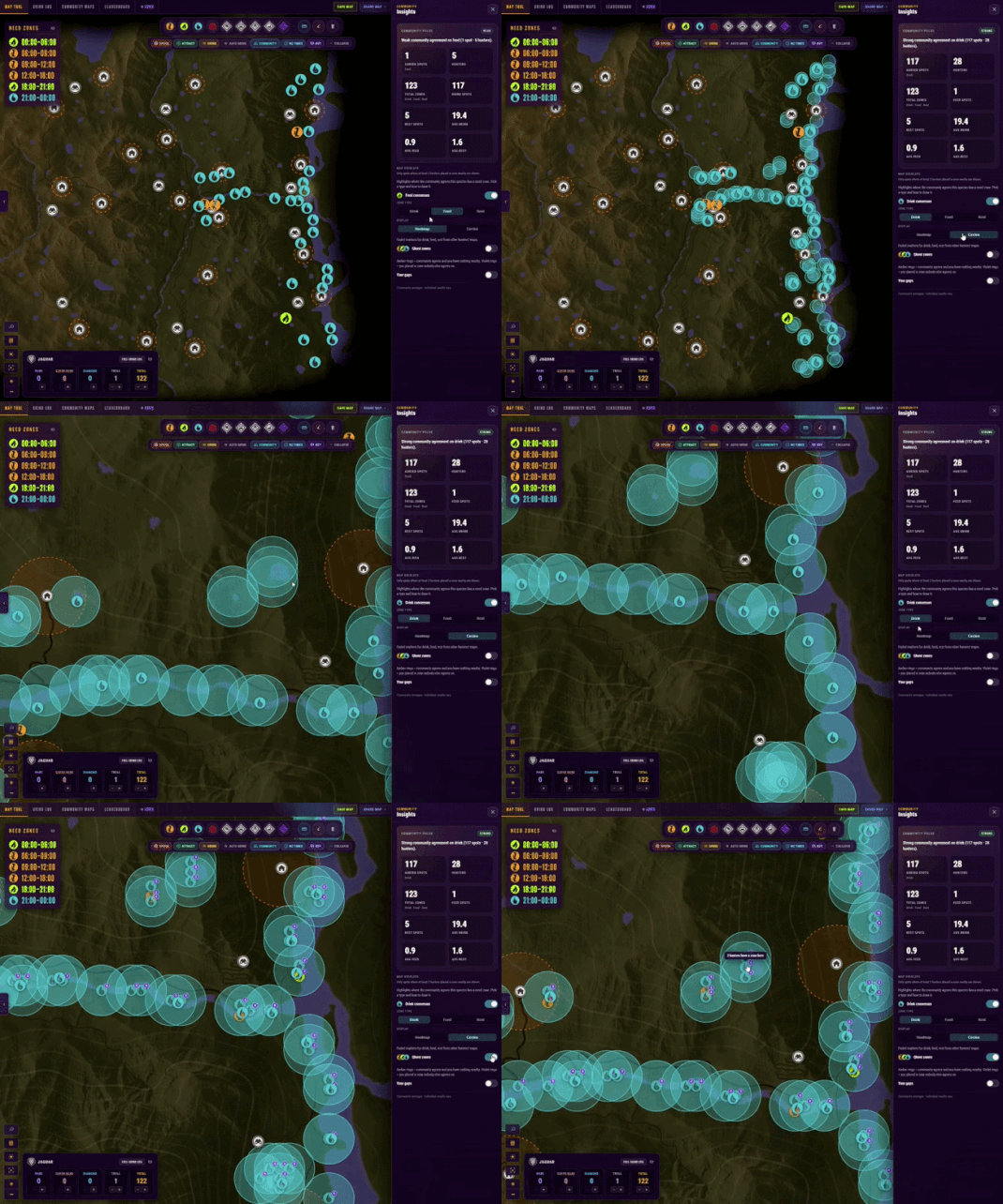
This part will get more accurate as more people use the logs, but the early results have already been quite interesting.
Community hotspot maps
The community hotspot directory[cotw.tictactical.co.uk] contains routes and map setups other hunters have shared. I use it as somewhere to start when I am learning a reserve or looking for a few areas to scout.
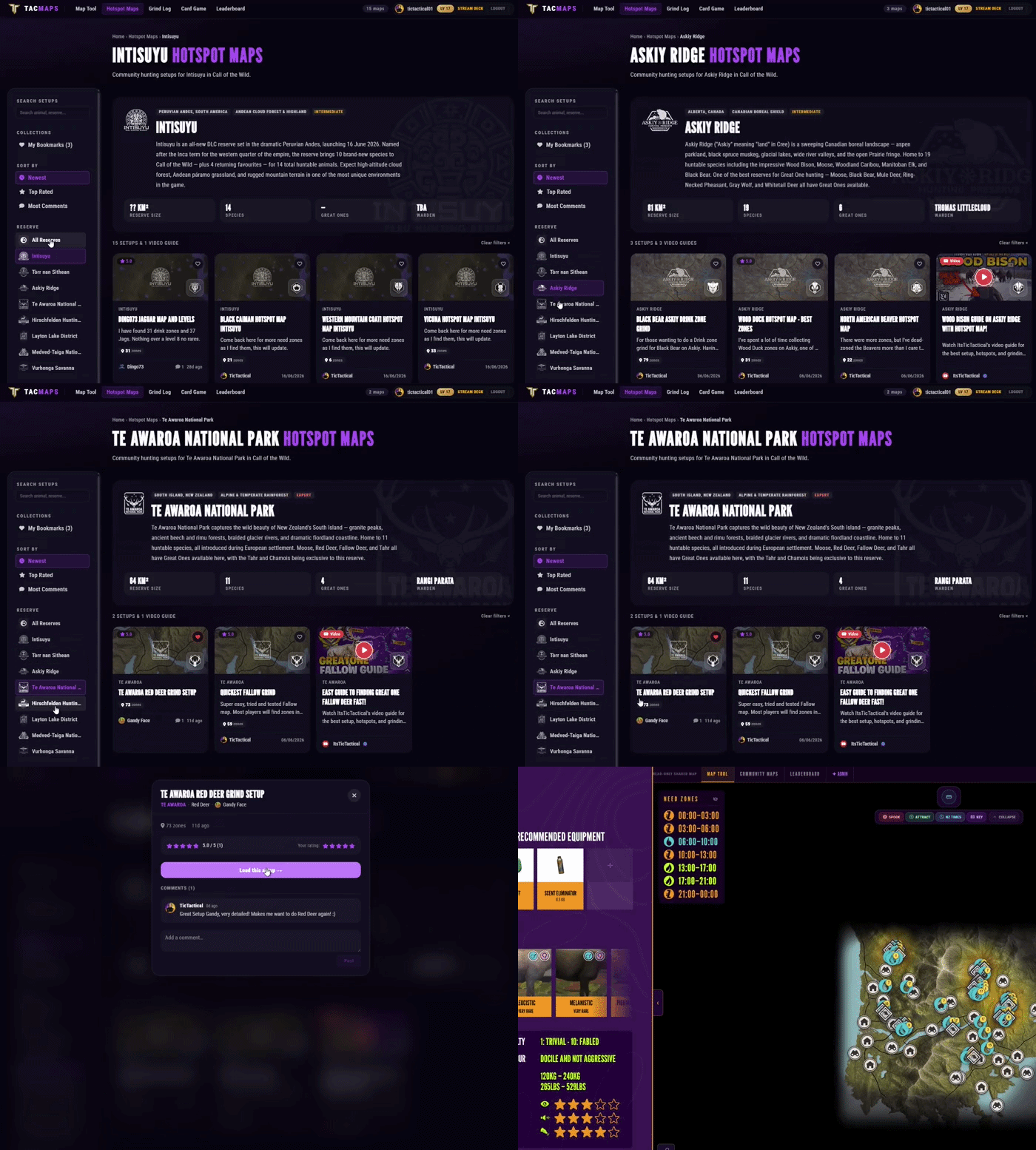
- 1. Choose the reserve.
- 2. Pick the animal you want to look at.
- 3. Check the shared hotspots and community zone data.
- 4. Scout the useful areas on your own population.
- 5. Add the zones you confirm to your personal map.
Community maps are not a guarantee. Need zones/populations are different and another person's route may not work for the way you hunt.
Community hotspot maps
https://cotw.tictactical.co.uk/hotspot-map
Weapons, equipment, sharing, and exports
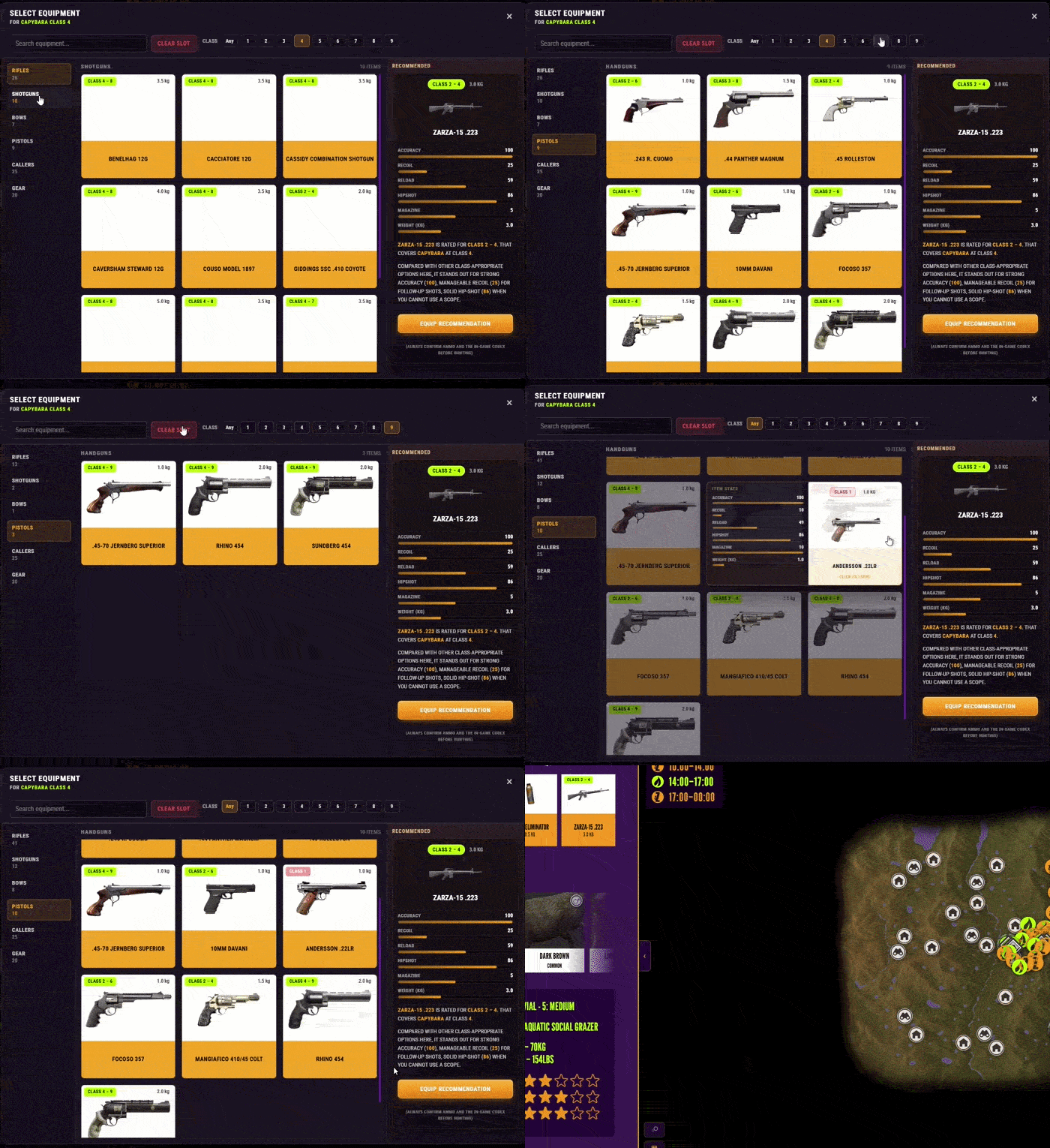
TacMaps has weapon and equipment information[cotw.tictactical.co.uk] for putting a loadout together. You can check which animal classes a weapon covers and keep the loadout with the map you are working on.
- 1. Open the weapon and equipment page.
- 2. Check the animal class you need to cover.
- 3. Compare the weapons and ammunition that fit that class.
- 4. Save the loadout with the hunt it belongs to.
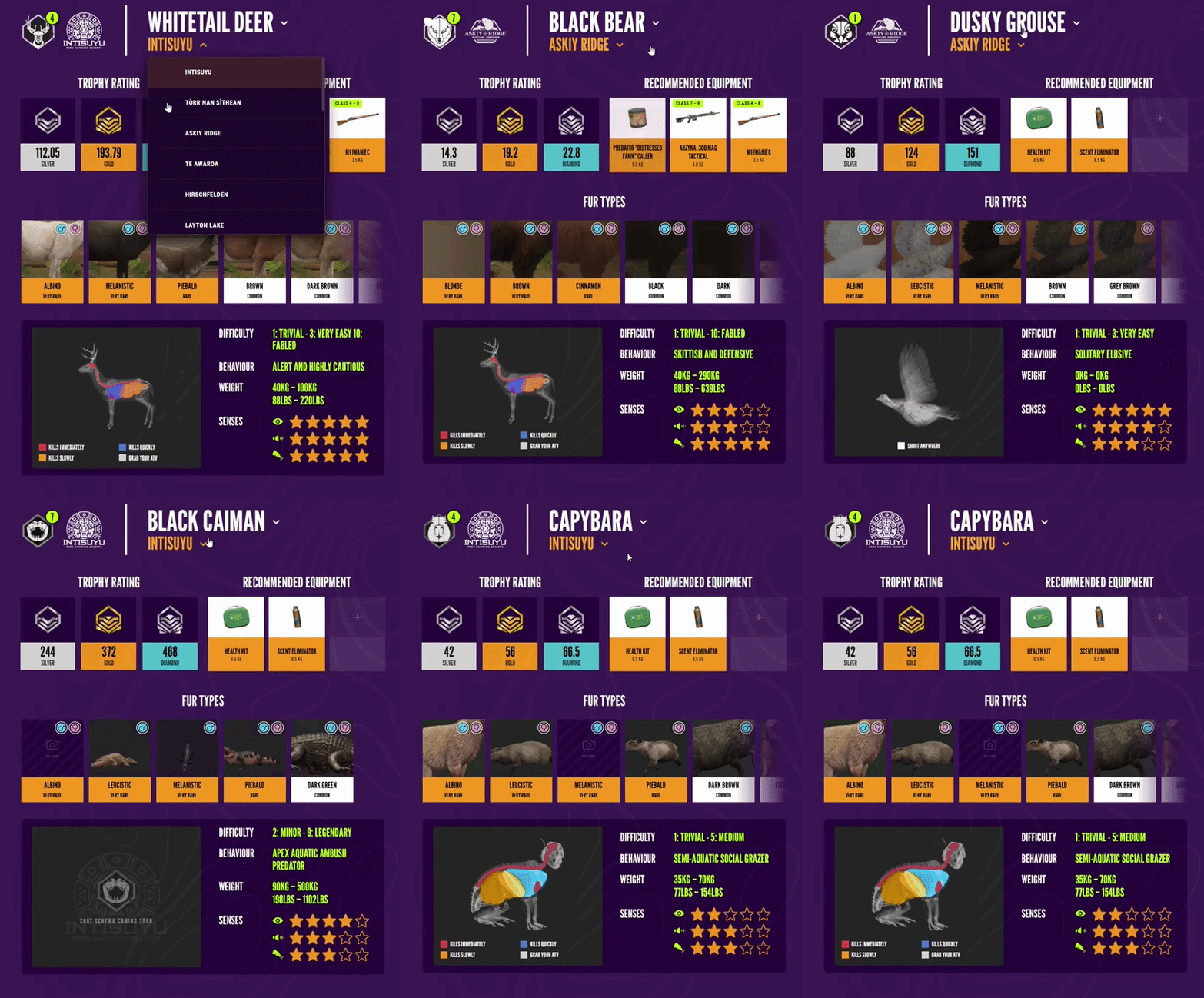
The animal details panel also shows trophy ratings, fur types and recommended equipment for the selected animal.
- 1. Save the map once the route is in a useful state.
- 2. Use Share Map to create a link for someone else.
- 3. Export a copy before making a major change to a grind.
A share link is usually more useful than sending a screenshot with arrows all over it.
Why I made TacMaps
I made TacMaps because I was keeping hunts in screenshots, notes and half-finished routes. I make COTW content, so I spend a lot of time checking zones, moving tents and testing rotations. After a while I wanted somewhere sensible to keep all of it.
The site is built around the tools I wanted to use myself.
For me, static hotspot maps are basically dead. They go out of date, they cannot reflect your population and they do not give you much room to make the route your own.
I spent the best part of a year making them by hand before realising community data could make them more useful. Instead of relying on one person's map, TacMaps can compare zones from a lot of different players.
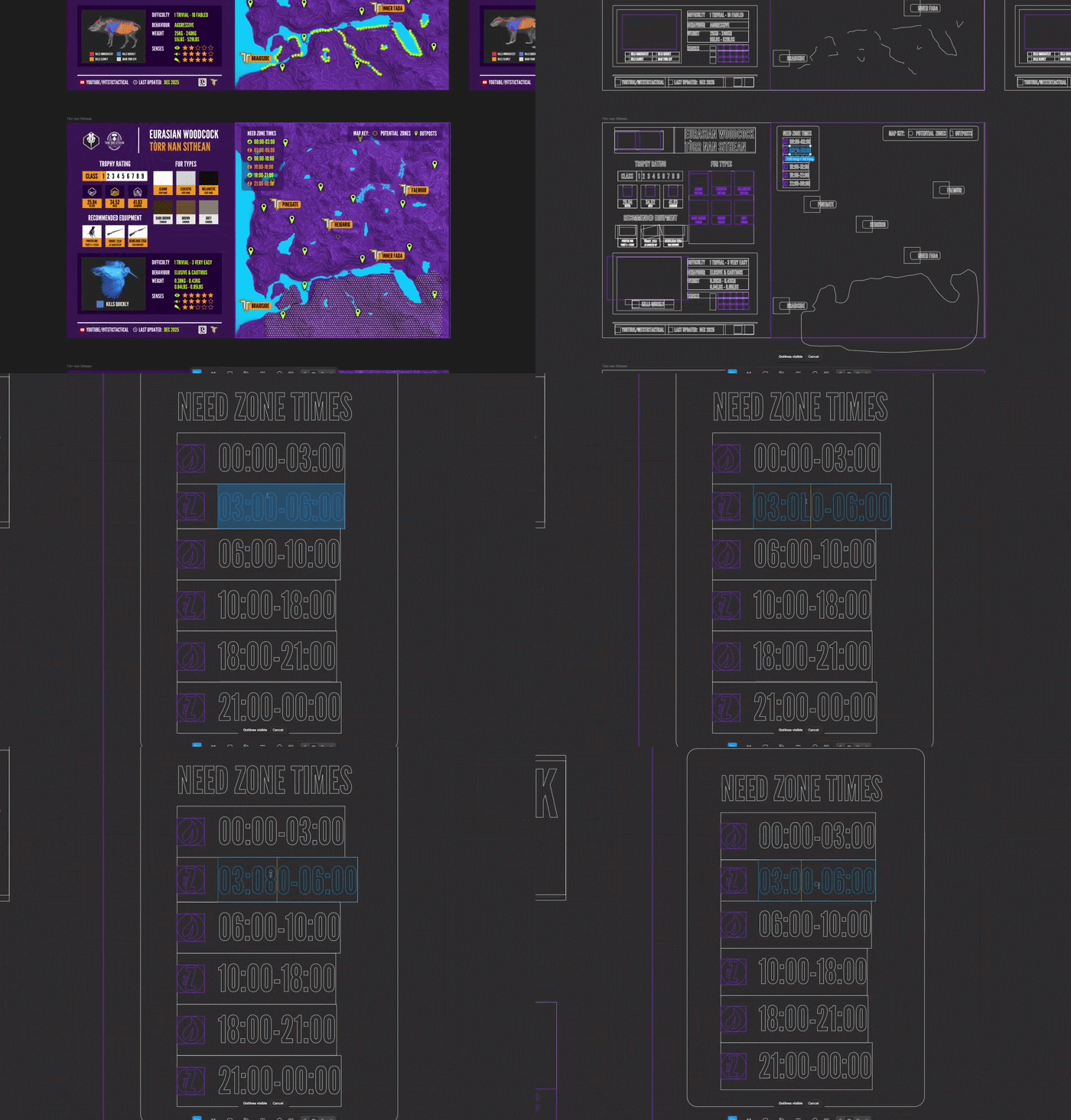
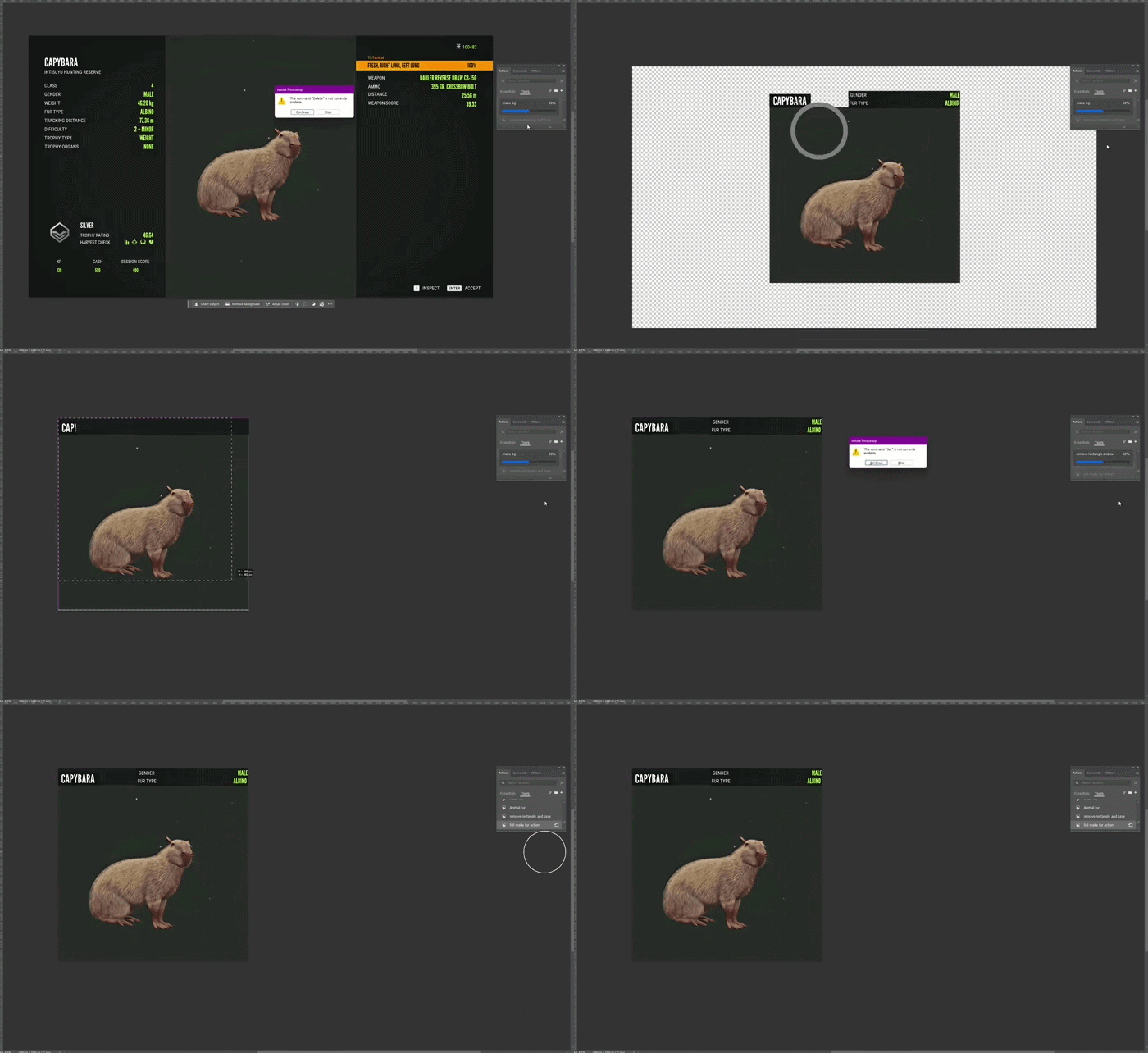
I am a full-time designer and front-end developer, so I wanted TacMaps to be clear and easy to use.
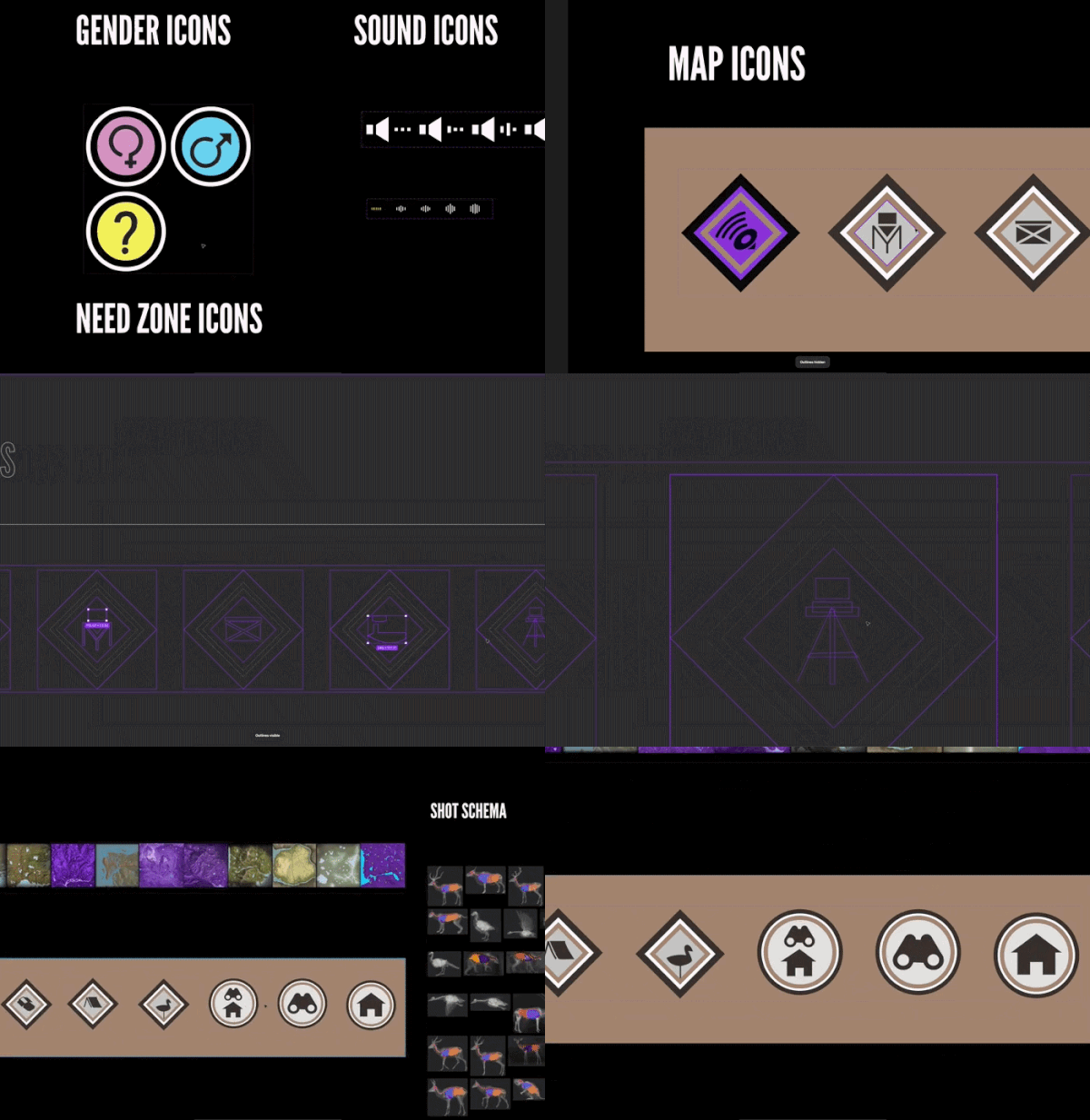
Every map icon was drawn by hand. It has taken a fair bit of time, but I wanted the map to feel close to the one in-game rather than look like a spreadsheet with pins stuck on it.
Join the TacMaps Discord >[discord.com]
And if you find this tool useful, a subscription would go a long way, thanks!
@Itstictactical Youtube Channel >
TacMaps does not use mods or read or change your game data. TacMaps is not associated with theHunter: Call of the Wild.
- July 2026: Added the quick start, feature links, Auto Grind instructions, community data, Grind Log and Stream Deck sections.
- Animal Location Maps (Parque update!)★ 5 (1.7k)84k views4.4k ♥1 minUpdated 1 Jan, 2019
- NEW Animal Location Maps (Hi-Res) - INTISUYU PERU UPDATE!★ 5 (1.6k)55k views4.3k ♥1 minGermanUpdated 24 Jun
- Limit FPS using only Nvidia Control Panel42k views53 ♥1 minUpdated 24 Nov, 2024
- ALL NEED ZONE TIMES FOR EVERY ANIMAL (SUNDARPATAN NEPAL)★ 5 (754)36k views2k ♥19 minUpdated 28 Jun, 2024
- Beginner's Guide: New Players, New Hunters★ 5 (405)24k views681 ♥33 minUpdated 3 Jan, 2023
- Trophy Ratings & Fur Types★ 5 (800)24k views2k ♥36 minUpdated 10 Jun




- Upgrading to PremiumTeam Fortress 2★ 5 (20k)1441k views11k ♥6 minUpdated May 11, 2022
- No More Room in Hell Official ManualNo More Room in Hell★ 5 (2.8k)569k views2.1k ♥29 minUpdated Apr 22, 2019
- NMRiH Community Hosting GuidesNo More Room in Hell★ 5 (526)351k views653 ♥1 minUpdated Aug 10, 2022
- ULTIMATE GUIDE FOR GAME DEV TYCOONGame Dev Tycoon★ 5 (5.8k)326k views10k ♥4 minUpdated 23 Jan, 2014
- How to 'Git Gud' Soon™MORDHAU★ 5 (2k)318k views3k ♥68 minUpdated Nov 16, 2024
- Лучшие кооперативные игры SteamPAYDAY 2★ 5 (1.5k)315k views2.1k ♥56 minRussianUpdated Apr 27, 2025






This guide was created by its original author on the Steam Community. Are you the author and want it removed? Request removal.