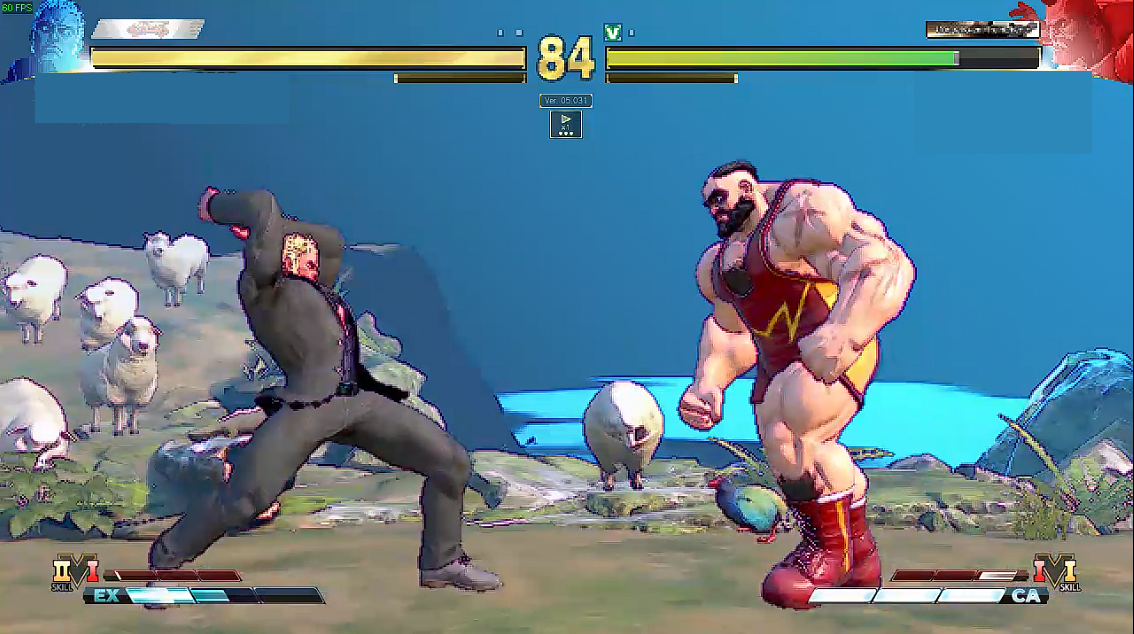
Ultra low Graphics for low PC, Increase FPS (2021) (update Vsync off)
Step 1 - User Configuration on Unreal Game Engine
Go to Street Fighter folder in AppData: C:\Users\ "Your PC user Name" \AppData\Local\StreetFighterV\Saved\Config\WindowsNoEditor
or search for %localappdata%
Note 1: this changes do not modify the original game files on Steam Game folder, Only user configuration and will be replaced when you open the game, if you deleted this files (But only in AppData!!!!). And the configuration will be reset to default.
Note 2: if these files are not in the AppData folder you can copy from original Steam Game folder C:\Program Files (x86)\Steam\steamapps\common\StreetFighterV\StreetFighterV\Intermediate\Config\CoalescedSourceConfigs and paste all files In C:\Users\ "Your PC user Name" \AppData\Local\StreetFighterV\Saved\Config\WindowsNoEditor
1.1 - Open the file Scalability.ini
copy and paste:
[ShadowQuality@0]
r.ShadowQuality=0
r.Shadow.CSM.MaxCascades=0
r.Shadow.MaxResolution=0
r.Shadow.RadiusThreshold=0.00
r.Shadow.DistanceScale=0.0
[AntiAliasingQuality@0]
r.MSAA.CompositingSampleCount=0
[PostProcessQuality@0]
r.BloomQuality=0
r.Upscale.Quality=0
r.AmbientOcclusionRadiusScale=2.0
r.RenderTargetPoolMin=0
[TextureQuality@0]
r.Streaming.PoolSize=0
r.Streaming.MipBias=4.0
[EffectsQuality@0]
r.TranslucencyLightingVolumeDim=2
r.EmitterSpawnRateScale=0
---------------------------------------------------------------------------------------
1.2 - Open the file GameUserSettings.ini
copy and paste:
[/script/kiwigame.kiwigameusersettings]
GameVersion=5
ScalabilityResolution=(bGroupQuality=True,ResolutionQuality=50,ScreenPercentageSettingIndex=-1)
ScalabilityViewDistance=(bGroupQuality=True,ViewDistanceQuality=0,SkeletalMeshLODBiasSettingIndex=-1,ViewDistanceScaleSettingIndex=-1)
ScalabilityAntiAliasing=(bGroupQuality=True,AntiAliasingQuality=0,PostProcessAASettingIndex=-1,MSAACompositingSampleCountSetting=-1)
ScalabilityShadow=(bGroupQuality=True,ShadowQuality=0,LightFunctionQualitySettingIndex=-1,ShadowQualitySettingIndex=-1,ShadowCSMMaxCascadesSettingIndex=-1,ShadowMaxResolutionSettingIndex=-1,ShadowRadiusThresholdSettingIndex=-1,ShadowDistanceScaleSettingIndex=-1,ShadowCSMTransitionScaleSettingIndex=-1,DistanceFieldShadowingSettingIndex=-1,DistanceFieldAOSettingIndex=-1)
ScalabilityPostProcess=(bGroupQuality=True,PostProcessQuality=0,MotionBlurQualitySettingIndex=-1,AmbientOcclusionLevelsSettingIndex=-1,AmbientOcclusionRadiusScaleSettingIndex=-1,DepthOfFieldQualitySettingIndex=-1,RenderTargetPoolMinSettingIndex=-1,LensFlareQualitySettingIndex=-1,SceneColorFringeQualitySettingIndex=-1,EyeAdaptationQualitySettingIndex=-1,BloomQualitySettingIndex=-1,FastBlurThresholdSettingIndex=-1,UpscaleQualitySettingIndex=-1,TonemapperQualitySettingIndex=-1,LightShaftQualitySettingIndex=-1)
ScalabilityTexture=(bGroupQuality=True,TextureQuality=0,StreamingMipBiasSettingIndex=-1,MaxAnisotropySettingIndex=-1,StreamingPoolSizeSettingIndex=-1)
ScalabilityEffects=(bGroupQuality=True,EffectsQuality=0,TranslucencyLightingVolumeDimSettingIndex=-1,RefractionQualitySettingIndex=-1,SSRQualitySettingIndex=-1,SceneColorFormatSettingIndex=-1,DetailModeSettingIndex=-1,TranslucencyVolumeBlurSettingIndex=-1,BlurRadiusSettingIndex=-1,MaterialQualityLevelSettingIndex=-1,SSSScaleSettingIndex=-1,SSSSampleSetSettingIndex=-1,EmitterSpawnRateScaleSettingIndex=-1)
bUseVSync=True
LastUserConfirmedResolutionSizeX=1280
LastUserConfirmedResolutionSizeY=720
WindowPosX=-1
WindowPosY=-1
LastConfirmedFullscreenMode=0
ResolutionSizeX=1280
ResolutionSizeY=720
[ScalabilityGroups]
sg.ResolutionQuality=50
sg.ViewDistanceQuality=0
sg.AntiAliasingQuality=0
sg.ShadowQuality=0
sg.PostProcessQuality=0
sg.TextureQuality=0
sg.EffectsQuality=0
---------------------------------------------------------------------------------------
Note 1: you can change the game resolution with this commands
"LastUserConfirmedResolutionSizeX=1280"
"LastUserConfirmedResolutionSizeY=720"
Note 2: you can change the window mode (Fullscreen=0; Windowed fullscreen =1; Windowed =2)
"LastConfirmedFullscreenMode=0"
---------------------------------------------------------------------------------------
1.3 - Open the file Engine.ini
copy and paste:
[Core.System]
Paths=../../../Engine/Content
Paths=../../../StreetFighterV/Content
Paths=../../../Engine/Plugins/Runtime/CriWare/Content
[/script/engine.engine]
bSmoothFrameRate=False
[SystemSettings]
r.SeparateTranslucency=0
r.OpacityStencil=0
r.FogDensity=0
---------------------------------------------------------------------------------------
Note: try (Smooth FrameRate=True) if motion animation is flickering
---------------------------------------------------------------------------------------
1.4 - Open the file DeviceProfile.ini
copy and paste:
[Windows DeviceProfile]
CVars=r.TonemapperQuality=0
CVars=r.SSR.Quality=0
CVars=r.SceneColorFringeQuality=0
CVars=r.SceneColorFormat=0
CVars=r.RenderTimeFrozen=1
CVars=r.RenderTargetSwitchWorkaround=1
CVars=r.RefractionQuality=0
CVars=r.ReflectionEnvironment=0
CVars=r.PreViewTranslation=0
CVars=r.PostProcessAAQuality=0
CVars=r.ParticleLODBias=0
CVars=fx.MaxCPUParticlesPerEmitter 0
CVars=r.NormalMapsForStaticLighting=False
CVars=r.MSAA.CompositingSampleCount=0
CVars=r.MotionBlurQuality=0
CVars=r.MobileHDR=0
CVars=r.MaxAnisotropy=1
CVars=r.MaterialQualityLevel=0
CVars=r.LightShafts=0
CVars=r.LightFunctionQuality=0
CVars=r.LensFlareQuality=0
CVars=r.HalfResReflections=1
CVars=r.DontLimitOnBattery=1
CVars=r.DepthOfFieldQuality=0
CVars=r.DefaultFeature.AmbientOcclusion=0
CVars=r.Cache.DrawLightingSamples=0
CVars=r.Cache.DrawInterpolationPoints=0
CVars=r.AmbientOcclusionLevels=0
CVars=r.HalfResReflections=1
CVars=r.ViewDistanceScale=0.0000000000000000000000000000000000044
---------------------------------------------------------------------------------------
Note 1: CVars=r.ViewDistanceScale - High values means See nothing of background stage
Note 2: if you don't want to use it just delete this line ( CVars=r.ViewDistanceScale)
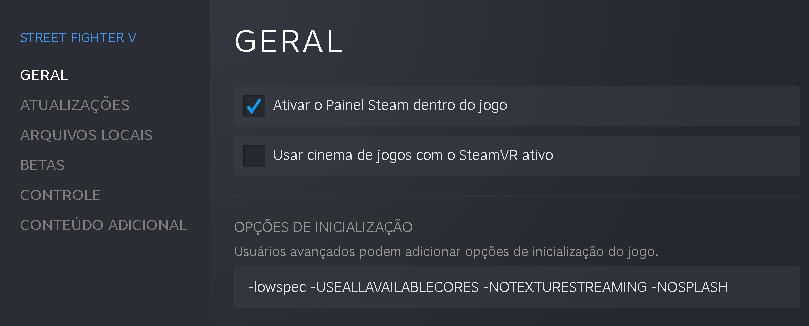
Step 2 - Setting Game Launch Options
Set Launch Options
-Open your Steam Library
-From a game's library page, select Manage > Properties.
-On the General tab you'll find Launch Options section.
-Enter the launch options you wish to apply (be sure to separate each code with a space).
-Close the game's Properties window and launch the game.
Use this launch options:
-lowspec -USEALLAVAILABLECORES -NOTEXTURESTREAMING -NOSPLASH
-windowed
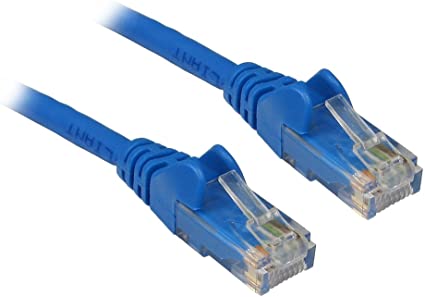
Step 3 - Ethernet cable
Yes Ethernet Cable can increase performance of FPS more than Wifi and it is not only for lag
because on wifi are more CPU usage
Updated guide (2022) - Vsync = off (optional)
Note: Vsync off can cause desync against Playstation 4 players, like slow motion and freeze during the fight, you will lose the fight probably, and input lag.
if you want disable vsync use this command ----------- r.VSync=0
and to disable motion blur--------- r.MotionBlurQuality=0
and to limit max fps: --------- t.maxfps=60
, try bSmoothFrameRate=True if you have input lag.
Open Engine.ini file
---------------------------------------------------------------------------------------
[Core.System]
Paths=../../../Engine/Content
Paths=../../../StreetFighterV/Content
Paths=../../../Engine/Plugins/Runtime/CriWare/Content
[/script/engine.engine]
bSmoothFrameRate=False
[SystemSettings]
r.SeparateTranslucency=0
r.OpacityStencil=0
r.FogDensity=0
r.VSync=0
r.MotionBlurQuality=0
[/script/engine.renderersettings]
t.maxfps=60
---------------------------------------------------------------------------------------
- How to Remove Pieces of Clothing from Certain Costumes★ 5 (793)42k views1k ♥4 minUpdated 25 Oct, 2017
- SFV common problems and solutions★ 5 (447)35k views599 ♥69 minUpdated 31 Dec, 2020
- Costumes with a Secret Variant★ 5 (835)21k views1.1k ♥8 minUpdated 8 Nov, 2024
- JURI★ 5 (392)13k views600 ♥45 minUpdated 10 Aug, 2019
- Lock on! - Cammy SFV Guide★ 5 (587)12k views837 ♥34 minUpdated 26 Sep, 2018
- Zap Zap! - Laura SFV Guide★ 5 (388)10k views535 ♥41 minUpdated 10 Nov, 2020




- Upgrading to PremiumTeam Fortress 2★ 5 (20k)1441k views11k ♥6 minUpdated May 11, 2022
- No More Room in Hell Official ManualNo More Room in Hell★ 5 (2.8k)569k views2.1k ♥29 minUpdated Apr 22, 2019
- NMRiH Community Hosting GuidesNo More Room in Hell★ 5 (526)351k views653 ♥1 minUpdated Aug 10, 2022
- ULTIMATE GUIDE FOR GAME DEV TYCOONGame Dev Tycoon★ 5 (5.8k)326k views10k ♥4 minUpdated 23 Jan, 2014
- How to 'Git Gud' Soon™MORDHAU★ 5 (2k)318k views3k ♥68 minUpdated Nov 16, 2024
- Лучшие кооперативные игры SteamPAYDAY 2★ 5 (1.5k)315k views2.1k ♥56 minRussianUpdated Apr 27, 2025






This guide was created by its original author on the Steam Community. Are you the author and want it removed? Request removal.