A beginner's guide to mapping
Introduction and Author's Notes
At the time of writing I am running ATS version 1.46 with a VERY modded game. I do NOT have any map mods however so I'm not sure how this would effect things like Reforma, C2C, and other map mods and thus cannot help you if you are having issues with any of these. I should also mention that I have multiple monitors and I use all 3. Trying to manage documentation, the map editor, Photoshop, spotify, and other nonsense is a PAIN with just on monitor. If you can save yourself the headache use at least 2 monitors, preferably 3, otherwise be prepared to do a lot of Alt + Tab.
For the purpose of being as thorough as possible, I'm going to include information in this guide that DID NOT work for me just in case they DO work for someone else. I'll try to provide links to the relevant sources when possible.
With that said, a lot of the information I'll be including here can be found in other places online Things like The SCS Forums and Reddit can be useful, but seem to have pretty partial information or are straight up outdated.
I will try and keep up with the guide as much as I can, but be warned I'm only writing this guide because I got fed up with scouring the internet for bits and piece of information on the map editor. In other words, this is my attempt to stitch the collective knowledge on the map editor together in an organized and comprehensive guide.
Lastly, to keep things as organized as possible without cluttering up sections of the guide with links, I'll be linking to different resources like Wikipedia, using superscript numbered references.
TL:DR Forgive me if the guide is messy, its hard trying to create a guide. I'll do my best to keep this as relevant and organized as possible.
Quick Links and References
Setup and The Dev Console
First things first: We need to get access to the map editor.
This is what most guides well tell you to do and apparently SHOULD just work.- Make sure your game is NOT RUNNING.
- Find and Edit config.cfg. Should be located in 'Documents/American Tuck Simulator/'
- On line 107 and 162, Change both values of "uset g_developer" and "uset g_console"' to '1'.
- Save.
- Open your game and click tilde, "~ / ` ".
- Type 'edit' in the console to open the map editor.
- Profit?
- Close your game again.
- Go to your steam library and right click on American Truck Simulator.
- Open properties and in the 'Launch Parameters' type '-edit'
- Close the properties menu and run the game again.
- You should launch into the map editor.
Now the very last step. (Not sure if you can do this before hand, I'm sure you can but this is just me playing it safe.)
Open you game directory, not the Documents/.American Truck Sim, but the actual game directory in your steamapps folder. and create two folders. First one is 'base', and the second folder should be called 'map'. You'll know you did it right if your file structure look something like "steamapps/common/American Truck Simulator/base/map/"
FORGETTING THIS STEP WILL SCREW YOU, SO DO IT
The Map Editor
If you've made it here, Congrats! This is where the magic happens. This is also where my knowledge about everything gets exponentially worse. Luckily, I'm really good at using google and the internet as a whole and can send you off in the right direction.
Here is a link[modding.scssoft.com] if you want to teach yourself the map editor and whatnot. You can also get to the documentation by clicking on Help > Online Documentation in the map editor itself and it'll open via the steam overlay.
For a super basic quick start guide you can check this website out too.[scsmoddingguide.github.io] I'm not sure how updated any of the information is here though so if you choose to follow that guide, you are on your own. I WOULD recommend giving it a look still as I am using it to help me learn the map editor for the firs time.
I can't make a map for you obviously. But I can explain what certain tools do, and how to use them.
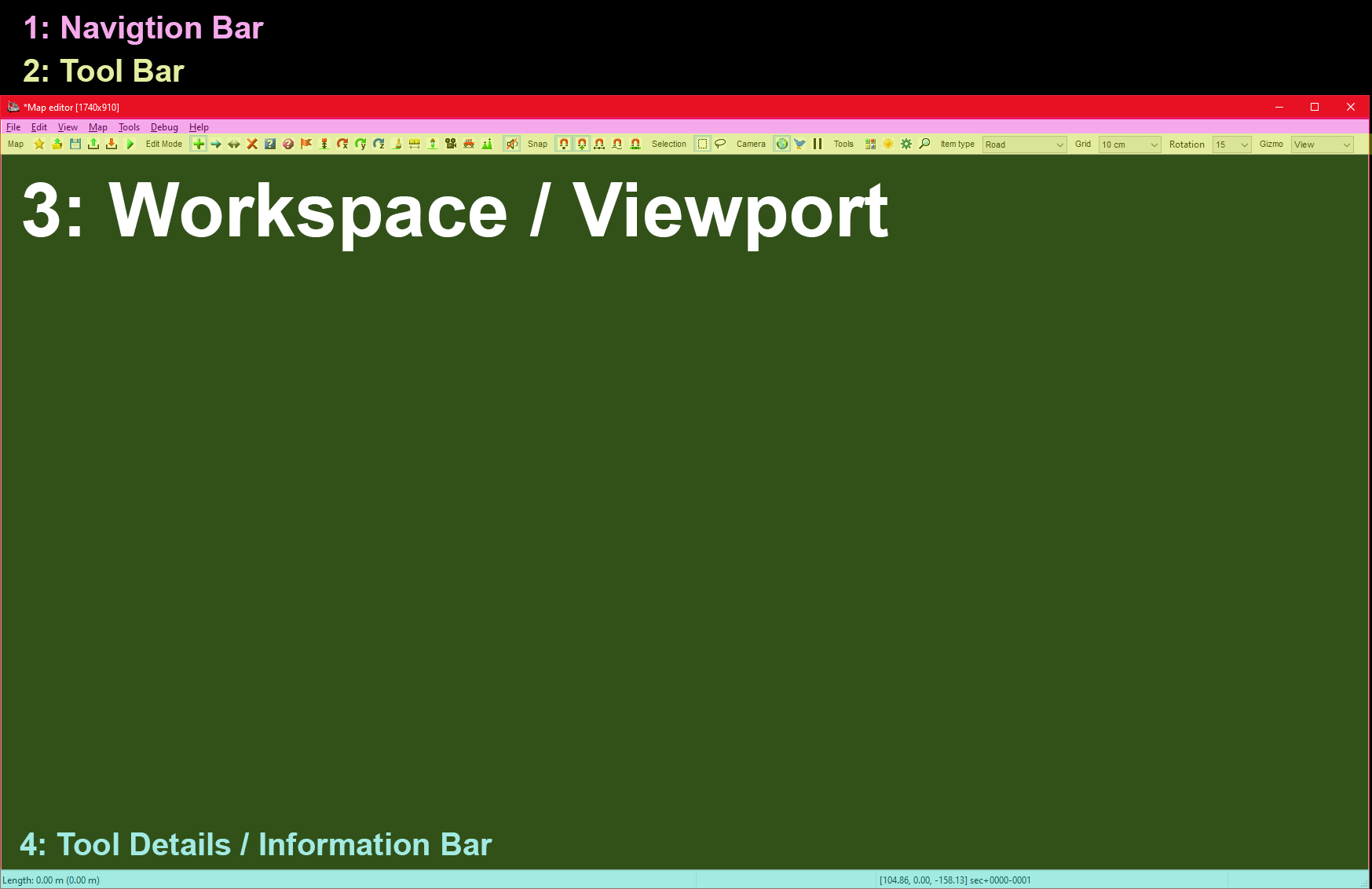
So lets get some terminology down. (I'm going to use the correct names for things when I can, but for other things, I'll call them what I wanna call them.)
1: Navigation Bar
Used to change views, manage files, debug stuff, change options, stuff like that.
2: Tool Bar
This is the "meat" of the map editor, its how you add things to the map, delete them, use placement tools, and change the properties of things displayed on the workspace / viewport.
3: Workspace / Viewport
it lets you... view things. Its where you click to place stuff, select things you've placed, and gives you a visual representation of your map.
4: Tool Details / Information Bar.
Contextual information. It changes based on what tool you have active or what you have selected.
 [fr]
[fr]
I'll edit the guide sometime in the future to include how to save an load, but for now you can just use these.
Saving[modding.scssoft.com], Loading[modding.scssoft.com], (Advanced) Hot editing.[modding.scssoft.com]
The Map Editor: Doing Stuff
Alright, so lets get down into it.
Click on the + sign on the Tool Bar and you should get a new window that looks something like this:
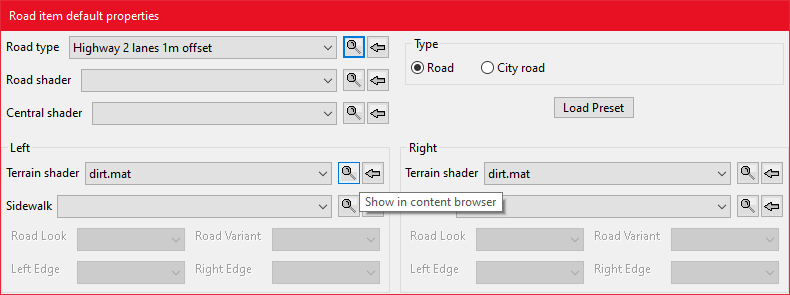
This neat little screen is how you place down roads! Fun fun.
Now if you want to try it out yourself, click on the 'Road type' dropdown, and click on where you want the road to start and then click again where you want to finish. BAM, first road placed.
More info on this menu here.[modding.scssoft.com]
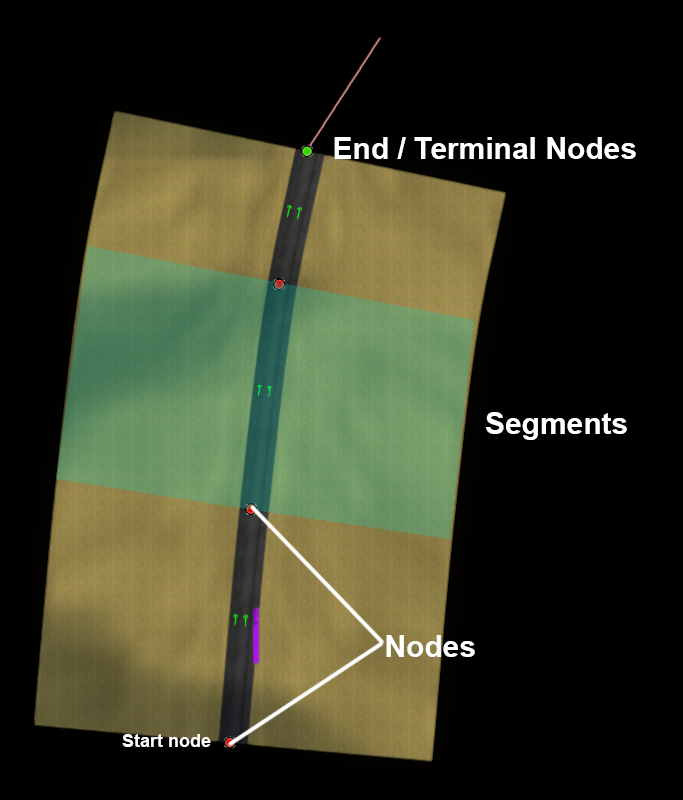
Well. Not sure if these are the proper name for anything but so long as the point gets across that's all that matters. Moving forward, this is how I will refer to each part.
Here is a few tips that will help you actually USE the road tools.
- With the road tool still active, indicated by the line thing that follows your mouse, you can use LMB on the terminal node again to stop the road. Clicking on the Terminal node again will allow you to continue the road. Clicking anywhere else (aside from another node) will let you start a new road.
- Segments can be removed by deleting a non-terminal node directly BEFORE the segment you want to delete. The segment you want to delete will be highlighted in blue.
- Right on a non-terminal node will allow you to change the segment of road directly after the node. Doing this to a terminal node will affect any node placed after the terminal node.
The Map Editor: Interchanges, Exits, and The Works.
Interchanges, Exits, and pretty much all roads that aren't JUST roads, can be accessed by clicking new item, looking to the very right of the tool bar, finding "Item Type", and clicking prefab. A new menu should appear with A LOT of different stuff, way to much to sort through atm. I will try to categorize them or provide a searchable list sometime in the future (maybe, I'll need some help for sure.)
- Hidden and unmarked roads - USA - WEST - updated 2026/02/20★ 5 (1.3k)38k views1.9k ♥73 minUpdated Feb 19
- The American Truckers Guide to everything!★ 5 (960)34k views1.5k ♥53 minUpdated Aug 16, 2020
- American Truck Simulator 100% Achievement-Guide [ENG]★ 5 (704)15k views1.3k ♥8 minUpdated May 16
- Все достижения American Truck Simulator + все DLC [100% Achievement-Guide] [upd: 15.05.26]★ 5 (1.2k)14k views1.7k ♥42 minRussianUpdated Jul 12
- ATS | Cheat-codes | ENG★ 4 (106)13k views183 ♥3 minUpdated 2 Jan, 2025
- Texas 100% Achievement-Guide [ENG]★ 5 (443)12k views595 ♥7 minUpdated May 16


- Upgrading to PremiumTeam Fortress 2★ 5 (20k)1441k views11k ♥6 minUpdated May 11, 2022
- No More Room in Hell Official ManualNo More Room in Hell★ 5 (2.8k)569k views2.1k ♥29 minUpdated Apr 22, 2019
- NMRiH Community Hosting GuidesNo More Room in Hell★ 5 (526)351k views653 ♥1 minUpdated Aug 10, 2022
- ULTIMATE GUIDE FOR GAME DEV TYCOONGame Dev Tycoon★ 5 (5.8k)326k views10k ♥4 minUpdated 23 Jan, 2014
- How to 'Git Gud' Soon™MORDHAU★ 5 (2k)318k views3k ♥68 minUpdated Nov 16, 2024
- Лучшие кооперативные игры SteamPAYDAY 2★ 5 (1.5k)315k views2.1k ♥56 minRussianUpdated Apr 27, 2025






This guide was created by its original author on the Steam Community. Are you the author and want it removed? Request removal.