VR Performance and Quality Tweaks for v1.5x ATS
System and VR information
I'm using an NVIDIA RTX 4090 paired with a Ryzen 5700X. However, the performance issues are not only hardware-related, as similar or even better performance can be achieved with older hardware. The main issue with ATS and ETS2 lies in the game engine and the increased number of DirectX draw objects, which will bottleneck the CPU due to poor multithreading support. This problem is even more noticeable on Ryzen CPUs, which have normally weaker single-core performance.
While in the future DirectX12 might offer some improvements, it would still require deeper changes to the game engine. We need to wait and see what the results will be.
VR I used a PSVR2 with Steam OpenXR and an HP Reverb G2 with Windows Mixed Reality, leveraging OpenXR and the OpenXR Toolkit. Windows Mixed Reality showed better performance compared to Steam OpenXR. This guide is designed specifically for native PCVR devices targeting 90Hz. Most of these settings are also compatible with Meta Quest devices. For the best experience, aim for a refresh rate of 72Hz on your headset.
In general, avoid using Motion Smoothing or Reprojection, as they won’t help with FPS drops and can cause warping effects. Make sure your render resolution is set correctly. In SteamVR, set the render resolution to Custom and adjust it accordingly. For example, PSVR2 should be configured at 68%.
Currently, PSVR2 with both SteamVR and SteamVR OpenXR has a significantly worse performance compared to running the HP Reverb G2 with the OpenXR Windows Runtime.
Configurations
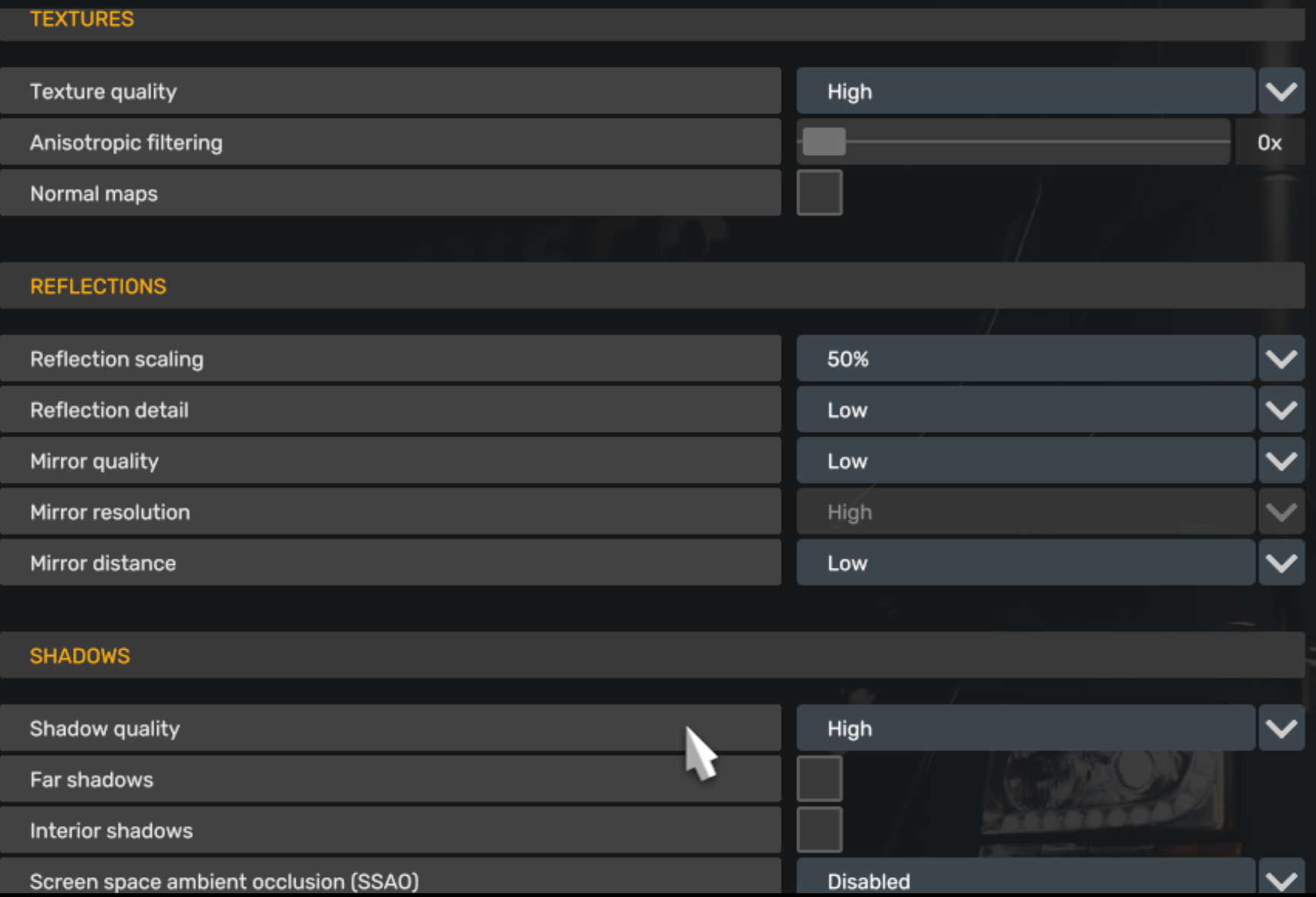
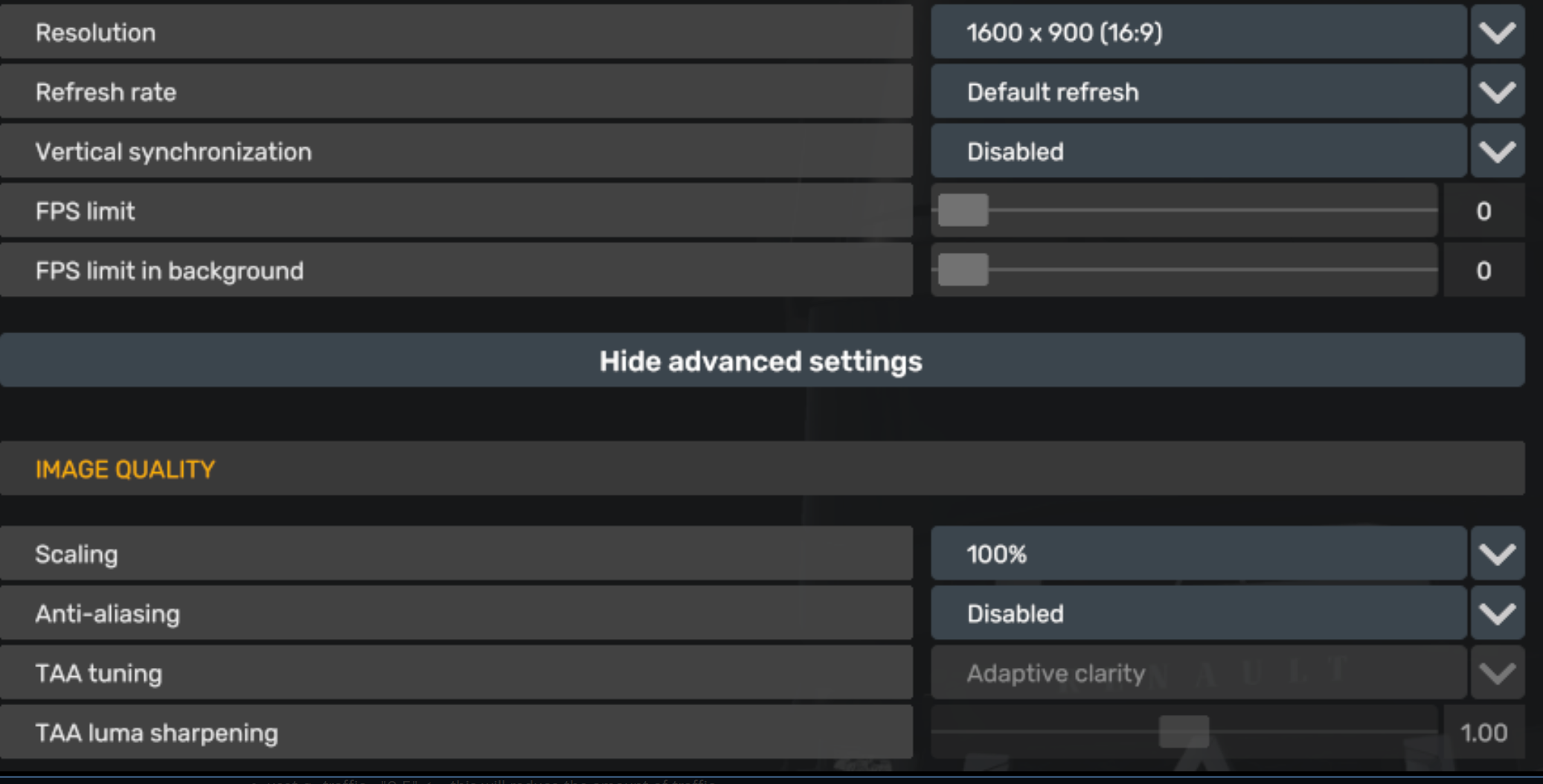
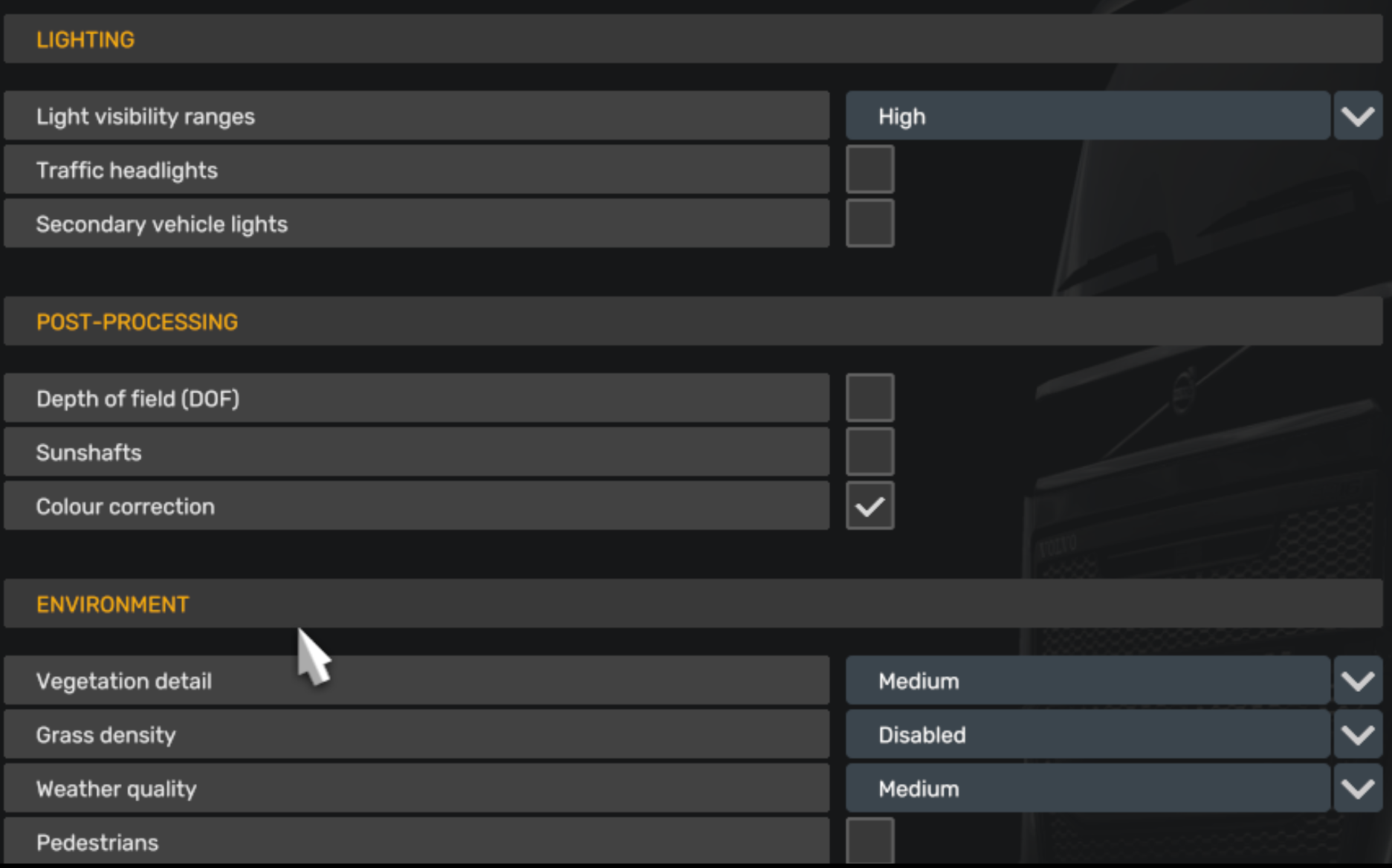
Resolution needs to be as low as possible or should be disabled though mirror mode!
in config.ini - uset r_manual_stereo_mirror_mode "0"
Optional (1): Consider increasing the graphical fidelity of mirrors by raising the mirror settings to "Medium." This change result in enhanced mirror visual quality but lead to more FPS drops, depending on the area and traffic conditions. Increase value with care!
Optional (2): Lowering vegetation detail from Medium to Low will improve overall FPS performance, as fewer objects are rendered as the simplified trees (appearing almost in 2D) reduce CPU load.
CONFIG.INI:
Location: Documents\American Truck Simulator\config.cfg
Optional to greatly increase pixel densityn(less jittery):
The default value is 1.0, but I find that 1.4 strikes a good balance between performance and quality. However, this can vary based on your GPU. I recommend adjusting it gradually, starting with 1.1 and increasing .1 from there. STEAM COMMAND-LINE:
Or when using traffic mods (see Mods section):
Please note that the recommended mm_pool size should be set to half of your available RAM. in my case, 16GB for a system with 32GB of RAM. These settings can help boost performance and reduce noticeable stuttering when using traffic mods. If you're not using any traffic mods, there's no need to enable it.
VIDEOCARD Settings:
NVIDIA 3D Settings:- Anisotropic Filtering: 16X
- Texture Filtering - Anistropic Sample Option: On
- Texture Filtering - Quality to Quality
- Texture Filtering - Negative LOD Bias to Clamp
- Texture Filtering - Anisotropic Sample Optimalization to Enabled
- Virtual Reality prerendered frames: 2 <-- Can improve performance and frame rates but may increase latency. Test with both values (1 and 2) and see what works best for your setup.
- Disable FXAA
- Enable Antialiasing Gamma Correction
RADION Software:
- Anisotropic Filtering: Set to 16X (Go to Graphics > Texture Filtering Quality, and set Anisotropic Filtering to 16X)
- Texture Filtering Quality: Set to High
- Set Wait for Vertical Refresh to Always Off
- FXAA: Disable (Go to Anti-Aliasing > Anti-Aliasing Method, and set it to Multisampling or None to disable FXAA)
OpenXR Toolkit:
This software provides a collection of useful features to customize and improve existing OpenXR applications, including render upscaling and sharpening, foveated rendering, image post-processing and other game-enhancing tweaks. However, as of 2024, support for OpenXR Toolkit is discontinued but still works.
- Enable upscaling using CAS on 80%
- Turbo mode: On (It appears to work correctly only with OpenXR Windows Runtime, not via SteamVR/Steam OpenXR)
Optional Configurations
Draw distance - Optional, but not recommended
The draw distance in the horizon such as mountains are hard-coded into the game engine and cannot be changed. You can improve the Level of Detail (LOD) for traffic and parked vehicles by increasing the corresponding value in your configuration file. However, I haven’t tested the impact on performance, so proceed with caution and only adjust after extended testing without these settings enabled.
The following settings will adjust the Level of Detail (LOD) for trees, grass (note: grass is disabled in this guide!) and falling leaves. Increasing these values will put more load on the GPU and may lower frame rates. Do not use these settings if you are using ProMods. First lod class is for trees, the second lod class for grass (detail vegetation). Requires adjustment in game_data.sii I can create mods if people are interested, the includes below values. Let me know in the comments.
Mods in Use
https://steamcommunity.com/sharedfiles/filedetails/?id=3270560242
https://steamcommunity.com/sharedfiles/filedetails/?id=2914601934
https://steamcommunity.com/sharedfiles/filedetails/?id=2562138763
https://steamcommunity.com/sharedfiles/filedetails/?id=1213282672
Final Note
Before you can determine if these settings work for you, you need to drive for at least an hour in various locations. You still experience FPS drops near and in cities, but they should occur less frequently (hopefully).
In general, if you experience FPS drops in the range of 2-10 frames, you can adjust your settings to mitigate the issue. However, drops exceeding 20 FPS, such as those often seen in city areas, are typically not recoverable, even with all settings on low and scaling reduced to 25%.
If you’re still having trouble reaching your desired FPS outside of cities and are using older hardware, try capping the FPS at half your headset's refresh rate. For example, 45 FPS for a 90Hz headset or 60 FPS for a 120Hz headset. I’ve tested this approach, and while it’s not the best experience, it’s better than dealing with constant stuttering.
If you have a direct drive wheel, be sure to check out my other guide for tips on optimizing your experience.
https://steamcommunity.com/sharedfiles/filedetails/?id=3365886715
Euro Truck Simulator 2 Guide
https://steamcommunity.com/sharedfiles/filedetails/?id=3364621373
- Hidden and unmarked roads - USA - WEST - updated 2026/02/20★ 5 (1.3k)38k views1.9k ♥73 minUpdated Feb 19
- The American Truckers Guide to everything!★ 5 (960)34k views1.5k ♥53 minUpdated Aug 16, 2020
- American Truck Simulator 100% Achievement-Guide [ENG]★ 5 (704)15k views1.3k ♥8 minUpdated May 16
- Все достижения American Truck Simulator + все DLC [100% Achievement-Guide] [upd: 15.05.26]★ 5 (1.2k)14k views1.7k ♥42 minRussianUpdated Jul 12
- ATS | Cheat-codes | ENG★ 4 (106)13k views183 ♥3 minUpdated 2 Jan, 2025
- Texas 100% Achievement-Guide [ENG]★ 5 (443)12k views595 ♥7 minUpdated May 16



- Upgrading to PremiumTeam Fortress 2★ 5 (20k)1441k views11k ♥6 minUpdated May 11, 2022
- No More Room in Hell Official ManualNo More Room in Hell★ 5 (2.8k)569k views2.1k ♥29 minUpdated Apr 22, 2019
- NMRiH Community Hosting GuidesNo More Room in Hell★ 5 (526)351k views653 ♥1 minUpdated Aug 10, 2022
- ULTIMATE GUIDE FOR GAME DEV TYCOONGame Dev Tycoon★ 5 (5.8k)326k views10k ♥4 minUpdated 23 Jan, 2014
- How to 'Git Gud' Soon™MORDHAU★ 5 (2k)318k views3k ♥68 minUpdated Nov 16, 2024
- Лучшие кооперативные игры SteamPAYDAY 2★ 5 (1.5k)315k views2.1k ♥56 minRussianUpdated Apr 27, 2025






This guide was created by its original author on the Steam Community. Are you the author and want it removed? Request removal.