Full VR Setup, Optimization and Mods Guide (Quest Headsets)
The Setup
This Guides focus is on Meta Quest Headsets (I use a Meta Quest 3S) and many points are still usable for others!
Most points either work, independantly of headset, or you have to find the equivilant to your headset/software. :D
Some of these Settings are heavily dependant on what specs your PC has!
I have:
GPU: RTX 3060
CPU: Intel i5-12400
RAM: 32 GB
I will try to keep these Settings universal, but if you notice bad performance or lower Quality then you should have, mess around with your Settings a bit!
You will need the Meta Horizon Link App and Link your Headset to it (using Air Link or a Link-Cable)
I will NOT show you how to Connect your Headset!
I use Air Link and think you should do so too, since Link Cables are expensive and if you want a decent Cable-Expirience, you need the expensive one, no cheap cables!
Go with Air-Link, it makes everything a lot easier!
We will NOT be using SteamVR for this Guide, but if you don't have a Quest Headset, you probably want to use SteamVR!
How to Start VR
This is how to launch the game in VR on the newest version, as well as any older version 1.55 or higher. (if you play on older versions for mod compatibility)
Yes, you can use VR betas, but this is more practical!
1. Right click on the Game, and select "Properties..."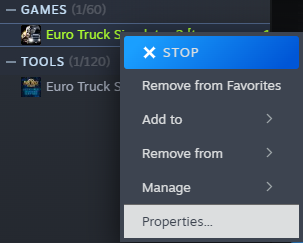
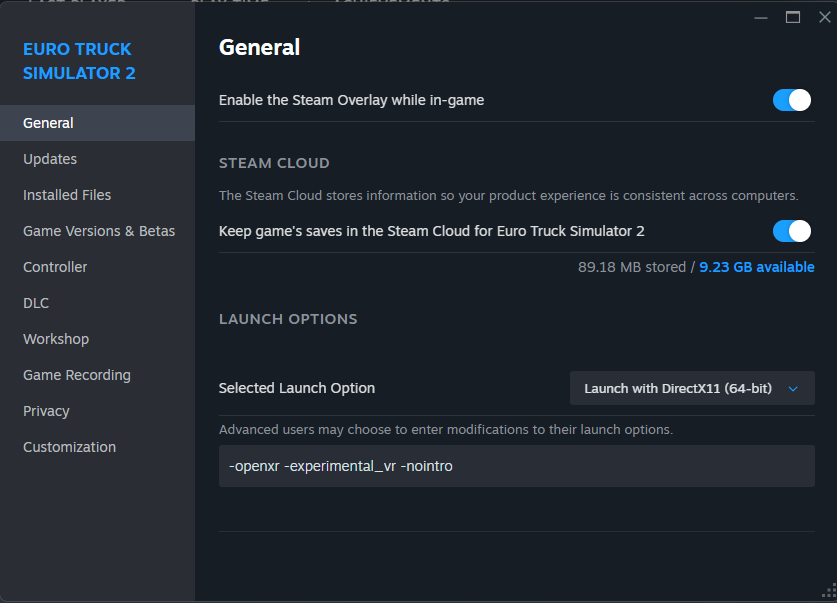
Then in the General Tab, choose "Launch with DirectX11" (Rendering API, practical for VR)
In the Advanced Line below, type in:
-openxr -experimental_vr -nointro
(If you have 32GB of ram or more, i suggest adding "-mm_pool_size 16384", to increase available RAM for the game, the RAM is given in MegaBytes, which is why its such a high number. NEVER set it to your total ammount of RAM!)
Important for other Headset-Users!
If you do not have a quest headset, and therefore use SteamVR, replace:
-openxr
with
-openvr
When you launch your Game, you will be in "VR Mode" and your Monitor will be divided in 2 halves to display each eye correctly.
In your headset, you should be in a void with the main menu floating around.
You cannot use your controllers to use the menu, use your mouse instead.
You can switch between VR and Normal in Menus by pressing "F11"!
In-Game Performance Optimization
Good in-Game Settings play a big Role, depending on your Specs!
Still, i recommend these Settings, no matter your Setup!
The Base will be your Graphic Settings Set to the Maximum, here are the Changes we make:
If you use TAA, use "Always sharp" and adjust the Slider to your PCs Strength!
If you use Snowymoon, or Snowymoons TAA-V10, do not use the in-game TAA, it's wasted performance, since Snowy already does it.
Note: If Scale is over 100% already, increasing TAA is worth more then increasing Scale more!
If you're still having performance issues, try reducing:
- Reflection detail
- Mirror quality
- Vegitation detail
- Grass density
- Far Shadows
- Light visibility ranges (if really desperate, important for Immersion)
Note: VR is VERY demanding! Try to lower as many settings as possible until you notice a visual downgrade, if you have performance issues.
Config Optimization
Find your "config.cfg" file in:
Documents --> American Truck Simulator
Open it with a Text Editor and change these lines:
uset r_buffer_page_size "10" --> set it to "30"
uset cf_asus_aura "1" --> set it to "0"
uset cf_razer_chroma "1" --> set it to "0"
Other Optimization
Important in the Meta Horizon Link App:
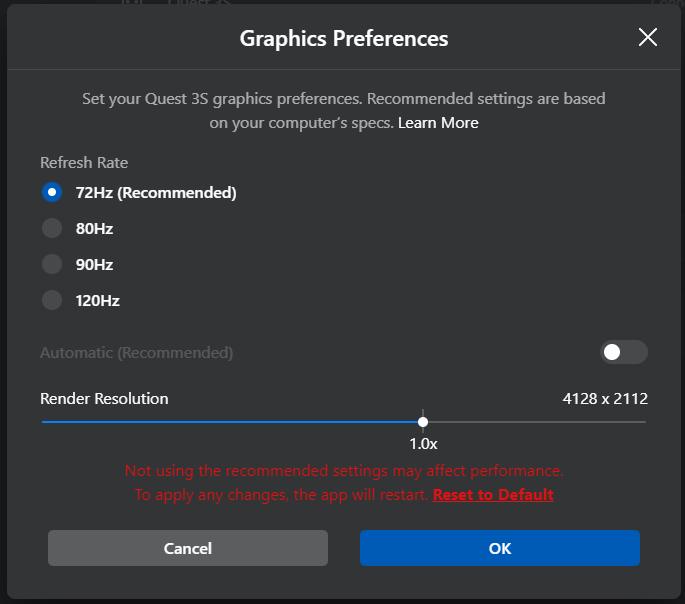
If you have a good PC, you can try a Refresh Rate of more then 72, but most of the time that causes visual bugs.
The render resolution, you should be safe to set it a big higher then 1x, i have mine at 1.1x!
If you have performance issues, leave it at 1x, but don't go lower.
Here's what you should change!
Open the "OculusDebugTool.exe" found in:
This PC --> Windows --> Programs --> Meta Horizon --> Support --> oculus-diagnostics
You will see this: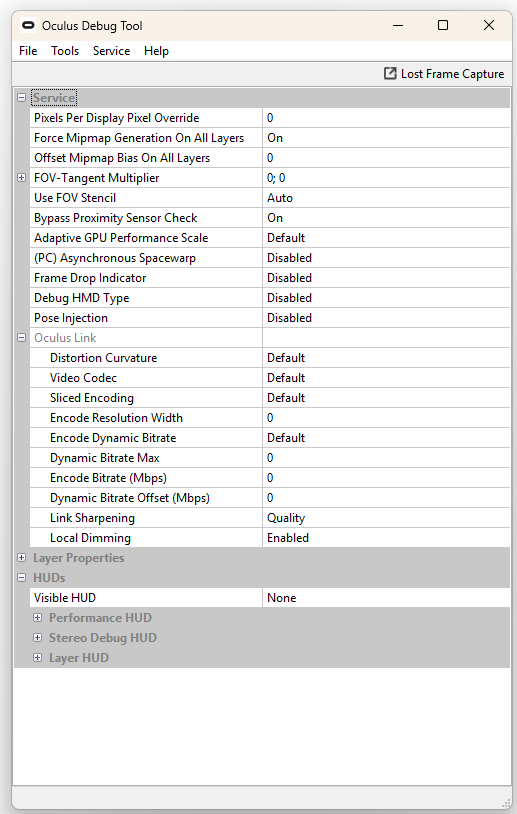
(PC) Asynchronous Spacewarp MUST be set to Disabled, if not, it causes Stretchy and Wobbly Visuals! (like stretching Wipers, bouncing cab, etc.)
Turning off "Use FOV Stencil", might help reduce black borders when moving your head, not reliable, but worth trying.
You can also change "Link Sharpening" depending on your current Performance!
The rest can be their defaults.
IN your Headset, turn down brightness to ~50%-75%!
It saves battery and makes dark colors look more dark!
(at 100%, blacks don't look very black, but more gray)
REALLY REALLY IMPORTANT!
Inside your Meta Quest (NOT IN PCVR!)
Go to:
Settings --> General --> Power
under Battery you find:
Battery Saver
TURN IT OFF
It reduces visual quality when the headset is stressed.
It is extremely sensitive and lowers resolution by a LOT, even when not needed!
Quick UI Immersion
In the In-Game interface settings:
Keep Route Advisor hidden: Yes
Simple.
You don't want a floating UI in your immersive truck!
Also, if you play multiplayer, you might want to set:
Enable name tags: False
Same reason as the Route Advisor.
Thank you!

I hope this helped, if you have any
Questions, ask me in the comments!
Also, please don't ask me about different Headset Brands.
I don't know! :,)
For any of the MetaQuest settings, try to find an equivilant to it on your headset.
- Hidden and unmarked roads - USA - WEST - updated 2026/02/20★ 5 (1.3k)38k views1.9k ♥73 minUpdated Feb 19
- The American Truckers Guide to everything!★ 5 (960)34k views1.5k ♥53 minUpdated Aug 16, 2020
- American Truck Simulator 100% Achievement-Guide [ENG]★ 5 (704)15k views1.3k ♥8 minUpdated May 16
- Все достижения American Truck Simulator + все DLC [100% Achievement-Guide] [upd: 15.05.26]★ 5 (1.2k)14k views1.7k ♥42 minRussianUpdated Jul 12
- ATS | Cheat-codes | ENG★ 4 (106)13k views183 ♥3 minUpdated 2 Jan, 2025
- Texas 100% Achievement-Guide [ENG]★ 5 (443)12k views595 ♥7 minUpdated May 16




- Upgrading to PremiumTeam Fortress 2★ 5 (20k)1441k views11k ♥6 minUpdated May 11, 2022
- No More Room in Hell Official ManualNo More Room in Hell★ 5 (2.8k)569k views2.1k ♥29 minUpdated Apr 22, 2019
- NMRiH Community Hosting GuidesNo More Room in Hell★ 5 (526)351k views653 ♥1 minUpdated Aug 10, 2022
- ULTIMATE GUIDE FOR GAME DEV TYCOONGame Dev Tycoon★ 5 (5.8k)326k views10k ♥4 minUpdated 23 Jan, 2014
- How to 'Git Gud' Soon™MORDHAU★ 5 (2k)318k views3k ♥68 minUpdated Nov 16, 2024
- Лучшие кооперативные игры SteamPAYDAY 2★ 5 (1.5k)315k views2.1k ♥56 minRussianUpdated Apr 27, 2025






This guide was created by its original author on the Steam Community. Are you the author and want it removed? Request removal.