Recover a world that won't open anymore because of a mod that was removed from Workshop
Install DB Browser for SQLite
If you aren't aware, your worlds and their data is stored in SQLite format on your computer.
In order to access your world's data, you'll need the right tool, otherwise you aren't going to go far. My first choice for this case is DB Browser, simple to use and straight to the point.
First, go to https://sqlitebrowser.org and click on Download at the top of the page. Next find the download link for you respective OS. If you use Windows and don't know which one to take between 32 bits and 64 bits, then take 64 bits, because chances are you are most likely using 64 bits Windows.
If you chose the installer, run it, install the program and launch it. Otherwise, extract the contents of the zip file in a folder and then run the program.
With this, you're ready to go on to the next step.
Create a new world with NO mods enabled
Find your world files and back them up
In order to navigate there, you'll have to press the Windows key, search for "Run" and open the Run program. Then, type precisely this: %APPDATA%\Axolot Games\Scrap Mechanic\ and press OK. This should open a folder with only one folder, the "User" folder. Open it and the "User_" followed by a bunch of numbers folder. Go to the "Save" folder and find your world.
If your world's name is "Awesome Fruits" then you'll have to find a file called "Awesome Fruits.db"
Do the same for the world you created just before, which should be called "Clean World.db"
Copy both of these and paste them in a separate folder, just for security measures in case you do anything wrong.
Now, proceed to the next part of the guide!
Fix your world file in DB Browser
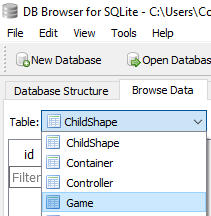
Next, find the "Table: ChildShape" list and click on it, then find "Game" and open that table.
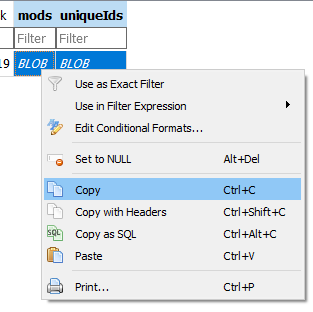
Next, select the mods and uniqueIds fields, right click and click Copy
Now, click "Open Database" again, and open your world's original file, find the "Table: ChildShape" list again, open it, find "Game" and open that table.
Select the mods and uniqueIds fields again, right click but this time, click "Paste"!
Finally, click "Write Changes" in the upper left corner of your screen, and close DB Browser.
Then proceed to the next step!
Load your world (and don't forget to select your mods again!)
If you did everything right, your world should load properly once again and you'll be able to enjoy making contraptions once again.
- How raids actually work (Version 0.5.1)★ 5 (550)19k views867 ♥3 minUpdated 7 Apr, 2021
- Как пройти выживание?★ 5 (448)18k views700 ♥25 minRussianUpdated 12 Aug, 2020
- Все команды для скрап механик★ 5 (259)15k views475 ♥1 minRussianUpdated 1 Dec, 2023
- Robots and weapons concept proposal★ 5 (421)10k views182 ♥3 minUpdated 1 Apr, 2022
- How Does Fuel Consumption Work? Which Engine Is the Most Efficient?★ 5 (182)10k views152 ♥3 minUpdated 16 Oct, 2020
- Русификатор для Scrap Mechanic by Pro100DarkTV (v2.5)★ 5 (317)9.9k views516 ♥1 minRussianUpdated 19 Jun, 2021


- Upgrading to PremiumTeam Fortress 2★ 5 (20k)1441k views11k ♥6 minUpdated May 11, 2022
- No More Room in Hell Official ManualNo More Room in Hell★ 5 (2.8k)569k views2.1k ♥29 minUpdated Apr 22, 2019
- NMRiH Community Hosting GuidesNo More Room in Hell★ 5 (526)351k views653 ♥1 minUpdated Aug 10, 2022
- ULTIMATE GUIDE FOR GAME DEV TYCOONGame Dev Tycoon★ 5 (5.8k)326k views10k ♥4 minUpdated 23 Jan, 2014
- How to 'Git Gud' Soon™MORDHAU★ 5 (2k)318k views3k ♥68 minUpdated Nov 16, 2024
- Лучшие кооперативные игры SteamPAYDAY 2★ 5 (1.5k)315k views2.1k ♥56 minRussianUpdated Apr 27, 2025






This guide was created by its original author on the Steam Community. Are you the author and want it removed? Request removal.