Using String Logic In Impact
Introduction
- Overview
- The Different Logic Types
- About Strings And Characters
- Using String Inputs
- Using String Gates
- Using String Outputs
- Examples
Additionally, this guide was made for the Impact version of February 5th, so there might be changes when a new update is released.
Please excuse any spelling mistakes, grammatical errors or something in that sense as I'm not an English native speaker. Correct me if I'm wrong.
- Digital and Number Logic in Scrap Mechanic
- Strings (especially in Lua)
- Standard String Manipulation Functions (Concatenate, Repeat...)
The Different Logic Types
- Digital Logic (the default logic)
- Number Logic (shipped with The Modpack)
- String Logic (shipped with Impact)
In any of these logic types the corresponding logic parts can be chained, that means they can be put in series like in electronics.
Normally a chain looks something like: input, gate [gate, gate...], output.
For starting to understand String Logic, it is crucial that you understand the base principle of logic. For every logic it stays the same.
Thats why it is easy to create a table that compares these logic types:Unlike digital or number logic it is not natively integrated (yet?) in Scrap Mechanic. That means that mods that support a similar feature do not have to be compatible with each other.
If you are a mod maker and want to implement Impacts String Logic system you have the permission to do so. In the future there will be a section how do this, but for now you have to find it out on your own.
About Strings And Characters
But unfornately we have to go deeper, because computers don't think the way we do. They like numbers, collections of bits to be precise, not plain text. And, as we want to use text on a computer, we somehow have to pack the text we want into numbers.
So lets think how we can approach this issue.
Therefore we have to think of the principles of text: each text is made out of letters. So one text is just a collection of letters. You may not recognized it, but we already solved a part of our issue: converting text to a collection of something.
For the last step we just have to map these text components (characters) to numbers.
That can be done really easily, because there are standards like ASCII or UTF-8 that do this for us.
In Lua, respectively Impact, the first character in the string has the index 1 and the last one has the length of the string as the index.
So for example when you index the string "Hello World" with 5, the character at that index would be 'o'.
For now you just have to know that whenever you see a quotation mark in String Logic, it usually indicates that we are using a string value.
Another important literal is the character literal ('). Whenever you see this symbol in front of a single text component, the following text is a character value.
Nil is a special value in Lua that indicates that a variable has not been set. It is the same as "null" in other high level programming languages.
A nil value can occur in String Logic when there are errors. For example when a String Gate has too little inputs, it outputs nil.
Normally, this should not lead to any problems, but try to avoid this value.
Using String Inputs
Great, you made it here, let's start with the actual logic.

As the name suggests it is used to input strings. Therefore it can only be connected to inputs, not to outputs.
Using String Gates

They can be connected to every type of logic that's currently in the game. They support unlimited inputs as well as unlimited outputs.
At the top, a String Gate shows the functions name it is set to. The default is: Concatenate.
String Gates output values according to their inputs and their function they are set to. Normally, they are in the middle of a String Logic chain.
String Gates are similar to regular Logic Gates. They have an output delay of 1 tick and can be connected and chained to create complex setups. They also can be colored. This sometimes is a relevant feature like you know it from Number Logic from The Modpack.
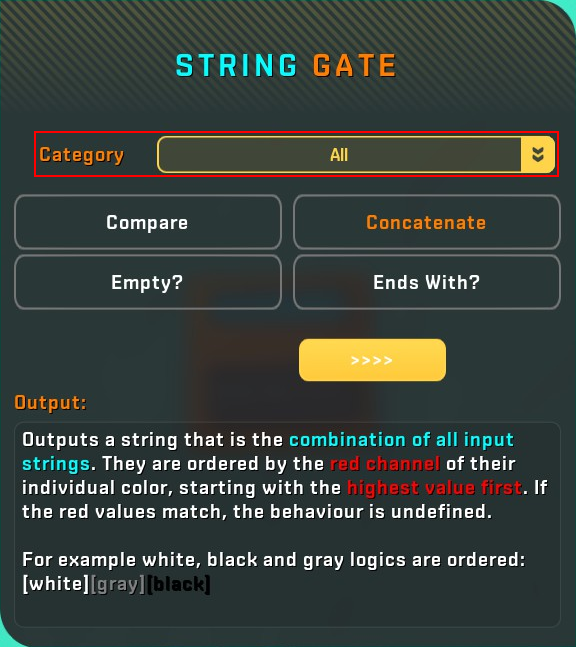
You can select a category by using the dropdown. Once you the select a new category the functions are refiltered. By default all categories are selected.
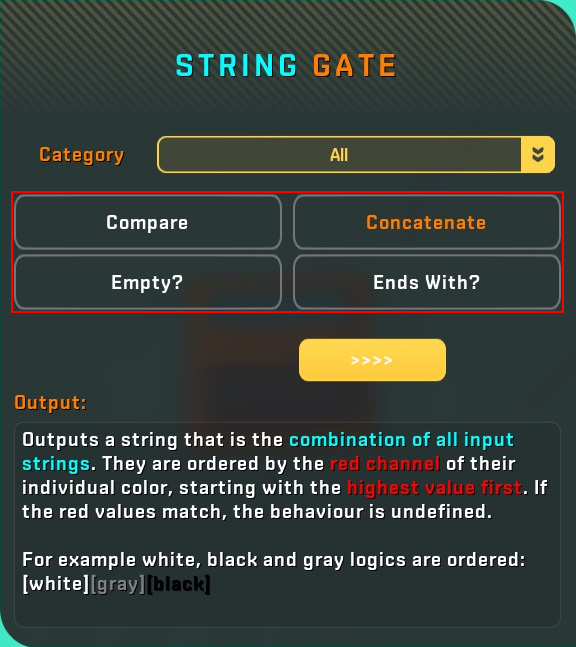
Under the category dropdown you can find a grid that consists of 4 function names. These functions are ordered alphabetically and filtered by the category above.
You can click any of these functions to show a description what it does.
By clicking these functions and closing the GUI the selected function is automatically set to the String Gates function.
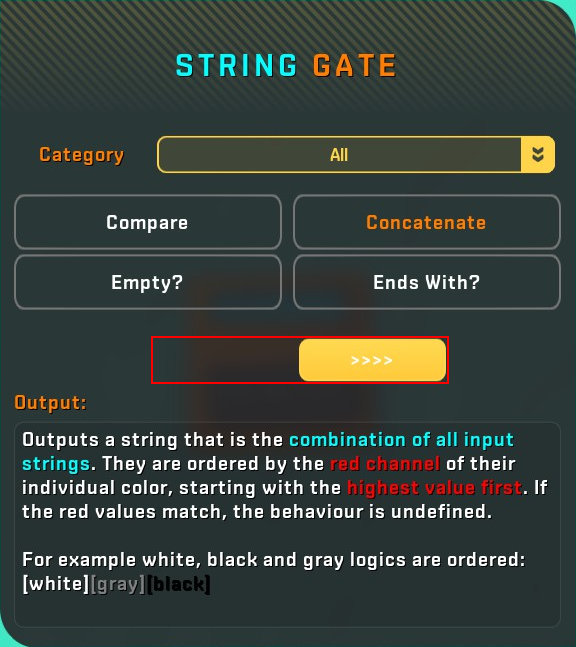
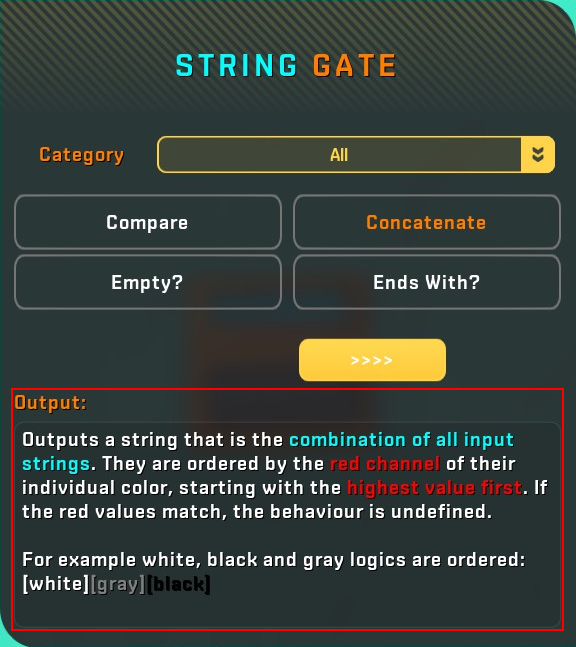
This section just describes the function, nothing to mention here.
This function combines all input strings descendingly ordered by their red channel of the color of their String Outputter (String Input, String Gate...).
If you don't know what that means, here is an explanation. Colors in Scrap Mechanic are defined by 4 channels R(ed), G(reen), B(lue) and A(lpha). This is known as RGBA. Each of these channels can have a value from 0 to 255. The alpha channel is just transparency, a value of 255 means the color is opaque, a value of 0 means the color is fully transparent. To quickly define those channels, we use the hexadecimal number system (search online to get an explanation of that) and for convenience we ignore the alpha channel and say it is 255 by default.
Considering the paragraph above, a color of (R = 255, G = 255, B = 255) or for short #FFFFFF would be white. You can use a color picker (online) to experiment with that or you can find the colors of the Paint Tool here[scrapmechanic.fandom.com].
It is recommended to use black, gray or white at first to keep it simple.
Using String Outputs

They can be connected to every type of logic that's currently in the game.
You can select the output mode in the String Output GUI.
You can connect a string outputter (String Input, String Gate...) in any color except for the white of the Paint Tool to the String Output to print the value.
If the connected string outputter (String Input, String Gate...) has the color white, the String Output thinks the string outputter stores a name of a player. The player with that name then receives no messages from the String Output. There can be more than one ignored players.
If the String Output is in HUD (Heads Up Display) mode, you can also connect a number signal. This number signal then indicates the time to display the text on the HUD in seconds.
That means you can color your text like the following:
"#FF0000Red #00FF00Green #0000FFBlue #FFFFFFWhite" will result in a colored output according to the color names.
For custom colors I recommend using an color picker (just type "color picker" into your browser).
Please give feedback of this guide, to help me improve it.
Examples
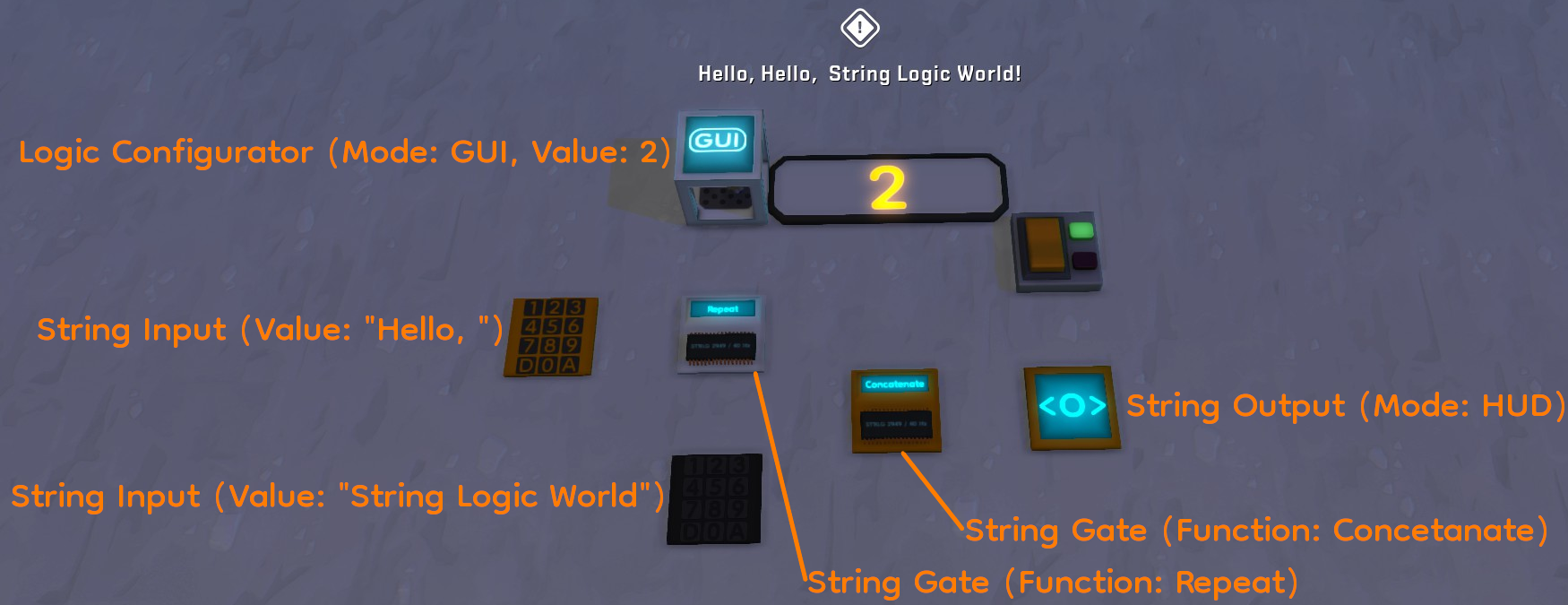
Connect them like connected here:
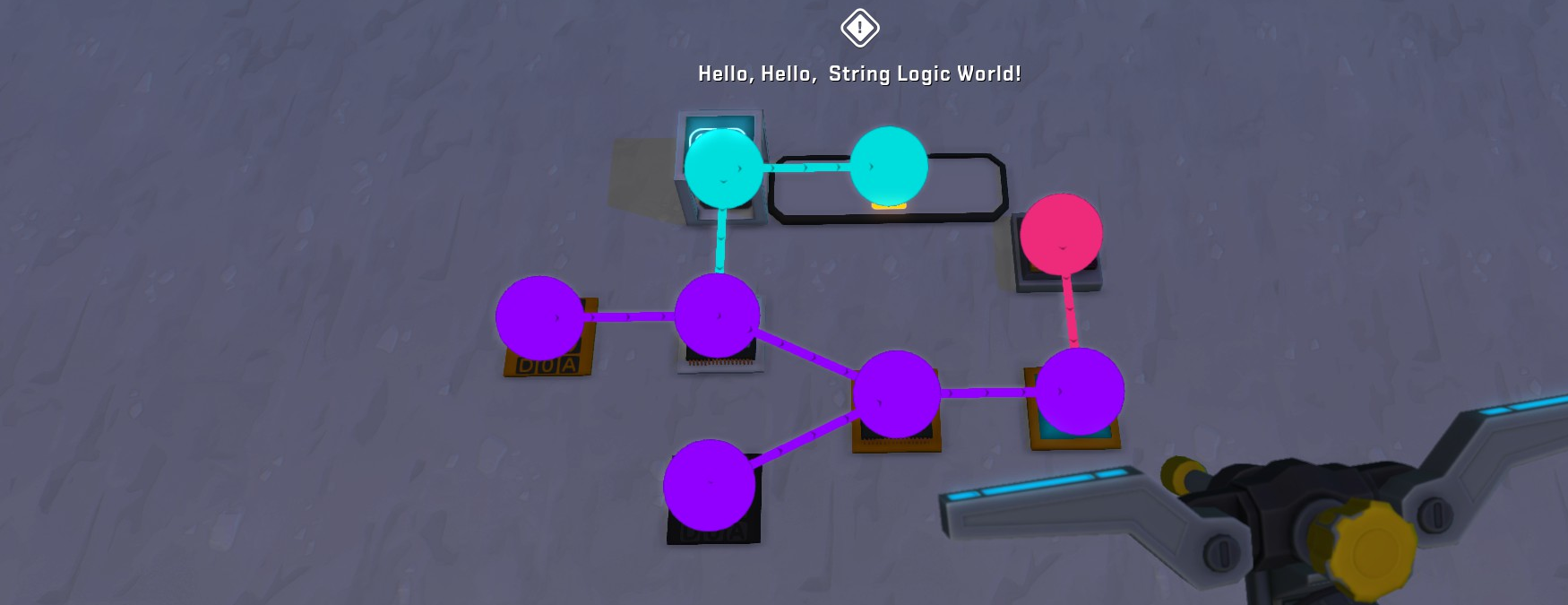
Activate the switch and see what happens.
- How raids actually work (Version 0.5.1)★ 5 (550)19k views867 ♥3 minUpdated 7 Apr, 2021
- Как пройти выживание?★ 5 (448)18k views700 ♥25 minRussianUpdated 12 Aug, 2020
- Все команды для скрап механик★ 5 (259)15k views475 ♥1 minRussianUpdated 1 Dec, 2023
- Robots and weapons concept proposal★ 5 (421)10k views182 ♥3 minUpdated 1 Apr, 2022
- How Does Fuel Consumption Work? Which Engine Is the Most Efficient?★ 5 (182)10k views152 ♥3 minUpdated 16 Oct, 2020
- Русификатор для Scrap Mechanic by Pro100DarkTV (v2.5)★ 5 (317)9.9k views516 ♥1 minRussianUpdated 19 Jun, 2021




- Upgrading to PremiumTeam Fortress 2★ 5 (20k)1441k views11k ♥6 minUpdated May 11, 2022
- No More Room in Hell Official ManualNo More Room in Hell★ 5 (2.8k)569k views2.1k ♥29 minUpdated Apr 22, 2019
- NMRiH Community Hosting GuidesNo More Room in Hell★ 5 (526)351k views653 ♥1 minUpdated Aug 10, 2022
- ULTIMATE GUIDE FOR GAME DEV TYCOONGame Dev Tycoon★ 5 (5.8k)326k views10k ♥4 minUpdated 23 Jan, 2014
- How to 'Git Gud' Soon™MORDHAU★ 5 (2k)318k views3k ♥68 minUpdated Nov 16, 2024
- Лучшие кооперативные игры SteamPAYDAY 2★ 5 (1.5k)315k views2.1k ♥56 minRussianUpdated Apr 27, 2025






This guide was created by its original author on the Steam Community. Are you the author and want it removed? Request removal.